What is a Customized Report in Password Vault?
The Customized Reports section allows administrators to create tailored reports by selecting specific audit events and applying filters based on defined criteria. This enables organizations to generate highly targeted reports for auditing, compliance, and operational analysis.
Unlike predefined reports, customized reports offer flexibility to filter data based on attributes, conditions, and combinations of criteria, and can be saved for repeated use or scheduled for automated export.
How to Access Customized Reports
To view and manage custom reports:
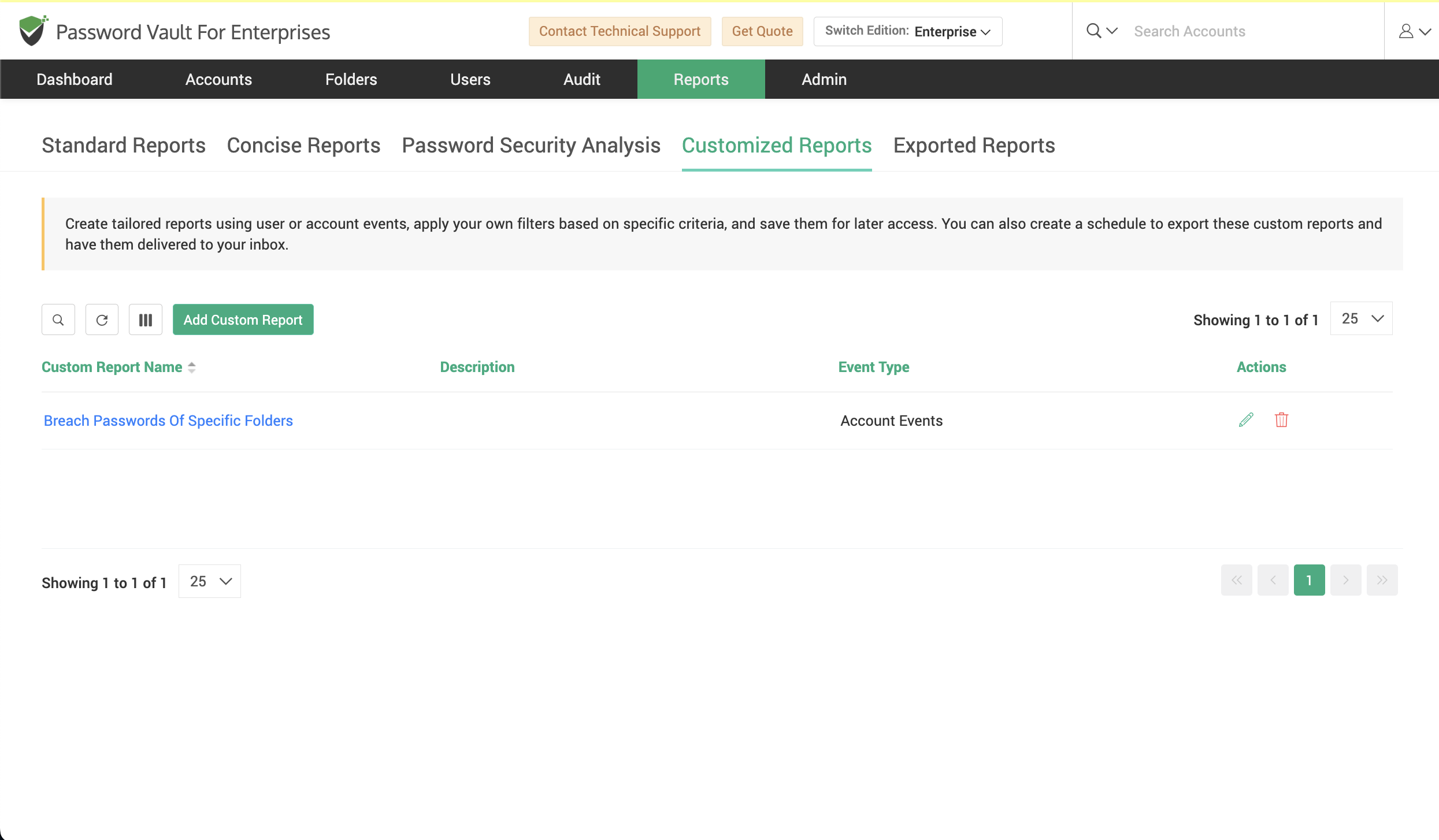
- Navigate to Reports → Customized Reports.
- The page displays a list of all previously created custom reports along with details such as:
- Custom Report Name
- Description
- Event Type (Account Events or User Events)
- Use the available options to:
- Edit an existing report
- Delete a report
- Or create a new report using Add Custom Report
How to Create a Custom Report
To create a new custom report:
- Click on Add Custom Report.
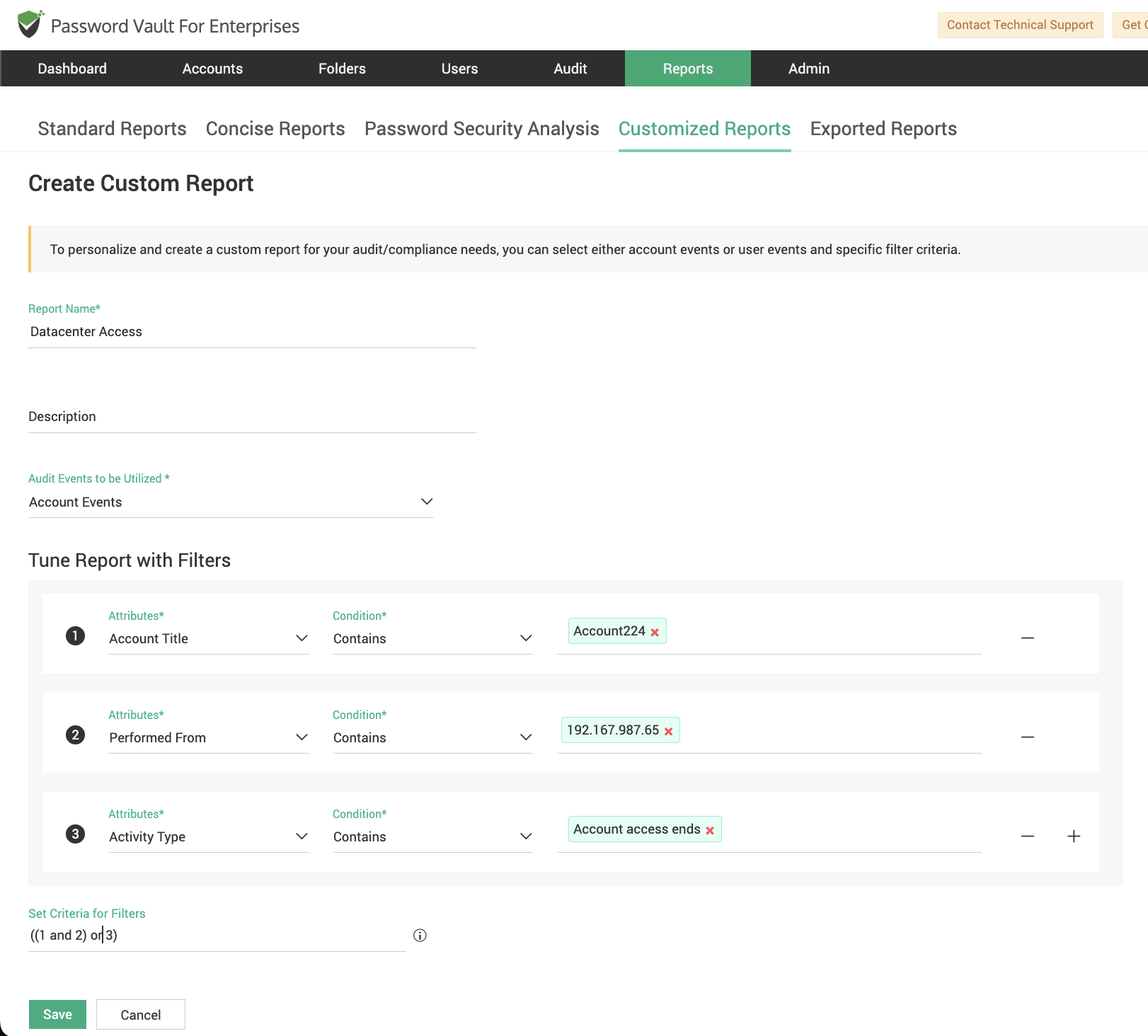
- In the Create Custom Report page, enter the following details:
- Report Name Provide a unique name to identify the report.
- Description Enter a brief description explaining the purpose of the report.
- Audit Events to be Utilized
Select the type of events to be included in the report:
- Account Events
- User Events
How to Configure Filters for the Report
To refine the report based on specific criteria:
- Navigate to the Tune Report with Filters section.
- Define filters using the following fields:
- Attributes - Select the audit attribute to filter on (for example, Account Title, Account Name, Account Address, Activity Type, Folder, Performed By, Performed From, etc.).
- Condition -
Choose how the filter should be applied:
- Equals – Exact match with the specified value
- Contains – Includes the specified value
- Does Not Contain – Excludes the specified value
- Value - Enter the value to be matched against the selected attribute.
- Click the + (Add) icon to include additional filters.
How to Apply Multiple Filter Criteria
When multiple filters are added:
- Define how the filters should be combined using logical expressions.
- For example:
- 1 AND 2 – Both conditions must be satisfied
- (1 AND 2) OR (3 AND 4) – Combination of multiple filter groups
- If no criteria are explicitly defined, all filters will be applied using the AND condition by default.
- Use this capability to create granular and precise reports based on multiple parameters.
How to Save and Use the Customized Report
- After configuring the filters, click Save to create the custom report.
- The report will be listed under the Customized Reports section.
- Click on the report name to generate and view results based on the defined criteria.
How to Export and Schedule Customized Reports
To export or automate the customized report:
- Click on Export to download the report in a supported format such as CSV, PDF, or XLSX.
- Click on Schedule Export to configure automated report generation at defined intervals.
- Use the Download As if available to retrieve previously generated reports for reference.
Important Notes
- If the Folder attribute is selected in filters, all activities related to accounts within that folder will be included in the report.
- Logical operators used in filter combinations are applied in lowercase by default.
FAQs
What are customized reports in Password Vault?
Customized reports in Password Vault allow administrators to create highly specific reports by selecting audit event types and applying filters based on attributes such as account name, activity type, user, IP address, and more. These reports are designed for precise auditing, compliance tracking, and operational analysis.
How do I create a custom report in Securden Password Vault?
To create a custom report, navigate to Reports → Customized Reports and click on “Add Custom Report.” Enter a report name, select the event type (account or user events), and configure filters using attributes, conditions, and values. Once configured, save the report to generate results based on your defined criteria.
What types of filters can be applied in customized reports?
Customized reports support filters based on attributes such as account title, activity type, performed by, performed from (IP), folder, and more. Conditions include Equals, Contains, and Does Not Contain. Multiple filters can be combined using logical expressions like AND and OR for granular analysis.