
Import Users from LDAP
Securden Password Vault for Enterprises integrates with LDAP-compliant directory services to import users and groups. Administrators can configure the directory connection, define search criteria, and select the users to import.
Navigate to Users >> Add >> Import Users from LDAP.
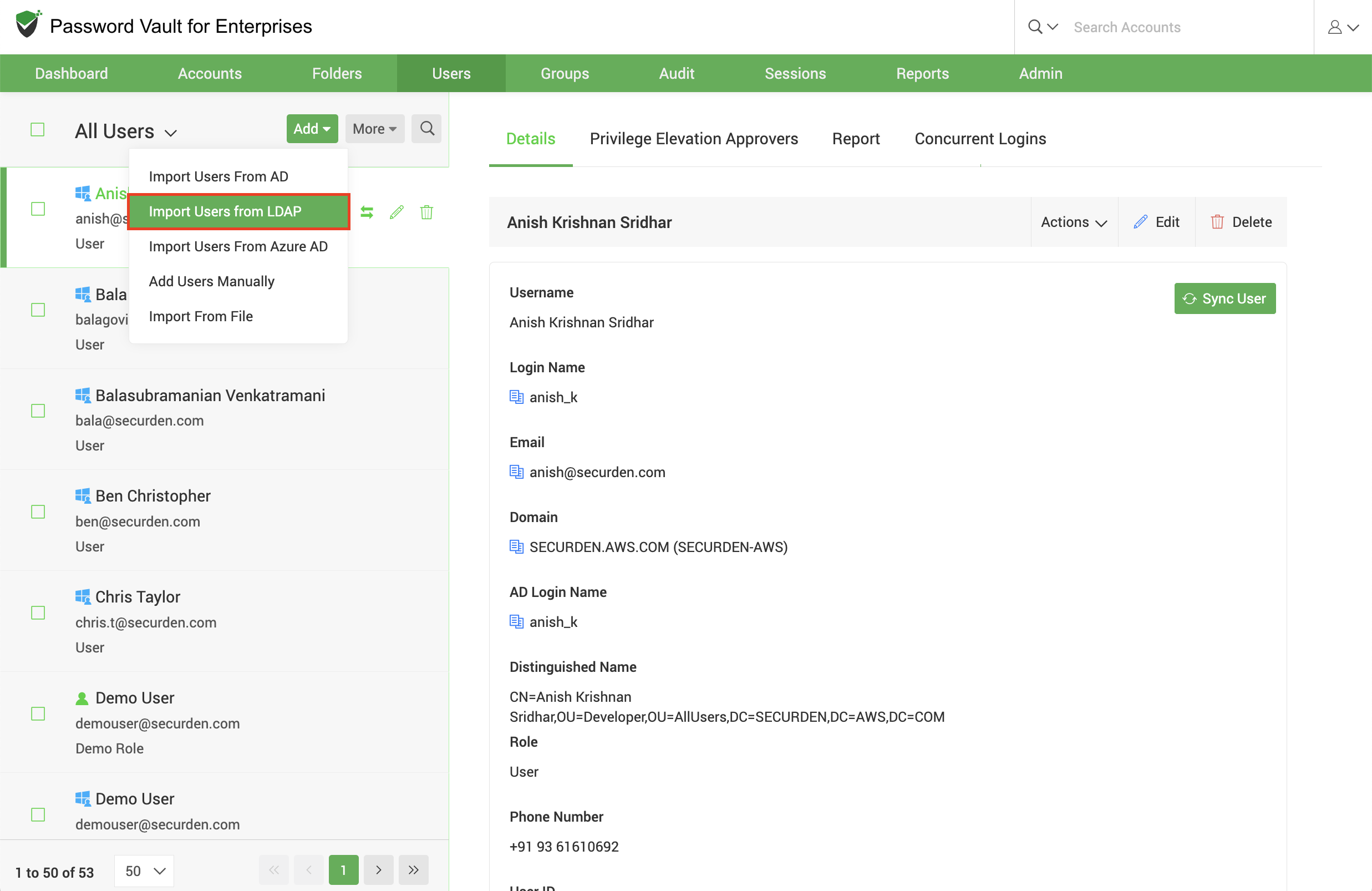
The import process consists of two steps:
-
Configure LDAP settings to establish connectivity with the directory.
-
Discover and import users using the required search criteria and role settings.
Step 1: Configure LDAP Settings
Provide the following details to enable Securden to connect to and scan your LDAP directory.
Domain and directory details
Domain Identifier
Enter a name to identify the LDAP domain.
Domain Base DN
Specify the base or root from which Securden should begin the directory lookup when retrieving user attribute values. Enter the top-level LDAP directory tree name in the same format used in your directory.
The Base Distinguished Name (DN) is typically specified as a sequence of names separated by commas.
Example: DC=MyDomain,DC=com
Account DN
Enter the Distinguished Name of the LDAP account used to authenticate the connection. This account must be password-protected and have read access to the directory. You can provide its account name and password in the Supply Administrator Credentials section.
Example: CN=Bob.Smith,CN=Users,DC=MyDomain,DC=com
Domain IP Address
Enter the FQDN or IP address of the LDAP domain to be scanned. You can also provide any number of secondary IP addresses, separated by commas. Securden can use these addresses to establish a connection if the primary IP address is unavailable.
Connection mode
Select SSL or non-SSL to specify how Securden should communicate with the LDAP domain.
For SSL connections, the following requirements apply:
- The domain controller must support SSL connections on port 636, and its certificate must be signed by a Certificate Authority (CA).
- If the domain controller’s certificate is not signed by a certified CA, import all certificates in the corresponding root certificate chain, including the domain controller’s certificate and any intermediate certificates.
Administrator credentials and remote gateway
Under Supply Administrator Credentials, enter the administrator username and password that allow Securden to scan the members of the domain. You can enter these credentials manually once; Securden stores them for subsequent import attempts.
Step 2: Discover and Import Users from LDAP
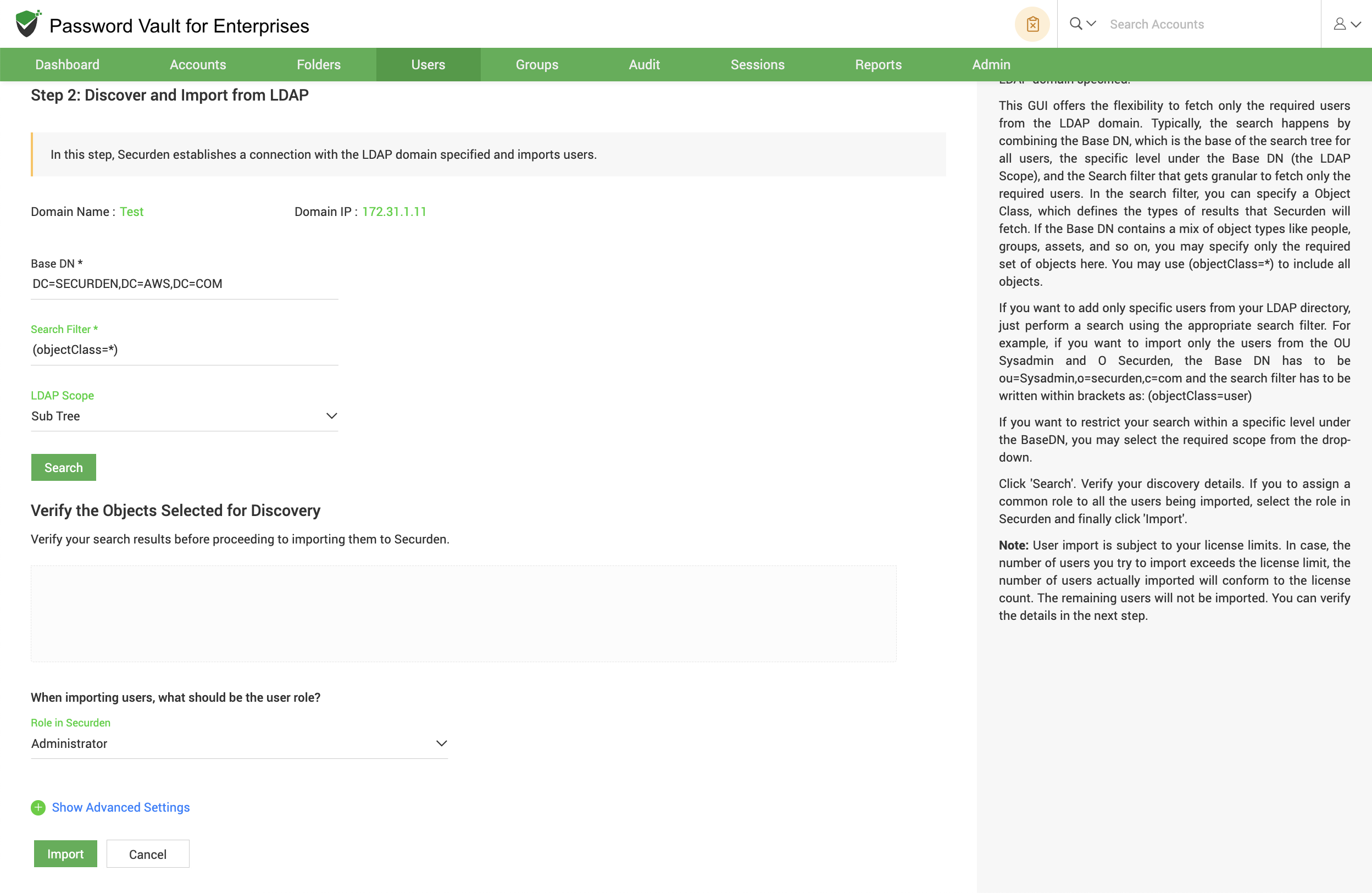
Securden connects to the specified LDAP domain and allows you to retrieve only the users you need. Configure the search criteria, review the discovered objects, and select the role to assign during import.
Define the search criteria
The search combines the Base DN, Search filter, and LDAP Scope to determine which users to retrieve.
Base DN
Specify the starting point of the user search tree. Securden uses this value together with the LDAP Scope and Search Filter to locate the required users.
Search filter
Specify an Object Class to define the types of objects Securden should retrieve. If the Base DN contains different object types, such as people, groups, and assets, use the filter to retrieve only the required types.
To include all objects, use (objectClass=*).
LDAP Scope
Select the required scope from the drop-down list to restrict the search to a specific level beneath the Base DN.
Example: Search for users in a specific organizational unit
To import only users from the OU Sysadmin and O Securden, enter:
- Base DN:
ou=Sysadmin,o=securden,c=com - Search filter:
(objectClass=user)
Enclose the search filter in parentheses as shown.
Configure subgroup inclusion
Under Advanced Settings, choose whether to include domain users from all subgroups of the group being imported or exclude subgroups and import only users belonging to the first-level group.
Review and import users
-
Click Search to discover users matching the configured criteria.
-
Review the results under Verify the Objects Selected for Discovery.
-
To assign the same role to all users being imported, select the required Role in Securden.
-
Click Import to import the users into Securden Password Vault for Enterprises.
Frequently Asked Questions
What are reports in Password Vault for Enterprises used for?
Reports in Password Vault for Enterprises are used to monitor user activity, track password access, audit account usage, and analyze security events. They provide complete visibility into who accessed what, when, and how, helping administrators ensure accountability and strengthen security.
What types of reports are available in Password Vault for Enterprises?
Password Vault for Enterprises offers multiple types of reports, including Standard Reports, Concise Reports, Password Security Analysis, Customized Reports, and Exported Reports. Each category serves a specific purpose, ranging from detailed audit tracking to high-level summaries and security insights.
How do reports help with compliance and audits?
Reports help organizations meet compliance requirements by providing detailed, audit-ready logs of user actions, password access, and system activities. These reports can be exported and used to demonstrate adherence to standards such as ISO, NIST, and other regulatory frameworks.
Can I track who accessed a specific account or password?
Yes, Password Vault reports allow you to track exactly who accessed a specific account or password, along with timestamps and activity details. This ensures complete traceability and accountability for all credential-related actions.