What is an Exported Report in Password Vault?
The Exported Reports section provides a centralized view of all reports that have been generated and exported from Securden Password Vault. It allows administrators to preview, download, manage, and delete exported reports, as well as configure storage locations for report exports.
This section is especially useful for audit readiness, compliance documentation, and report sharing across teams.
How to Access Exported Reports
To view exported reports:
- Navigate to Reports → Exported Reports
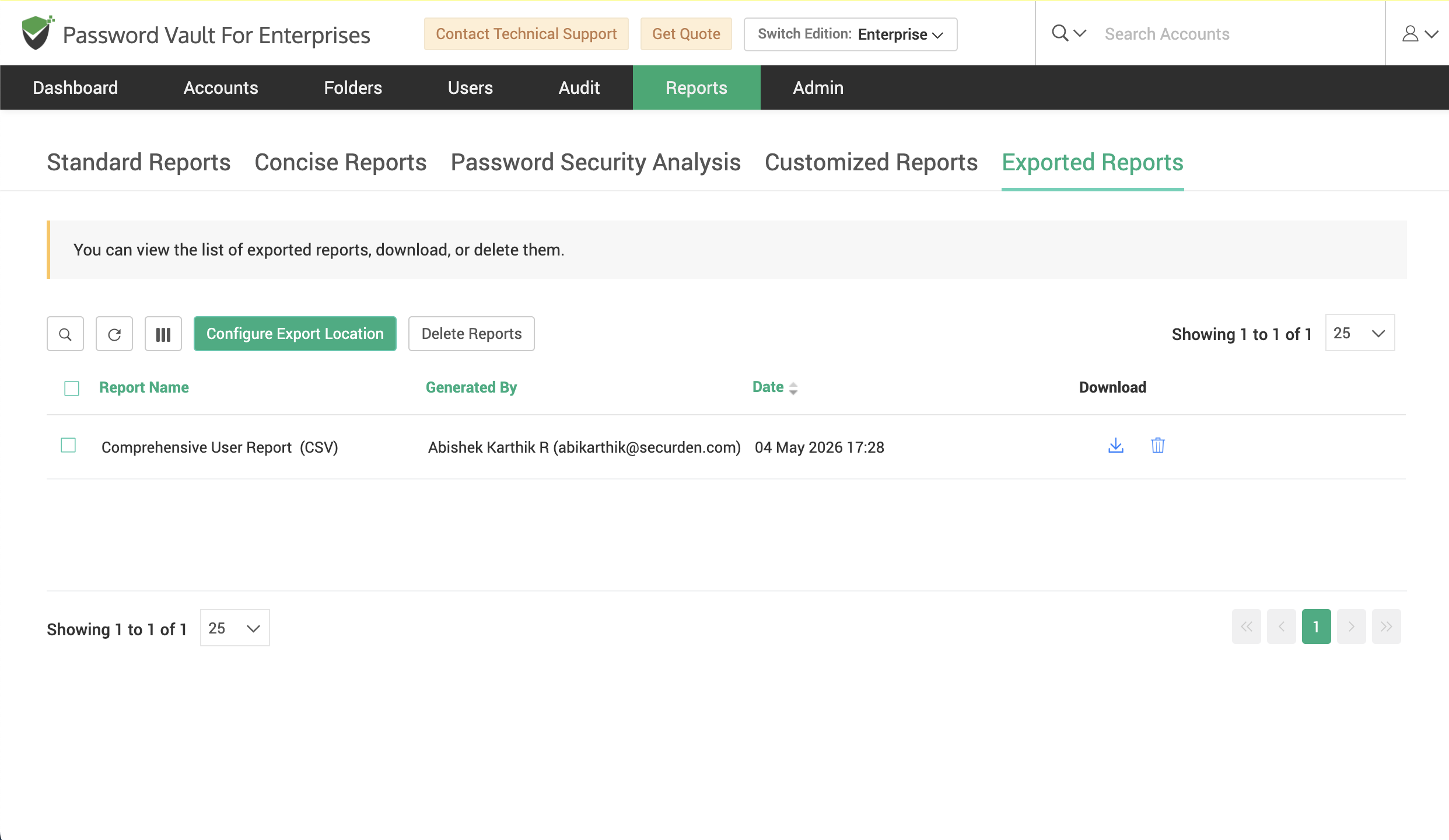
- The page displays a list of all exported reports with the following details:
- Report Name (including format such as CSV or PDF)
- Generated By (user who exported the report)
- Date (timestamp of export)
- For each exported report, you can perform the following actions:
- Download – Download the report file to your local system.
- Preview – View the report content before downloading
- Delete – Remove the report from the exported reports list. This will permanently remove the exported report from Securden Password Vault. You can also use the checkbox option to select multiple reports and delete them in bulk using Delete Reports from the top menu.
How to Manage Exported Reports
Use the toolbar options available above the report list to manage and refine your view:
- Search – Locate specific reports quickly
- Refresh – Reload the report list
- View Options – Switch between available display modes
- Column Chooser – Customize which columns are available in the exported report
How to Configure Export Location for Exported Reports
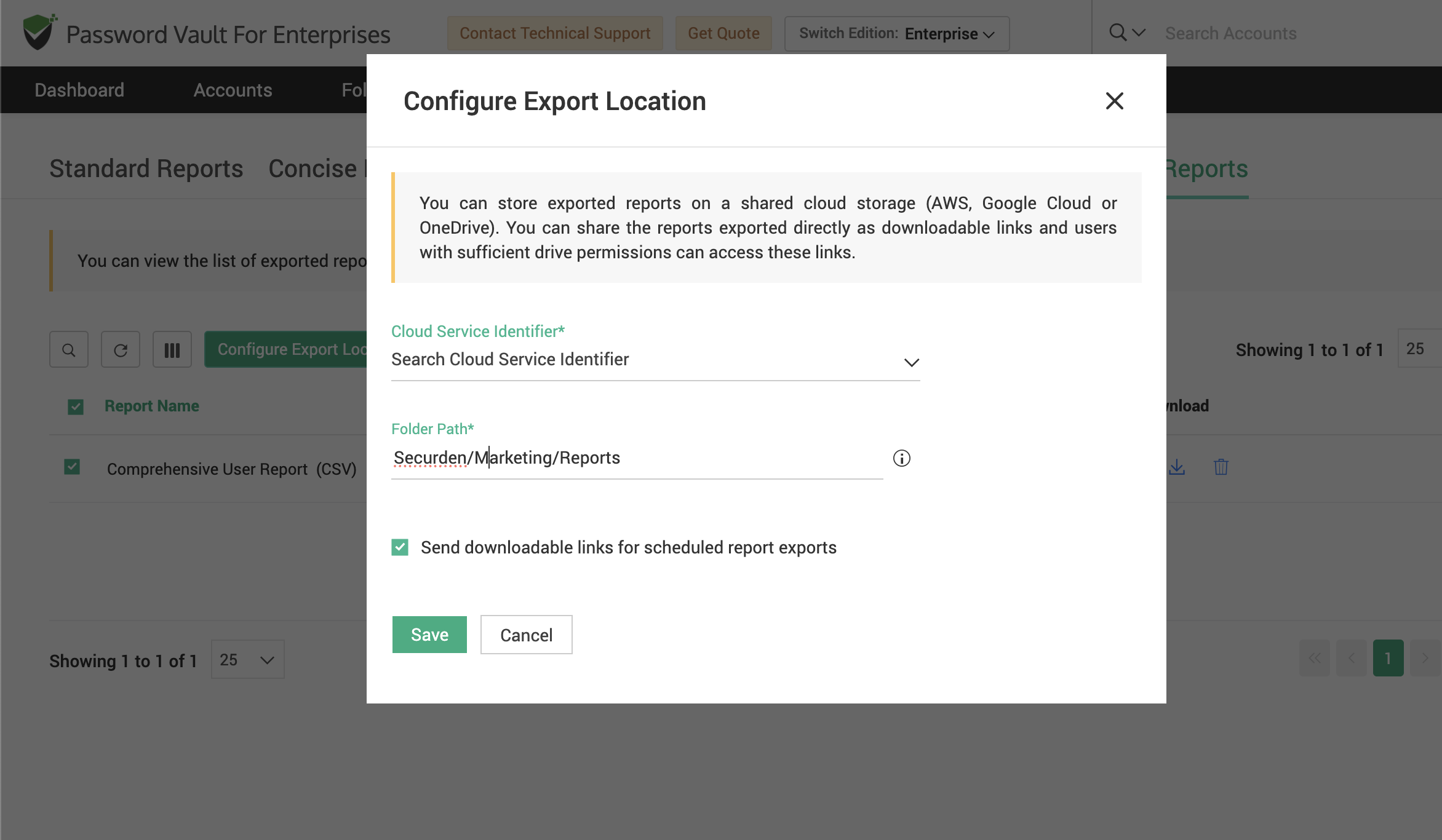
You can configure where exported reports are stored: - Click on Configure Export Location - In the configuration window, choose one of the following storage options:
-
Device Storage / Network Drive
- Select Device Storage/Network Drive
- Specify the directory path where reports should be stored (for example: C:\Program Files\Securden\Password_Vault\export_reports)
- Click Save
-
Cloud Storage
- Select Cloud Storage
- Choose the Cloud Service Identifier (configured integrations such as AWS, Google Cloud, or OneDrive)
- Enter the Folder Path where reports should be stored
- [Optional] Enable: Send downloadable links for scheduled report exports: This allows users with appropriate permissions to access reports via shared links
- Click Save
Important Notes
- Exported reports are retained in the system until manually deleted.
- Access to exported reports depends on user permissions.
- When using cloud storage, ensure proper access permissions are configured for users who need to access the reports.
FAQs
What actions can I perform on exported reports?
You can download reports to your local system, preview them before downloading, or delete them if they are no longer needed. Multiple reports can also be selected and deleted in bulk using the available options.
Can I store exported reports in cloud storage?
Yes, Password Vault allows you to store exported reports in cloud storage services such as AWS, Google Cloud, or OneDrive. You can configure the storage location and define a folder path for organizing reports.
Are exported reports retained permanently?
Exported reports are retained in the system until they are manually deleted. Administrators can manage storage by removing outdated reports and ensuring only relevant data is retained for audit or compliance purposes.