
How to Import Users from Microsoft Entra ID (Azure AD)
Securden Password Vault for Enterprises allows administrators to import users and groups directly from Microsoft Entra ID. This simplifies user onboarding and enables organizations to manage users and identities using their existing cloud directory infrastructure.
To begin, navigate to Users >> Add >> Import Users from Entra ID.
The import process consists of two steps:
-
Establishing connectivity with Entra ID. First, configure the integration and provide the connection details that enables Securden to discover users in your directory.
-
Discover and import the required users.
Prerequisites
Importing users from Entra ID requires internet connectivity. If your organization uses a proxy server to manage internet traffic, configure it under Admin >> General >> Proxy Server Settings before starting the import.
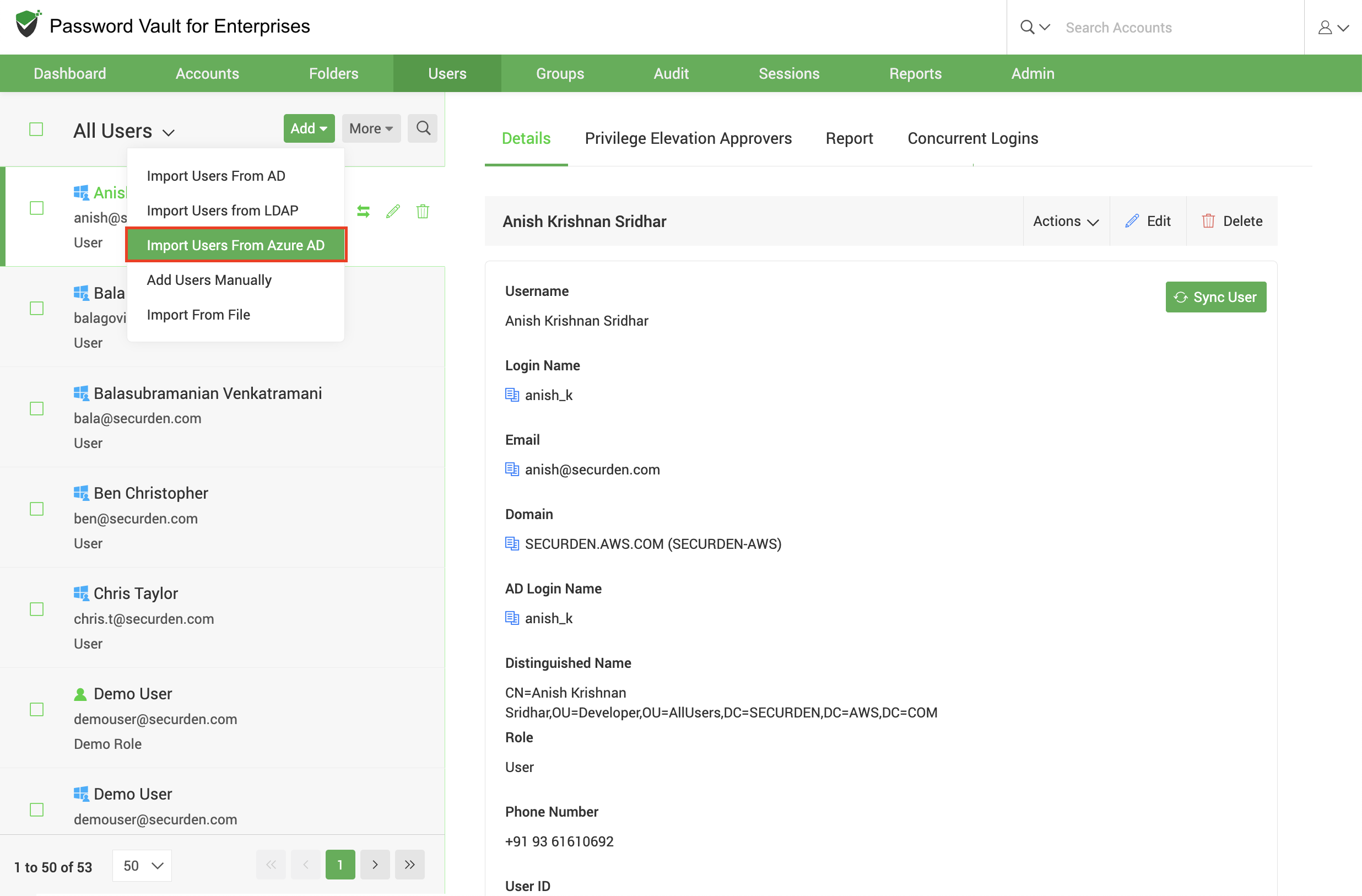
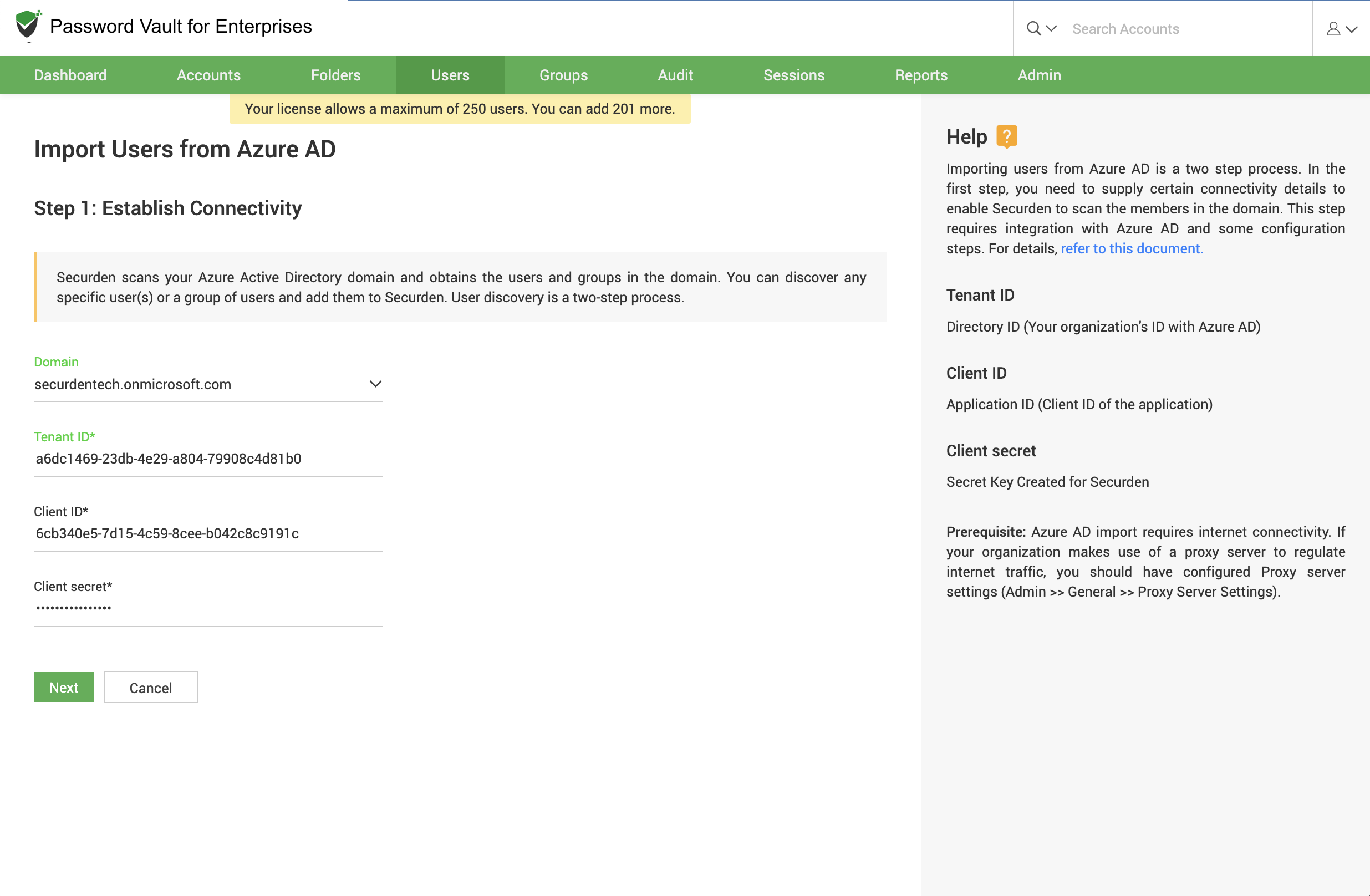
Step 1: Establish Connectivity
To connect Password Vault for Enterprises to Microsoft Entra ID, provide the required tenant information and application credentials.
- Specify the Microsoft Entra ID domain, Tenant ID, Client ID, and Client Secret associated with the application configured for integration.
- Administrators can either enter the Client ID and Client Secret manually or choose Use Stored Credentials to use credentials that have already been securely stored within Password Vault for Enterprises.
-
In addition, Password Vault for Enterprises supports two import modes:
- Manual Microsoft Entra ID Import – Allows administrators to manually discover and import users and groups from the Microsoft Entra ID tenant.
- Import via Microsoft Entra ID Application – Allows administrators to import users and groups that are assigned to a specific Microsoft Entra ID application. When this option is selected, the Object ID of the target application must be specified.
-
Configure Periodic Discovery (Optional): If you have chosen the Import via Microsoft Entra ID Application, you can see a periodic discovery configuration. This allows you to schedule a periodic discovery schedule by specifying a title, start date, start time, and frequency. Password Vault for Enterprises will then automatically discover users and groups from Microsoft Entra ID at the scheduled intervals, eliminating the need for manual discovery.
-
Advanced Settings (Optional): Advanced Settings provide additional controls that allow administrators to customize how users and groups are imported from Microsoft Entra ID.
- Subgroup handling: When importing groups that contain nested groups, administrators can choose how subgroup members should be handled.
- You can choose to include users belonging to all nested groups while importing the selected group. In this case, users from subgroups will be imported, although the subgroup hierarchy itself will not be retained within Password Vault for Enterprises.
- Alternatively, you can choose to ignore nested groups and import only the users belonging to the first-level group selected for import.
- Login Name Attribute: Administrators can specify which Microsoft Entra ID attribute should be used as the user's login name within Password Vault for Enterprises.
- The available options are: User Principal Name (UPN), User Email Address
- Group Type Selection: Administrators can choose which Microsoft Entra ID group types should be considered during discovery and import.
- Supported group types include: Microsoft 365 Groups, Security Groups, Mail Enabled Security Groups, Distribution Groups
- Role Assignment: Imported users can either inherit the role defined in Microsoft Entra ID (Azure) or be assigned a specific role configured within Password Vault for Enterprises. For more details about user roles, click \
. - Authentication Configuration: Administrators can optionally configure authentication settings that should be applied to users imported from Microsoft Entra ID. These settings are applied during the import process and can be modified later if required.
-
After completing the required configuration, click Next to proceed to the discovery phase.
Note
If you have chosen the Import via Microsoft Entra ID Application option, the discovery can be done from this window itself instead of proceeding to the next step.
Step 2: Discover and Import
If you have chosen Manual Microsoft Entra ID Import in the previous page, you will be directed to this page for user discovery and import.
-
The Groups tab allows administrators to search for and select Microsoft Entra ID groups. Users belonging to the selected groups can then be imported into Password Vault.
-
The Users tab can be used to search for and import individual users directly from Microsoft Entra ID.
-
Once the discovery process is complete, review the list of users and groups that will be imported. You can then assign the appropriate role that should be granted to imported users. For more details about user roles, click \
. -
If additional customization is required, use Advanced Settings (as explained in the previous section) to configure authentication and import-related options.
-
Administrators can optionally configure authentication settings that should be applied to users imported from Microsoft Entra ID. These settings are applied during the import process and can be modified later if required.
-
After reviewing all the details, click Import to complete the onboarding process.
Notes:
- Group membership information is preserved during import.
- Imported users count against the available license allocation.
- Authentication settings configured during import apply only during the import process.
FAQs:
Can I import only users and groups assigned to a specific Microsoft Entra ID application?
Yes. Select Import via Microsoft Entra ID Application and specify the target application’s Object ID. This mode allows Securden Password Vault to discover and import users and groups assigned to that application. Discovery can be performed directly from the configuration screen.
Can Securden Password Vault automatically discover Microsoft Entra ID users on a schedule?
Yes. When you select Import via Microsoft Entra ID Application, you can configure Periodic Discovery by specifying a title, start date, start time, and frequency. Securden Password Vault will automatically discover users and groups at the scheduled intervals, eliminating the need to run discovery manually.
How does Securden Password Vault handle nested Microsoft Entra ID groups during import?
Under Advanced Settings, you can include users from all nested groups or import only users belonging directly to the selected first-level group. If you include nested groups, their users are imported, but the subgroup hierarchy is not retained within Securden Password Vault.