
Add Users Manually
In addition to importing users from external sources, administrators can manually create user accounts directly within Password Vault for Enterprises.
To add a user manually into Securden Password Vault,
-
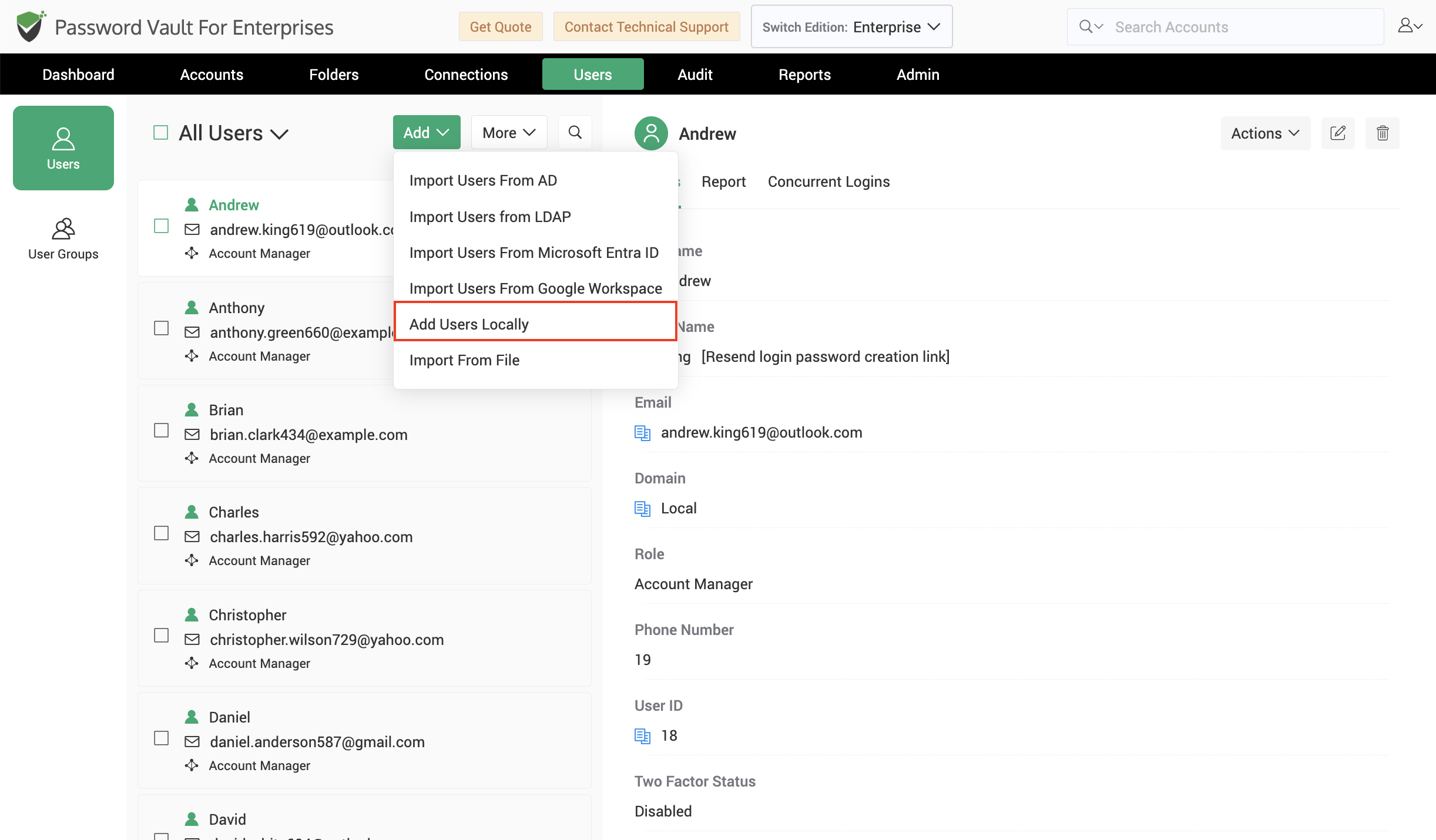
Navigate to Users → Add → Add Users Locally.
-
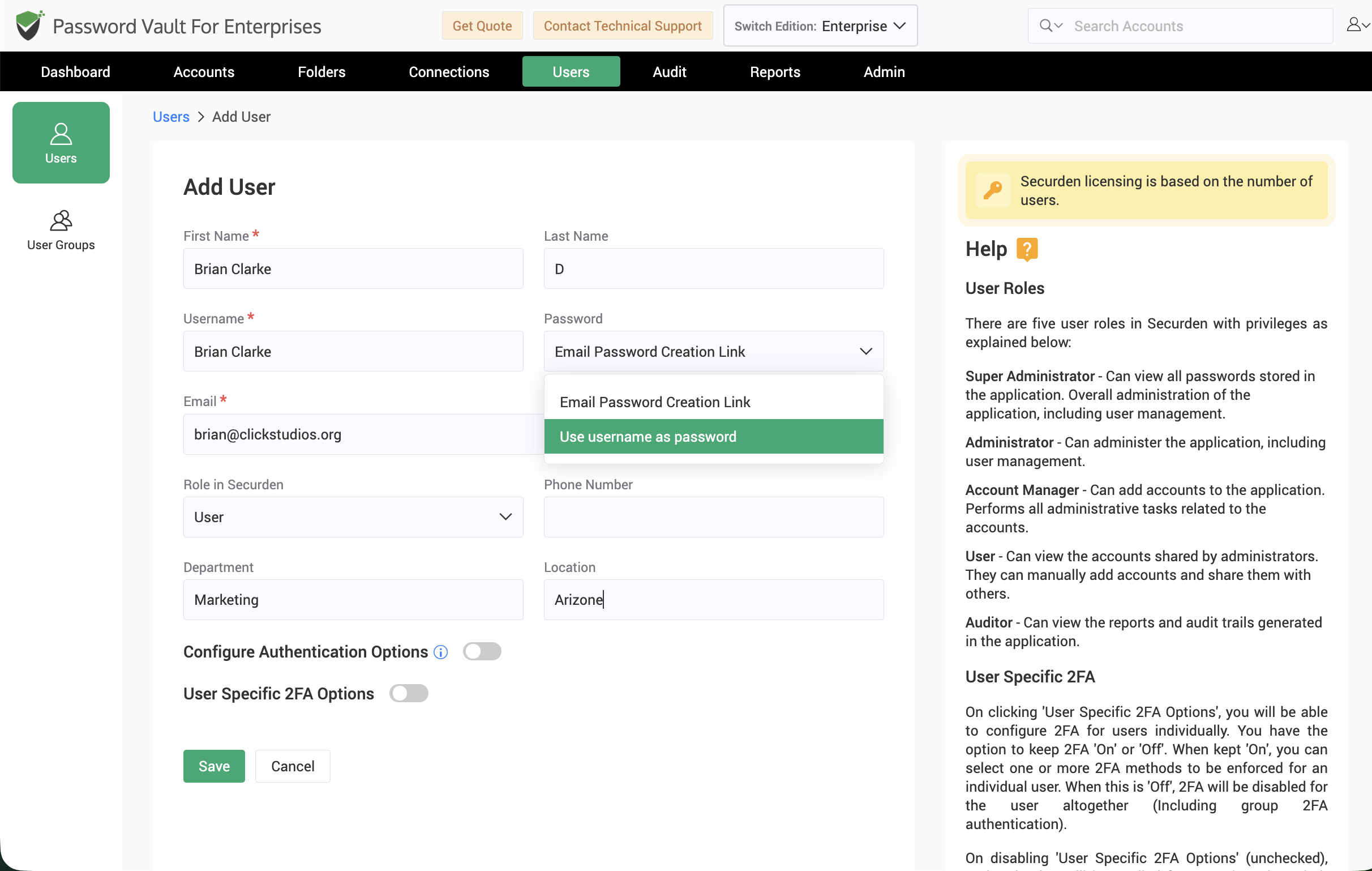
Provide the required information, including the user's first name, last name, email address, role, phone number, department, and location.
-
You can also configure how the user's password should be created – either via password creation email link, or can allow the user to set their password manually.
-
For user roles, you can either choose from one of Securden’s predefined roles: User, Auditor, Account Manager, Administrator or Super Administrator or create a custom user role. To learn more about user roles, click here.
-
You can configure how the user can authenticate into Securden and also enforce two factor authentication (2FA) from one of the pre-configured two factor authentication from Securden. To learn more about two factor authentication, click here.
-
After entering the required information and verifying the configuration, click Save to create the user account.
Frequently Asked Questions
Can I add users to Password Vault without integrating a directory service?
Yes. Navigate to Users > Add > Add Users Manually to create a user directly in Password Vault. Enter the user’s details, assign a role, and configure two-factor authentication as required. These users can sign in using native authentication.
Can manually added users create their own passwords?
Yes. Select Email Password Creation Link and provide the user’s email address when adding them. They will receive a link to create their password, which must meet the password policy configured by the administrator.