
How to Import Users from Active Directory
Password Vault for Enterprises allows administrators to discover and import users and groups directly from Active Directory. This helps organizations onboard users quickly while leveraging existing directory services for authentication and identity management.
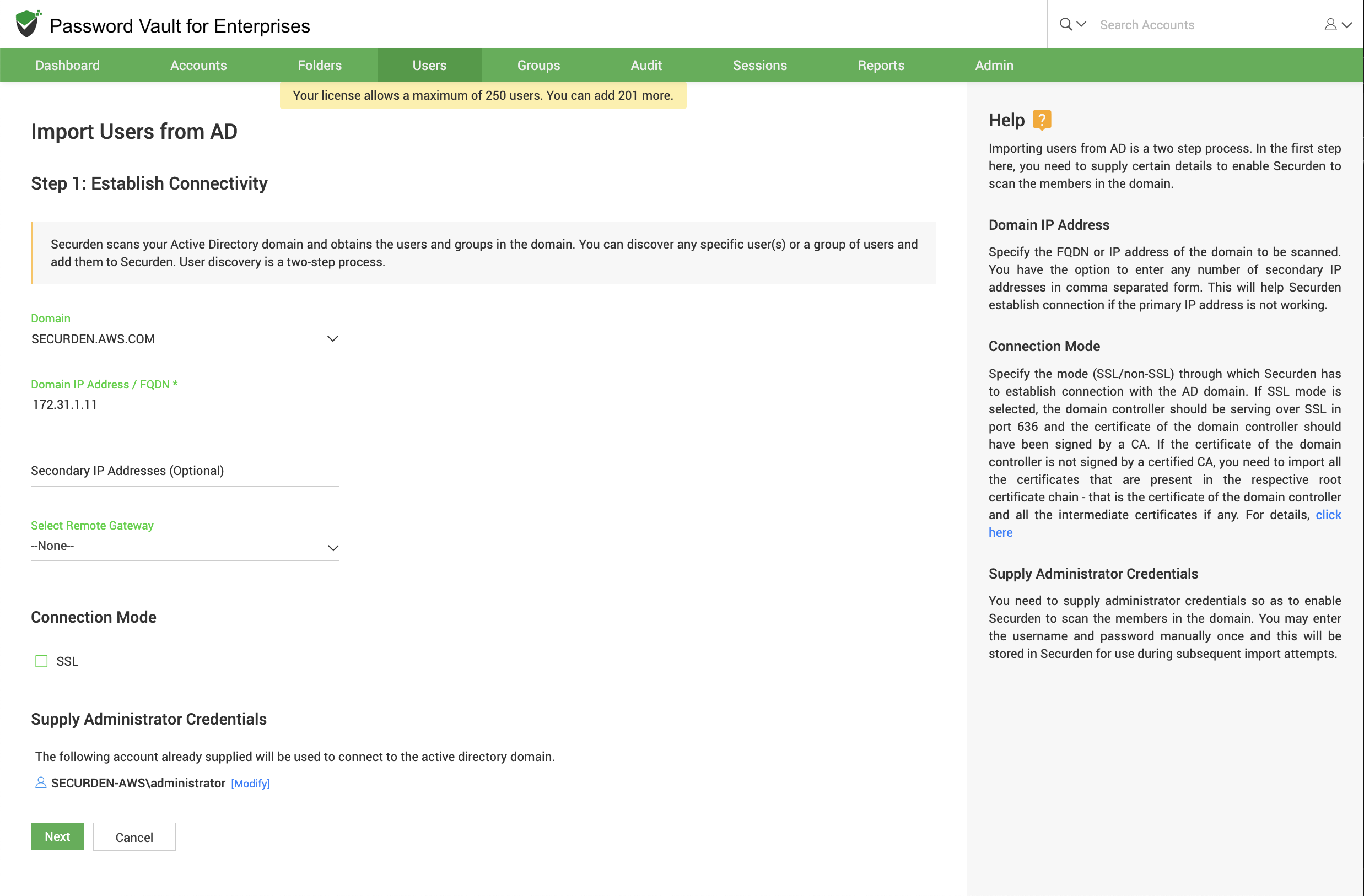
Step 1: Establish Connectivity
To begin the import process, you must first establish connectivity with the Active Directory domain.
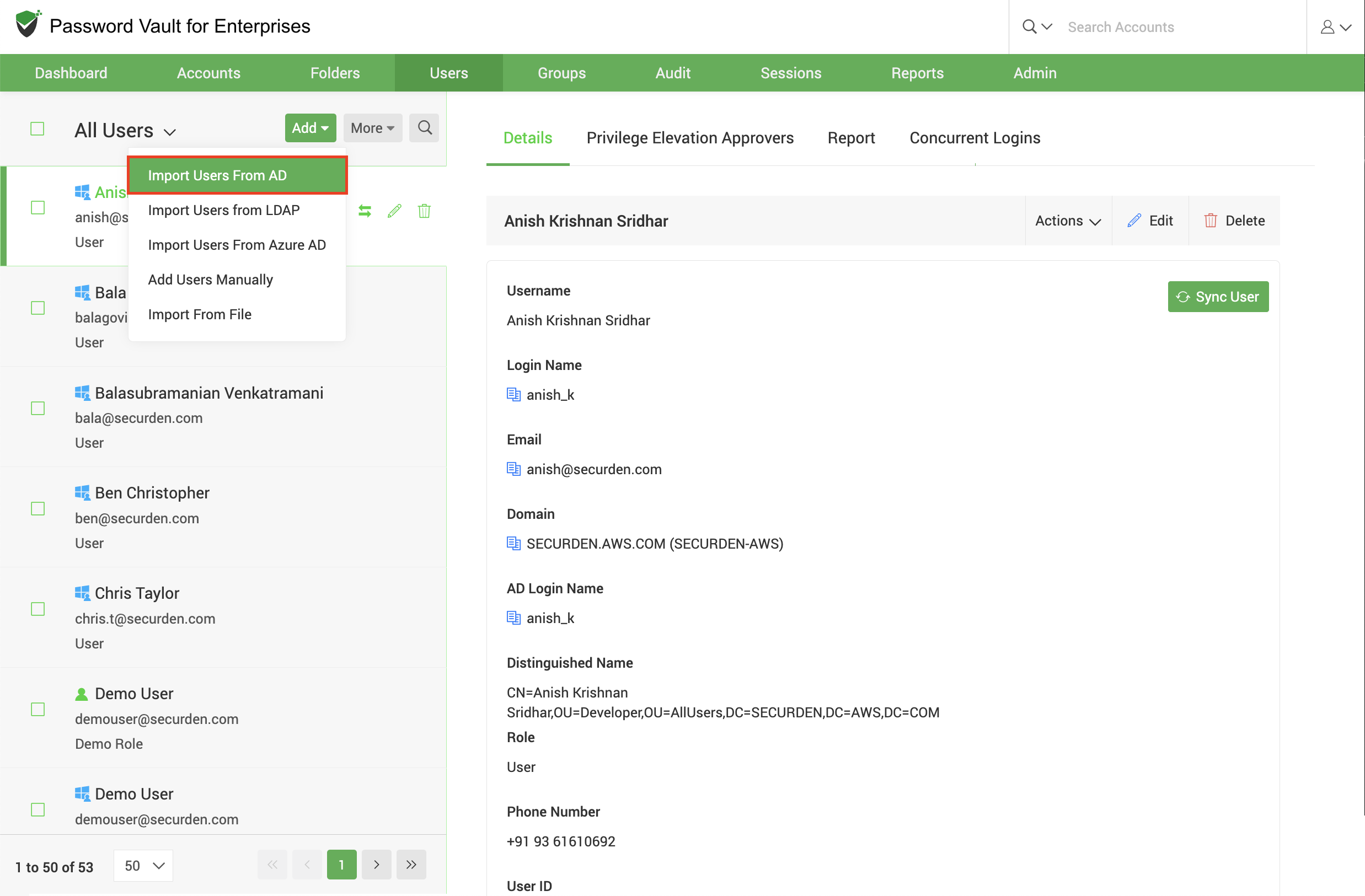
- Navigate to Users >> Add >> Import Users from AD
- Specify the Active Directory domain that you want to connect to and provide the IP address or Fully Qualified Domain Name (FQDN) of the domain controller.
- Optionally, you can specify one or more secondary IP addresses that can be used if the primary domain controller is unavailable.
- If the domain controller is located within an internal (on-premises) network, select the appropriate Remote Connector that will be used to establish communication between Password Vault for Enterprises and the target environment.
- For environments that use secure LDAP communication, you can enable SSL to connect to the domain controller over LDAPS.
- You must also supply the administrator credentials that have sufficient privileges to query Active Directory and retrieve user information.
If a suitable Remote Connector has not yet been configured, you can create a new connector directly from this page. Existing connectors can also be edited or selected during the configuration process.
After providing the required information, click Next to verify connectivity and proceed to the discovery phase.
Step 2: Discover and Import Users
Once connectivity is established successfully, Password Vault for Enterprises retrieves information from the configured Active Directory domain and allows you to discover users through multiple methods.
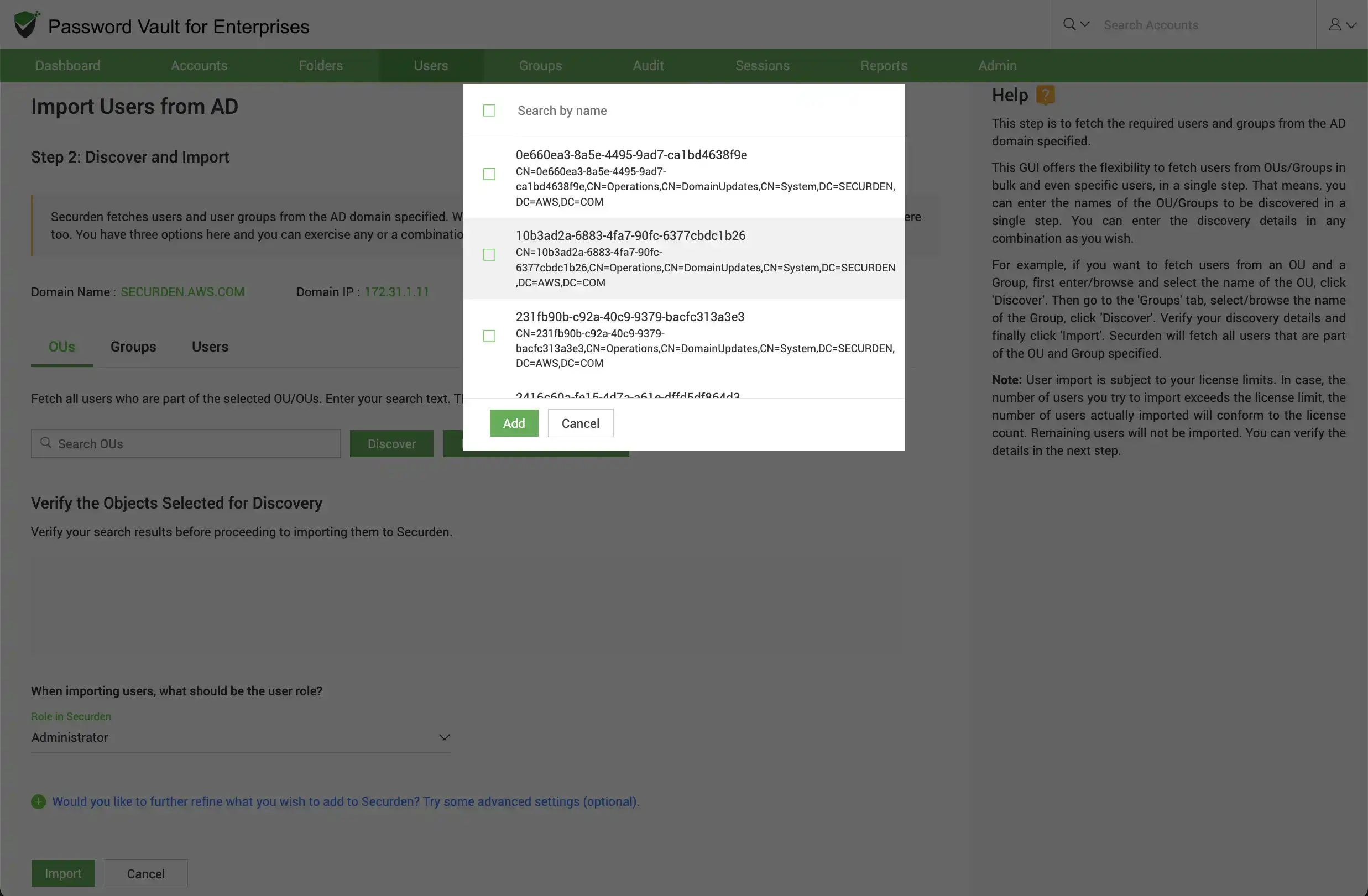
Users can be discovered through Organizational Units (OUs), Active Directory groups, or individual user accounts.
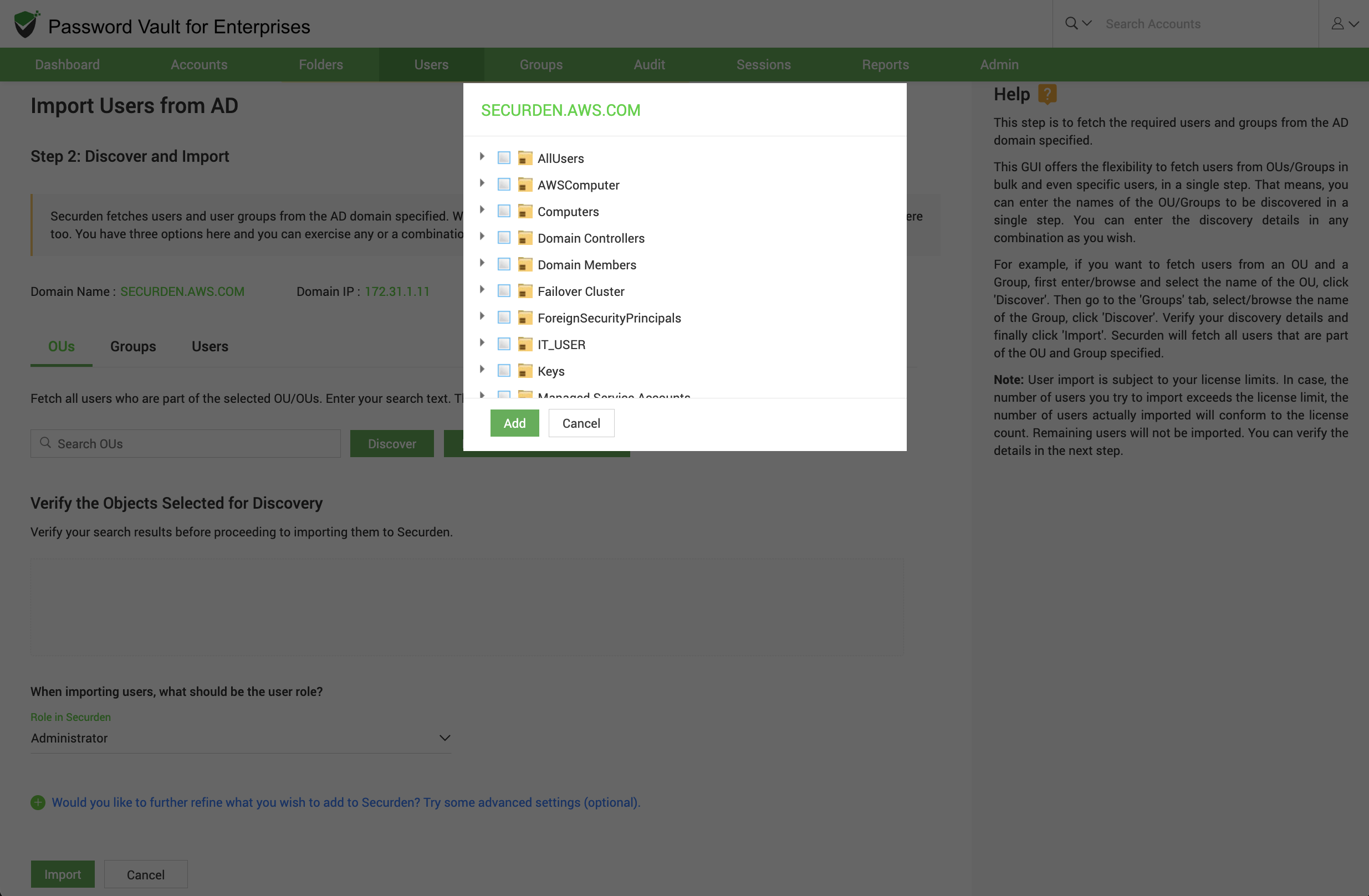
- The OUs tab allows administrators to browse the Organizational Unit hierarchy, select specific OUs, and discover users contained within them. This method is particularly useful when importing users department-wise or based on organizational structure.
- The Groups tab allows administrators to discover users based on Active Directory group membership. You can search for groups, select the required groups, and import all users belonging to those groups.
- The Users tab can be used to search for and import specific users directly from Active Directory without relying on OU or group membership.
- After discovery, all selected users and groups are displayed for verification. Review the results carefully before proceeding with the import.
- Before importing the users, select the role that should be assigned to them within Password Vault for Enterprises. To know in detail about users roles, click here.
- If required, use Advanced Settings to customize authentication and import-related options. Typically, this option allows you to either include domain users of all subgroups to the group being imported or ignore the subgroups and import only the users of the first level group.
- User Groups to Import: Choose whether to import all user groups or specific groups. To import specific groups, enter their names in the corresponding text fields, separated by commas.
- Configure Synchronization: After importing the required users, you can configure periodic synchronization with Active Directory (AD) to import users automatically. Click Save to save the domain details.
Once you have reviewed the discovered users and selected the required role, click Import to complete the onboarding process.
Notes
- Imported groups retain their structure within Password Vault for Enterprises.
- Authentication settings configured during import apply only during the import process.
- User imports are subject to the available license count configured for your deployment.
Frequently Asked Questions
How do I import Active Directory users into Securden Password Vault?
Navigate to Users >> Add >> Import Users from AD. Enter the domain controller details and administrator credentials to establish connectivity. Discover users through organizational units (OUs), groups, or individual usernames, review your selection, assign a role, and click Import.
Can I import users from specific Active Directory OUs or groups?
Yes. Securden Password Vault lets you select specific OUs or Active Directory groups and import their users. You can browse the OU hierarchy, search for groups, or select individual users. Imported groups retain their structure within Password Vault.
Does Securden Password Vault support automatic user imports from Active Directory?
Yes. After the initial import, you can configure periodic synchronization with Active Directory to import users automatically. User imports remain subject to the available license count for your deployment.
Can I include users from nested Active Directory groups during import?
Yes. In Advanced Settings, you can include users from all subgroups of the selected Active Directory group. Alternatively, you can exclude subgroups and import only users belonging directly to the first-level group.