
How to Perform User Operations (Quick Access)
The Users section provides several options for managing users after they have been created or onboarded into Password Vault for Enterprises. Administrators can filter users, perform bulk operations, manage individual users, review user activity, and terminate active sessions from a centralized interface.
Filter Users
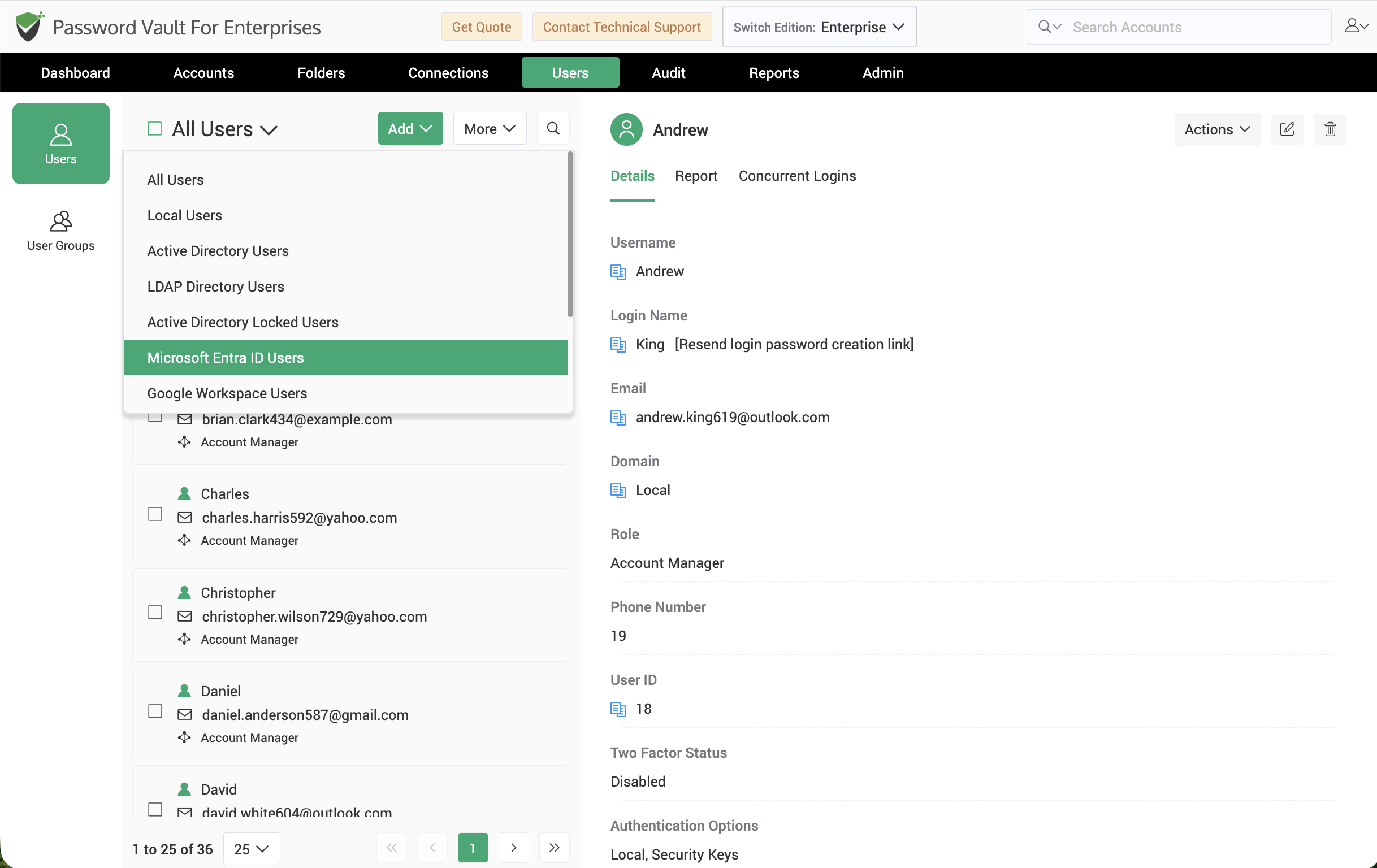
The Users filter allows administrators to quickly view specific categories of users within Password Vault for Enterprises.
Click the All Users drop-down menu to filter the user list based on the user source or status.
The following filter options are available:
- All Users – Displays all users configured in Password Vault for Enterprises.
- Local Users – Displays users created locally within Password Vault for Enterprises.
- Active Directory Users – Displays users imported from Active Directory.
- Microsoft Entra ID Users – Displays users imported from Microsoft Entra ID.
- Google Workspace Users – Displays users imported from Google Workspace.
- Disabled Users – Displays users whose access to Password Vault for Enterprises has been disabled.
- Licensed Users – Displays users currently consuming a user license.
Selecting a filter refreshes the user list and displays only the matching users.
Quick Access Options
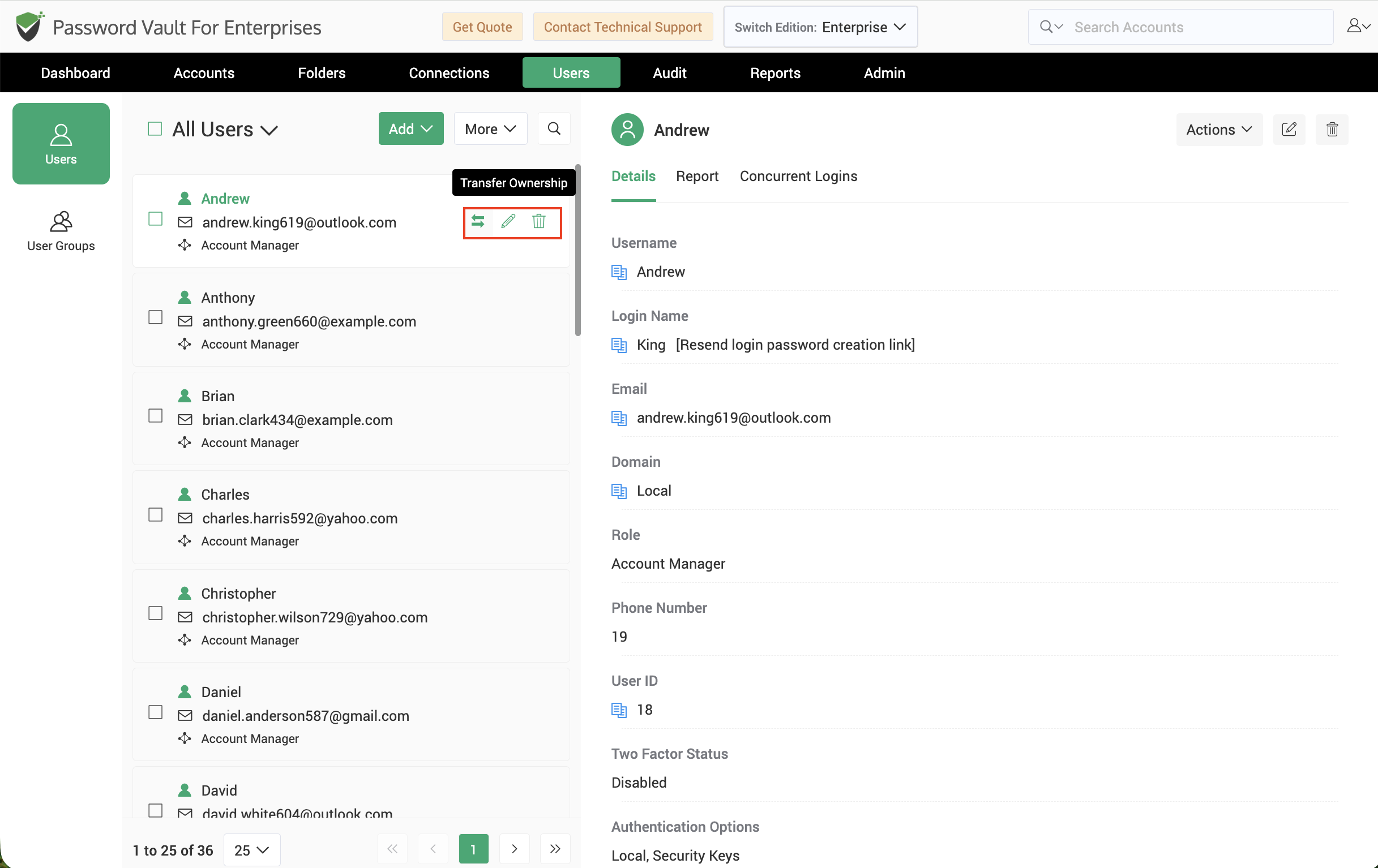
The Quick Access options let administrators perform common user management tasks directly from the Users list without opening the user's details page.
To view these options, navigate to Users and hover the pointer over a user in the left pane. The following actions are available: Transfer Ownership (⇆) Edit (✎), and Delete 🗑️.
1. Transfer Ownership
Use this option to transfer ownership of all resources owned by the selected user to another user. This is useful when an employee leaves the organization or when ownership needs to be reassigned.
To transfer ownership:
- Navigate to Users.
- Hover beside the required user and click the Transfer Ownership (⇆) icon.
- In the pop-up that opens, specify how the accounts owned by the user needs to be transferred.
- Select the user who will become the new owner and provide a reason.
- Click Transfer to complete the operation.
Note
Ownership transfer does not delete the original user account. It reassigns ownership of the user's resources to the specified user.
2. Edit User
Use this option to modify the selected user's details, role, authentication settings, or other user-specific configurations.
To edit a user:
- Navigate to Users.
- Hover over the required user and click the Edit (✎) icon.
- Update the required information as required such as first name, last name, user role, phone number, department, Securden UI access permissions, authentication options, two-factor authentication and so on.
- Once you’ve updated the details, click Save.
3. Delete User
Use this option to permanently remove a user from Password Vault for Enterprises.
To delete a user:
- Navigate to Users.
- Hover over the required user and click the Delete icon (icon).
- Review the confirmation message.
- Click Delete to permanently remove the user.
Note
Deleting a user permanently removes the account from Password Vault. If the user owns accounts, folders, or other resources, a pop-up appears prompting the transfer of the ownership of accounts and assets owned by the user. Choose the appropriate option and click Transfer and Delete.
Frequently Asked Questions
Does transferring ownership of a user’s resources delete their user account?
No. Transferring ownership reassigns the user’s resources to another user without deleting the original user account. To perform this action, navigate to Users, hover over the required user, and select Transfer Ownership. Choose the new owner, provide a reason, and click Transfer.
What happens if I delete a user who still owns accounts or other resources?
When you delete a user who owns resources, Password Vault prompts you to transfer ownership before completing the deletion. Select the appropriate transfer option and click Transfer and Delete to reassign the resources and permanently remove the user from Password Vault.