What is a Comprehensive User Report in Password Vault?
The Comprehensive User Report provides a consolidated view of all users in Password Vault for Enterprises along with detailed insights into their access, activity, and associated resources. It enables administrators to analyze user behavior, review access permissions, activities performed by the users, and gain complete visibility into how users interact with accounts and assets within the vault.
This report serves as a central reference for user-level auditing by combining multiple dimensions of user data into a single, structured view.
How to Access User Overview
To view the list of users and their high-level details:
- Navigate to Reports → Standard Reports → Comprehensive User Report to open the report.
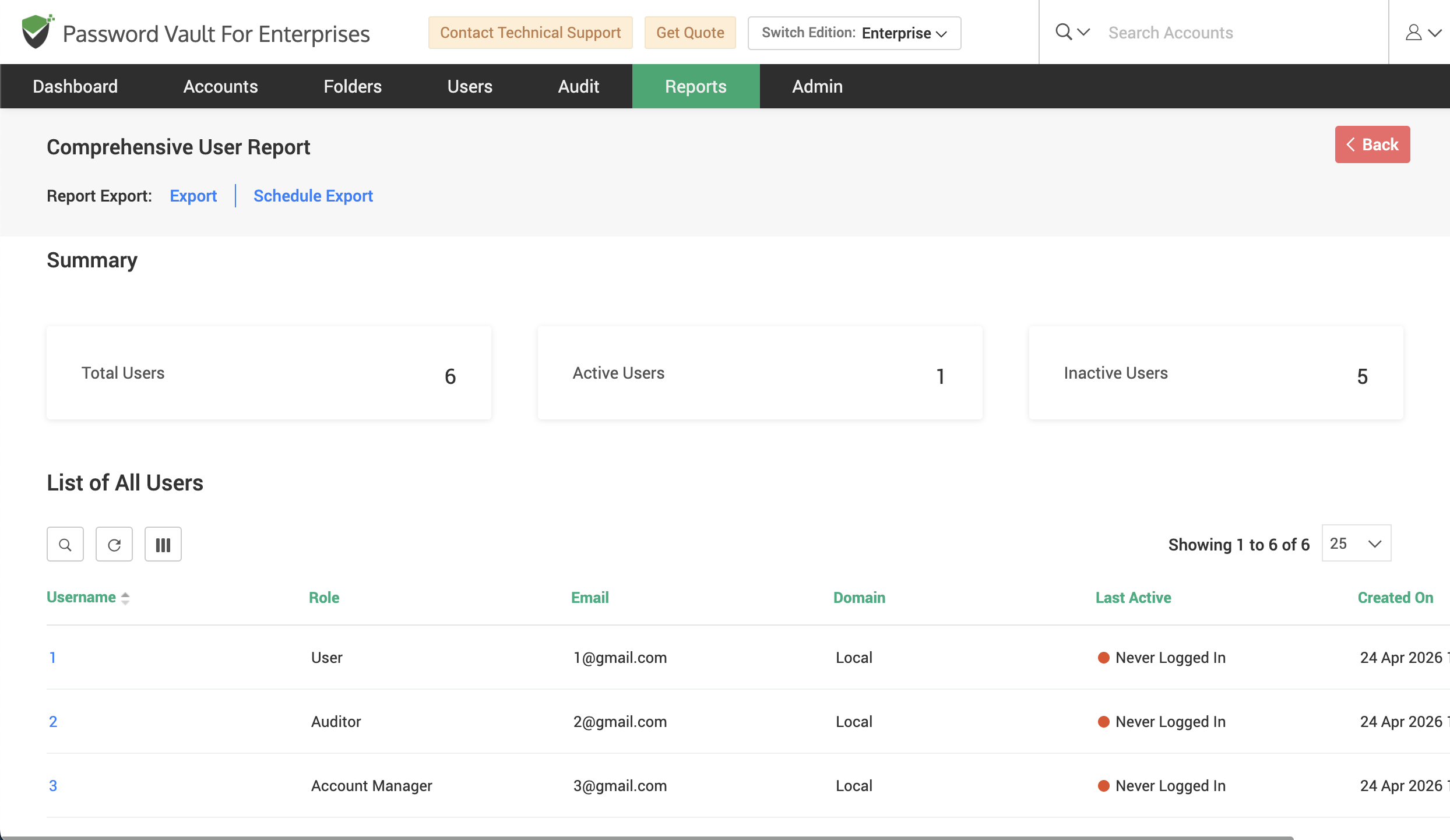
- At the top of the report, the summary section displays key metrics such as the total number of users, along with counts of active and inactive users.
- Scroll down to the List of All Users section, where all users are displayed in a tabular format along with details such as username, login name, role, email, domain, last active time, and account creation date.
- Use this table to browse or search for specific users and identify their activity status (for example, active users or users who have never logged in).
- Click on the username to drill down into detailed information for that specific user.
How to View Detailed User Information
To analyze detailed information for a specific user:
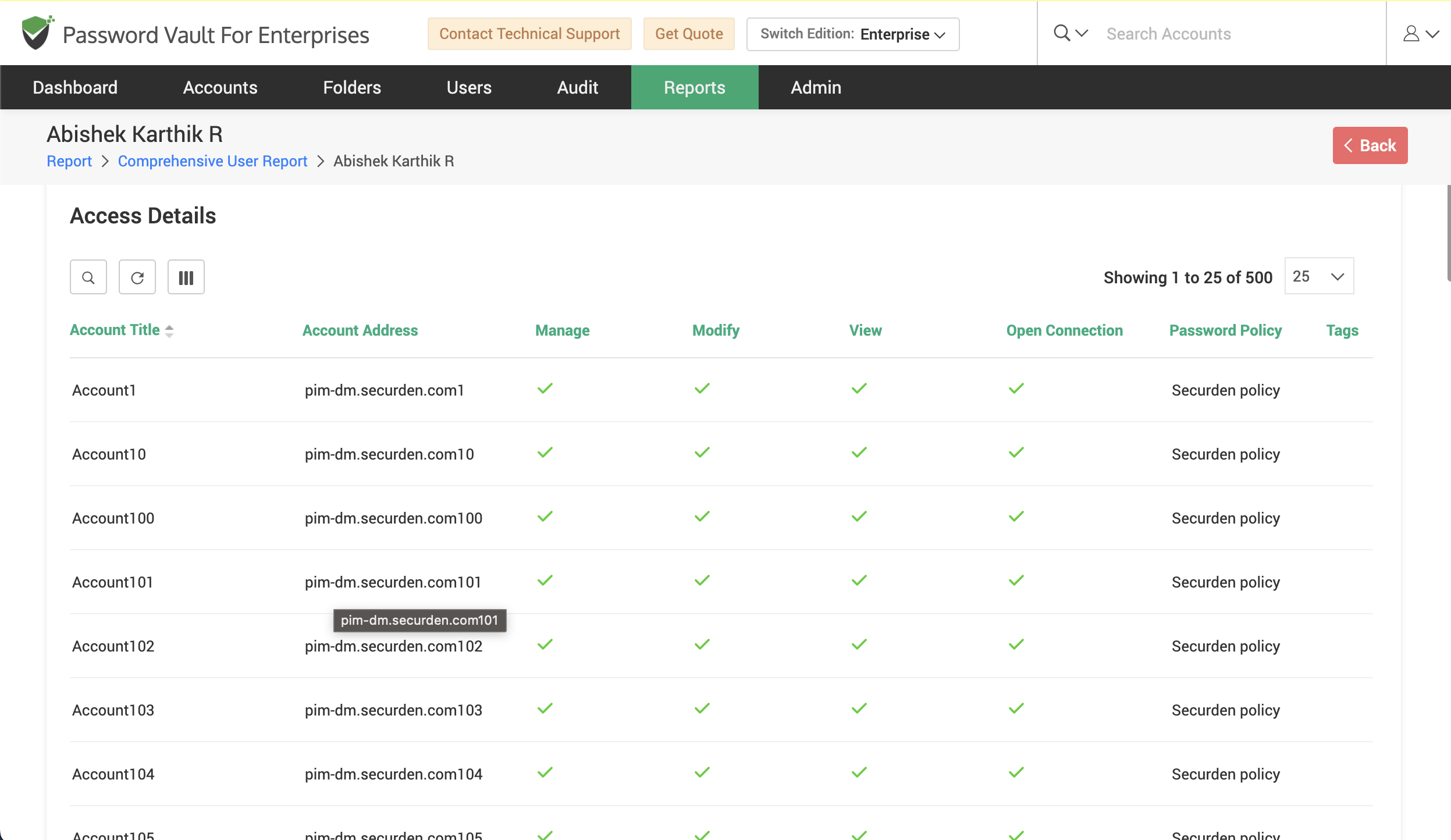
- From the List of All Users, click on the required username to open the user-specific report view.
- In the page that opens, the Access Details section displays the list of accounts accessible to the user along with permission levels such as Manage, Modify, View, and Open Connection, as well as associated password policies and folder paths.
- Scroll down to view the Assets that are associated with the user section to view infrastructure resources (such as servers) linked to the user, along with details such as IP address, asset type, and last launch time.
- In the User Activity section, you can review all actions performed by the user, including login events and other activities, along with details such as source system, timestamp, and reason.
- Navigate to the Account Activity section to view actions performed by the user specifically on accounts, including activity type, source, timestamp, and associated context.
- Scroll further to the Groups that this user is a part of section to identify group memberships associated with the user.
How to Export and Schedule Comprehensive User Reports?
To export or schedule the Comprehensive User Report:
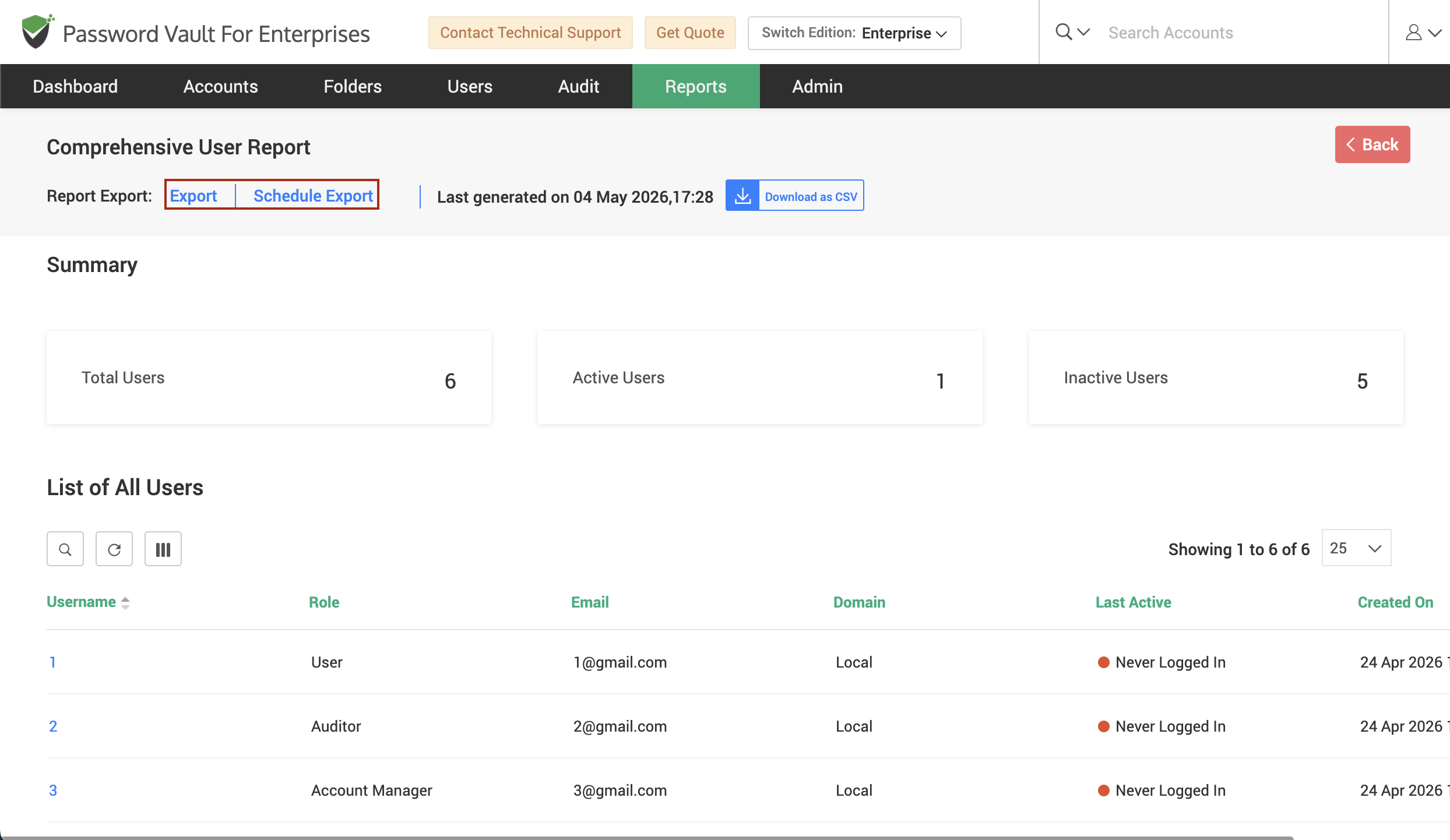
- Click on Export to download the report in a supported format such as CSV, PDF, or XLSX.
- Click on Schedule Export to configure automated report generation at defined intervals.
- Use the Download as option to retrieve previously generated reports for reference.
FAQs
What does the Comprehensive User Report show in Password Vault?
The Comprehensive User Report provides a complete view of all users in Password Vault for Enterprises, including their roles, activity status, access permissions, and associated resources. It helps administrators understand how users interact with accounts, identify inactive users, and audit user-level access across the vault.
How can I check what access a user has to accounts?
To view user access details, navigate to the Comprehensive User Report and click on the required username. In the detailed view, the Access Details section lists all accounts accessible to the user along with permission levels such as Manage, Modify, View, and Open Connection. This helps verify whether users have appropriate access to accounts.
Can I export the Comprehensive User Report for audits?
Yes, the Comprehensive User Report can be exported for audit and compliance purposes. You can download the report in supported formats such as CSV, PDF, or XLSX. Additionally, you can use the Schedule Export option to automate report generation and receive reports at defined intervals.