
Ansible Integration
Securden Password Vault for Enterprises integrates with Ansible through the Securden Ansible Lookup Plugin.
The integration allows Ansible playbooks to retrieve credentials, keys, files, and other account data stored in Securden without embedding those secrets directly in the playbook.
The plugin also supports selected account and folder operations, including password generation, password updates, account creation and deletion, and folder management.
Set Up the Securden Ansible Lookup Plugin
The Securden Ansible Lookup Plugin is provided as a securden.py file.
To configure the plugin:
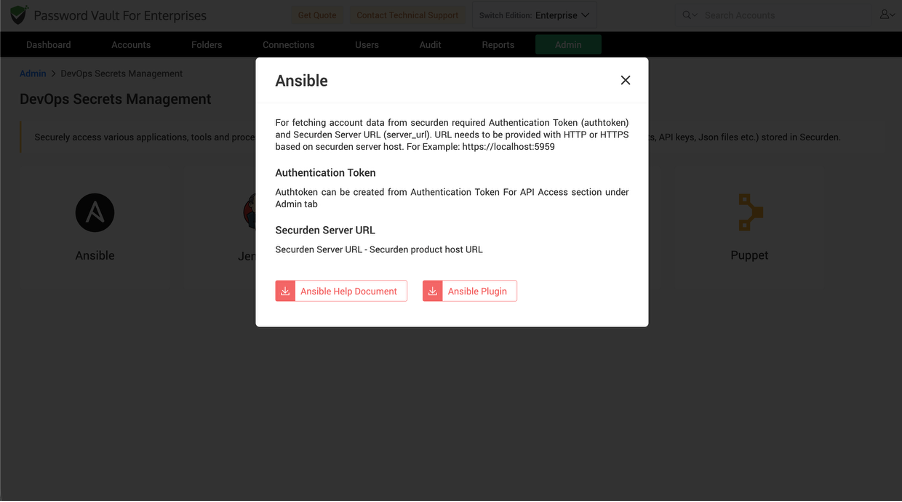
- Navigate to Admin >> DevOps Integration >> DevOps Secrets Management.
- Select Ansible.
- Download the Securden Ansible Lookup Plugin ZIP file.
- Extract the ZIP file.
- Place
securden.pyin a directory namedlookup_pluginswithin your Ansible project directory. - Alternatively, configure the
lookup_pluginspath in youransible.cfgfile.
Prerequisites
Before using Securden from an Ansible playbook, obtain the following:
- Securden Server URL / Host URL
- Authentication Token
- SSL Certificate, if required
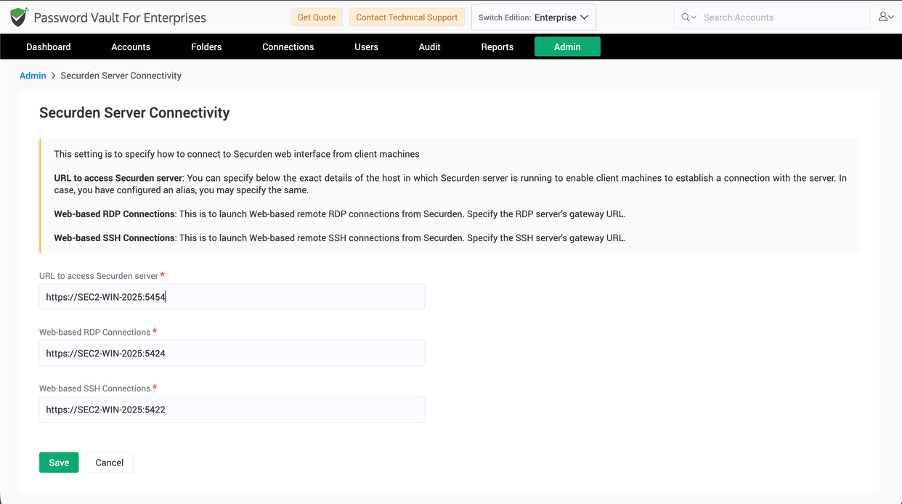
Obtain the Securden Server URL
The server URL identifies the Securden Password Vault instance to which Ansible connects.
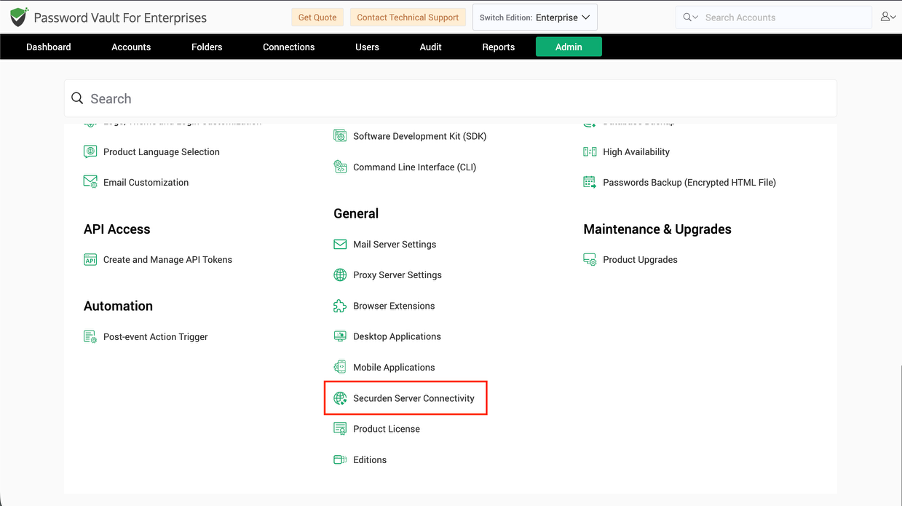
Navigate to:
Admin >> General >> Securden Server Connectivity
Copy the appropriate Securden server URL and use it when configuring the Ansible integration.
Generate an API Token
Securden uses API token-based authentication for programmatic access.
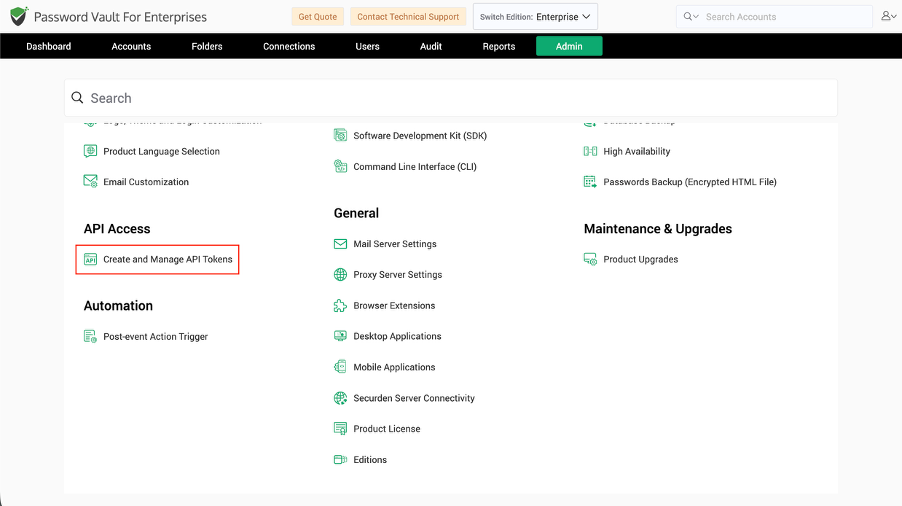
Navigate to:
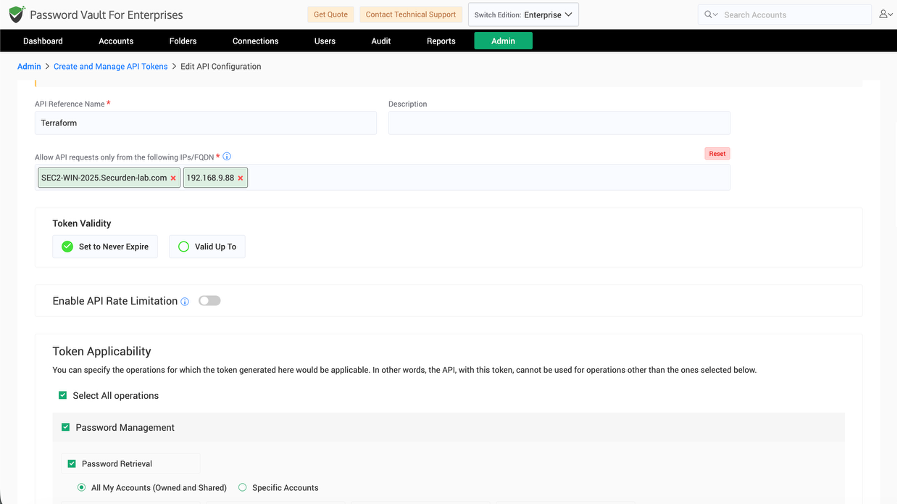
Admin >> API Access >> Create and Manage API Tokens
For the Ansible integration:
- Enter an API reference name and description to identify the token.
- Specify the IP address or range of IP addresses from which the token can be used.
- Create a static authentication token.
- Select the capabilities required by the Ansible workflow to define the token scope.
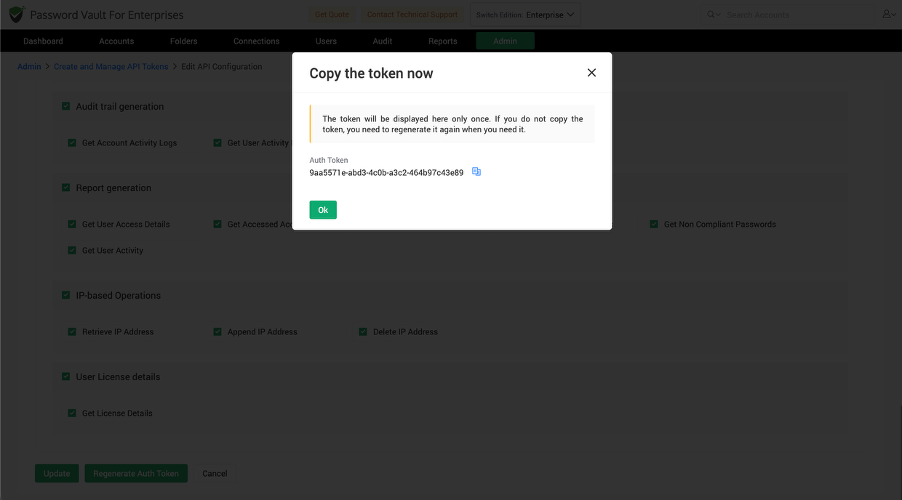
- Click Create Token.
- Copy the generated authentication token and store it securely.
Configure Ansible
The Securden Lookup Plugin uses environment variables to establish communication with Password Vault.
Configure the following variables:
SECURDEN_URL– URL of the Securden server.SECURDEN_AUTHTOKEN– Authentication token used for API access.SECURDEN_VERIFY_CERT– Boolean value that determines whether the server certificate should be verified.SECURDEN_CERT– SSL certificate value or path to the certificate file.
Configure Environment Variables on Linux or macOS
export SECURDEN_URL=https://<SECURDEN_SERVER_URL>
export SECURDEN_AUTHTOKEN=<SECURDEN_AUTHTOKEN>
export SECURDEN_VERIFY_CERT=True
If the SSL certificate needs to be supplied manually:
export SECURDEN_CERT=/path/to/certificate.pem
Configure Environment Variables on Windows
Run the following commands in Command Prompt:
set SECURDEN_URL=https://<SECURDEN_SERVER_URL>
set SECURDEN_AUTHTOKEN=<SECURDEN_AUTHTOKEN>
If the SSL certificate needs to be supplied manually:
set SECURDEN_CERT=<SECURDEN_CERT>
Note: SECURDEN_URL must include http or https, depending on the configured Securden server URL. SECURDEN_CERT can contain either the certificate value or the path to the SSL certificate file.
Fetch Account Data from Securden
Use the securden lookup plugin in an Ansible playbook to retrieve account information.
An account can be identified using:
- Account ID
- Account Name
- Account Title
- A combination of Account Title and Account Name
Fetch an Account Using the Account ID
- name: Fetch account information
  set_fact:
    account: "{{ lookup('securden', account_id='2000000003455') }}"
After retrieving the account, access its attributes from the returned account object.
For example, to retrieve the password:
- name: Set password
  set_fact:
    password: "{{ account.password }}"
Fetch an Account Using the Account Title or Account Name
- name: Fetch account information
  set_fact:
    account: "{{ lookup('securden',
      account_title='Account Title',
      account_name='Account Name') }}"
You can use the Account Title, Account Name, or both values together to identify the required account.
Access Account Attributes
After retrieving an account, access its available values using the corresponding attribute names.
For example:
- name: Access account password
  set_fact:
    password: "{{ account.password }}"
Other attributes can be accessed in the same way:
account.account_name
account.port
Access Additional Fields
If an account contains additional fields, specify the required field using the key_field parameter.
- name: Fetch account additional field
  set_fact:
    account: "{{ lookup('securden',
      account_id='2000000003455',
      key_field='field_name') }}"
Retrieve the corresponding value through key_value:
- name: Access additional field
  set_fact:
    additional_field: "{{ account.key_value }}"
key_value contains the value of the additional field specified through key_field.
Fetch Passwords for Multiple Accounts
Use the get_passwords action to retrieve passwords for multiple accounts in a single operation.
- name: Fetch multiple account passwords
  set_fact:
    data: "{{ lookup('securden',
      action='get_passwords',
      account_ids=['2000000002788', '2000000002800']) }}"
The returned passwords are mapped to their corresponding Account IDs.
- name: Access account password
  debug:
    msg: "{{ data.passwords['2000000002788'] }}"
Update an Account Password
The plugin supports selected Securden operations through the action parameter.
For example, to update an account password:
- name: Update account password
  set_fact:
    data: "{{ lookup('securden',
      action='update_password',
      account_id='2000000004489',
      password='<NEW_PASSWORD>',
      reason='<REASON>') }}"
The response can contain:
status_code– Status of the operation.message– Success or failure message.
Generate a Password
Use the generate_password action to generate a complex password.
If a particular password policy should be applied, specify it through policy_name. If a policy is not specified, the default password policy is used.
- name: Generate password
  set_fact:
    data: "{{ lookup('securden',
      action='generate_password',
      policy_name='Securden policy') }}"
The generated password is available in:
data.password
Supported Securden Functions
The Ansible Lookup Plugin supports the following functions:
update_password– Updates the password of an account.generate_password– Generates a complex password using the specified or default password policy.add_account– Creates an account in Securden.list_accounts– Lists accounts available in a folder.get_file– Retrieves a file stored with an account.get_additional_file– Retrieves a file stored in an additional field.add_folder– Creates a folder.move_accounts– Moves one or more accounts between folders.delete_accounts– Deletes one or more accounts.delete_folders– Deletes one or more folders.
The parameters required depend on the operation. For example, update_password requires the Account ID, new password, and reason, while delete_accounts uses the Account IDs and applicable deletion parameters.
Account Attributes Available Through the Ansible Integration
Depending on the account type and its configuration, the following attributes can be retrieved:
account_idaccount_nameaccount_titlepasswordkey_valueprivate_keyputty_private_keypassphraseppk_passphraseaddressclient_idclient_secretaccount_aliasaccount_filedefault_databasesql_server_portmysql_portoracle_sidoracle_service_nameoracle_port
Note: An attribute can be retrieved only when the corresponding field exists for the account. If the requested field is unavailable, Securden returns a message indicating that the account does not contain that field.
Frequently Asked Questions
1. How does Ansible retrieve secrets from Securden?
Ansible retrieves secrets through the Securden Lookup Plugin using the lookup('securden', ...) function. The plugin authenticates to Password Vault using the configured server URL and API authentication token.
2. Can Ansible retrieve multiple passwords from Securden in one operation?
Yes. Use the get_passwords action with a list of Account IDs to retrieve passwords for multiple accounts.
3. Can Ansible access custom fields stored in a Securden account?
Yes. Specify the additional field through key_field and retrieve its value from key_value.
4. Can the Securden Ansible integration generate passwords?
Yes. Use the generate_password action. You can specify a password policy through policy_name or allow Securden to use the default policy.
5. Where should the Securden Ansible Lookup Plugin be installed?
Place securden.py inside a lookup_plugins directory in the Ansible project, or configure the lookup-plugin path through ansible.cfg.