
How to Integrate Chef with Securden Password Vault for Enterprises
Securden Password Vault for Enterprises integrates with Chef through the Securden Ruby gem.
Chef recipes can use the integration to retrieve account credentials and attributes from Securden and perform supported account operations without storing passwords directly in Chef code.
Prerequisites
Before configuring the Chef integration, obtain:
- Securden Server URL / Host URL
- Authentication Token
- SSL Certificate Path, if required
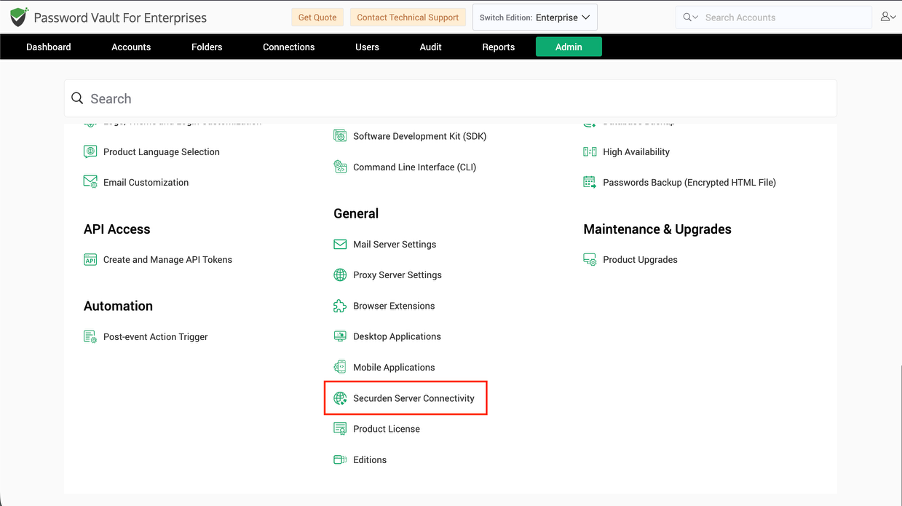
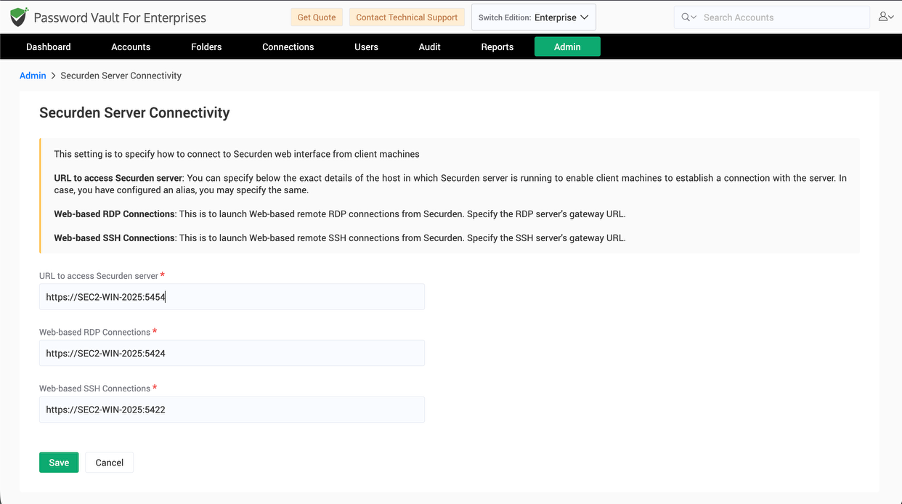
Obtain the Securden Server URL
Navigate to:
Admin >> General >> Securden Server Connectivity
Copy the appropriate server URL for the Chef environment.
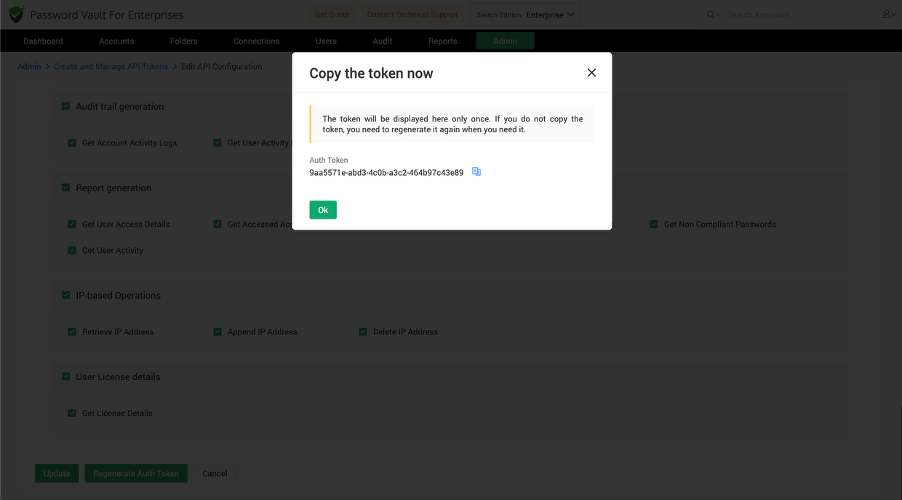
Generate an API Token
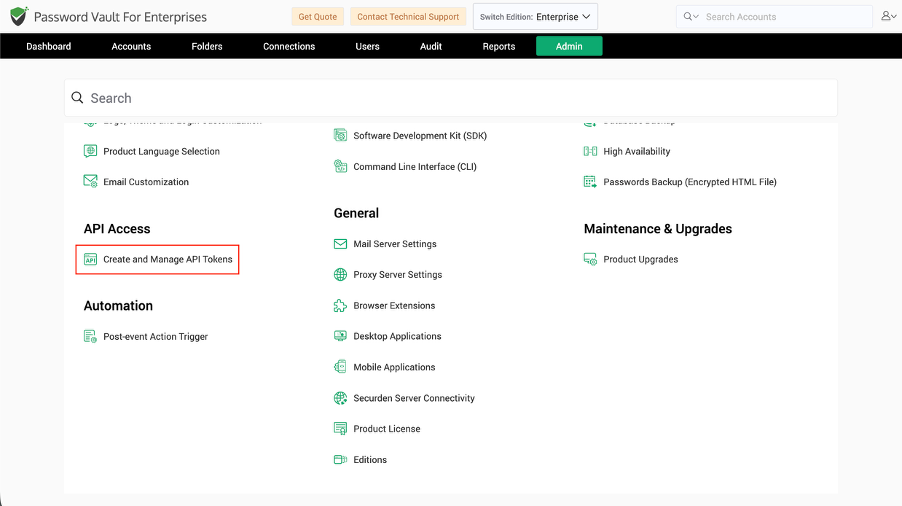
Navigate to:
Admin >> API Access >> Create and Manage API Tokens
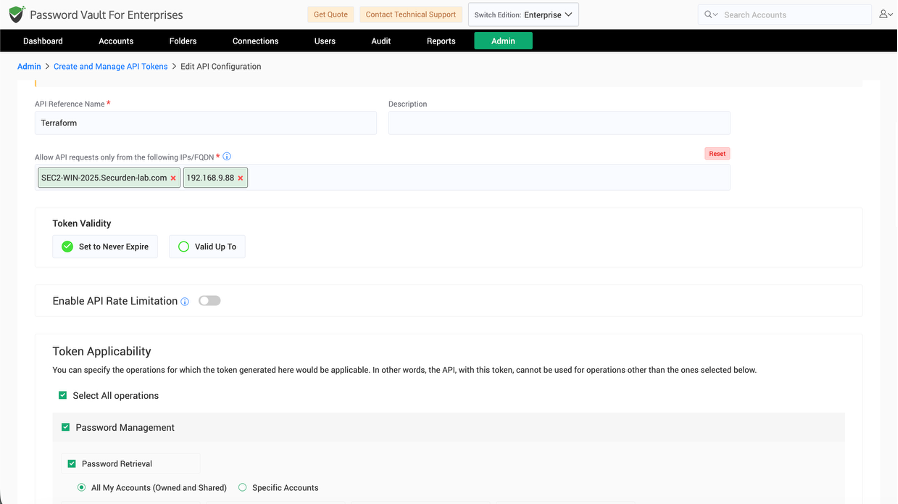
While creating the token:
- Enter an API reference name and description.
- Specify the IP address or IP range from which the token can be used.
- Select a static or dynamic authentication token as required.
- Define the token scope by selecting the operations the Chef integration needs to perform.
- Click Create Token.
- Copy the generated authentication token and store it securely.
Install the Securden Gem
Install the Securden gem in the Chef environment:
chef gem install securden
Refer to the Securden package on RubyGems for package information and updates.
[Screenshot Placeholder: Chef 3]
Use the Securden Gem in Chef Recipes
At the beginning of the Chef recipe, load the Securden dependency:
require 'securden'
Note: Use single quotation marks for string inputs in Chef recipes as required by the Securden integration.
Initialize the Securden Connection
Initialize the integration with the required Securden connection parameters:
require 'securden'

Securden::Init.new(
  server_url: '<SECURDEN_SERVER_URL>',
  authtoken: '<SECURDEN_AUTHTOKEN>',
  # Optional
  certificate: '/path/to/certificate.pem',
)
The certificate is optional.
If a certificate is explicitly supplied, the connection uses that certificate for verification. An incorrect certificate causes the connection to fail.
When a certificate is not provided, the integration attempts to retrieve the Securden server certificate automatically. If automatic certificate retrieval is unsuccessful, certificate verification can be disabled by the integration while HTTPS continues to protect data in transit.
Fetch a Single Account
Use Securden::Account.get to retrieve one account.
Fetch by Account ID
account_data = Securden::Account.get(
  account_id: 2000000001800,
)
Fetch by Account Title and Account Name
account_data = Securden::Account.get(
  account_title: 'Account Title',
  account_name: 'Account Name',
  account_type: 'Web Account',
)
An account can be identified by its Account ID, Account Title, Account Name, or a combination of Account Title and Account Name.
After retrieving the account, access the required values from the returned account data.
Provide a Reason or Ticket ID When Required
Additional controls configured for an account can also apply to programmatic retrieval.
If justification is enforced, include:
reason
If ticketing-system validation is enforced, include:
ticket_id
Provide these values whenever the corresponding Securden controls require them.
Fetch Multiple Accounts
Use Securden::Accounts.get when the Chef recipe needs to retrieve several accounts.
accounts = Securden::Accounts.get(
  account_ids: [2000000001800, 2000000002000]
)
Access the returned account using its Account ID as a string:
accounts['2000000005222']['password']
Use:
Securden::Account.getfor a single account.Securden::Accounts.getfor multiple accounts.
Add an Account
Use Securden::Account.add to create an account:
account = Securden::Account.add(
  account_title: 'Account Title',
  account_name: 'Account Name',
  account_type: 'Web Account',
)
The following fields are mandatory:
account_titleaccount_nameaccount_type
Other supported fields include:
ipaddressnotestagspersonal_accountfolder_idpasswordaccount_expiration_date– DD/MM/YYYYdistinguished_name– Required for applicable LDAP domain accounts.account_alias– Required for applicable AWS IAM accounts.domain_name– Required for applicable Google Workspace accounts.
Update an Existing Account
Use Securden::Account.edit and provide the Account ID together with the values that need to be changed.
Securden::Account.edit(
  account_id: 2000000004745,
  account_title: 'New Title',
  account_name: 'New Name',
  account_type: 'Web Account'
)
Supported fields include:
account_id– Required.account_titleaccount_nameaccount_typeipaddressnotestagsfolder_idoverwrite_additional_fieldsaccount_expiration_datedistinguished_nameaccount_aliasdomain_name
Provide only the fields applicable to the account being updated.
Delete Accounts
Use Securden::Accounts.delete to delete one or more accounts:
Securden::Accounts.delete(
  account_ids: [2000000004745, 2000000004739],
  reason: 'Reason for Account Deletion',
)
The operation returns the Account IDs that were successfully deleted.
By default, deleted accounts are moved to Recently Deleted Accounts.
To delete the accounts permanently:
Securden::Accounts.delete(
  account_ids: [2000000004745, 2000000004739],
  reason: 'Reason for Account Deletion',
  delete_permanently: true
)
Use permanent deletion only when the accounts should not be retained in Recently Deleted Accounts.
Account Attributes Available Through Chef
Depending on the account type and configuration, the following values can be retrieved:
account_idaccount_nameaccount_titlepasswordprivate_keyputty_private_keypassphraseppk_passphraseaddressclient_idclient_secretaccount_aliasaccount_filedefault_databaseoracle_sidoracle_service_nameport
Additional Fields
Custom fields configured for an account can also be accessed. The available values depend on the additional fields defined for the corresponding account or account type.
Frequently Asked Questions
1. How is Chef integrated with Securden Password Vault?
Chef uses the Securden Ruby gem. Install it with chef gem install securden, load it with require 'securden', and initialize the connection using the Securden server URL and authentication token.
2. Which method retrieves a single Securden account from Chef?
Use Securden::Account.get to retrieve one account.
3. How can Chef retrieve multiple accounts from Securden?
Use Securden::Accounts.get and supply the required Account IDs.
4. Can Chef create, edit, and delete Password Vault accounts?
Yes. The Securden Chef integration provides methods for adding, editing, and deleting accounts, subject to the permissions and scope of the authentication token.
5. What happens to accounts deleted through the Chef integration?
By default, deleted accounts are moved to Recently Deleted Accounts. Specify delete_permanently: true when permanent deletion is explicitly required.