How to Securely Share Accounts with Third Party Users?
Securden Password Vault for Enterprises allows users to securely share accounts with third parties—such as vendors, contractors, auditors, or external partners—without exposing sensitive information through insecure channels like email or messaging tools.
With controlled, time-bound access and built-in verification mechanisms, you can ensure that external users get the access they need—only when they need it—while maintaining complete visibility and control over account access and usage.
To share an account with a third party, you simply need their email address. Third-party sharing is not just limited to administrators. Any user who owns an account or has an account shared to them (with “Manage” permission only) can securely share it with third parties outside the organization by following the steps below.
Pre-requisite
To share accounts with external users via email, ensure that the mail server settings are configured in Securden. You can configure this under Admin → General → Mail Server Settings.
For detailed instructions, refer to: https://www.securden.com/password-manager/help/general-configuration-settings/how-to-configure-mail-server-settings-in-password-vault.html
How to Securely Share Accounts with Third-party Users
To securely share accounts to third parties,
-
Navigate to the Accounts tab.
-
Select the required account to be shared with third party users.
-
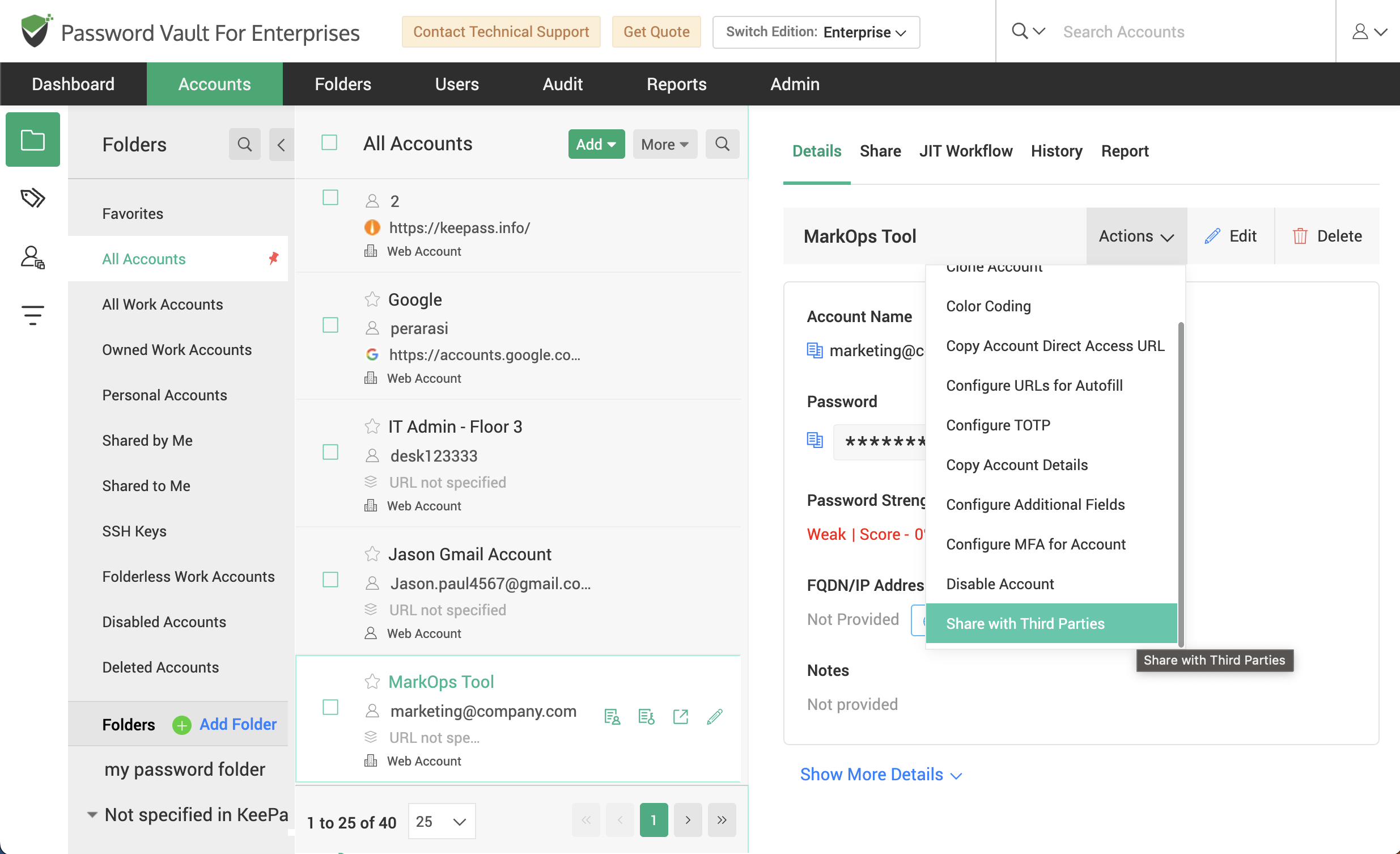
On the right pane, click Actions → Share with Third Parties. This opens the Share with Third Parties window.
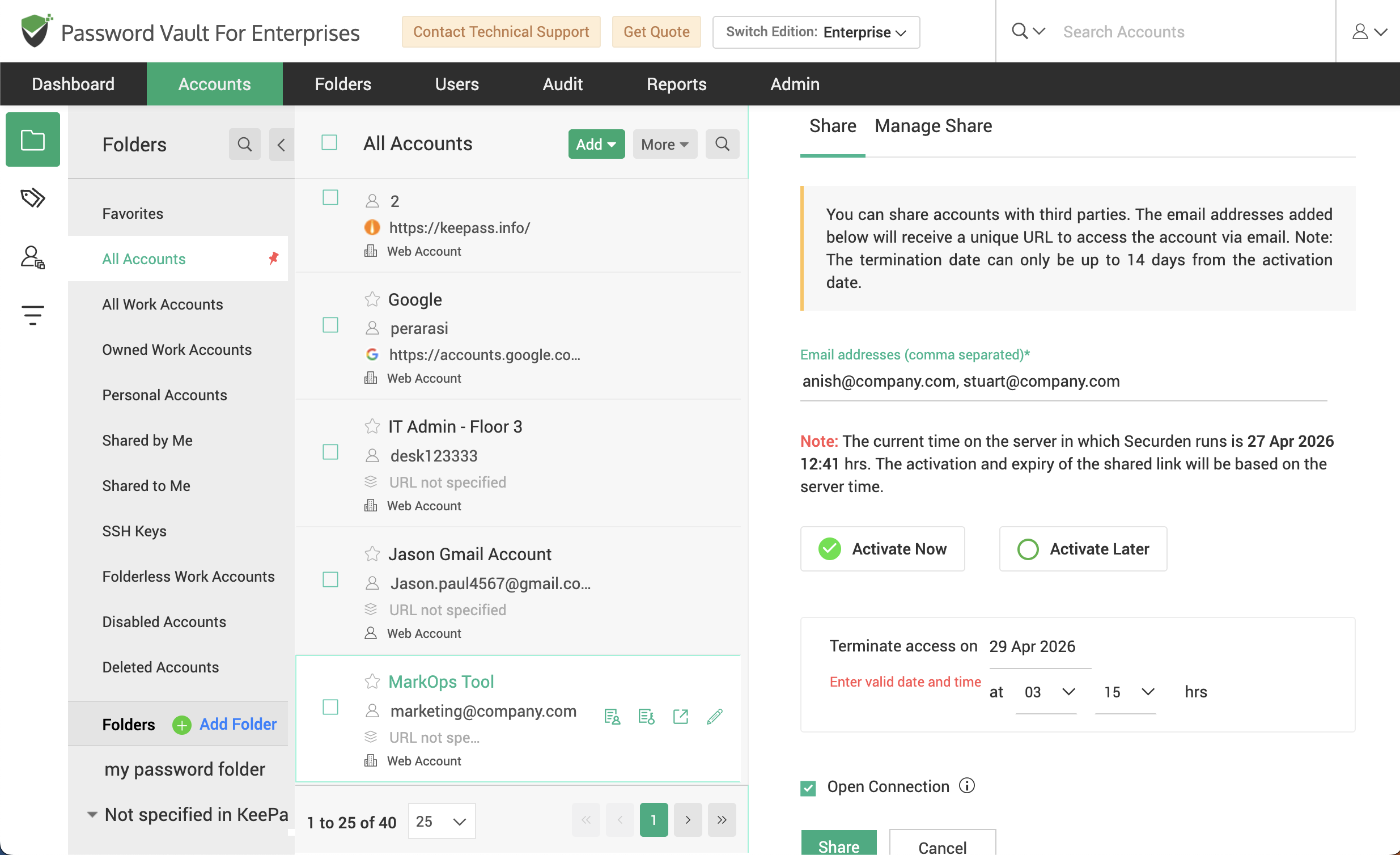
Configure Sharing Details
Each shared account is governed by a defined access timeframe. Before sharing, configure the following:
-
Email addresses: Enter the email address(es) of the recipient third-party user(s). For multiple recipients, provide email addresses in a comma-separated format.
-
Activation time: You can either choose to “Activate Now” that grants immediate access to the third-party user upon sharing. Or you can choose to “Activate Later” that allows you to schedule access for a specific date and time.
-
Terminate access: Specify the date and time when access should be revoked. After this point, the third party will no longer be able to access the account.
-
Open Connection Permission: Enable this option to allow third-party users to directly launch a connection to the account without viewing the account password in plain text. The password remains masked. Access is provided via secure autofill and session launch.
-
If the “Open Connection” option is not chosen, the third-party users will be able to view the password of the account shared by default.
Once you’ve provided the details, click Share.
How to Terminate Access for Third-Party Users
To revoke access for third-party users:
- Navigate to the Accounts tab.
- Select the account that has been shared with third parties.
- Click Actions → Share with Third Parties.
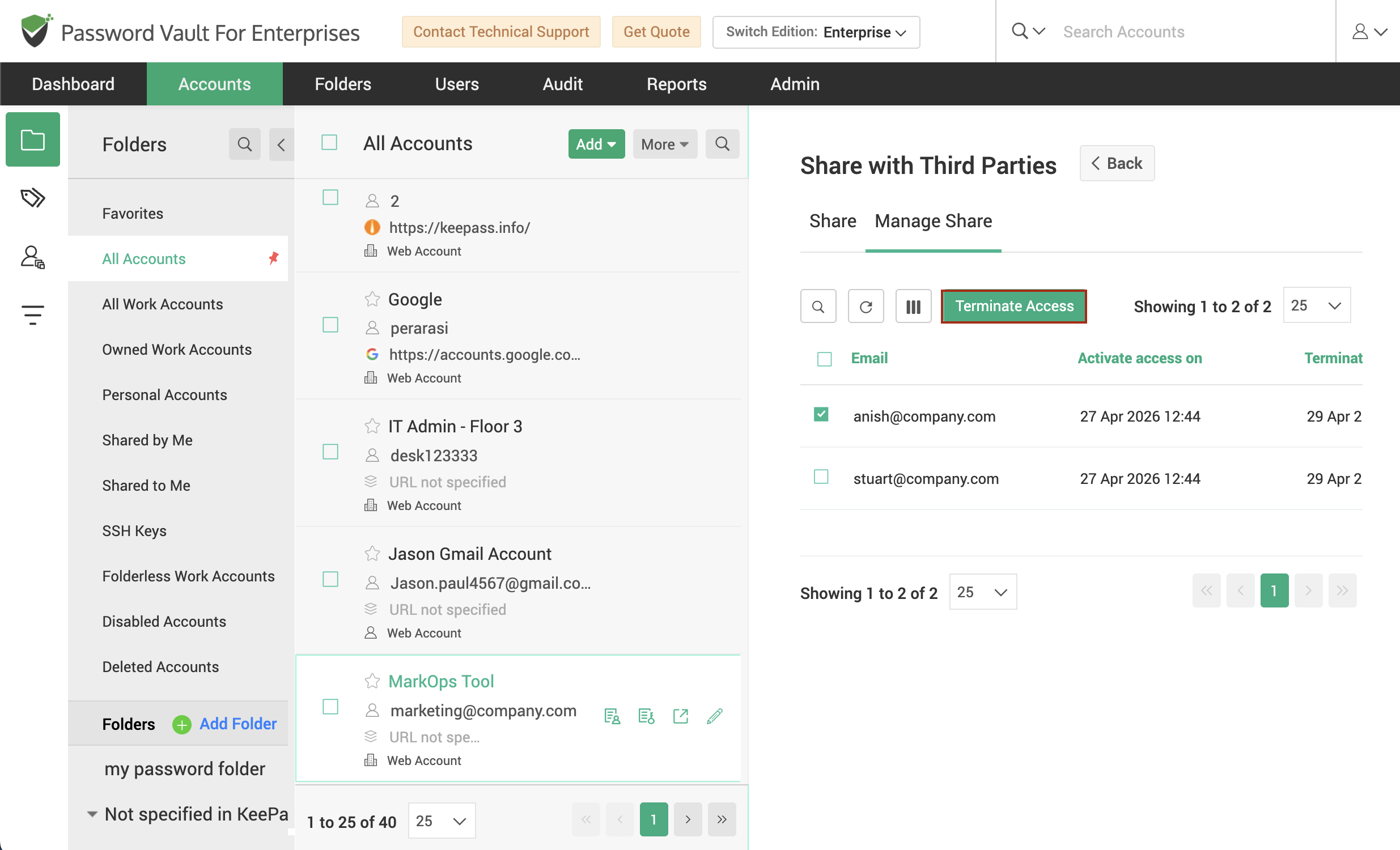
- In the Share with Third Parties window that opens, switch to the Manage Share tab.
- Select the email address(es) of the third-party user(s) whose access you want to revoke.
- Click Terminate Access from the top menu.
Once terminated, the user will no longer be able to access the shared account, regardless of the originally defined access duration.
How Third-Party Users Access a Shared Account
When an account is shared to a third-party user,
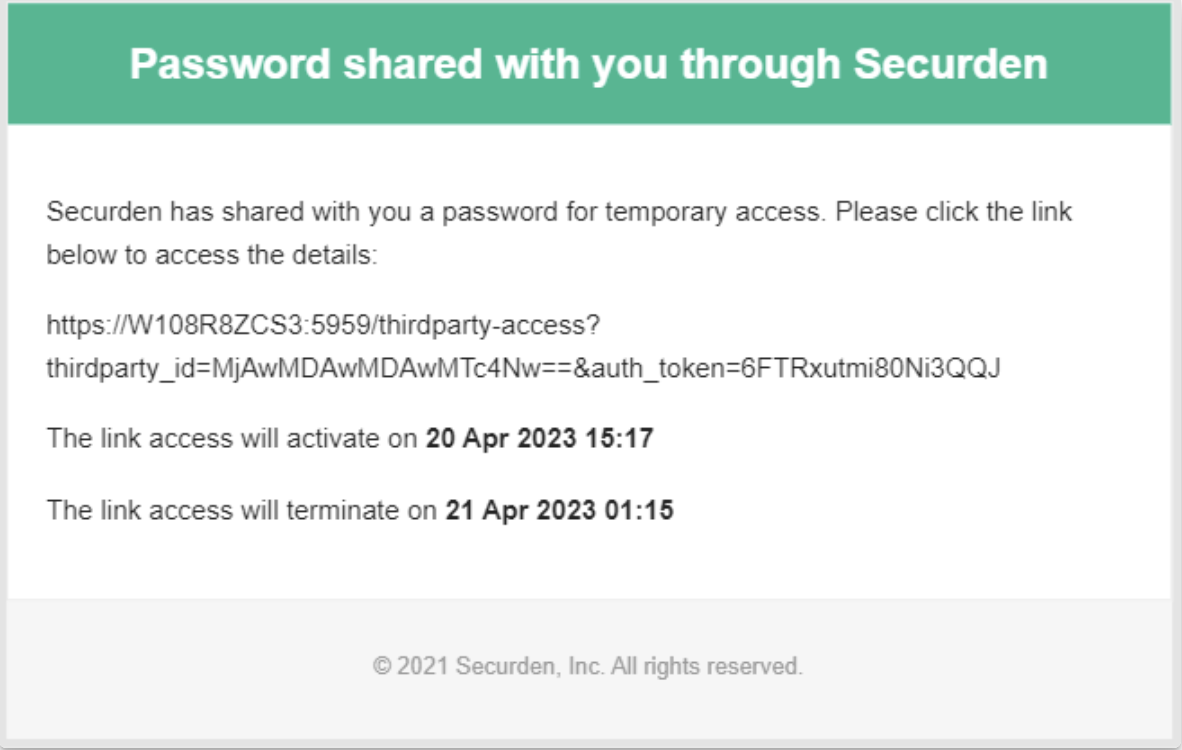
- The external user receives an email containing a secure access link to the shared account.
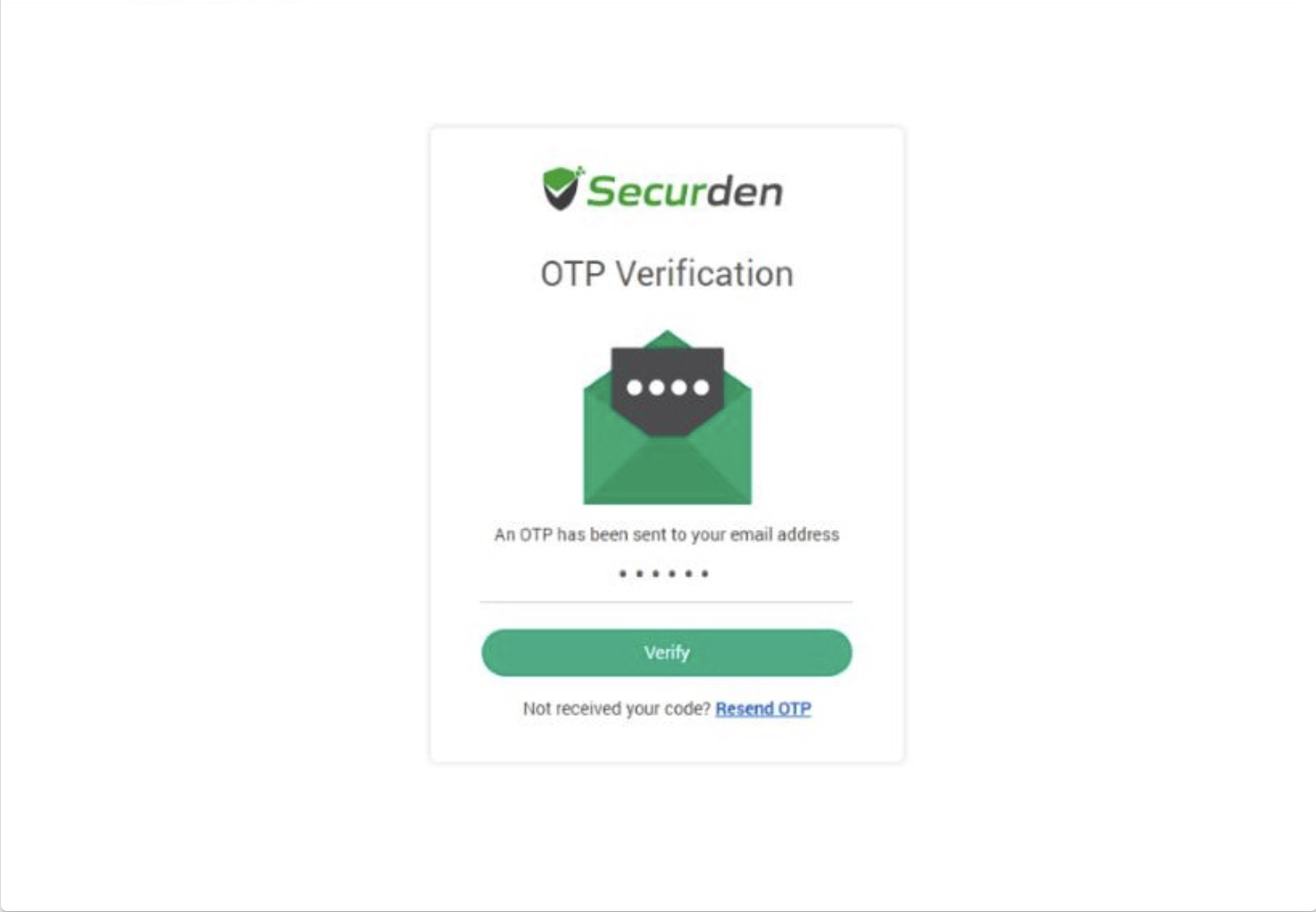
- Clicking the link redirects them to a Securden OTP verification page.
- An OTP is sent to their email inbox, which must be entered to proceed.
- Upon entering the OTP and clicking Verify, access to the shared account is granted.
- If the account has been shared to the third-party user without enabling the “Open Connection” permission, the user can click the View Password icon to reveal the account password.
- If the account is shared with “Open Connection” enabled, the user will not be able to view the password; instead, they will be directly logged in and connected to the account after OTP verification.
- Access is available only for the defined time period; once expired, the link becomes invalid and access is revoked.
How to Access a Shared Account Without Logging in to Securden
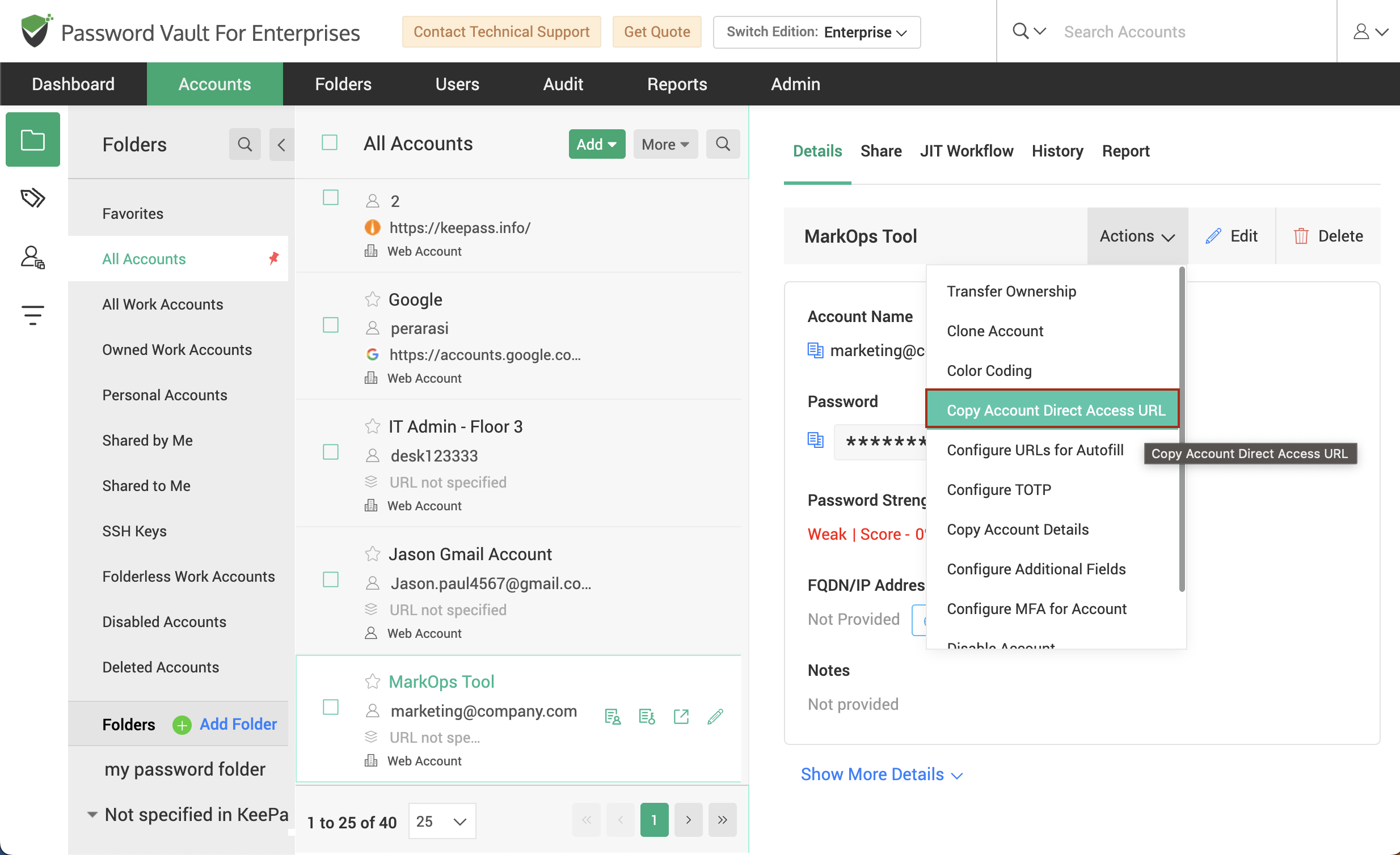
To share the account direct access URL with a user,
- You can share an account using a Direct Access URL, allowing users to quickly access the account without navigating through the interface.
- The recipient must be a Securden user and should have at least Open Connection permission for the account.
To copy the Direct Access URL:
- Navigate to Accounts → select the account → Details → Actions → Copy Account Direct Access URL
- Share the copied URL with the user for direct access.
- The user can then launch a connection to the account directly using the link.
FAQs
How can I securely share passwords with third parties without exposing credentials?
You can securely share passwords with third parties using Securden Password Vault by generating a time-bound access link. Instead of revealing credentials, access is granted through a secure interface with OTP verification. You can also enable “Open Connection” to allow direct login without exposing the password in plain text.
Can I set an expiration time when sharing accounts with external users?
Yes, Securden Password Vault allows you to define a specific activation and termination time when sharing accounts with third parties. Access is automatically revoked after the expiration time, ensuring that external users only have access for the required duration.
How does OTP verification work for third-party account access?
When an account is shared, the third-party user receives a secure link via email. Upon clicking the link, they are prompted to complete OTP verification. A one-time password is sent to their email, which must be entered to gain access, ensuring an additional layer of security.
What happens if I disable the ‘Open Connection’ option while sharing accounts?
If “Open Connection” is disabled, third-party users can view the account password after OTP verification. If enabled, users are directly logged into the account without seeing the password, preventing credential exposure and improving security.