What is an Account Access Report in Password Vault?
The Account Access Report provides a comprehensive view of which users have access to specific accounts, along with the exact level of permissions assigned to the users. This report is particularly useful for administrators to review access distribution, validate permissions, and ensure that access to sensitive accounts is granted appropriately.
In environments where accounts may be shared across multiple levels—such as directly with users, through user groups, or via folders—this report helps bring complete visibility into how access has been assigned and enforced.
How to Understand Account Access Distribution?
To view and analyze access distribution across accounts:
- Navigate to Reports → Standard Reports → Account Access to open the Account Access Report.
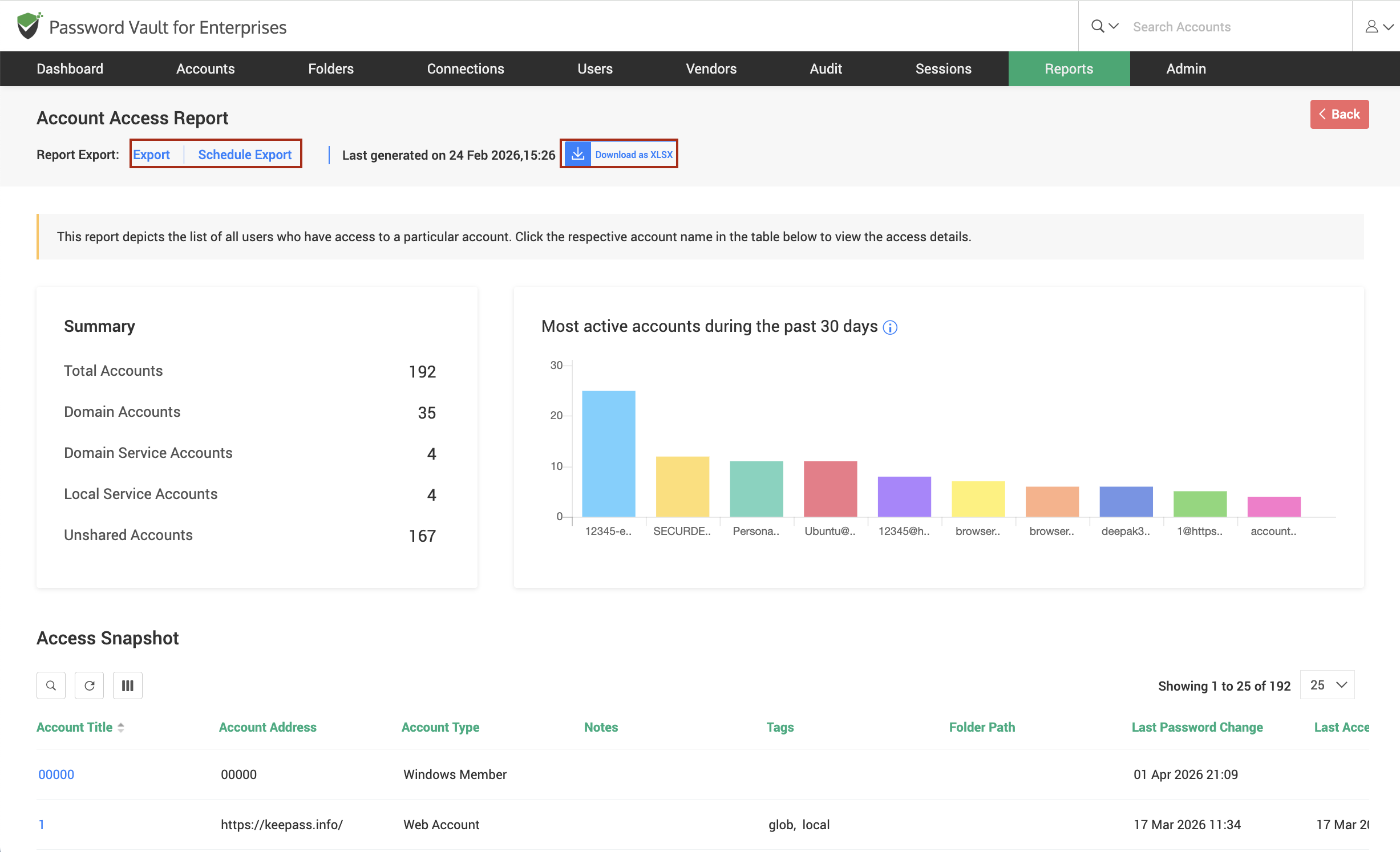
- Upon loading the report, the summary section is displayed at the top, which provides an overview of the total number of accounts, including shared, personal, and unshared accounts.
- Alongside the summary, the graphical representation of the most active accounts (during the selected time period) helps you quickly identify frequently accessed or critical accounts.
- The data shown in the graph includes password retrievals, remote connections launched and password auto-fills on websites.
- Scroll down to the Access Snapshot section, where all accounts are listed in a tabular format along with details such as account title, address, account type, folder path, last password change, and information on who last accessed the account and when.
- Browse or search within the table to locate a specific account, and click on the Account Name to drill down further into user-level access details for that account.
How to View User-Level Access Details?
To view detailed access information for a specific account:
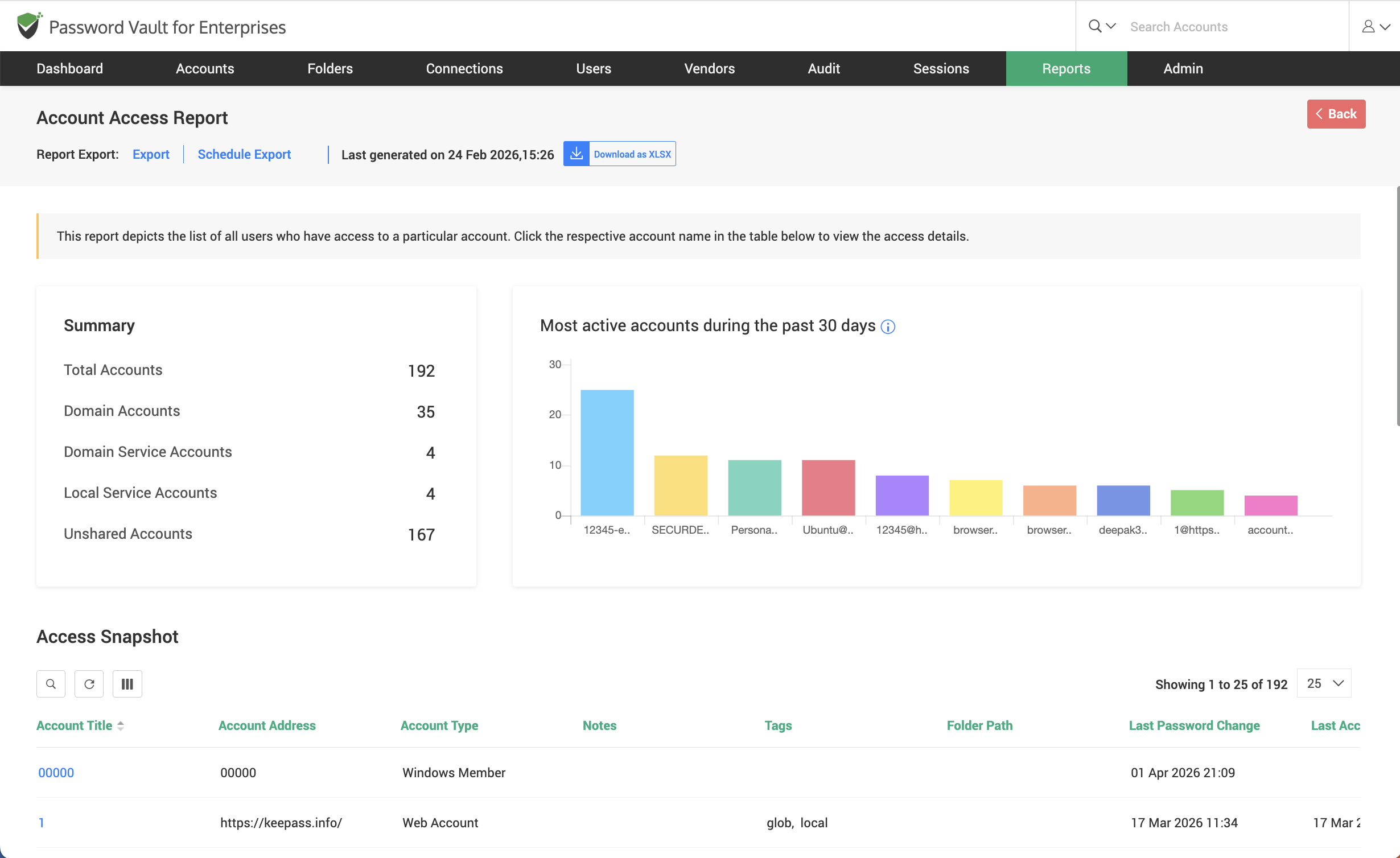
- In the Access Snapshot section, locate the required account from the list and click on the Account Name to open its access details.
- In the view that opens, you will find a list of all users who have access to the selected account.
- For each user, Securden Password Vault displays the level of permissions granted, such as View, Modify, Manage, and Open Connection, allowing you to clearly understand the extent of access provided.
- Review these permissions to verify that users have only the required level of access and to identify any instances of excessive or unintended privileges.
How to Trace Access Sharing Pathways?
To understand why a particular user has a specific level of access to an account and to trace back the exact source of that access:
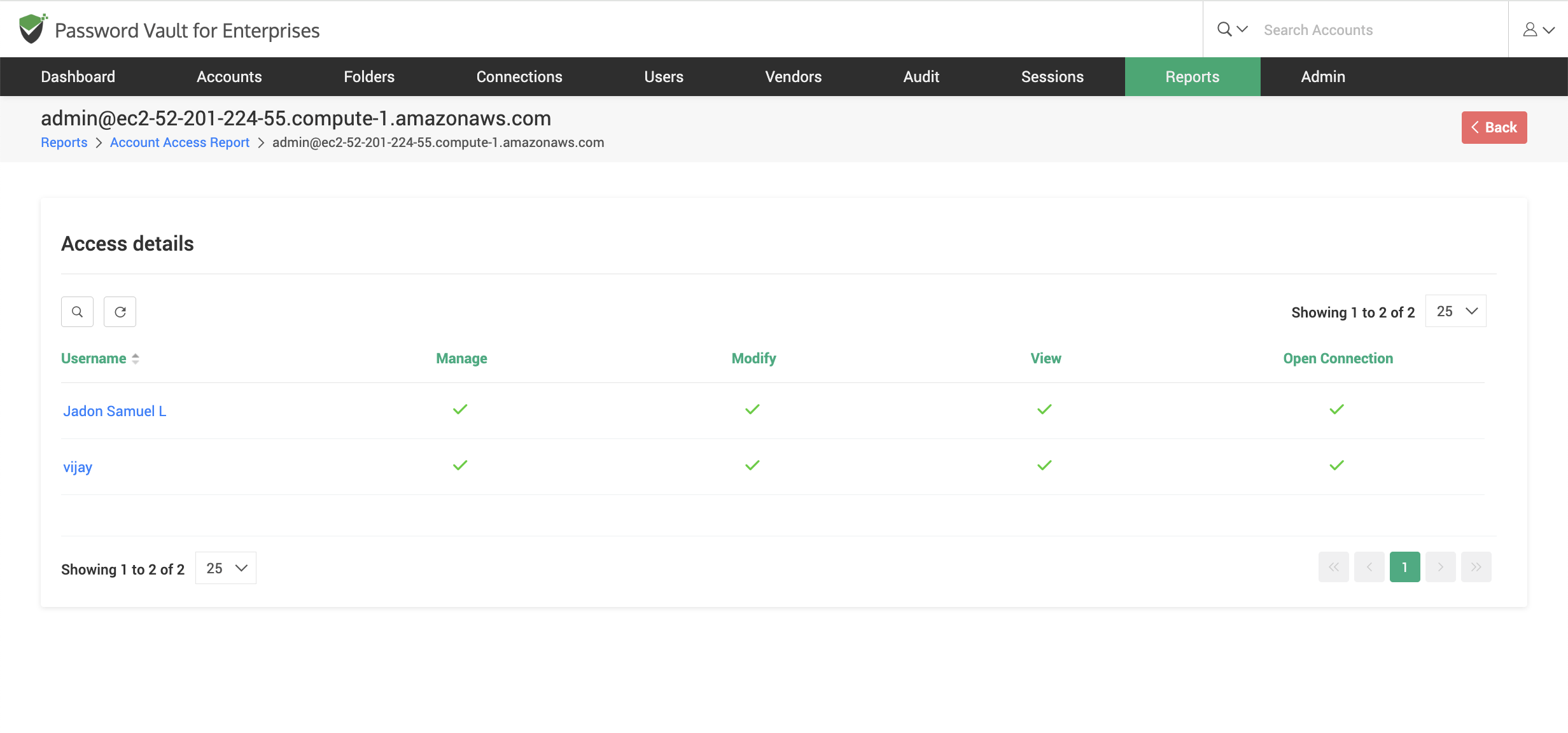
- From the Access Details pane, click on the required user entry. This opens the Tracing the Sharing Mechanism window.
- In the window that appears, review the different levels at which the account has been shared. This includes access granted directly to the user, as well as access inherited through user groups, roles, or folders.
- Securden Password Vault displays all applicable sharing paths along with the corresponding permission levels, providing a complete breakdown of how access has been assigned.
- Identify the effective permission applied to the user, which is determined based on the least privilege principle.
- In cases where multiple sharing paths exist, note that Securden Password Vault enforces the most restrictive permission among them, ensuring that users receive only the least level of access required.
- Use this view to clearly understand why a user has a specific level of access and to trace back the exact source of that access.
How to Export and Schedule Account Access Reports
The Account Acess Report can be exported for audit and compliance purposes. To export or schedule the Account Access Report:
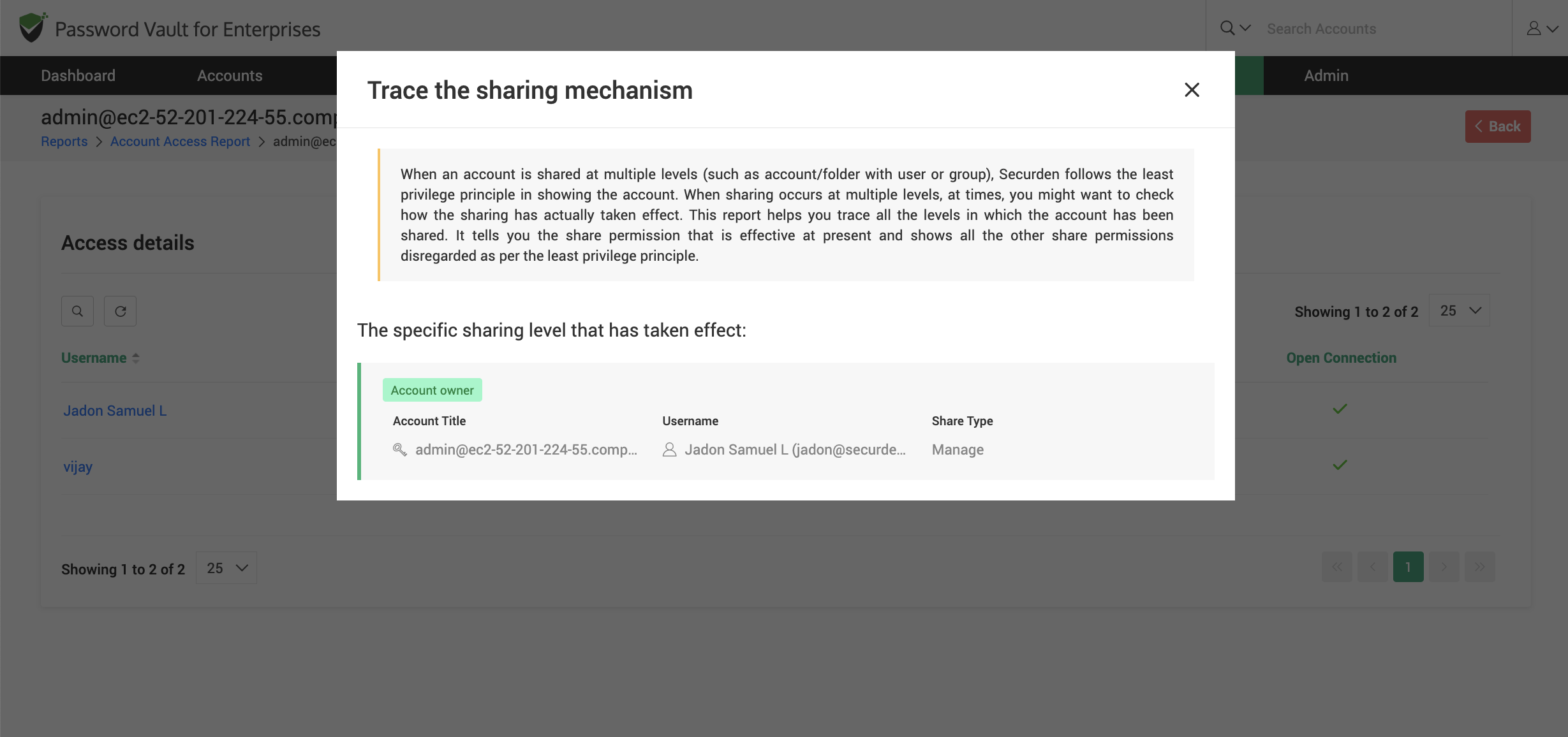
- Click on Export in the top pane to immediately download the report in a supported format such as CSV, PDF, or XLSX.
- To automate report generation, click on Schedule Export and configure the required parameters such as frequency, time, and recipients.
- Once scheduled, the report will be generated and delivered automatically based on the defined schedule.
- To download a previously generated report, click on Download as option available in the report view.