
How to Import Users from File
Password Vault for Enterprises supports bulk user onboarding through CSV and XLSX files. This method is useful when importing users from external systems or when directory services are not being used.
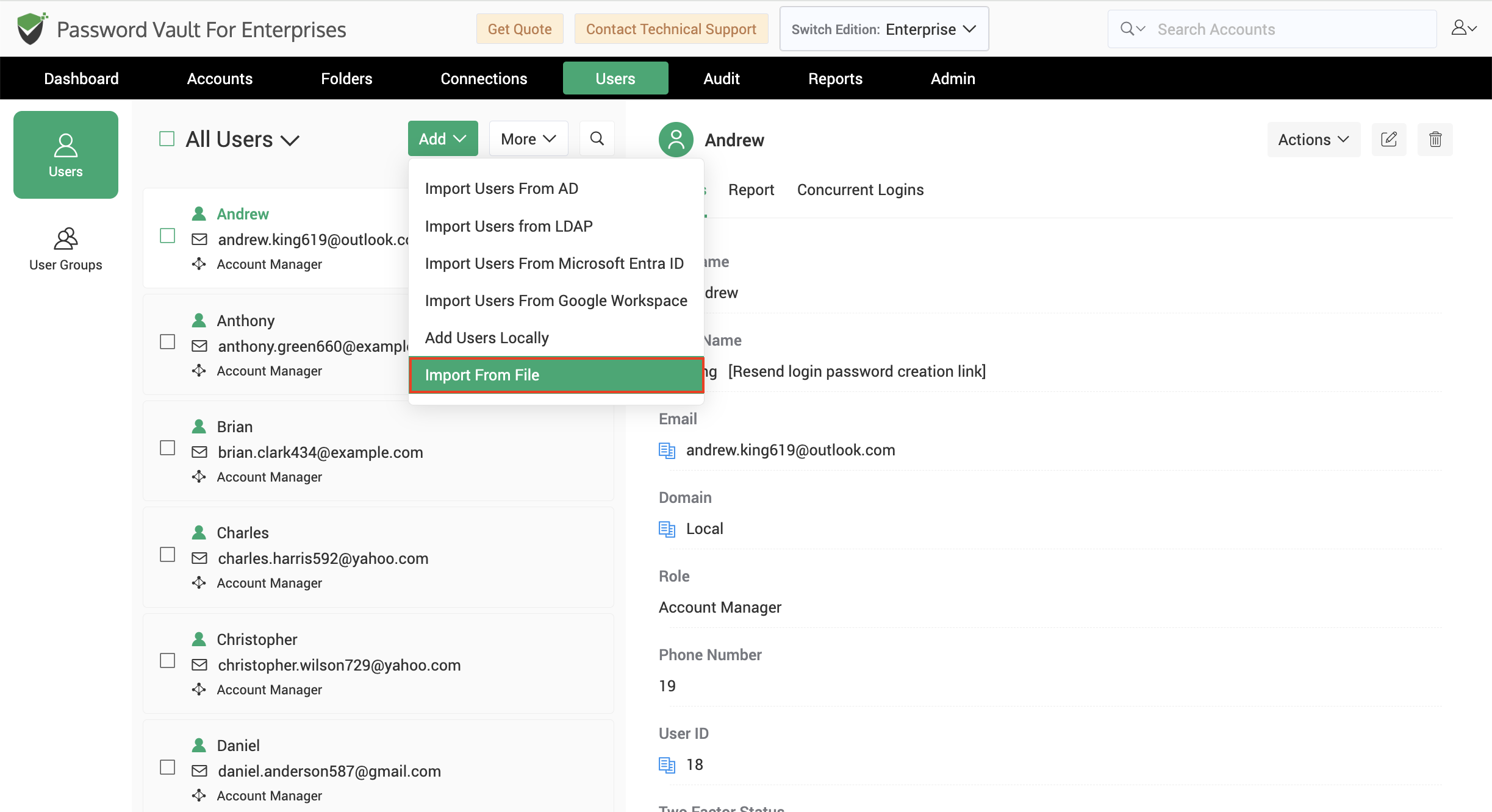
To import users from file, navigate to Users >> Add >> Import From File
Step 1: Upload the Import File
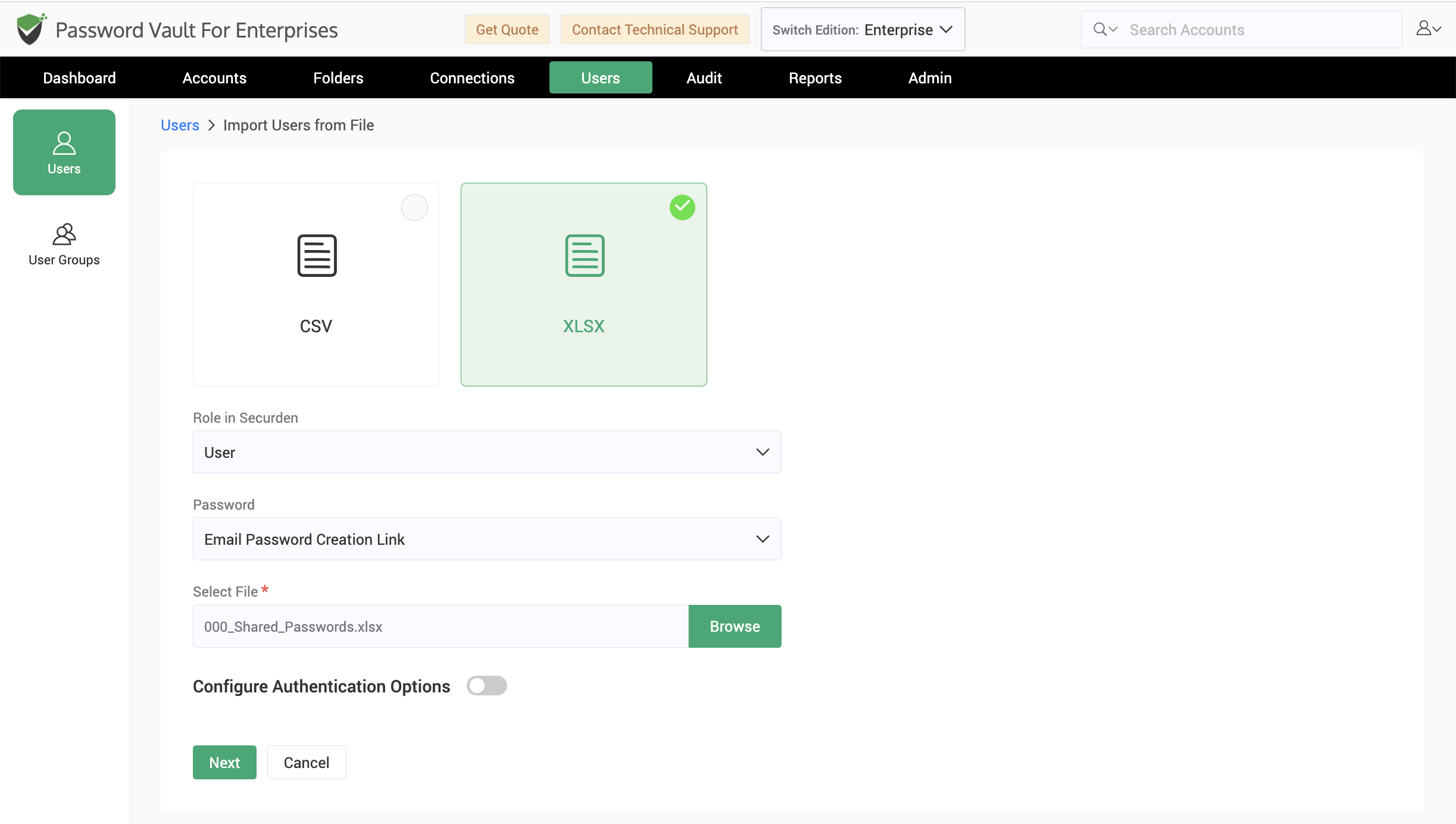
Begin by selecting the file format that you would like to import. Supported formats include CSV and XLSX.
-
Before uploading the file, select the role that should be assigned to imported users. To learn more about user roles in Securden, click here.
-
You can also choose how passwords should be configured for newly imported users. Depending on your deployment, available options may include sending password creation links through email or using other configured password creation methods.
-
If required, enable Configure Authentication Options to define authentication settings that should be applied to imported users. To learn more about authentication options, click here.
-
After completing the configuration, browse and upload the CSV or XLSX file containing the user information. For CSV files, specify the delimiter used within the file before proceeding.
-
Click Next to continue.
Step 2: Map Columns
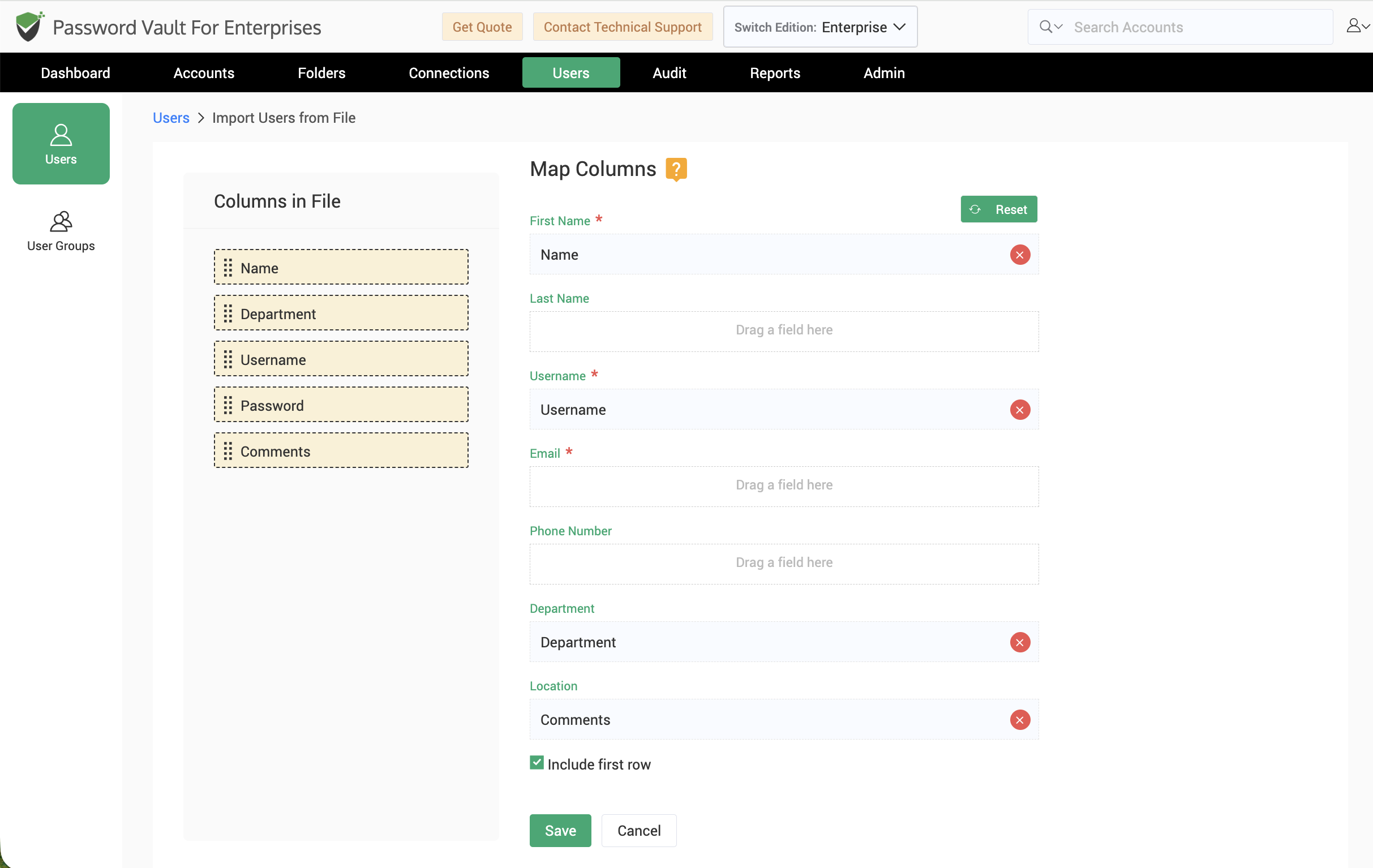
After the file is uploaded successfully, Password Vault for Enterprises prompts you to map source columns from the file to the corresponding user attributes.
The following attributes are supported during import:
- First Name (Required)
- Last Name
- Email Address (Required)
- Phone Number
- Department
- Location
To map fields, select a source column from the uploaded file and drag it to the corresponding destination attribute. Repeat this process until all required fields have been mapped.
If the uploaded file contains column headers, enable the Include First Row option.
You can use the Reset option at any time to clear the existing mappings and start over.
After verifying the mappings, click Save.
The application validates the imported data and prepares the user records for import.
Notes:
- First Name and Email Address are mandatory fields.
- Additional attributes are optional.
- User import cannot proceed until all mandatory fields have been mapped successfully.
Frequently Asked Questions
Which file formats can I use to import users into Password Vault?
Password Vault supports importing users from CSV and XLSX files. Navigate to Users > Add > Import From File, select the file format, and upload your file. For CSV files, specify the delimiter used to separate values, such as a comma, tab, colon, or semicolon.
Does my file need to follow a specific column order?
No. You can map your file’s columns to the corresponding user fields in Password Vault during import. The first row is excluded by default to skip column headers. If it contains user details instead, select Include first row to import that row as well.