How to Perform User Operations (In Bulk)
Securden Password Vault for Enterprises allows administrators to perform operations on users onboarded into the product. These operations can be performed either on individual users or users in bulk depending on the requirements.
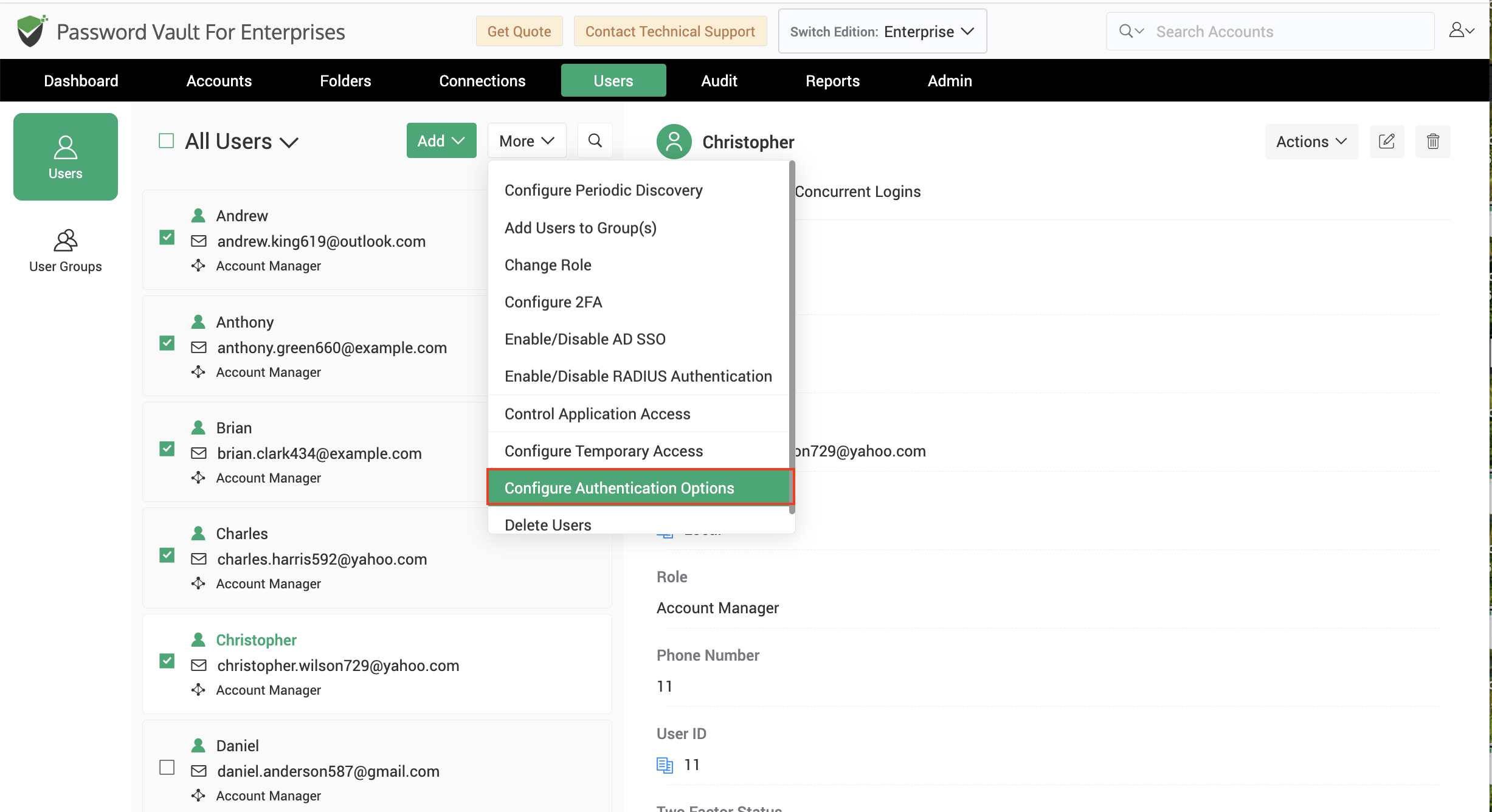
The More menu on the left pane provides a set of bulk user management operations that can be performed on one or more selected users simultaneously.
To perform any of these operations, select one or more users from the user list and click More.
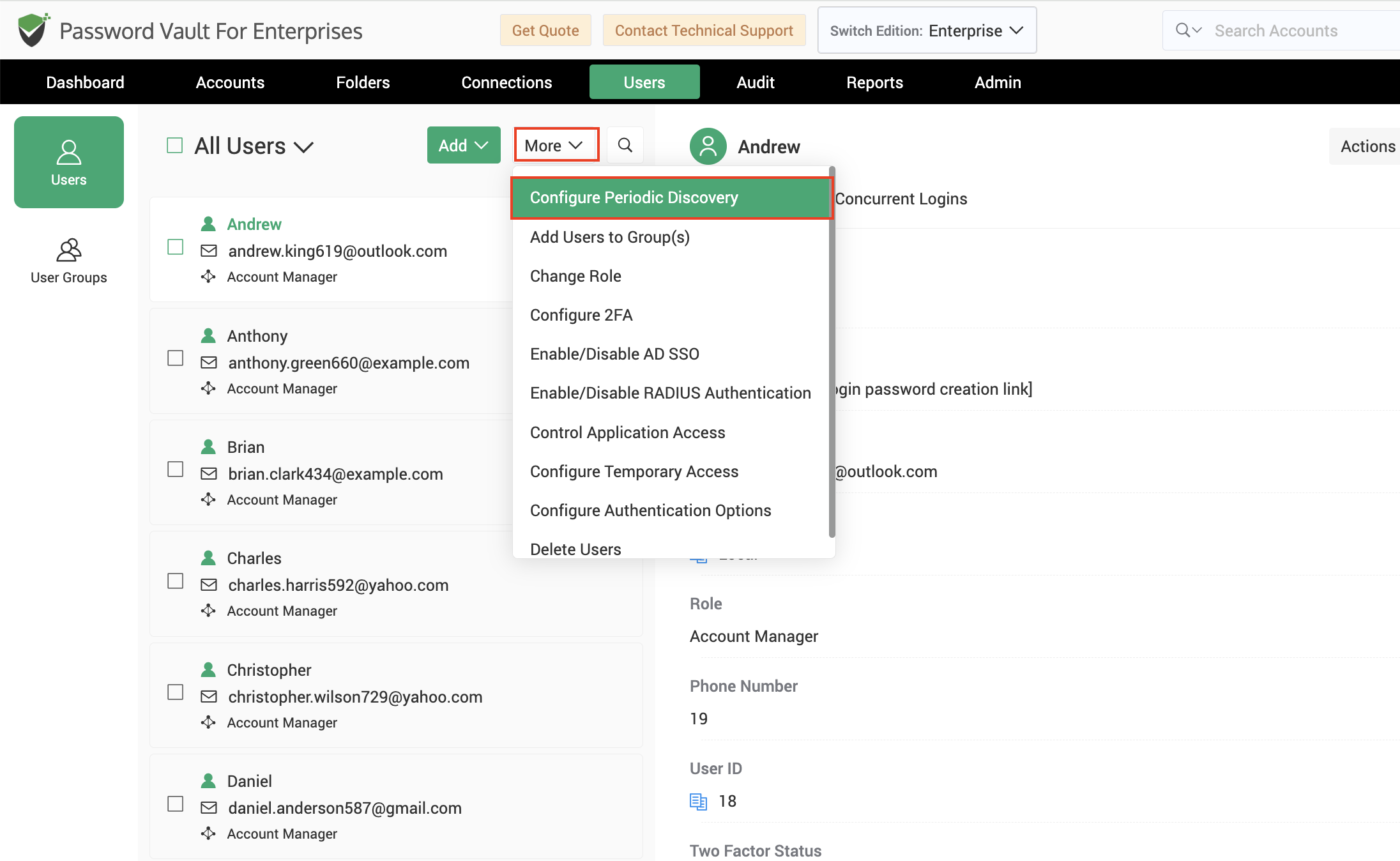
1. Configure Periodic Discovery
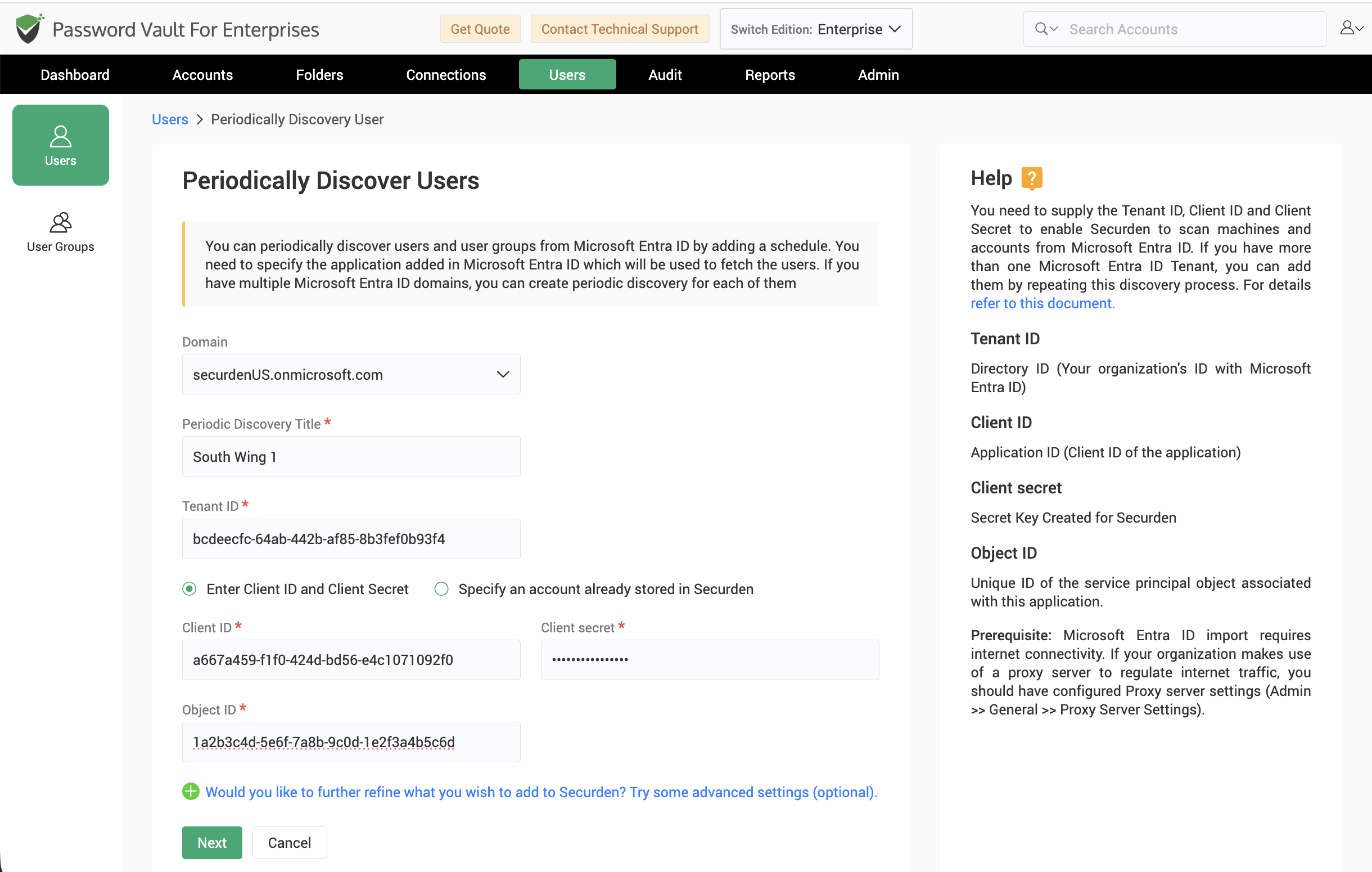
Administrators can configure periodic user discovery from Microsoft Entra ID to automatically discover and import users and groups at scheduled intervals.
When configuring periodic discovery, specify the Microsoft Entra ID connection details, provide a unique discovery title, and define the discovery schedule. Once configured, Password Vault for Enterprises periodically scans Microsoft Entra ID and discovers newly added users and groups according to the configured schedule.
2. Add Users to Group(s)
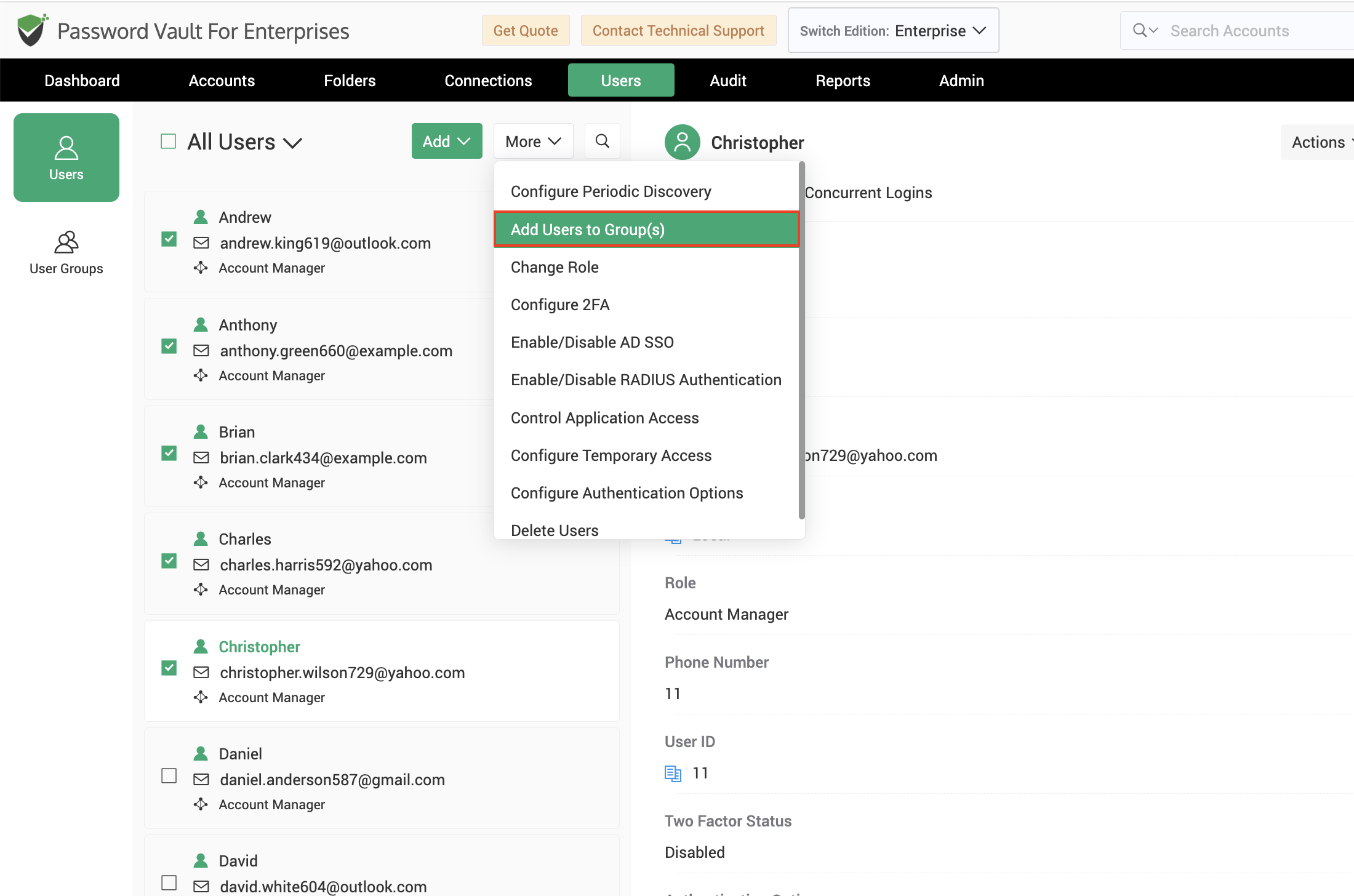
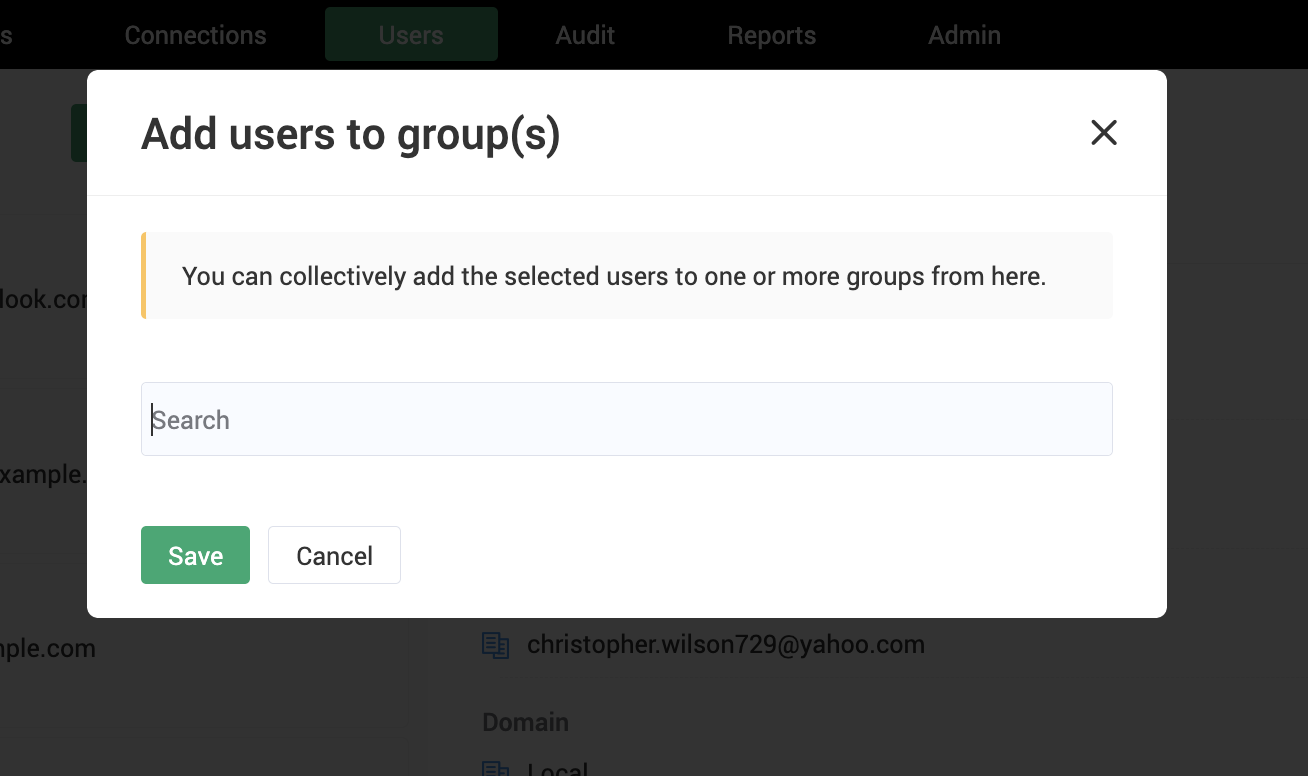
This option allows administrators to add one or more selected users to existing user groups.
Administrators can search for and select the required groups and then save the configuration to add all selected users to those groups.
3. Change Role
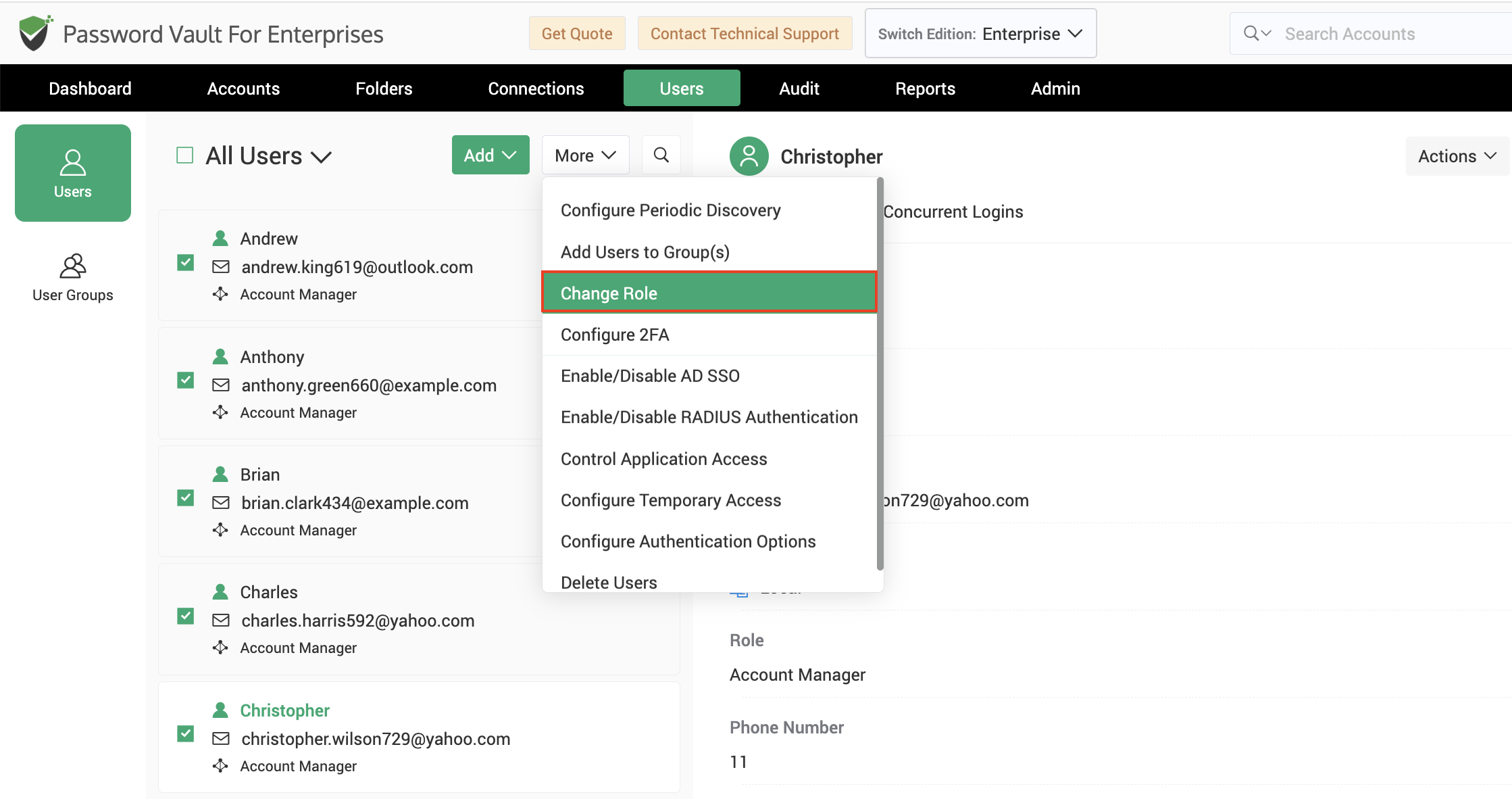
Administrators can modify the role assigned to one or more selected users.
Available roles include:
- User
- Auditor
- Account Manager
- Administrator
- Super Administrator
- Custom User Roles (if configured)
If a selected user owns accounts or possesses administrative privileges such as approval permissions, the role may not be downgraded until the associated ownership or privileges are reassigned.
To learn more about user roles, click here.
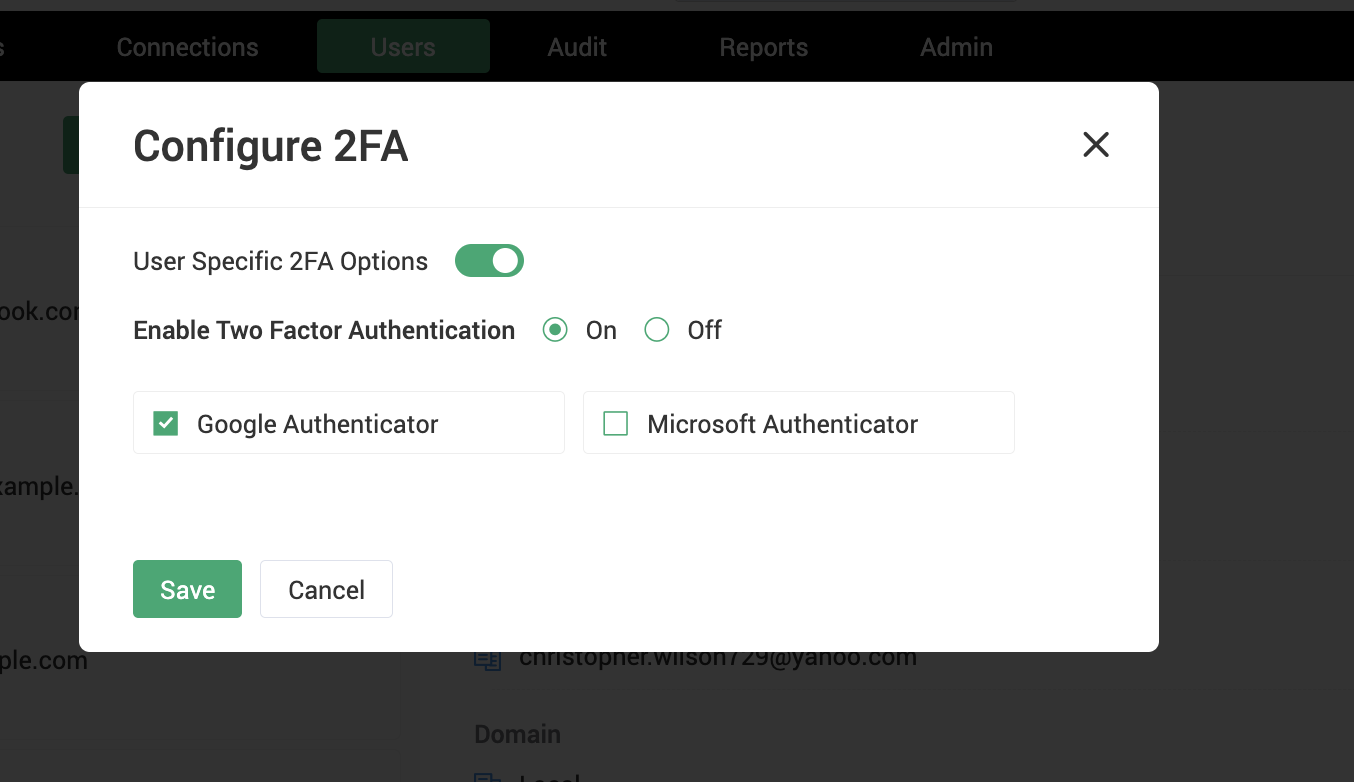
4. Configure 2FA
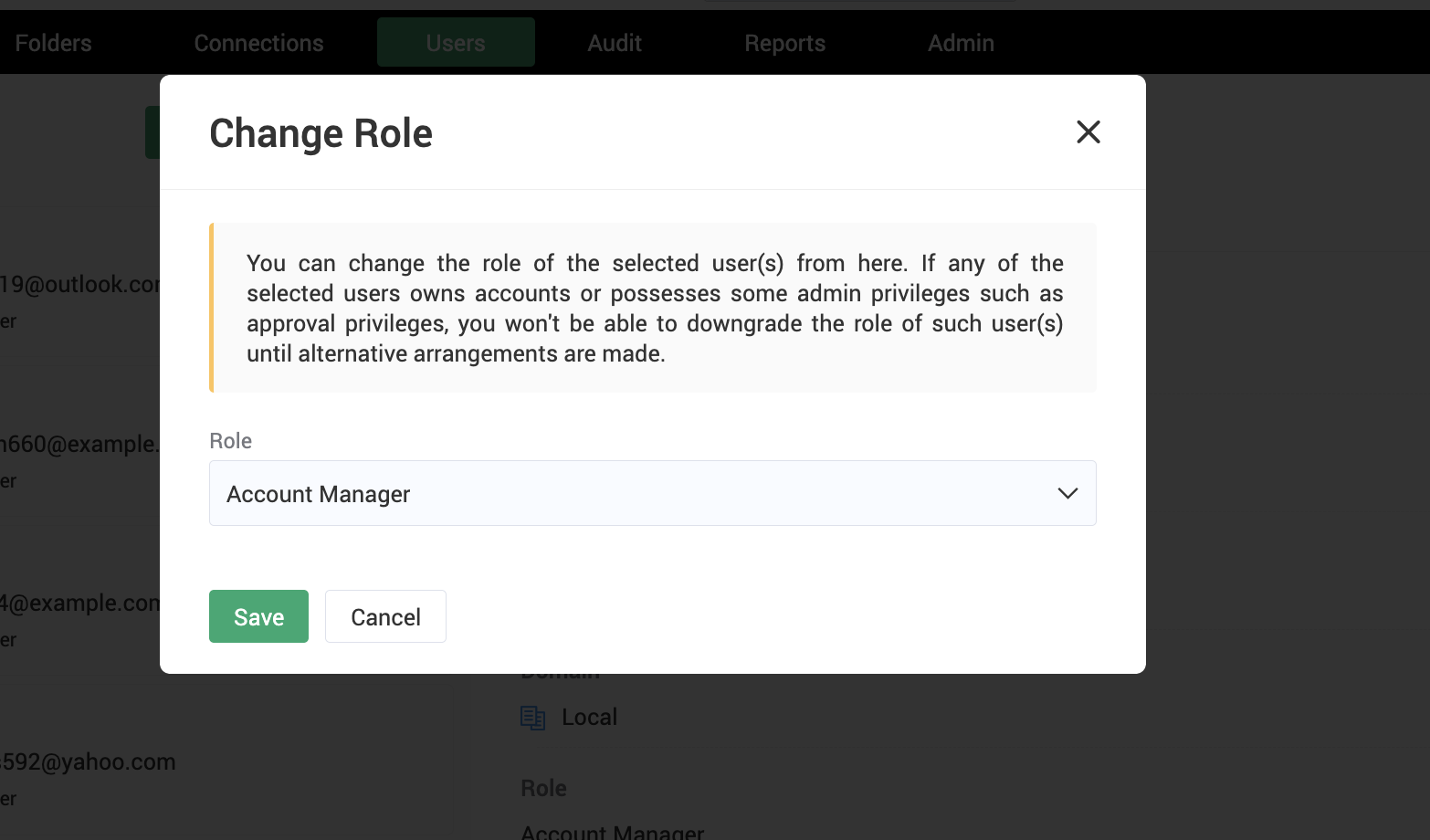
This option allows administrators to configure user-specific multi-factor authentication settings for selected users.
Administrators can enable or disable two-factor authentication and choose the authentication methods that should be available to the selected users.
Supported methods include:
- Mail OTP
- Google Authenticator
- Microsoft Authenticator
To know in detail about the various multi-factor authentication options supported in Password Vault, click here.
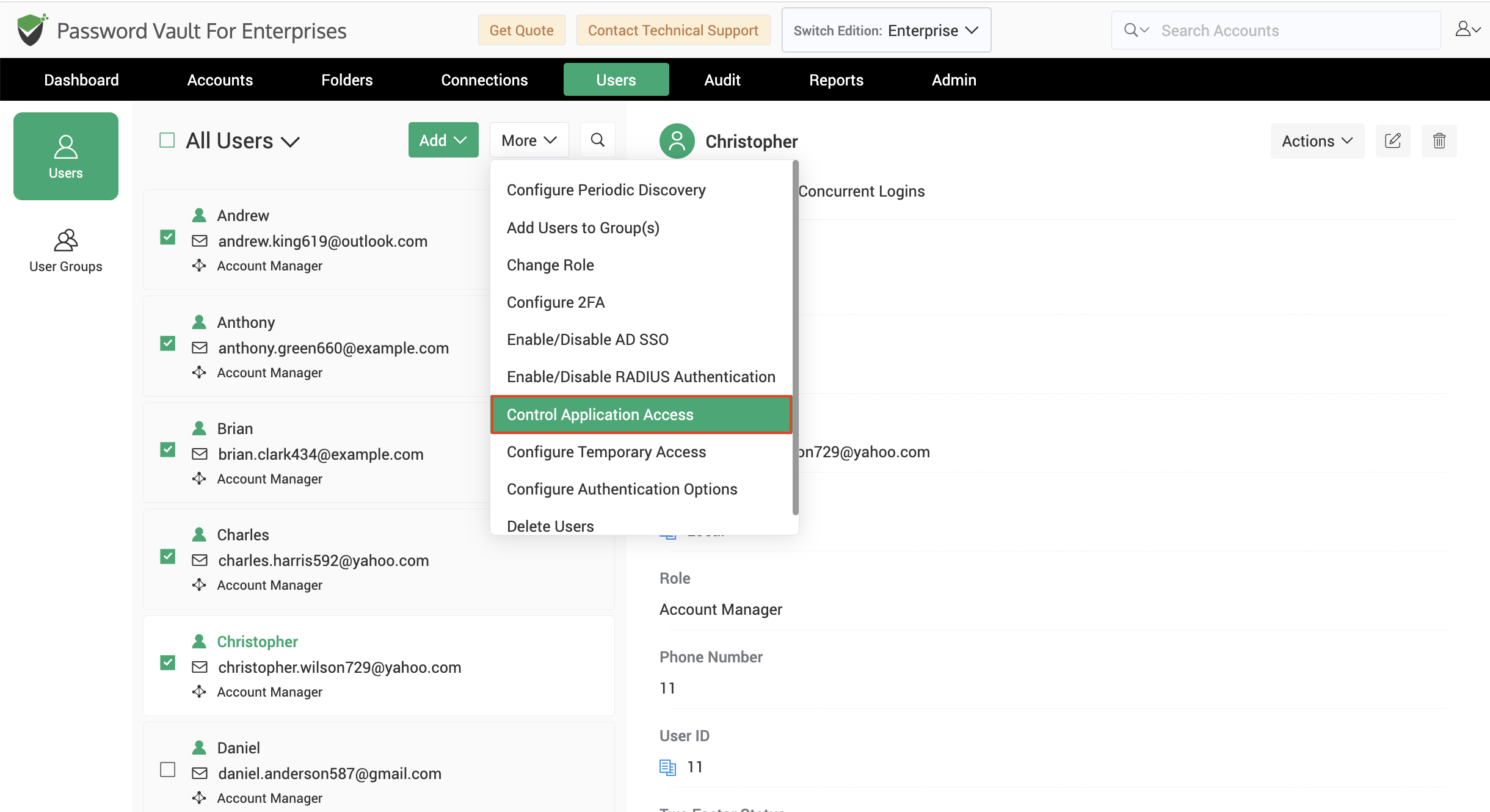
5. Control Application Access
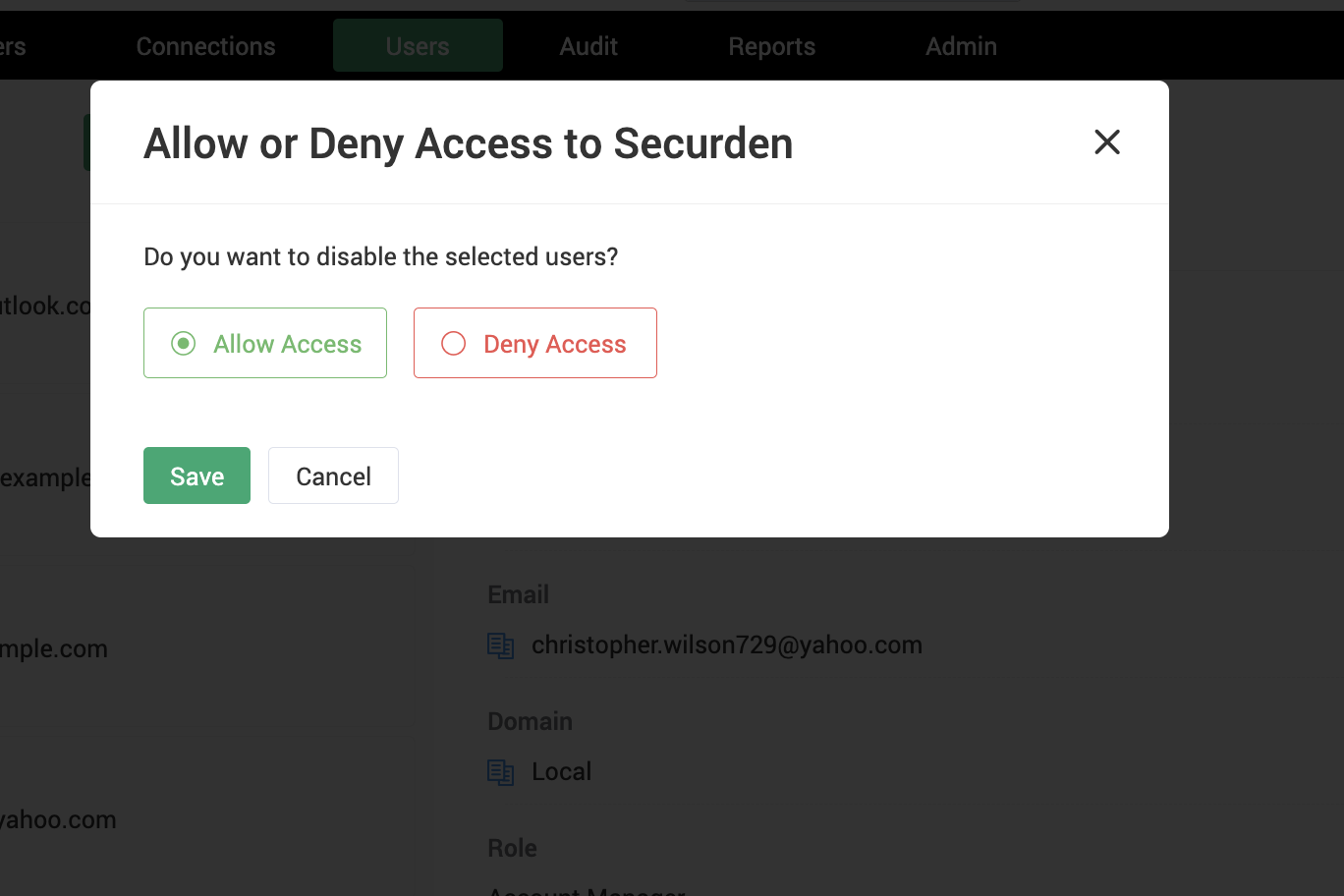
Administrators can enable or disable access to the Password Vault for Enterprises web interface for selected users.
The following options are available:
- Allow Access
- Deny Access
Users whose access is denied will not be able to sign in until access is restored.
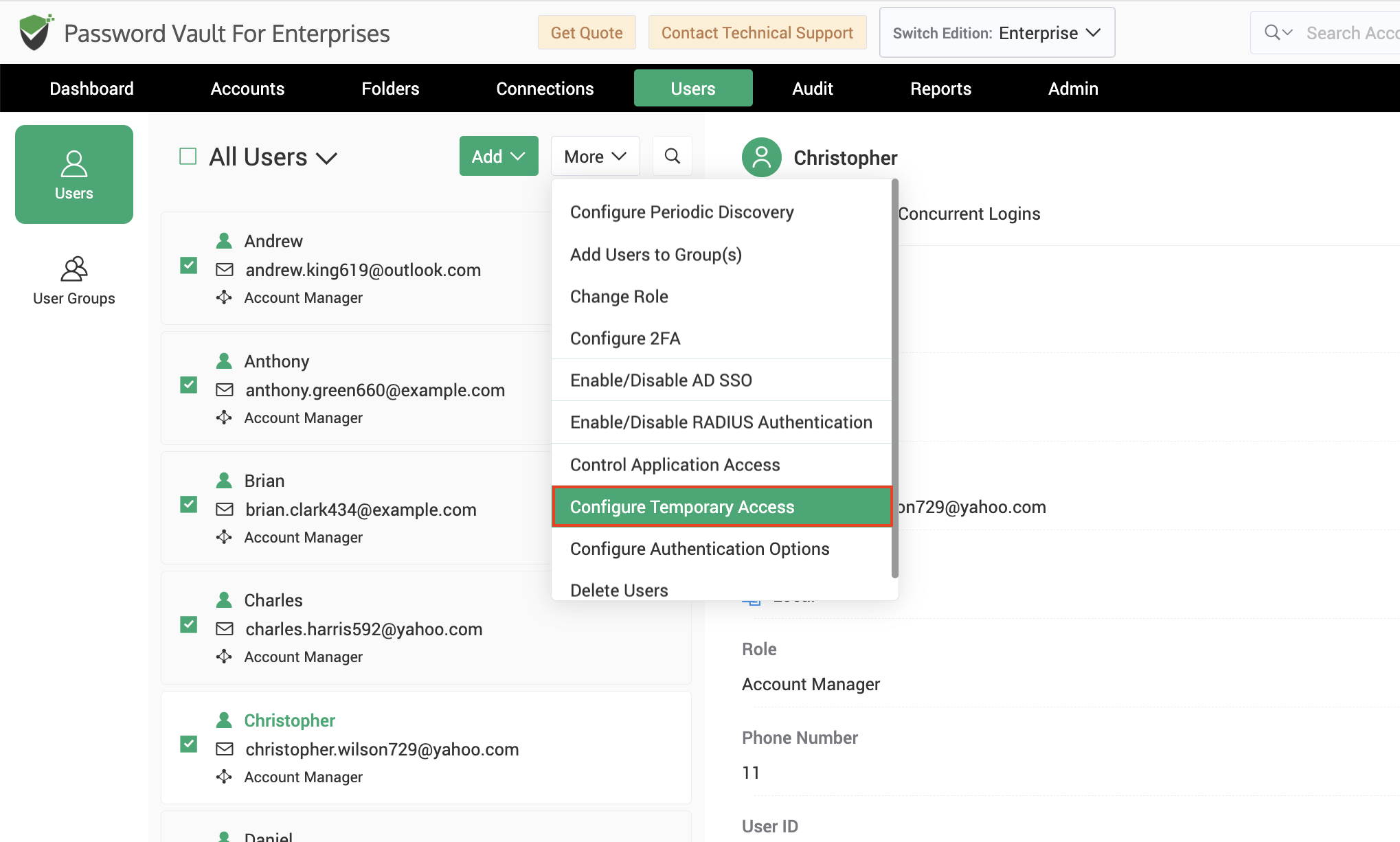
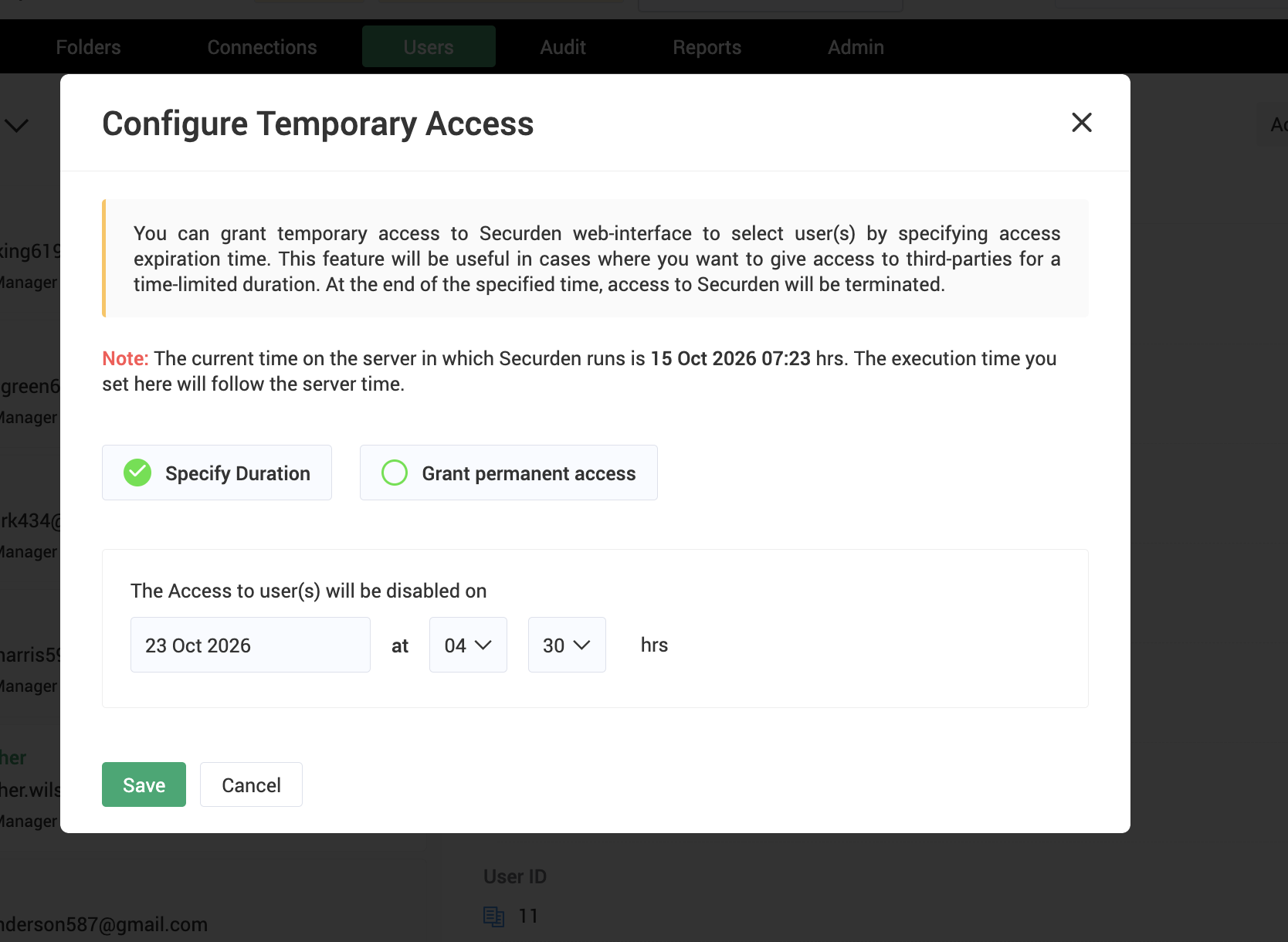
6. Configure Temporary Access
This option allows administrators to grant temporary access to the Password Vault for Enterprises web interface.
Administrators can either specify an access expiration date and time or grant permanent access. Once the configured duration expires, access is automatically revoked.
This feature is particularly useful when providing time-bound access to vendors, contractors, auditors, or temporary users.
7. Configure Authentication Options
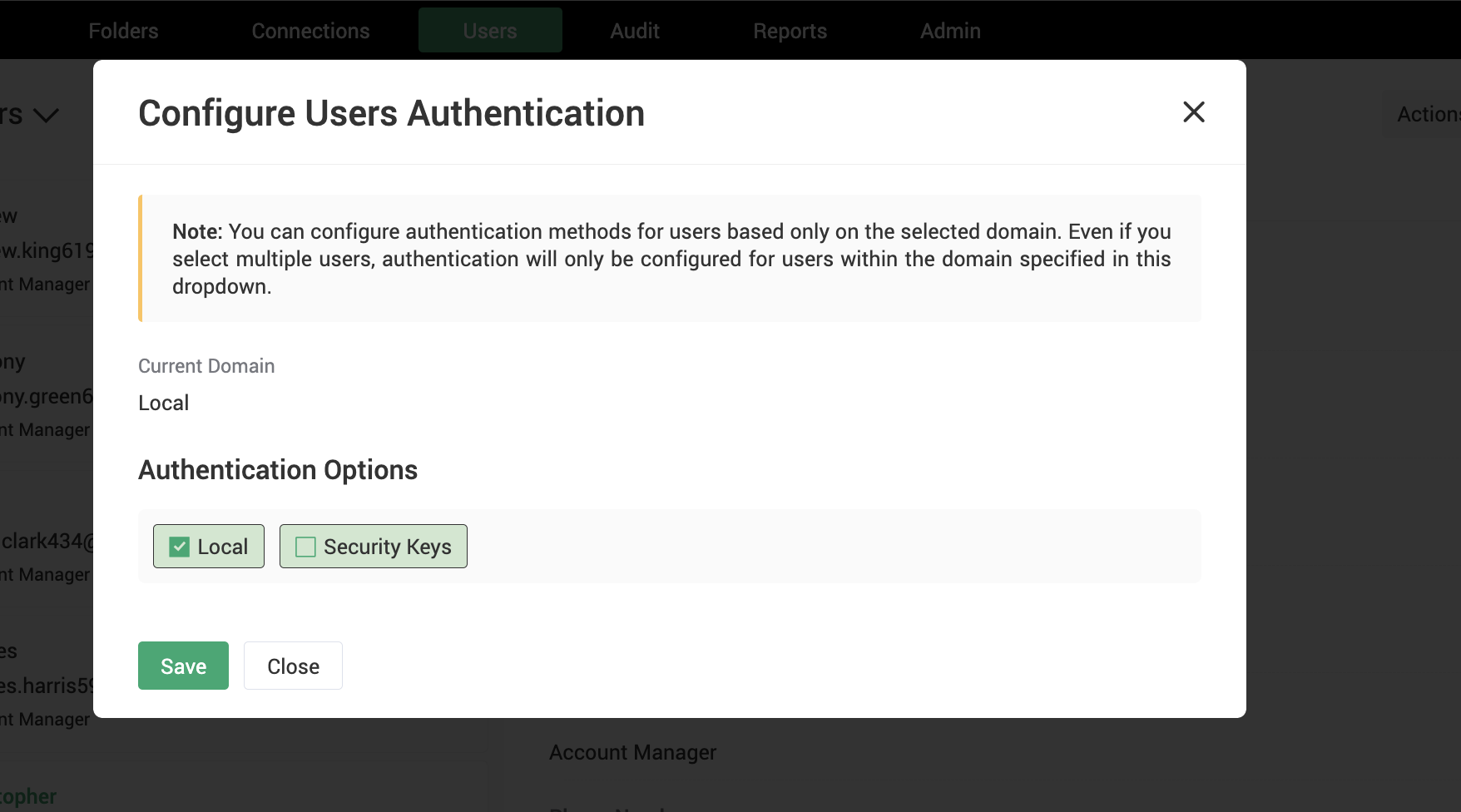
This option allows administrators to configure the authentication methods available to selected users.
Authentication settings can be configured only for users belonging to the selected domain. Depending on the deployment configuration, administrators can enable or disable authentication methods such as local authentication, domain authentication, or security key-based authentication.
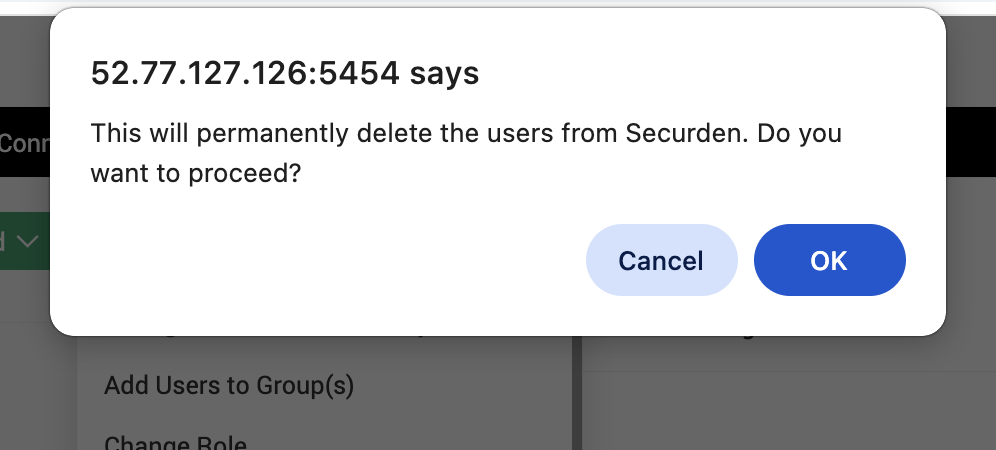
8. Delete Users
Administrators can permanently delete one or more selected users from Password Vault for Enterprises.
Before deletion, the application prompts for confirmation. If any selected users own accounts, folders, shared resources, or API tokens, administrators may be required to transfer ownership before the deletion process can be completed.