
How to Import Users from Google Workspace
Password Vault for Enterprises supports importing users, groups, and organizational units from Google Workspace. This allows organizations using Google Workspace as their identity provider to onboard users seamlessly.
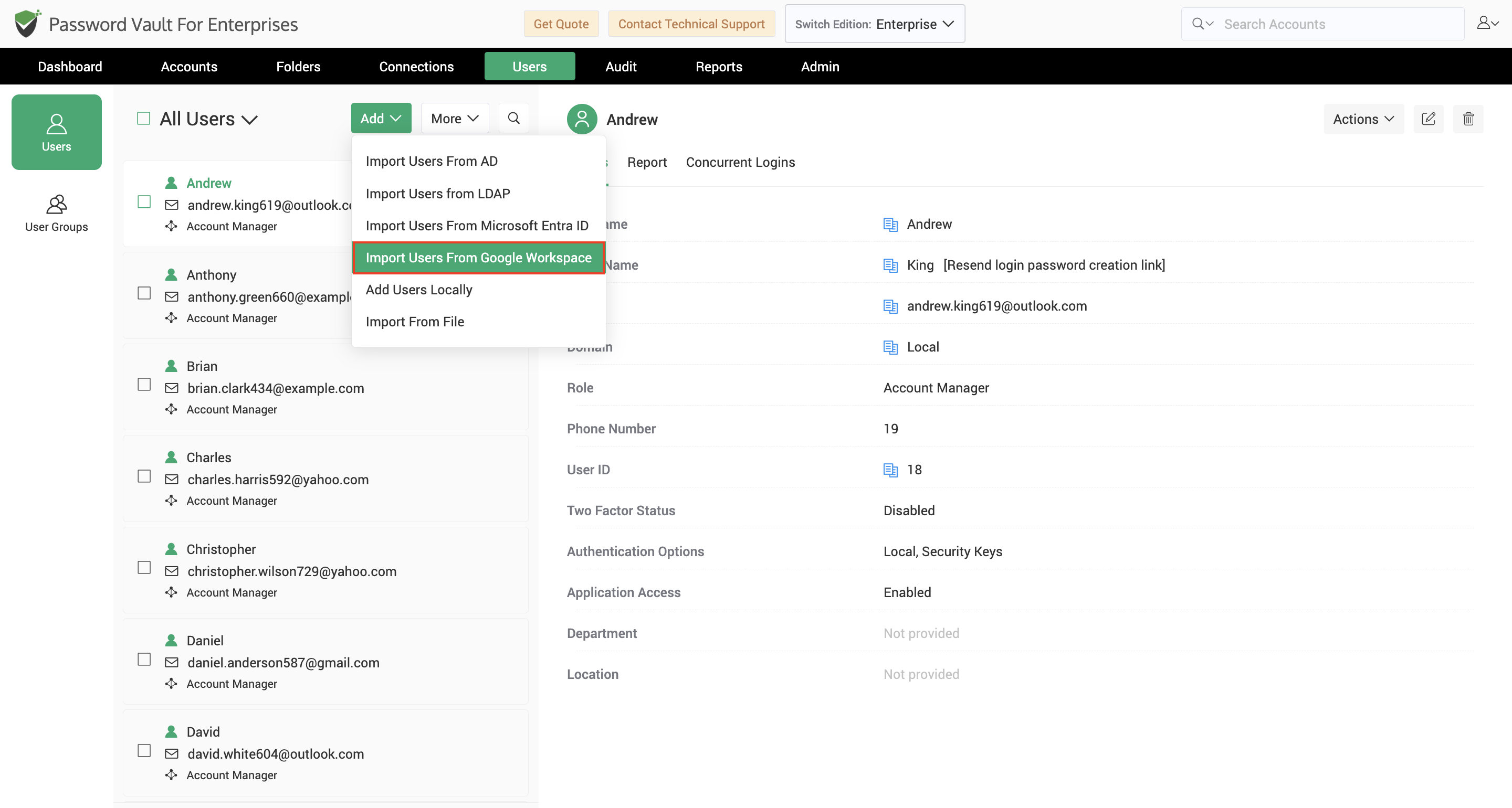
Step 1: Establish Connectivity
To establish connectivity with Google Workspace, provide the following configuration details.
- Specify the Google Workspace domain, Customer ID, Client ID, and Client Secret associated with the configured Google Workspace integration.
- Administrators can either enter the OAuth credentials manually or select Use Stored Credentials to use credentials that have already been stored within Password Vault for Enterprises.
After providing the required information, click Next to verify connectivity and continue.
Step 2: Discover and Import Users
Once a successful connection is established, Password Vault for Enterprises retrieves users, groups, and Organizational Units from the configured Google Workspace tenant.
- The OUs tab allows administrators to browse Organizational Units and discover users belonging to selected OUs. This approach is useful when users need to be onboarded based on organizational structure.
- The Groups tab allows administrators to discover users based on Google Workspace group membership. You can search for groups, select the required groups, and review the discovered users before importing them.
- The Users tab can be used to locate and import specific users directly from Google Workspace.
- Once discovery is complete, review the users and groups that will be imported and select the role that should be assigned to them within Password Vault for Enterprises.
- Specify the user role to be applied for the users / groups being imported. To know more about user roles, click \
. - If required, use Advanced Settings to further customize authentication and import behaviour.
- After reviewing the configuration, click Import to complete the import process.
Notes
- Organizational Unit and group relationships are preserved during import.
- Imported users are subject to available license limits.
- Authentication settings configured during import are not synchronized back to Google Workspace.
FAQs:
Can I import Google Workspace users from specific organizational units or groups?
Yes. Securden Password Vault for Enterprises lets you discover users through the OUs and Groups tabs and import users belonging to selected organizational units or groups. You can also use the Users tab to import individual users. Review the discovery results, assign the required role, and click Import.
What happens to Google Workspace relationships and authentication settings during import?
Securden Password Vault for Enterprises preserves organizational unit and group relationships during import. Authentication settings configured as part of the import are not synchronized back to Google Workspace. Imported users are subject to the available license limits in Password Vault.