
What is a User Access Report in Password Vault?
The User Access Report provides a comprehensive view of users in Password Vault for Enterprises, including the accounts they can access, their roles, user type (local, Active Directory, Azure etc.), and overall access distribution. It enables administrators to analyze user-level access, validate permissions, and understand how access is assigned across the organization.
This report helps answer key questions such as ‘which accounts does a user have access to’, ‘what role is assigned to the user’, and ‘how access is distributed across different user types’, making it essential for access governance and security reviews.
How to Interpret User Access Overview
To view user access across the organization:
- Navigate to Reports → Standard Reports → User Access to open the report.
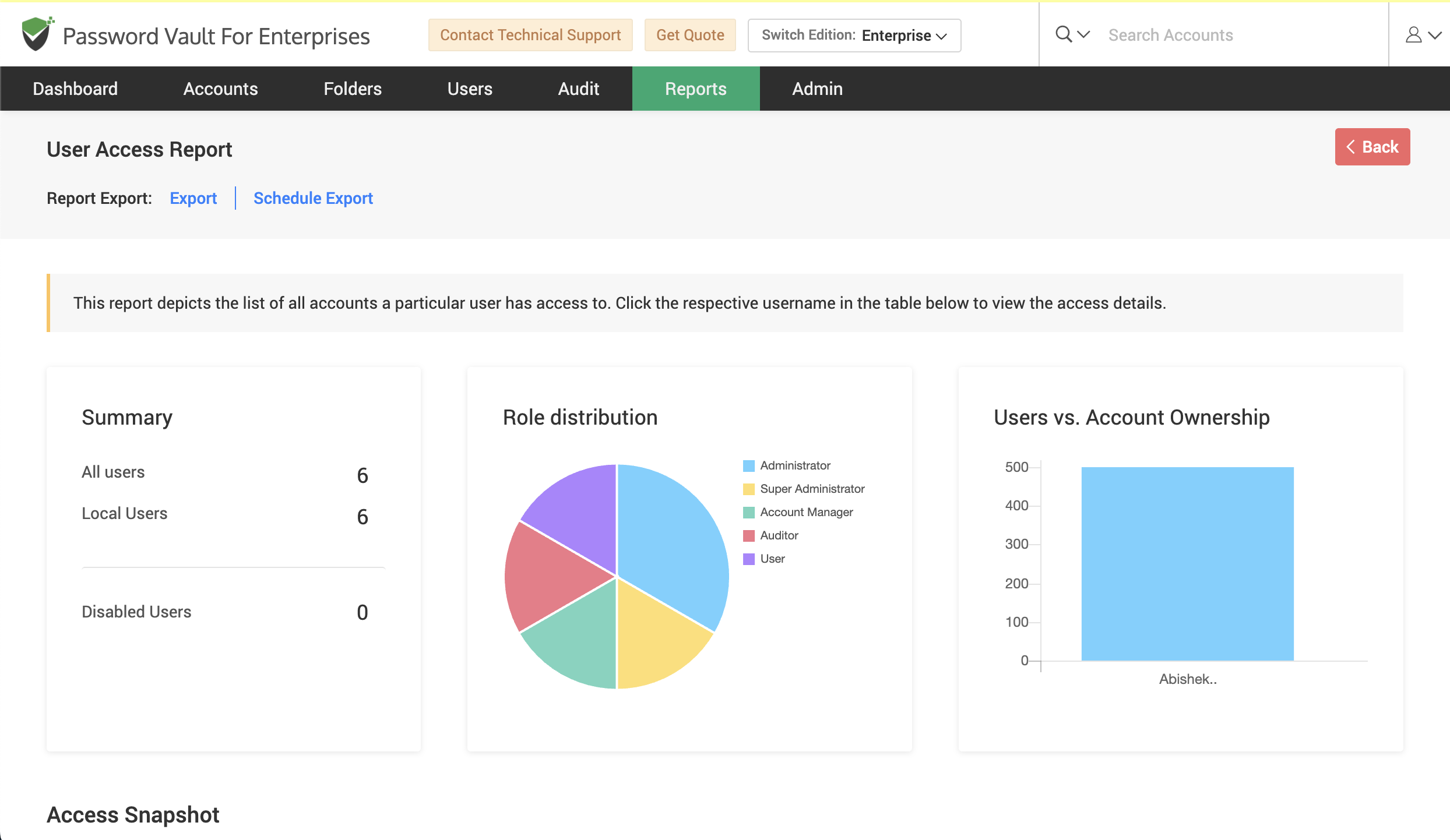
- At the top of the report, the summary section displays key metrics such as the total number of users, local users, Active Directory users, and disabled users.
- The role distribution chart beside provides a breakdown of users based on their assigned roles.
- The Users vs. Account Ownership chart depicts how accounts are distributed across users.
- Scroll down to the Access Snapshot section, where all users are listed in a tabular format along with details such as username, login name, role, email, and domain.
- Use this table to browse or search for specific users and click on the username to view detailed access information for that user.
How to View Access Details for a User
To analyze account access details for a specific user:
- From the Access Snapshot, click on the required username to open the detailed user access view.
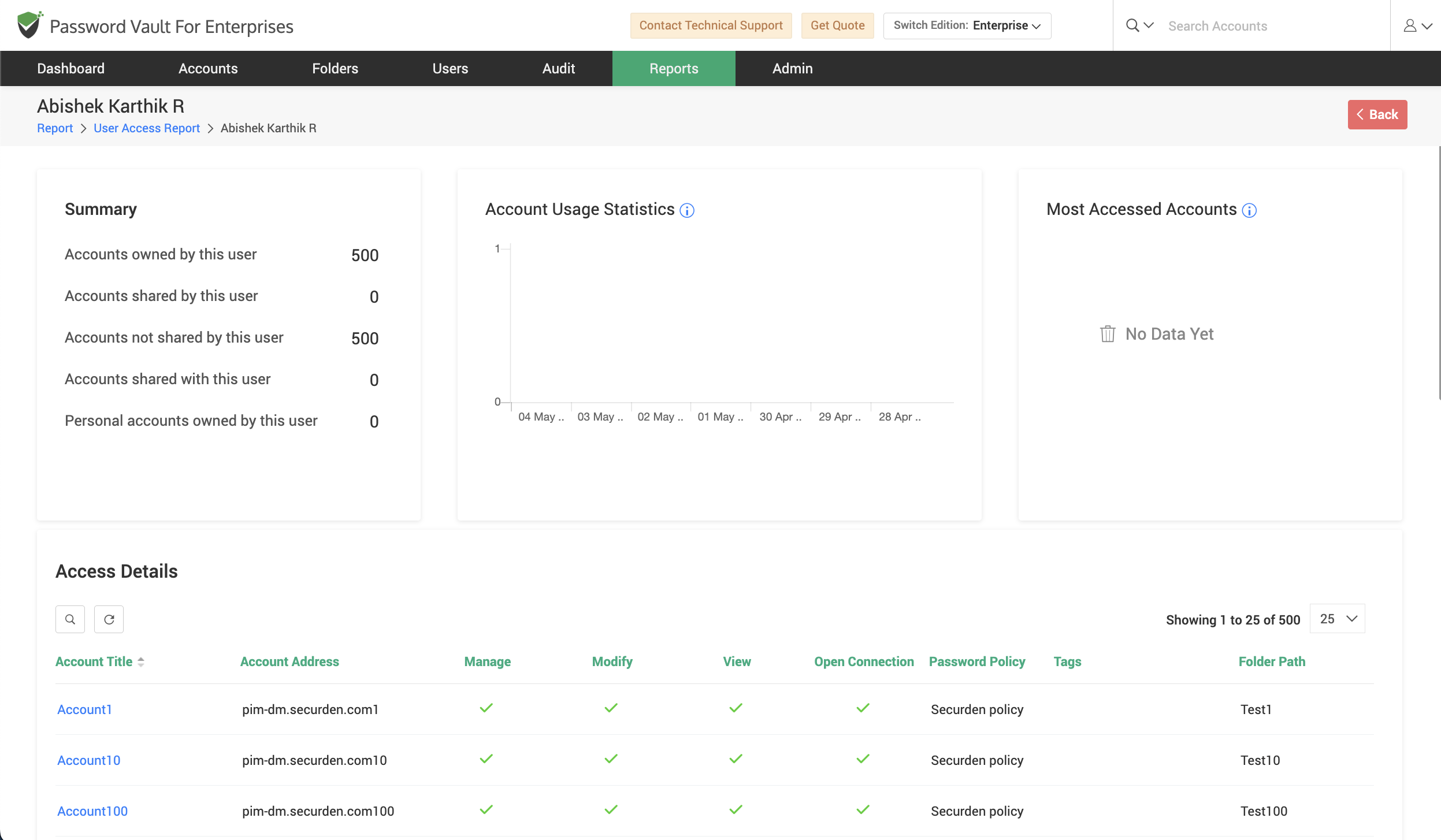
- In the page that opens, the summary section provides insights such as:
- Accounts owned by the user
- Accounts shared by the user
- Accounts not shared by the user
- Accounts shared with the user
- Personal accounts owned by the user
- The Account Usage Statistics section depicts how frequently the user has accessed accounts available to them over time.
- The Most Accessed Accounts section identifies accounts that are frequently accessed by the user.
- Scroll down to the Access Details section, where all accounts accessible to the user are listed along with permission levels such as Manage, Modify, View, and Open Connection, as well as associated password policies, tags, and folder paths.
- Use this section to validate whether the user has the appropriate level of access and to identify any excessive or unnecessary permissions.
How to Export and Schedule User Access Reports
To export or schedule User Access Report:
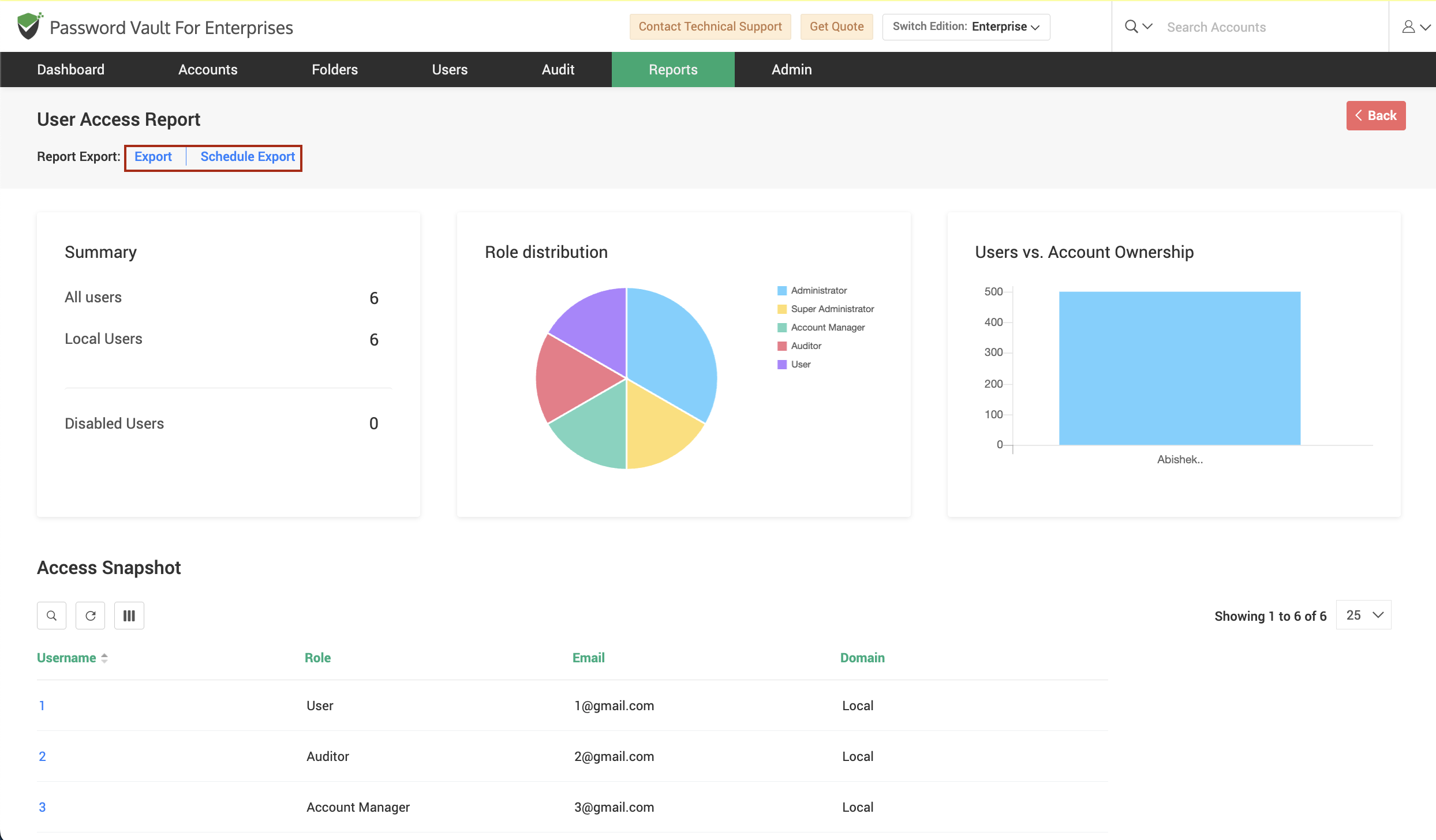
- Click on Export to download the report in a supported format such as CSV, PDF or XLSX.
- Click on Schedule Export to configure automated report generation at defined intervals.
- Use the Download As option if available, to retrieve previously generated reports for reference.
FAQs
What information does the User Access Report provide?
The User Access Report provides a comprehensive view of all users in Password Vault along with the accounts they can access, their assigned roles, and user types such as local or directory-based users. It helps administrators understand access distribution and validate whether permissions are appropriately assigned.
How can I check which accounts a user has access to?
You can view detailed access information by navigating to the User Access Report and clicking on a specific username. The detailed view displays all accounts accessible to the user along with permission levels such as Manage, Modify, View, and Open Connection, helping you verify user access.
Can I export the User Access Report for audits and compliance?
Yes, the User Access Report can be exported in formats such as CSV, PDF, or XLSX. You can also schedule automated report generation using the Schedule Export option, ensuring reports are delivered periodically for audit and compliance needs.