How to Configure Just-in-Time (JIT) Access Through Approval Workflows?
Just-in-Time (JIT) access workflows help organizations control how users obtain temporary access to privileged accounts. Instead of granting permanent access, users must raise a request which goes through a defined approval workflow before access is granted.
Securden Password Vault for Enterprises allows administrators to configure multiple JIT access workflows for a single account. Each workflow can be mapped to different users, user groups, or roles in Securden, and can have its own approvers, approval levels, and access policies. When a user raises an access request, Securden automatically applies the workflow mapped to that user.
Once approved, the password is released to the user for a limited duration. After the access period ends, the access is automatically revoked, and administrators can trigger password change for that particular account.
This approach ensures privileged credentials are accessed only when required, for a limited time, and through a controlled approval process.
How JIT Access Workflows Work
The JIT workflow process configured for accounts works as follows:
-
A user attempts to access a privileged account.
-
The user raises an access request.
-
Securden determines the workflow mapped to that user or user group.
-
The request is routed to the designated approvers.
-
Once approved, the credential is released to the user for a limited time.
-
After the access period ends, the access is automatically revoked, and password change can be triggered.
This ensures that privileged accounts are accessed in a controlled, time-bound manner through defined approval workflows, with complete visibility.
How to Configure Just-In-Time (JIT) Access Workflows?
To create JIT Access Workflow for a particular account:
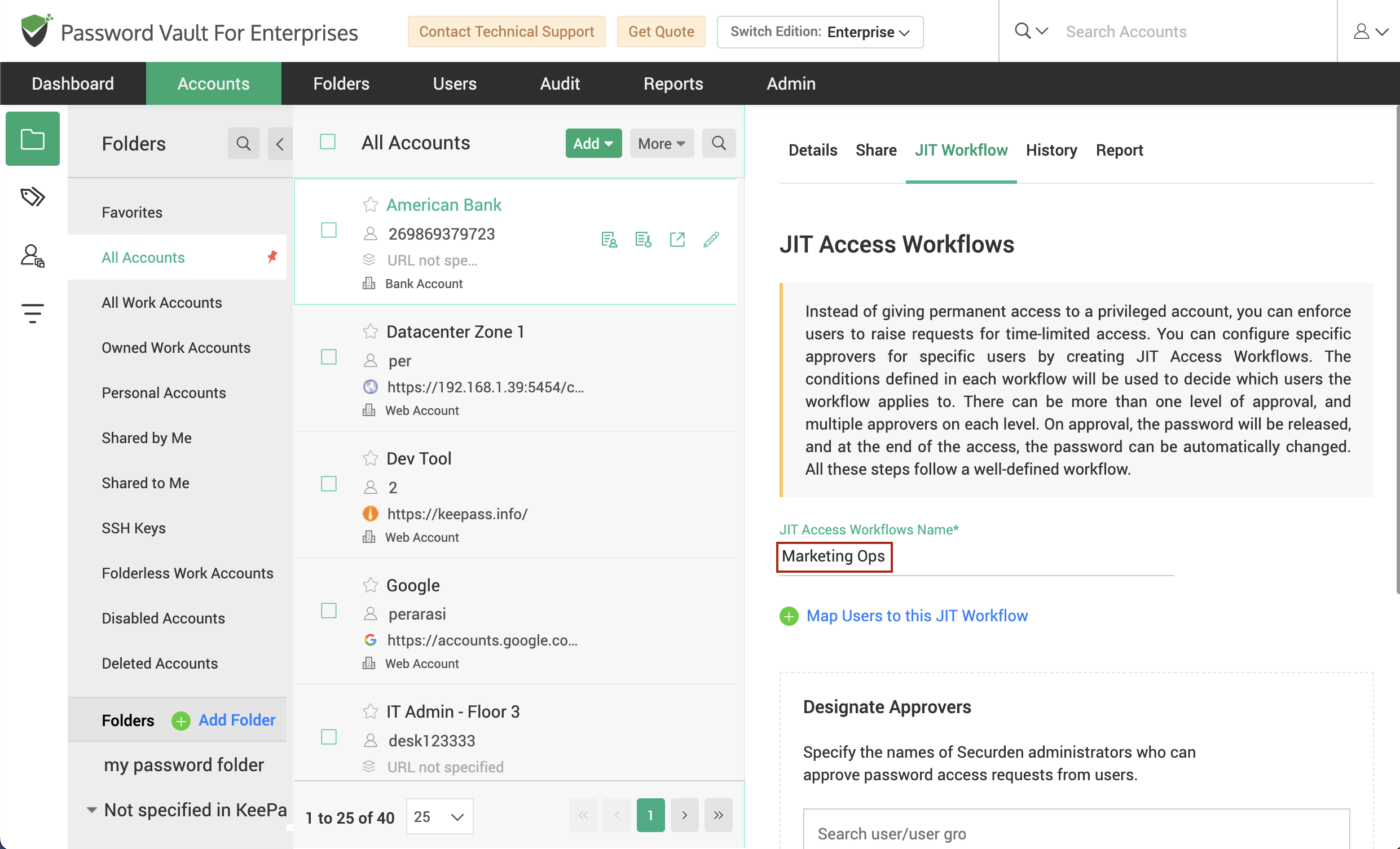
Step 1: JIT Workflow Settings
In the user interface of Securden Password Vault for Enterprises,
-
Navigate to the Accounts tab
-
Select the account for which you want to configure JIT access workflow
-
Beside the account on the right pane, click JIT Workflow
Step 2: Create JIT Workflow
The window that opens allows you to define one or more JIT workflows for the chosen account.
-
Provide a name for the JIT workflow.
-
Click “Map users to this workflow”. If this value is not specified, the JIT workflow will be automatically applied to all users.
-
In the window that opens, you can create various combinations (and / or) of users, user groups or roles defined in Securden. You can even define multiple sub-criteria for each combination.
-
Once you have defined your list, click Proceed.
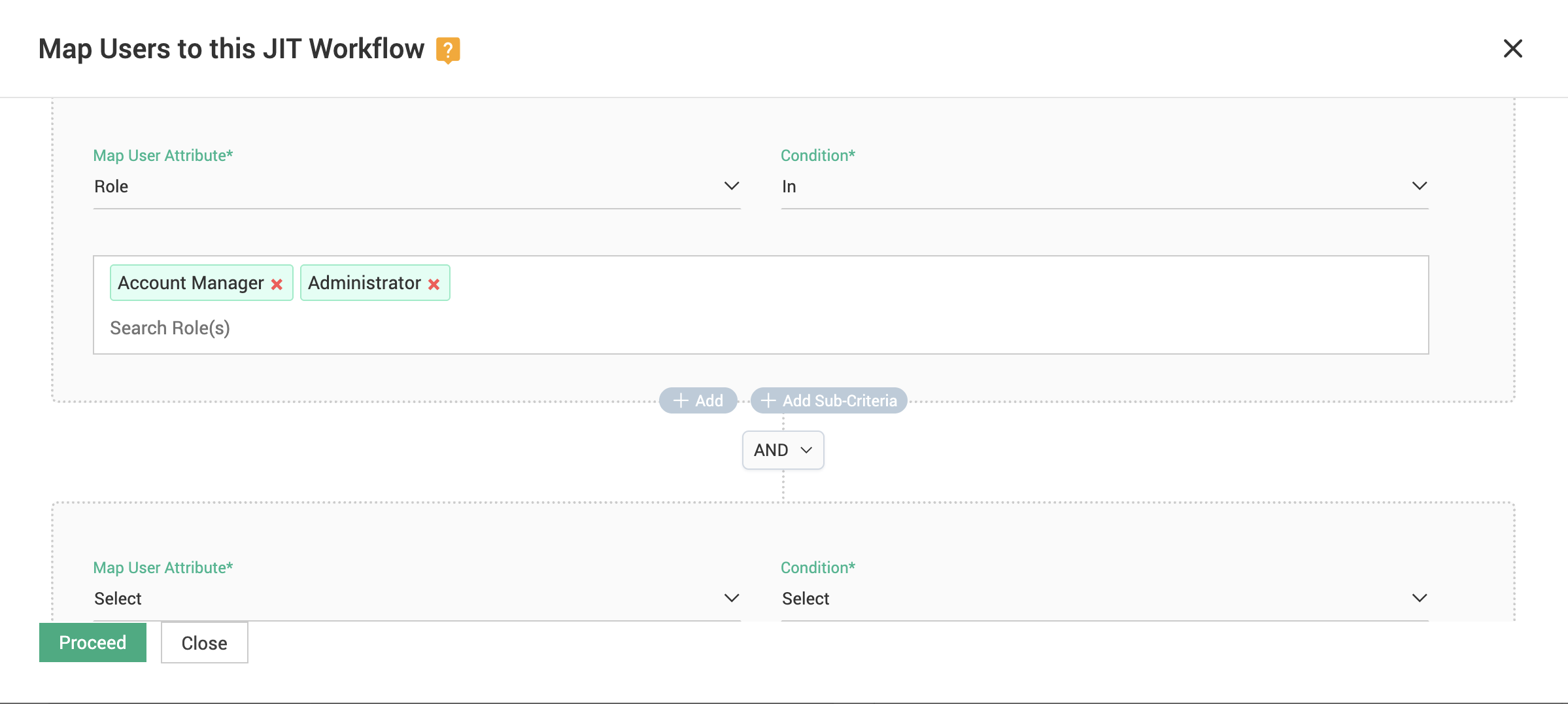
Only users mapped to the workflow will follow the approval process defined in that workflow when requesting access.
You can configure multiple workflows for the same account. The workflows can be attributed based on one more of the below criteria:
-
Users
-
User Groups
-
User Roles
When a user raises an access request, Securden automatically applies the workflow mapped to that user.
This allows organizations to enforce different approval processes for different types of users.
For example, for any given account, the JIT workflow can look like this:
Account Name: Production Server
| Workflow | Users / User Groups / Role | Approval Requirement |
|---|---|---|
| Admin Access | Administrator (User Role) | Automatic Approval |
| Contractor Access | External contractors | Two-level approval |
| DevOps Access | DevOps team (User Group) | Manager approval |
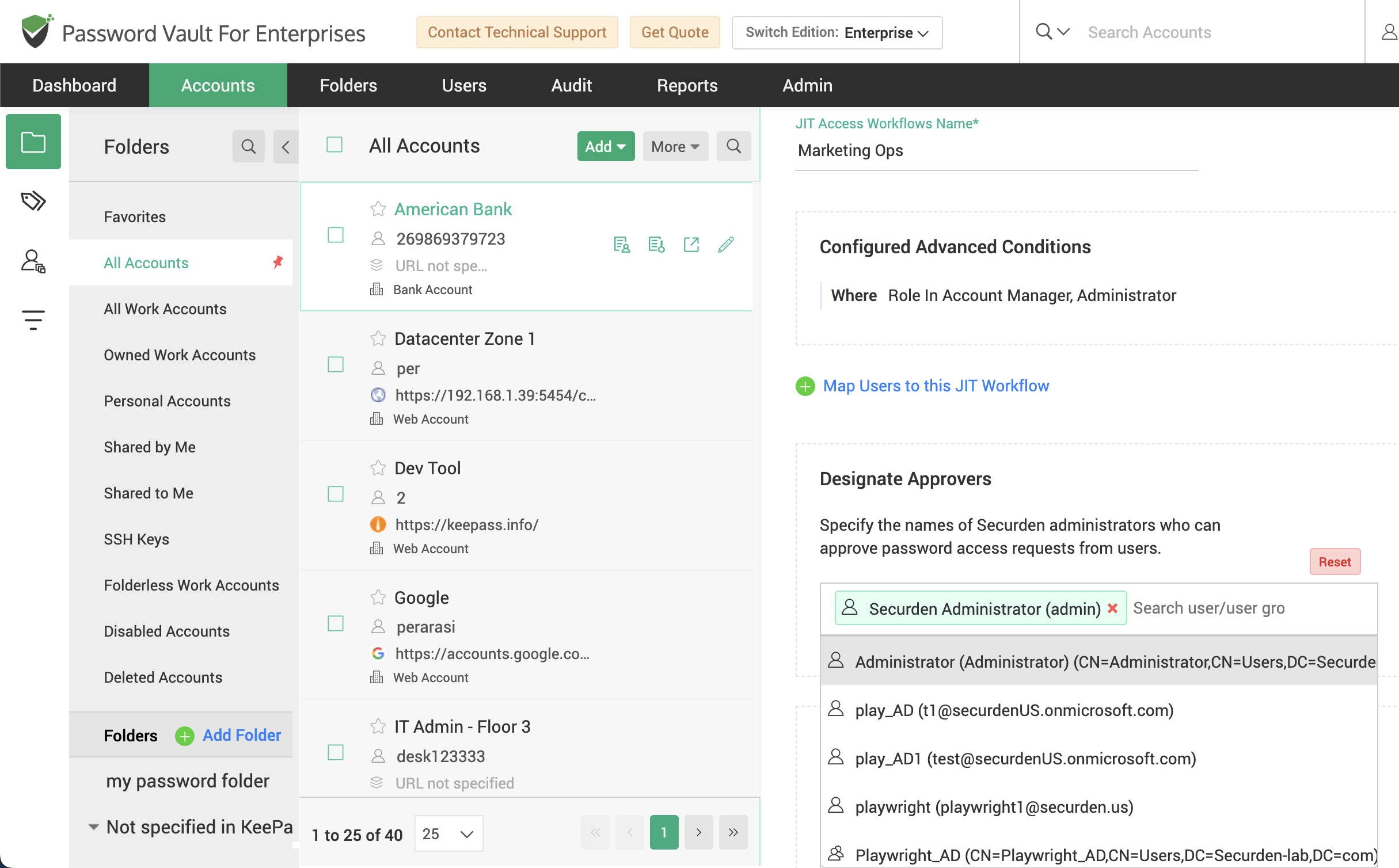
Step 3: Designate Approvers
-
Next, specify the approvers who can review and approve access requests raised for this account.
-
You can assign individual users or user groups as approvers. Once configured, requests for access to the account will be routed to the designated approvers for review and approval.
-
Approvers receive notifications when users raise access requests and can approve or reject them based on organizational policies.
Step 4: Configure Multi-Level Approval (Optional)
-
If additional control is required, administrators can configure multiple approval levels.
-
For example:
-
Level 1: Team lead approval
-
Level 2: Security administrator approval
-
Access will be granted ONLY after all configured approval levels approve the request.
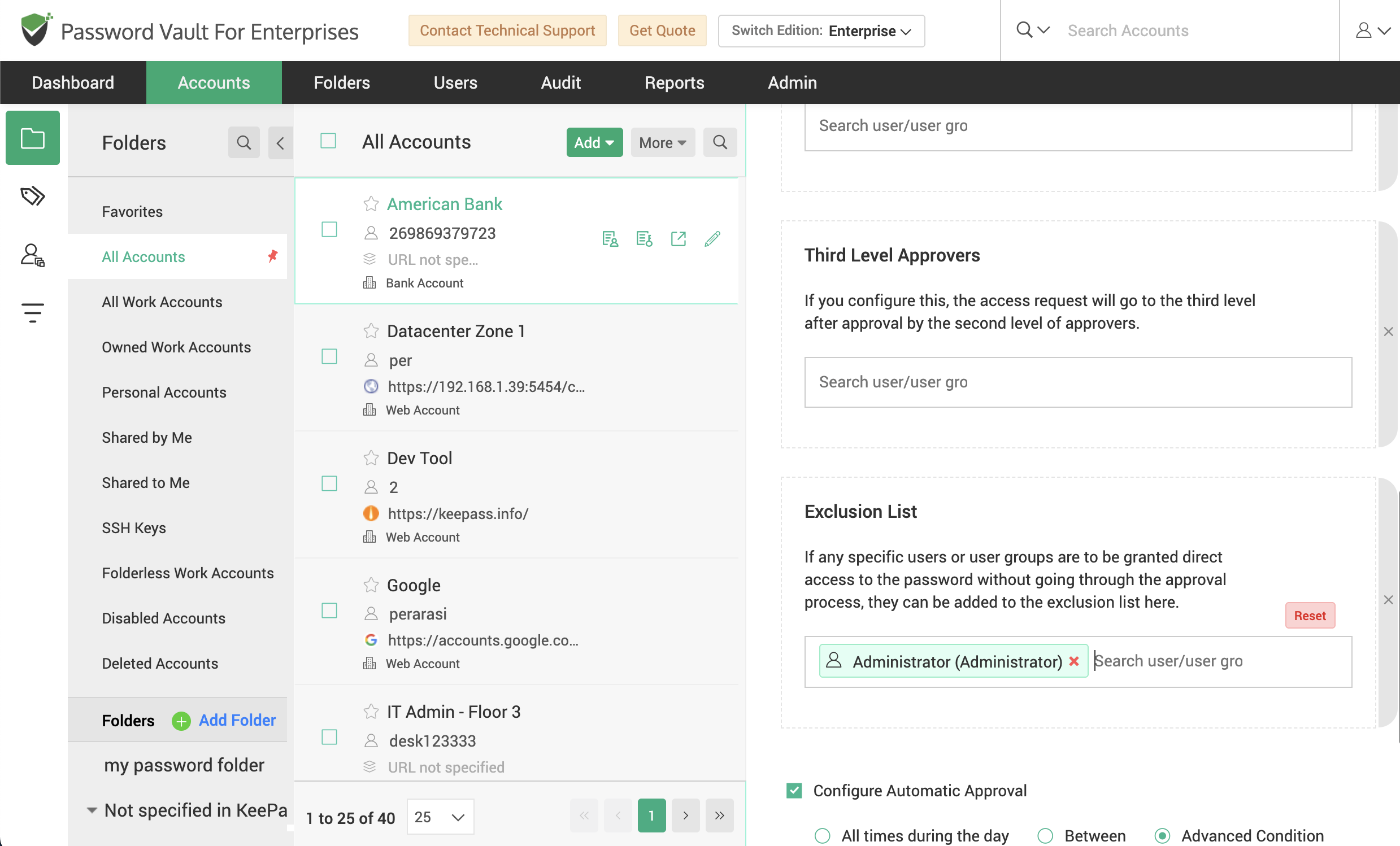
Step 5: Configure Automatic Approvals
Securden allows administrators to configure automatic approvals for JIT access requests under specific conditions. This enables trusted access requests to be approved automatically without requiring manual intervention.
Automatic approvals can be configured in the following ways:
- All Times During the Day
Administrators can enable direct approval, where access requests raised by users are automatically approved without requiring any approver action.
This option is typically used in scenarios where designated users are trusted to access certain accounts, but the access still needs to remain auditable and traceable.
- Approval During Specific Times
Administrators can configure automatic approval during specific times of the day. Requests raised within the defined time window are automatically approved, while requests outside the configured time range require manual approval.
This is useful for enforcing policies such as allowing automatic access during business hours while requiring approvals outside working hours.
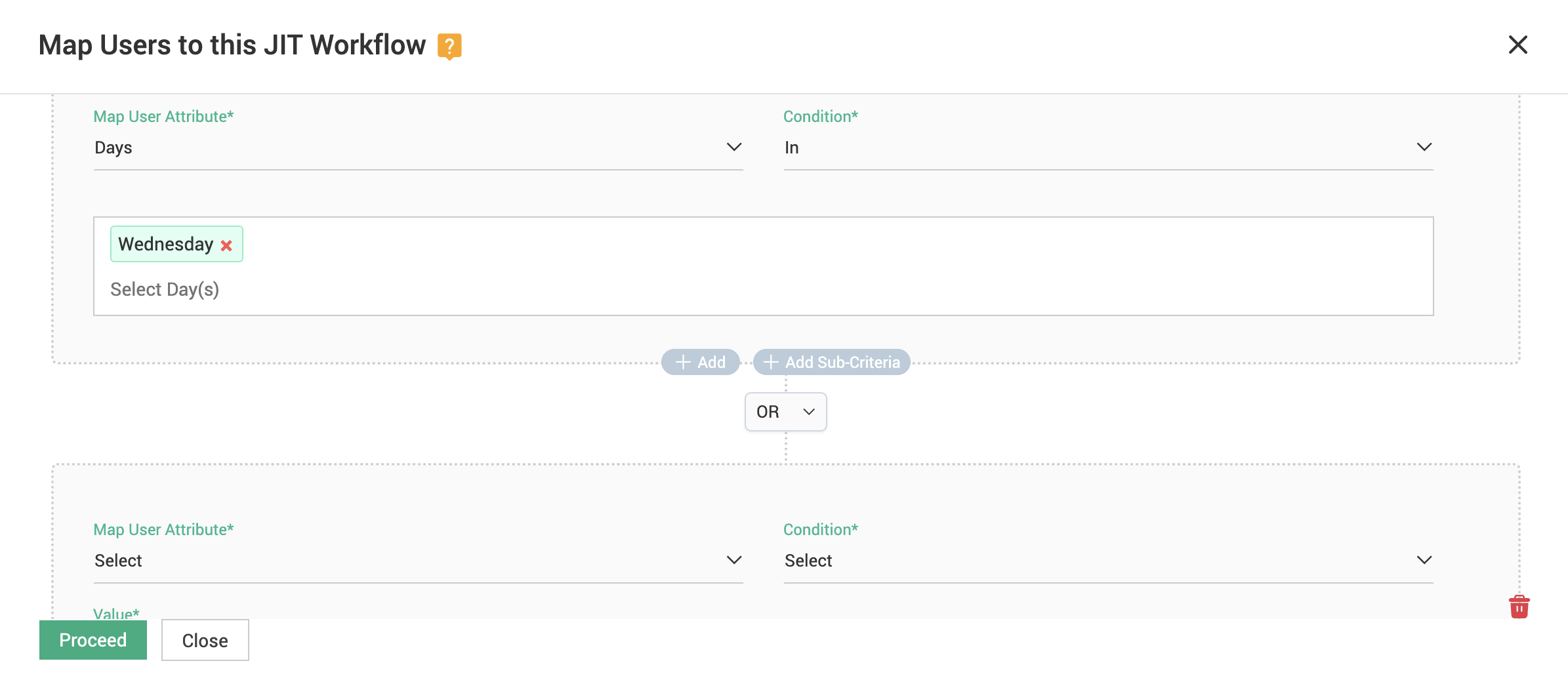
- Conditional Automatic Approvals
In addition to time-based rules, Securden also allows administrators to configure advanced conditional approvals using contextual attributes.
Automatic approval conditions can be defined based on:
-
IP address or CIDR range
-
Time of the day
-
Days of the week
-
Specific dates
These conditions can be combined to create granular access rules. When a user raises an access request, Securden evaluates the configured conditions. If the request satisfies the defined criteria, the request is automatically approved.
For example, administrators can configure rules such as:
-
Automatically approve requests originating from the corporate network
-
Automatically approve requests during office hours
-
Require manual approval for requests outside business hours
-
Restrict automatic approvals during weekends or specific dates
Multiple conditions can be configured using operators such as In and Not In, enabling administrators to enforce context-aware privileged access policies.
This enhanced capability provides greater flexibility and allows organizations to define more precise and secure approval policies for privileged access.
Step 6: Configure Exclusion List
Administrators can configure an exclusion list to allow specific users or user groups to bypass the approval workflow.
Add users in the exclusion list who can access the account directly without raising an approval request.
This is typically used for:
-
Emergency access users
-
Break-glass administrators
-
Highly trusted users
How to Manage Just-In-Time (JIT) Access Requests?
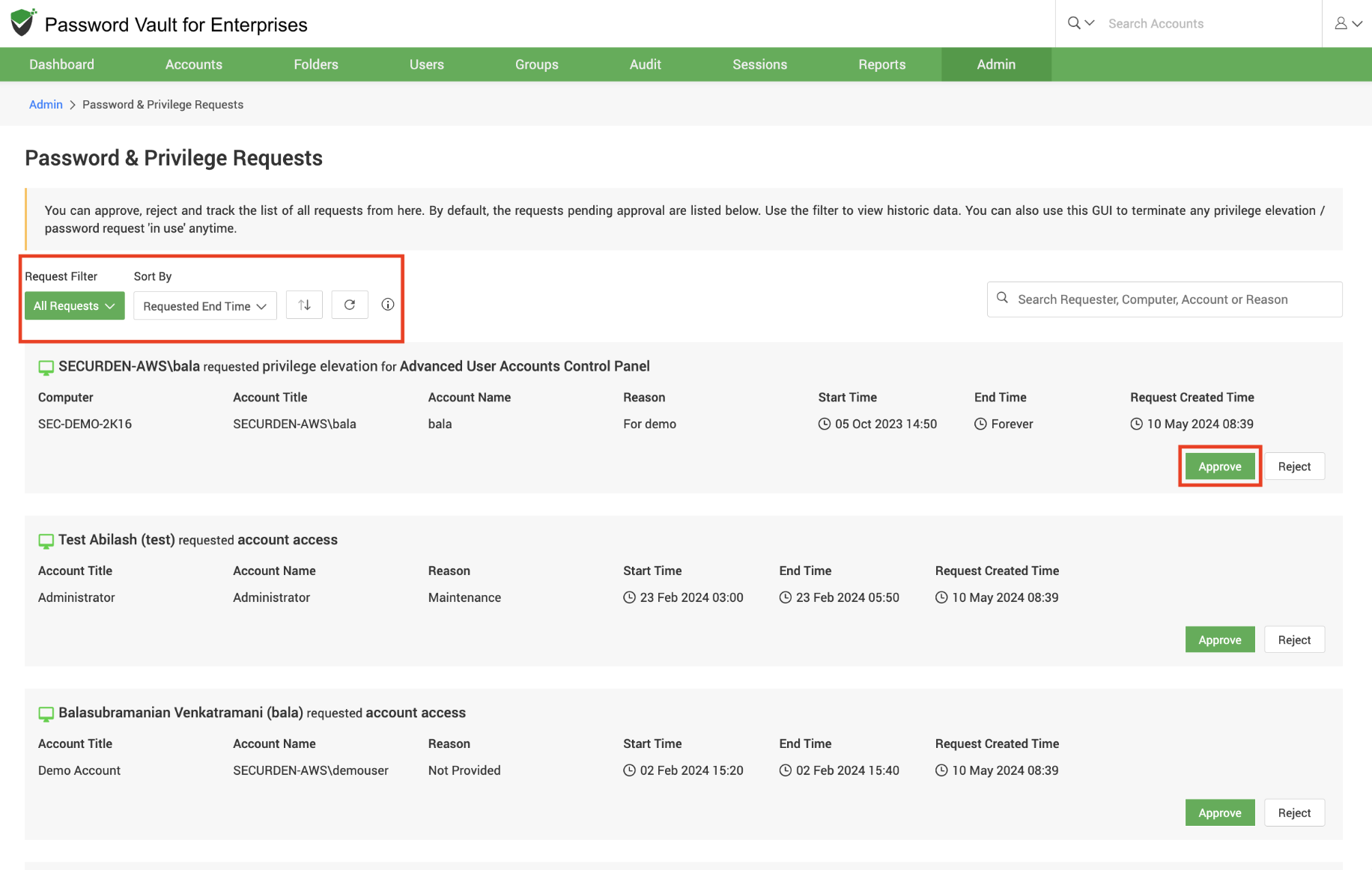
Managing Access Requests
-
Navigate to Admin → JIT Workflow → Password Requests to view and manage access requests.
-
Alternatively, you will receive email notifications whenever a user raises a request.
-
Before approving, review the justification provided by the requester and proceed only if it meets your requirements.
Approving Password/Access Requests
While approving the password access requests from Securden Password Vault interface, you can:
-
Grant access for the requested duration, or modify it as required.
-
Add comments in the Reason field for audit and future reference.
Access States
-
Once approved, the request moves to To Be Used (user has not yet started the session).
-
When the user begins access, it moves to the In Use state.
Managing Active Access
-
You can modify access parameters even after approval, regardless of whether the request is in To Be Used or In Use state.
-
To immediately stop an active session, go to In Use and click Revoke Access.
Note
-
Scheduled approvals and actions are based on the Securden server time.
-
The server time is displayed in the interface when configuring schedules.
-
Ensure schedules are set according to the server’s time zone.
-
-
Exclusive access enforcement:
-
Once a user starts accessing an account, it is locked for exclusive use.
-
No other user—including administrators or account owners—can access it simultaneously.
-
Other users attempting access will see: “In exclusive use by another user”.
-
FAQs:
What is Just-In-Time (JIT) access in Securden Password Vault?
Just-In-Time (JIT) access is a security approach where users are granted temporary access to privileged accounts only when required. Instead of permanent access, users must request access, which is approved through a defined workflow and automatically revoked after a specified duration.
How does approval workflow work in JIT access?
In a JIT access workflow, a user raises a request to access a privileged account. The request is routed to designated approvers, and access is granted only after approval. Organizations can configure single or multi-level approvals, ensuring strict control over privileged access.
Can I automate approvals in JIT access workflows?
Yes, Securden allows administrators to configure automatic approvals based on predefined conditions such as time, IP address, or user attributes. Requests that meet these conditions are automatically approved, while others require manual approval.
What happens after JIT access is granted to a user?
Once approved, the user gets time-bound access to the account. After the access period ends, the session is terminated, access is revoked, and the password can be automatically reset to maintain security.