
Jenkins Integration
Securden Password Vault for Enterprises integrates with Jenkins through the Securden Jenkins Plugin.
The integration allows Jenkins projects to retrieve permitted credentials and account attributes from Securden at runtime instead of embedding sensitive values directly in pipeline definitions, scripts, or source code.
Prerequisites
Before configuring the integration, obtain:
- Securden Server URL / Host URL
- Authentication Token
- SSL Certificate, if required
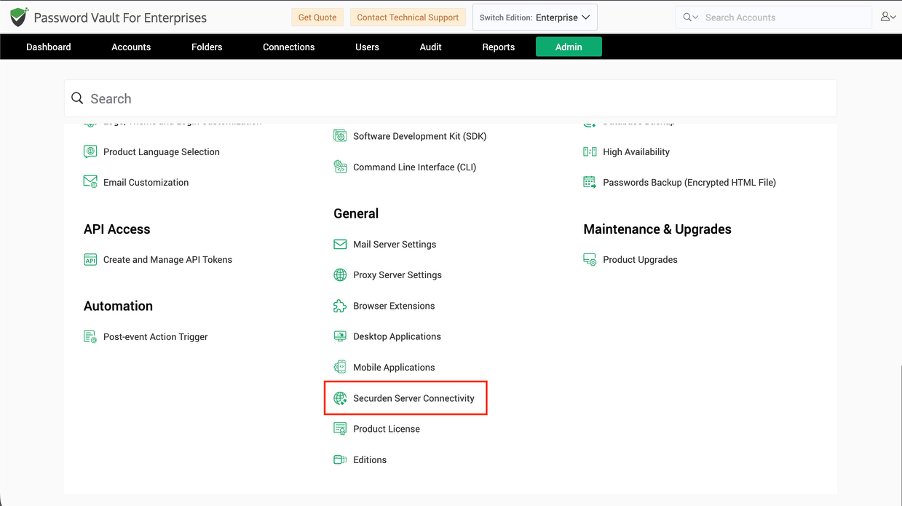
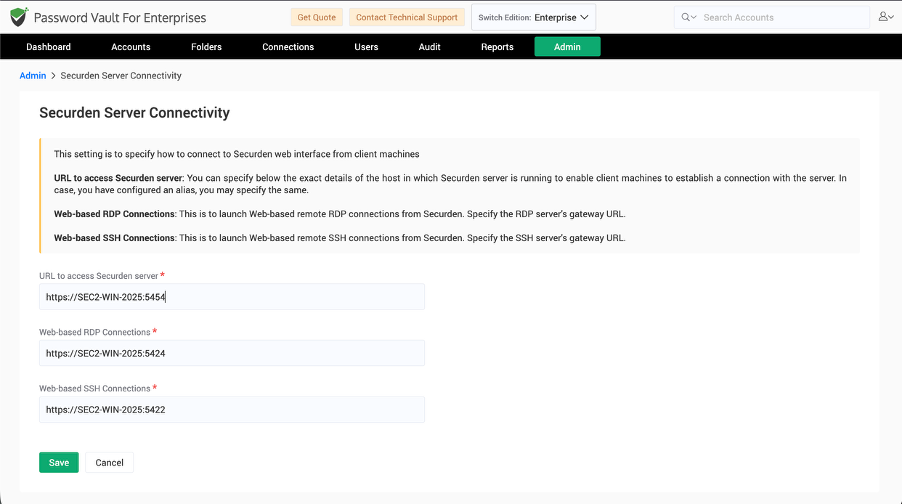
Obtain the Securden Server URL
Navigate to:
Admin >> General >> Securden Server Connectivity
Copy the Securden server URL. This URL is used by the Jenkins plugin to establish communication with Password Vault.
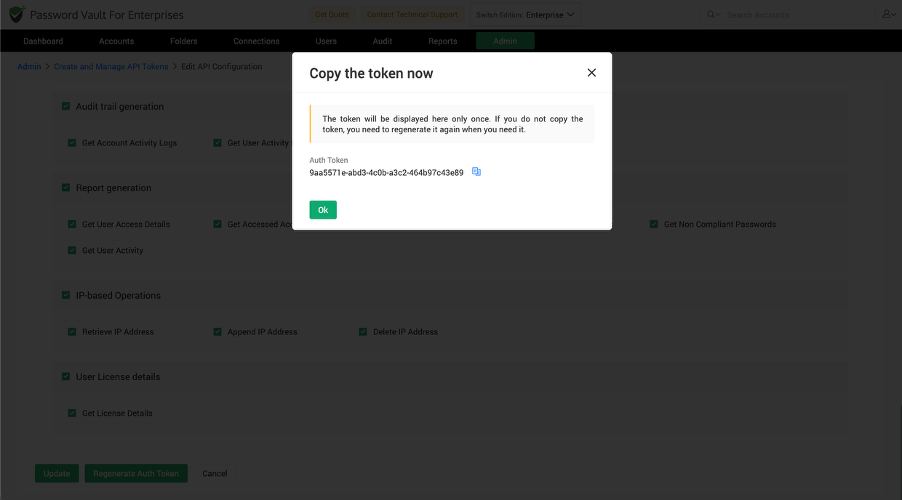
Generate an API Authentication Token
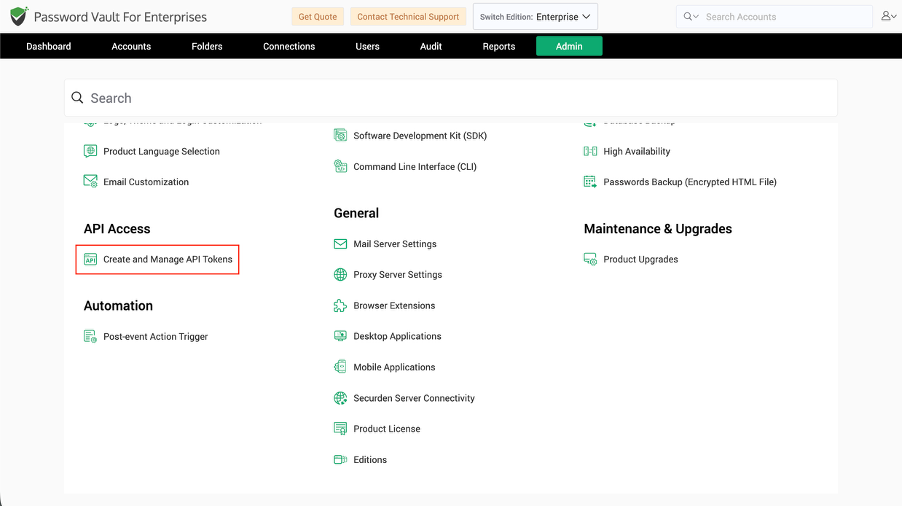
Navigate to:
Admin >> API Access >> Create and Manage API Tokens
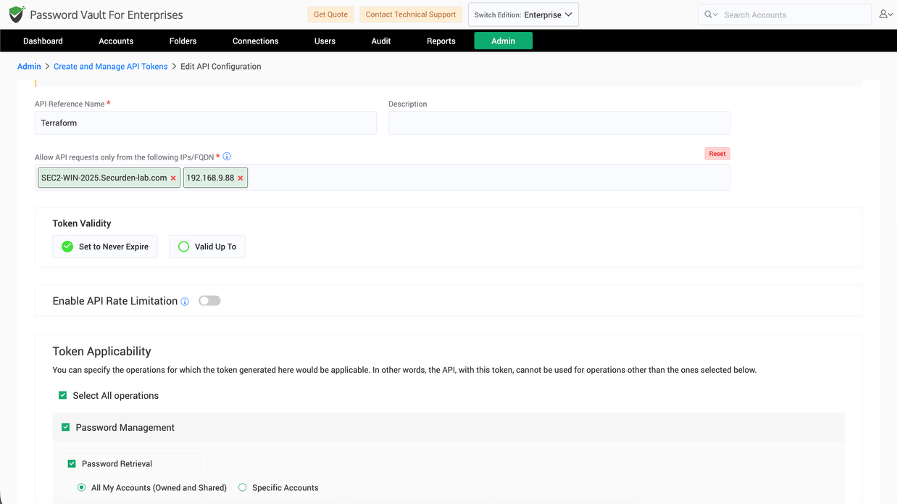
While creating the token:
- Enter an API reference name and description.
- Specify the IP address or range of IP addresses from which the token can be used.
- Select a static or dynamic authentication token as required.
- Select the capabilities that the Jenkins integration should be allowed to perform.
- Click Create Token.
- Copy the generated token and store it securely.
Configure the Securden Jenkins Integration
The configuration consists of three stages:
- Install the Securden Jenkins Plugin.
- Enable and configure the plugin for the required Jenkins project.
- Associate Securden accounts and account attributes with the project.
Install the Securden Jenkins Plugin
Download the Plugin from Securden
- Sign in to Securden with administrative access.
- Navigate to Admin >> DevOps Integration >> DevOps Secrets Management >> Jenkins.
- Download the Jenkins Plugin ZIP file.
- Extract the ZIP file to obtain
securden.hpi.
Install the Plugin in Jenkins
- Sign in to Jenkins.
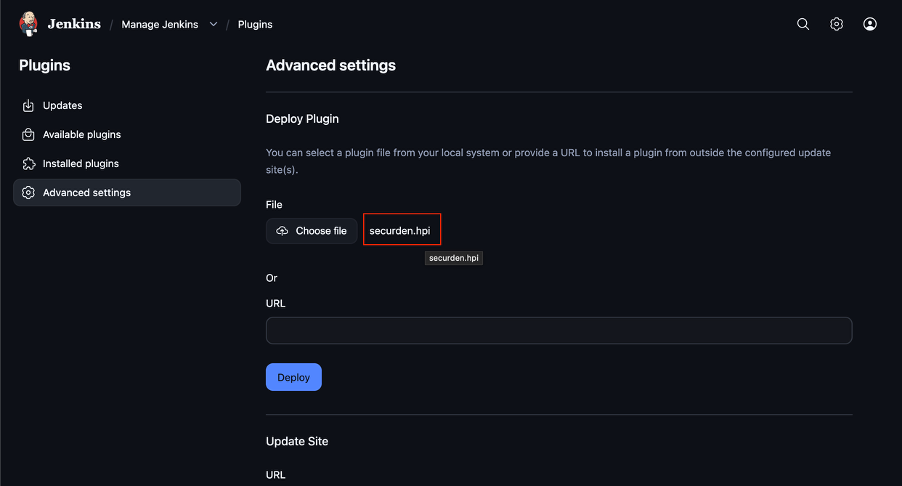
- Navigate to Manage Jenkins >> Plugins >> Advanced Settings.
- Under Deploy Plugin, click Choose File.
- Select the downloaded
securden.hpifile. - Click Deploy.
- Restart Jenkins after the plugin is installed.
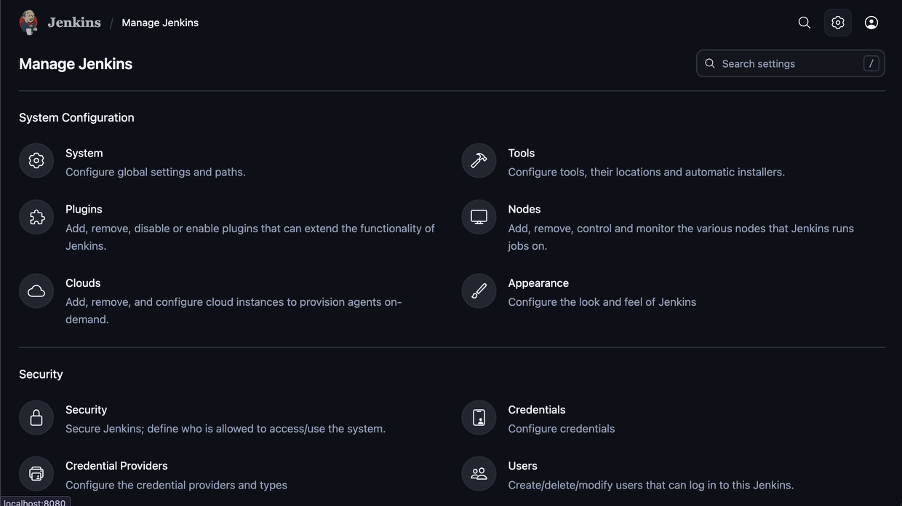
After Jenkins restarts, the Securden plugin is available for project-level configuration.
Enable the Plugin for a Jenkins Project
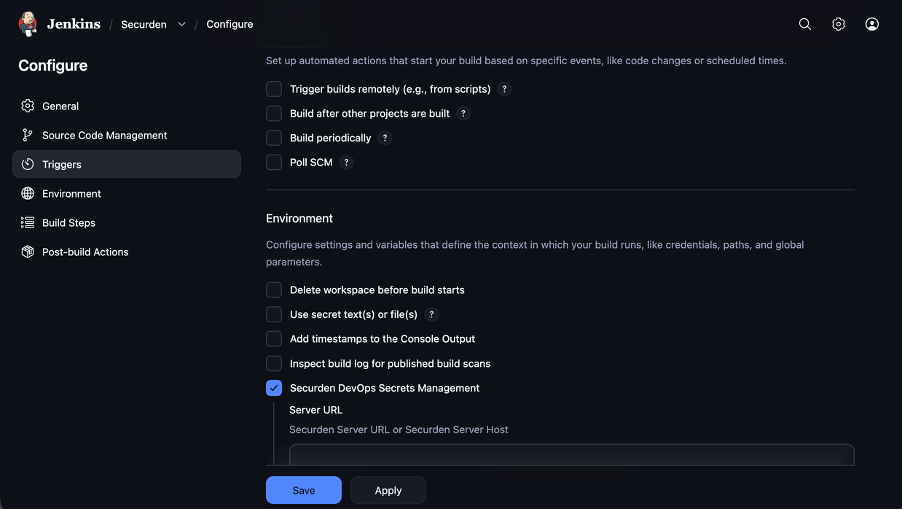
The Securden Secrets Manager must be enabled for each Jenkins project that needs to retrieve credentials from Password Vault.
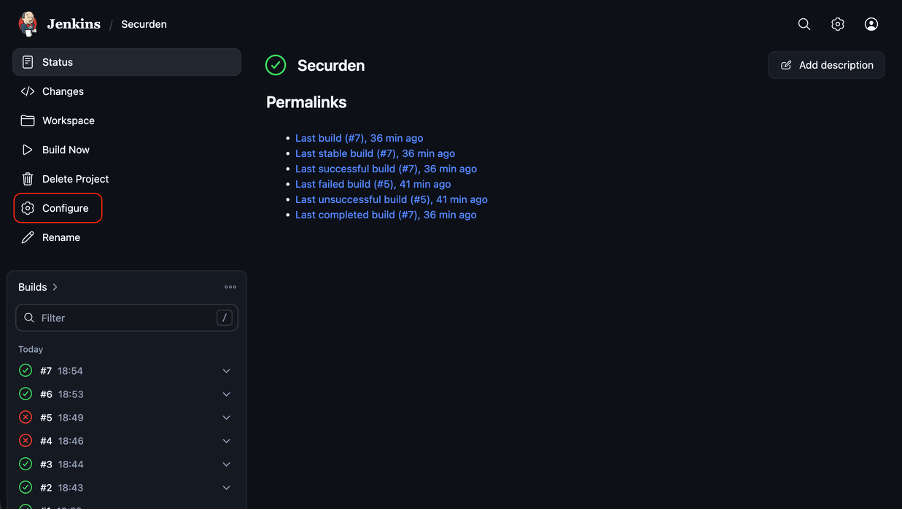
- From the Jenkins dashboard, select the required project.
- Click Configure.
- Navigate to the applicable configuration or environment section. The exact location can vary depending on the Jenkins project type.
- Locate Securden DevOps Secrets Management or Securden Secrets Manager and enable it.
Configure Connectivity to Securden
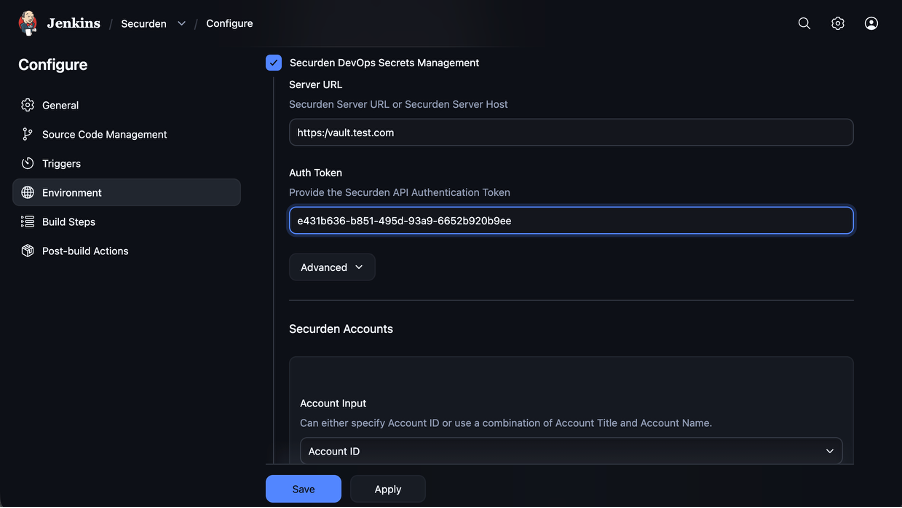
After enabling the plugin, configure the connection between Jenkins and Password Vault.
Important: The Securden server must be reachable from the system where Jenkins is running. Ensure that firewalls and other network controls do not prevent communication between Jenkins and Securden.
Configure the following:
Server URL
Enter the Securden server URL obtained from:
Admin >> General >> Securden Server Connectivity
Authentication Token
Enter the API authentication token created through:
Admin >> API Access >> Create and Manage API Tokens
Advanced Settings
Expand Advanced to configure the optional SSL certificate and Debug Mode.
SSL Certificate
You can upload the Securden server certificate or provide the certificate string directly for certificate validation between Jenkins and Securden.
Debug Mode
Enable Debug Mode when detailed plugin activity and event logging is required for troubleshooting. Disable it when detailed diagnostic logging is no longer required.
Associate Securden Accounts with a Jenkins Project
After connectivity is configured, specify which Securden accounts Jenkins should retrieve.
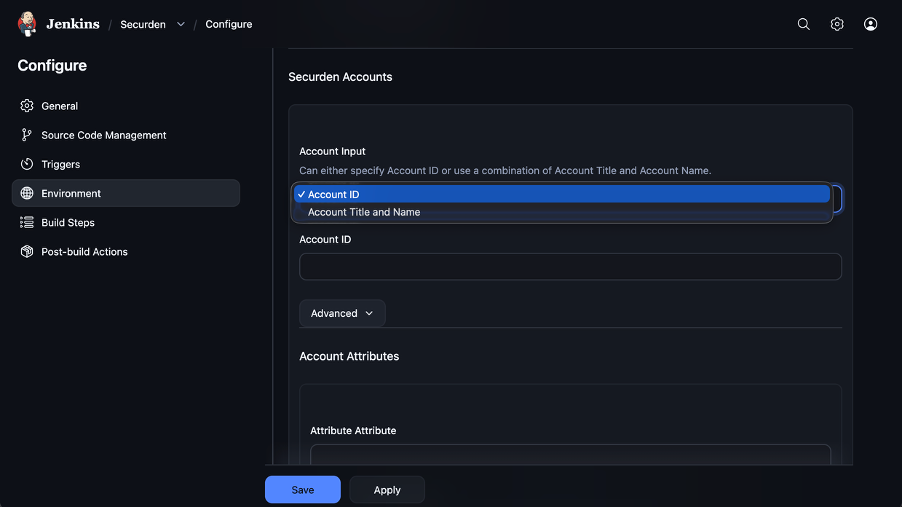
An account can be identified using either:
- Account ID
- Combination of Account Title and Account Name
Identify an Account by Account ID
Select Account ID and enter the unique Securden Account ID.
Identify an Account by Title and Name
Select the option to identify the account using its title and name, then provide:
- Account Title
- Account Name
Note: If multiple accounts contain the same Account Name and Account Title, Securden will not fetch the account and the error is logged.
Add Account Attributes
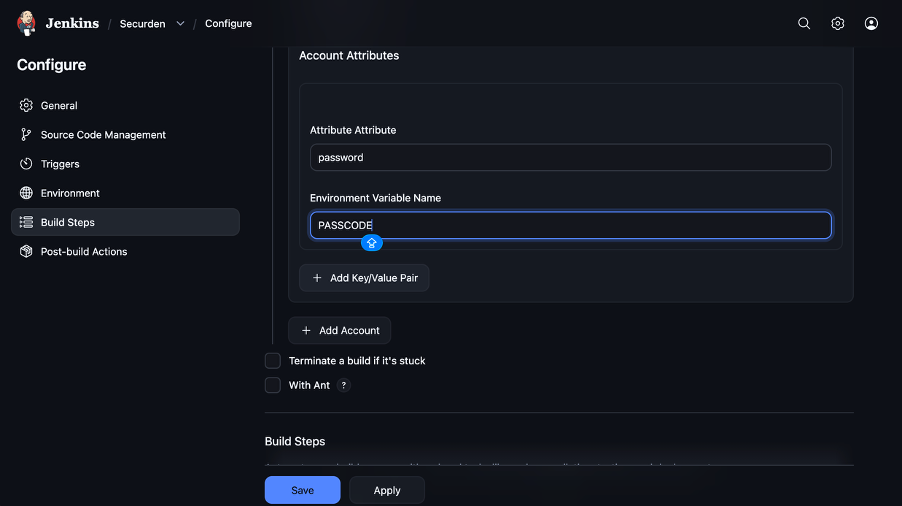
After associating an account with the project, specify which account attributes Jenkins should retrieve and the environment variables under which the returned values should be stored.
For each value, configure:
Account Attribute:
Enter the name of the Securden account attribute that should be retrieved.
Environment Variable:
Enter the Jenkins environment-variable name in which the retrieved value should be made available.
Access Additional Fields
Additional fields configured in Securden can be accessed using their corresponding field labels.
- Use Add Key/Value Pair to configure additional attributes for the same account.
- Use Add Account to associate another Securden account with the project.
Multiple accounts can be associated with the same Jenkins project.
Supported Account Attributes
The following account attributes are available for use by the Jenkins integration where applicable:
account_idaccount_nameaccount_titlepasswordkey_valueprivate_keyputty_private_keypassphraseppk_passphraseaddressclient_idclient_secretaccount_aliasfile_contentdefault_databaseoracle_sidoracle_service_nameport
The availability of each value depends on the fields present in the corresponding Securden account.
Frequently Asked Questions
1. How does Jenkins securely retrieve credentials from Securden?
The Securden Jenkins Plugin connects to Password Vault using the configured Securden server URL and API authentication token, then retrieves the account attributes associated with the Jenkins project.
2. Do I need to enable the Securden plugin for every Jenkins project?
Yes. Projects that need Securden credentials must have Securden DevOps Secrets Management enabled and configured individually.
3. Can multiple Securden accounts be associated with one Jenkins project?
Yes. After configuring one account and its attributes, use Add Account to associate additional accounts with the same Jenkins project.
4. Can Jenkins retrieve custom fields from Securden?
Yes. Additional fields can be retrieved using the field labels configured for the corresponding account in Securden.
5. What happens if Jenkins cannot uniquely identify a Securden account?
If the same Account Name and Account Title combination matches multiple accounts, the account is not fetched and the error is recorded in the Jenkins plugin logs.