How to Enforce URL Filtering?
What is URL Filtering?
URL filtering can be used by organizations to prevent employees from accessing piracy, gambling, social media, and other inappropriate websites using their company-issued devices. It improves productivity, strengthens network security, and reduces organizational liability by controlling web access.
How URL Filtering Works in Securden EPM?
URL filtering is enforced using URL blocklisting in Securden Endpoint Privilege Manager. Blocklist policies are created by specifying the URLs to be blocked and enforced by associating them with the required users and devices.
Once enforced, the users will not be able to access the blocklisted URLs using their browsers.
How to Create a URL Blocklist in Securden EPM?
Follow the steps below to create a URL blocklist in Securden Endpoint Privilege Manager.
- In your Securden Endpoint Privilege Manager web interface, navigate to Privileges >> URL Blocklisting Policies and click on Add Policy.
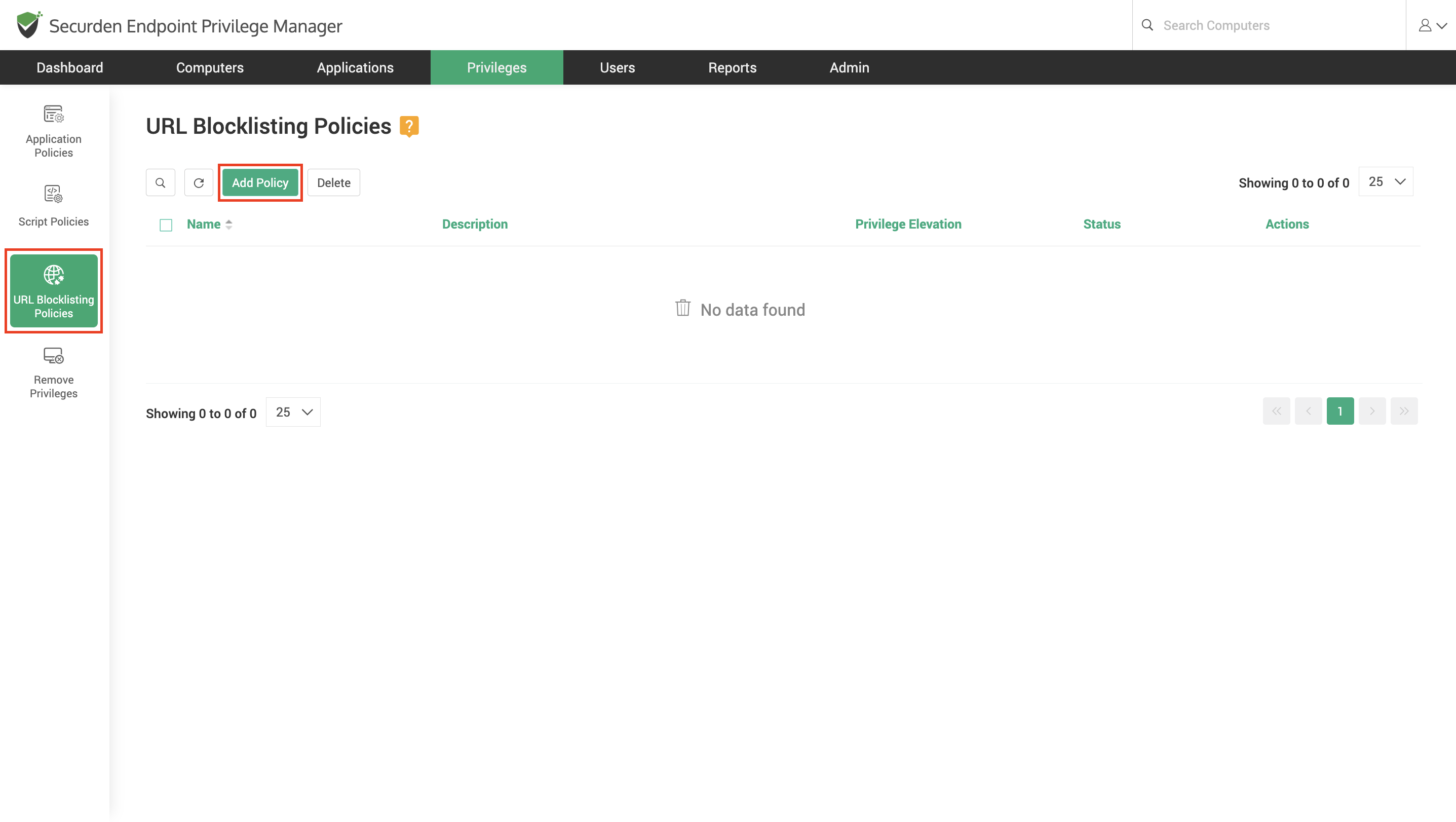
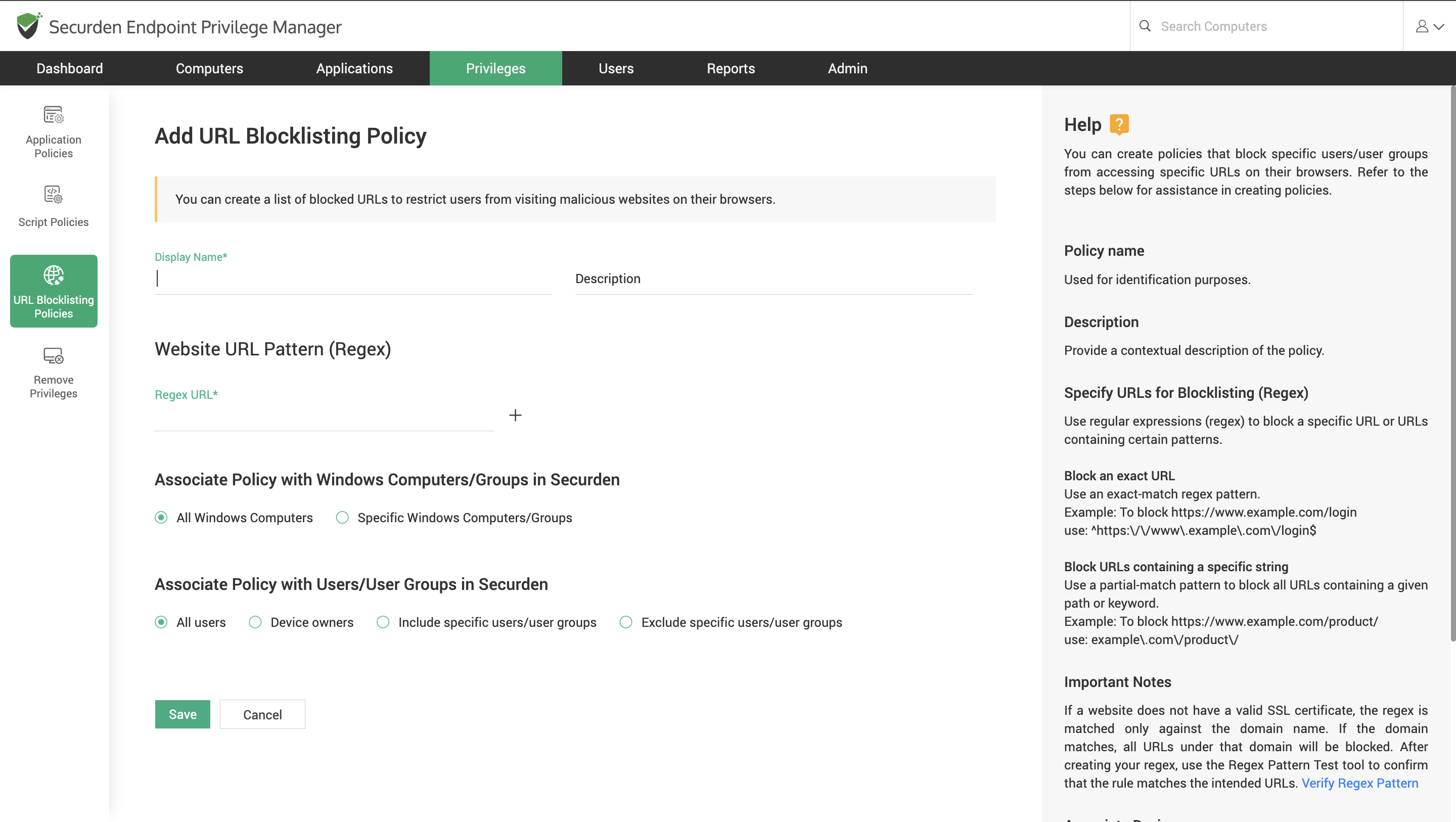
- In the window that opens, provide a suitable name and description for the policy. This is purely for identification purposes.
-
You can specify all the URLs you want to block using this policy by clicking the ‘+’ button.
-
You must specify the URL using regex patterns. Regex patterns are used to allow administrators to choose between blocking exact URLs and blocking all URLs that contain a specific expression.
For example,
To Block an exact URL Use an exact-match regex pattern. Example: To block https://www.example.com/login use: ^https:\/\/www.example.com\/login$
To Block URLs containing a specific string Use a partial-match pattern to block all URLs containing a given path or keyword. Example: To block https://www.example.com/product/ use: example.com\/product\/
- Once the list of URLs is added, you must then associate the policies with the required devices. You have the option to choose specific Windows computers or Windows computer groups or broadly apply the rules for all Windows devices.
Note
If you choose a computer group with a mix of Windows, Mac, and Linux devices, the policy will be enforced only for the members running Windows.
-
Finally, you must associate the policy with users and user groups. You can choose to apply the policy for
-
All users
-
Specific users/groups
-
Everyone except specific users/groups
-
-
Save the policy and repeat the process if you want to create more blocklists.
ProTip
-
Create an organization-wide policy blocklisting risky and malicious websites providing services like gambling and piracy.
-
Create policies tailored to each team. For example, marketing teams might need to access social media websites as a part of work, while other teams don’t.


