Installing Endpoint Privilege Management Agent on Domain Endpoints
After the domain computers are onboarded into Securden, you can remotely install the Securden Agent on domain computers from the Computers section.
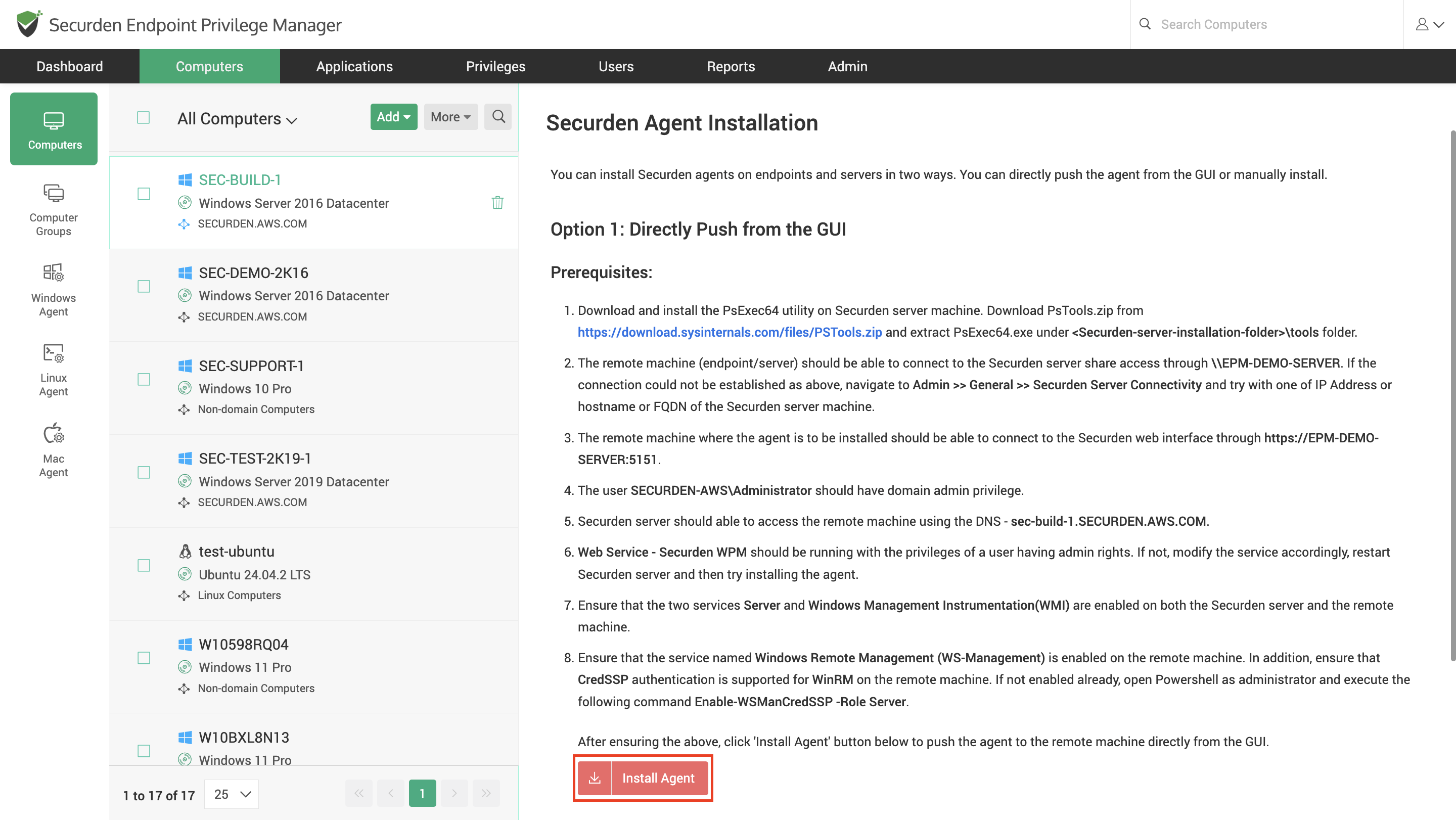
In this section, click on the required endpoint and click on Install Agent to remotely install the agent on the computer.
For steps to deploy the Securden Agent using group policy objects, Microsoft Configurations Manager, and Intune, refer to the corresponding sections.
How to Upgrade the Securden Agent on Domain Endpoints?
The Securden Agent is designed to work with specific versions of the Securden Server to ensure compatibility and security. When a newer version of Securden Agent is available, you can push the updates to the endpoint. Agent updates can be rolled out automatically, or you can use the same method you used for installing the agent to roll out the Agent upgrades.
Automatic Agent Updates
To simplify agent management, Securden provides an automatic agent upgrade mechanism. When enabled, this feature allows agents to update themselves automatically whenever a new compatible version is available on the server.
Pre-requisites: Endpoint machines must have network connectivity to the Securden Server. Try opening the web-interface from a browser application on the endpoint using the server connectivity URL. If the web interface is accessible, it is safe to assume that connectivity is ensured.
Once connectivity is ensured on the endpoints, follow the steps below to enable auto-upgrades
- On the machine (server) running Securden EPM, open the Securden web interface.
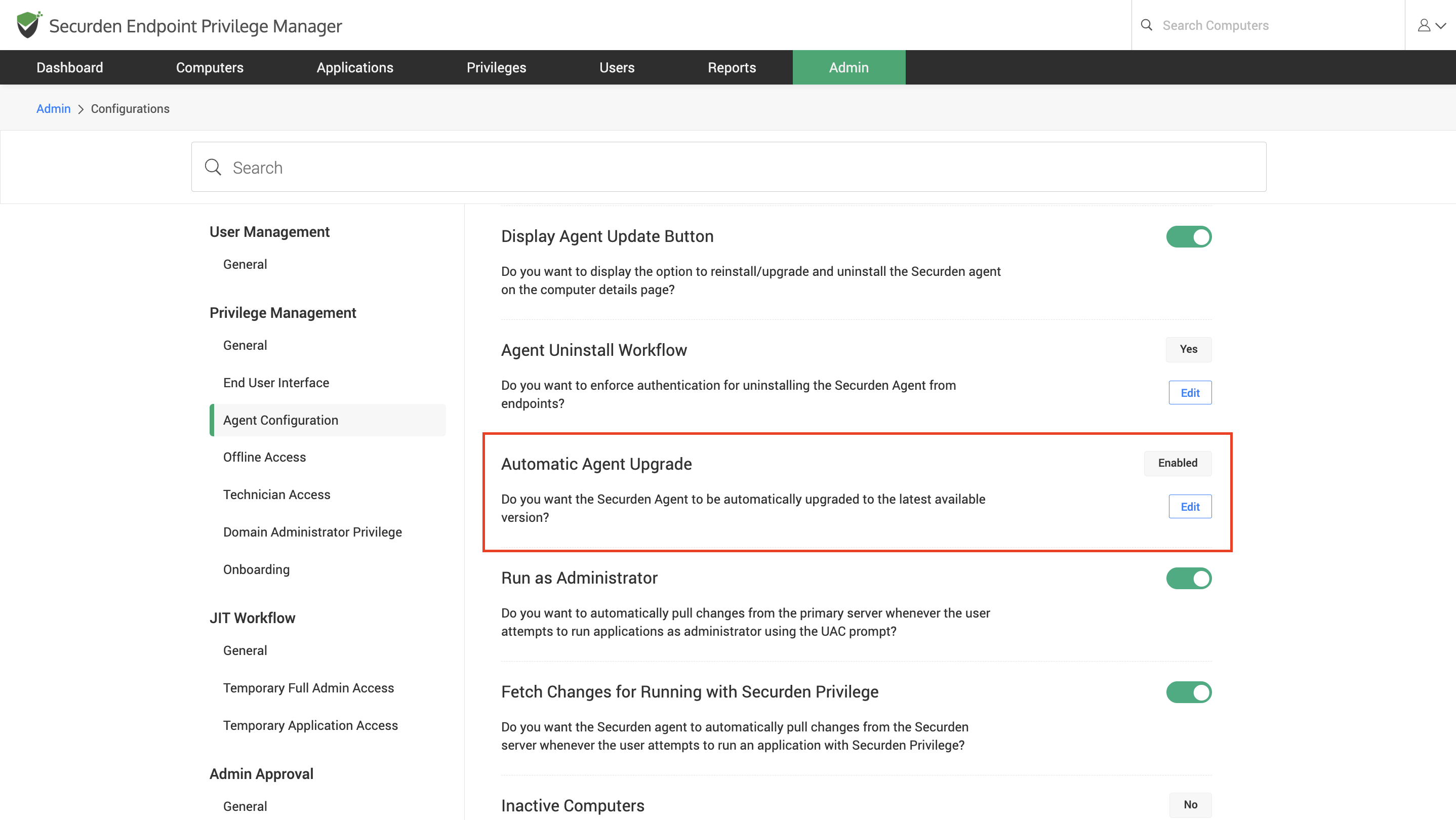
- Navigate to Admin → Configurations → Automatic Agent Upgrade
- Enable the option: "Do you want to enable/disable the Securden Agent to be upgraded automatically?"
Important
Agent Auto-Upgrade works for agent versions above than 6.0.0 for Windows and 6.1.1 for macOS
Once configured, no manual intervention is required for agent updates as long as the endpoints can communicate with the server.
Install Agent Upgrades on Remote Devices Manually
Pre-requisites:
To enable this provision, navigate to Admin >> Configurations, find the configuration named “Display Agent Update Button”, and ensure that this option to Yes.
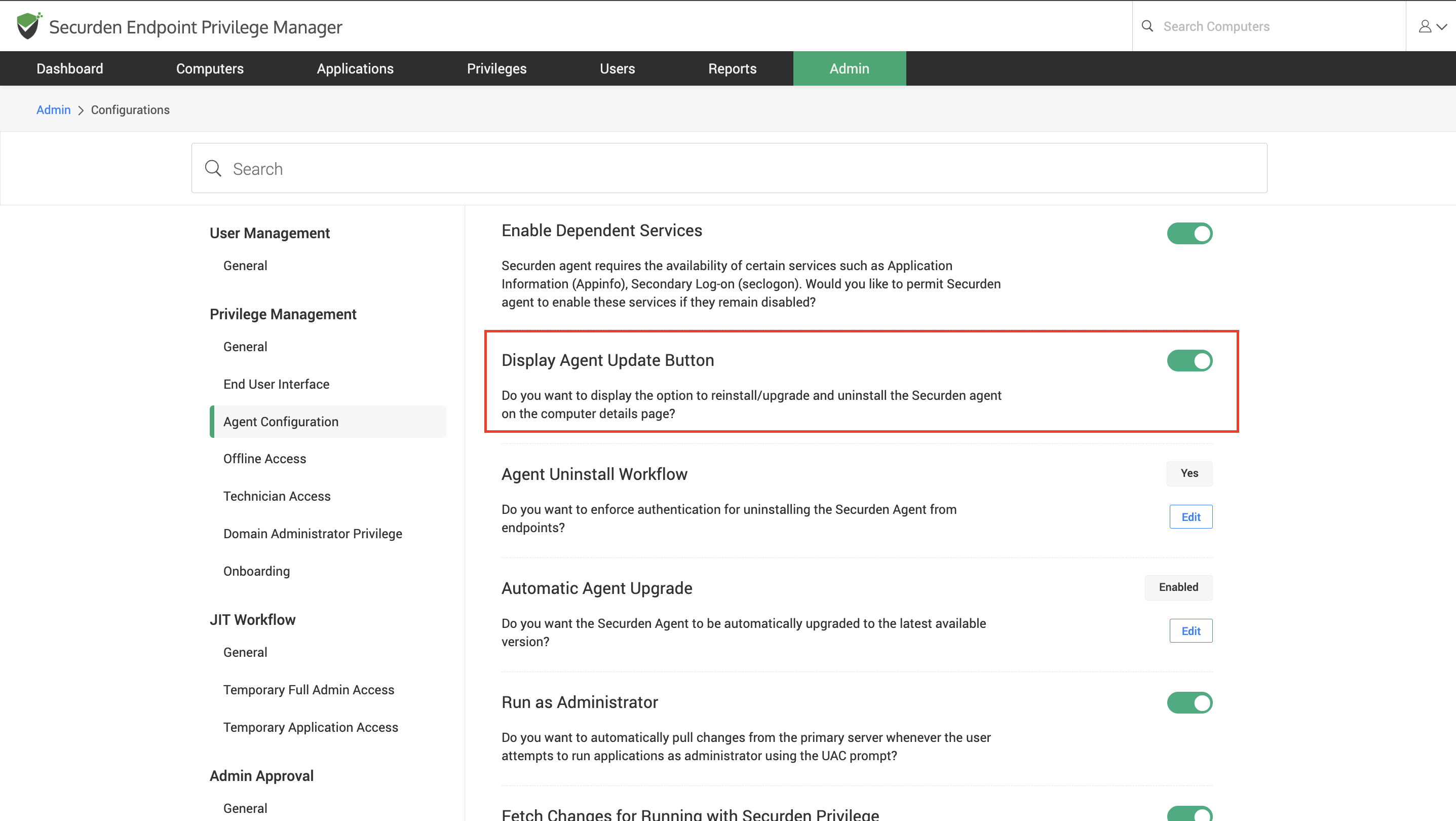
On your Computers section, the options to upgrade and re-install the agent will be available.
Note
The option to upgrade will only be displayed when there is an upgrade available.
How to Uninstall/Re-Install Agents Remotely?
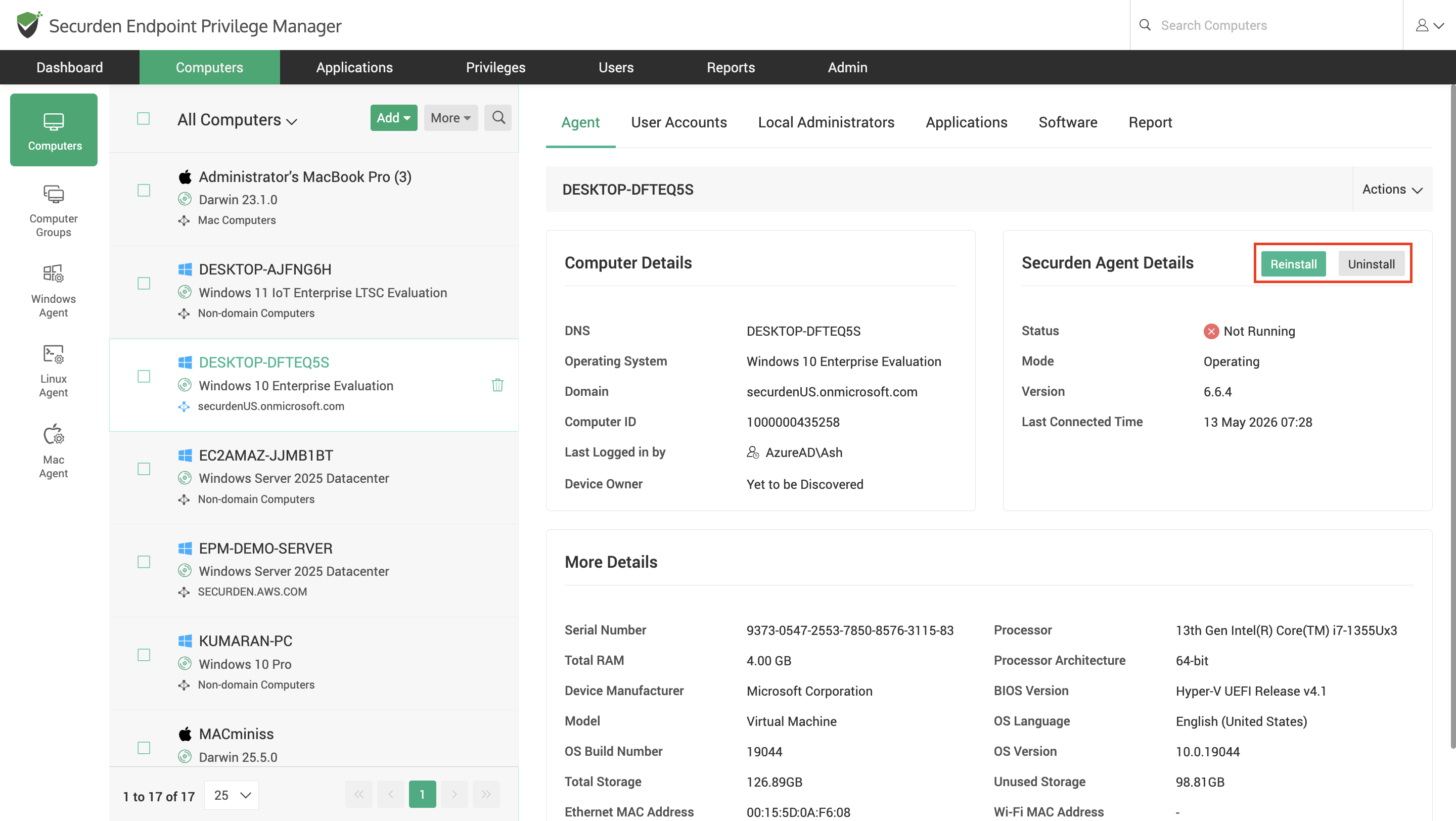
You can manually trigger remote re-installation and uninstallation of the Securden Agent on remote endpoints directly from the web-interface.
Pre-requisites:
To enable this provision, navigate to Admin >> Configurations, find the configuration named “Display Agent Update Button”, and ensure that this option to Yes.
Navigate to the Computers section and locate the desired remote computer. Click on Uninstall to uninstall the Securden agent. If you want to re-install the agent, click Re-install.
Troubleshooting Tips:
Scenario: Securden Agent Installation Failed During Upgrade from Securden Web Interface (On Premises)
This scenario can be caused by different reasons. Some causes are listed below along with the suggested fix for the issue.
Cause 1: PsExec64 Utility missing from the Securden server machine.
Fix: Download and install the PsExec64 utility on Securden server machine. Download PsTools.zip from https://download.sysinternals.com/files/PSTools.zip and extract PsExec64.exe under
Cause 2: The machine cannot access the server share location of the Securden Server
Fix:
1) The remote machine (endpoint/server) should be able to connect to the Securden server share access through \[Insert_Server_Share_Name].
2) If the connection could not be established as above, navigate to Admin >> General >> Securden Server Connectivity and try with one of the IP Address, hostname, or FQDN of the Securden server machine.
Cause 3: The remote machine cannot connect to the Securden Server
Fix: Ensure the remote machine can connect to the Securden Server through the server connectivity URL.
https://<Server Name/FQDN/IP Address>/<port>
Cause 4: The User Account used for Domain authentication has insufficient privileges
Fix: Ensure that the credentials used for authentication on your Active Directory have domain administrator privileges.
Cause 5: The Securden Web Service is running with insufficient privileges
Fix: Modify the service account privileges accordingly and restart the Securden Server.
Cause 6: Server and Windows Management Instrumentation Services are disabled
Fix: Ensure that the two services Server and Windows Management Instrumentation (WMI) are enabled on both the Securden server and the remote machine.
Cause 7: Windows Remote Management is disabled on remote machine
Fix: Ensure that the service named Windows Remote Management (WS-Management) is enabled on the remote machine.
Cause 8: CredSSP authentication is not supported for WinRM on the remote machine
Fix: Open Powershell as administrator and execute the following command Enable-WSManCredSSP -Role Server