How to Migrate Data from PostgreSQL Database to MS-SQL Database in Securden EPM?
Securden Endpoint Privilege Manager comes with PostgreSQL as the backend database by default. However, if you have an MS-SQL server instance, you can switch to MS-SQL database at any time if you are using the on-prem edition of Securden EPM.
If you have imported users and devices into Securden while still having PostgreSQL server as the backend database, you are likely to have data stored in the PostgreSQL database. You can migrate all your data to an MS SQL database seamlessly.
Prerequisite
Before proceeding with the steps to migrate the database to an MS-SQL server, take a fresh backup of the PostgreSQL database along with a copy of the active encryption key and store it in a secure location.
What is the step-by-step procedure to migrate to MS SQL as the backend database server?
Important
Before starting the migration process, you need to stop the Securden service from services.msc.
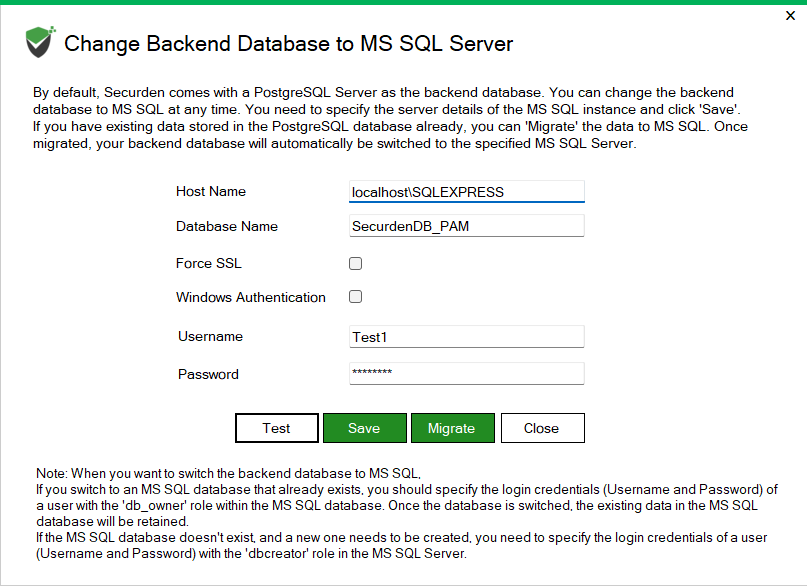
To change or migrate your database from PostgreSQL to MSSQL, navigate to the /bin folder and open Change Database.exe as administrator and follow the steps below.
-
Specify the Host Name of the server on which Securden EPM is installed.
-
If you want to connect to a specific instance of SQL Server, you can mention the host name along with the instance name in the following format.
-
If you want to connect to a SQL instance running on a specific port, you should specify the details in the
-
-
Specify the database name of your MS SQL instance.
-
You can choose to force SSL while Securden communicates with the database. If enabled, connections will only be established if a valid certificate exists.
-
If you want to use Windows authentication for the connection to the SQL server, select the checkbox against Windows Authentication.
-
Ensure that you open ChangeDatabase.exe using the user account you want to connect to the database. If you want to use a different Windows user account to connect to the database, you can Shift + Right Click ChangeDatabase.exe and choose ‘Run as Different User’.
-
Securden recommends having sysadmin role in SQL server for the user account used for authenticating into the database.
-
-
If you don’t want to use Windows Authentication, you need to specify the username and password of the MS SQL server.
-
If you are using a fresh MS SQL instance, you need to provide the user account which has the db_creator role.
-
If you are using an existing MS SQL server, you need to provide an account which has the db_owner role.
-
-
Click Save if you don’t have any data stored in the PostgreSQL database.
-
Click Migrate if you want to migrate existing data in the PostgreSQL database to MS SQL database.
Common issues faced during backend database migration
Issue
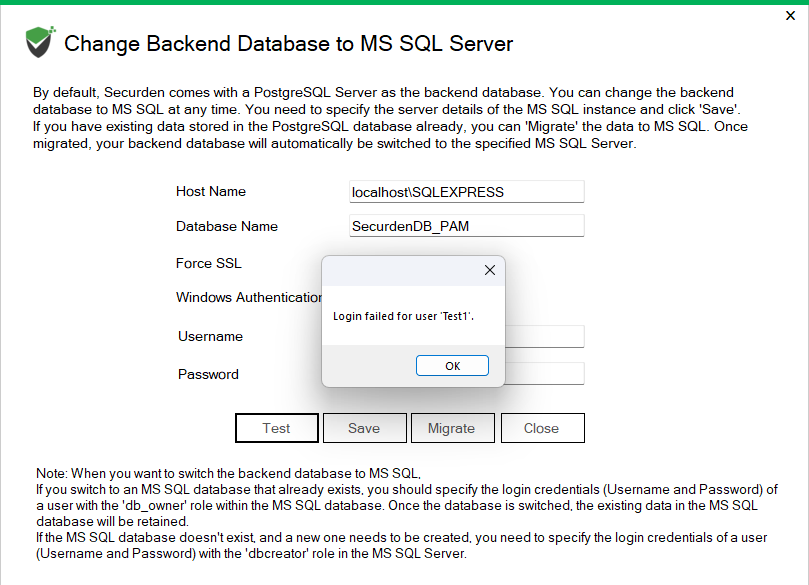
When the admin tries to switch or migrate the backend database to Postgresql database, the following error is thrown.
Solution
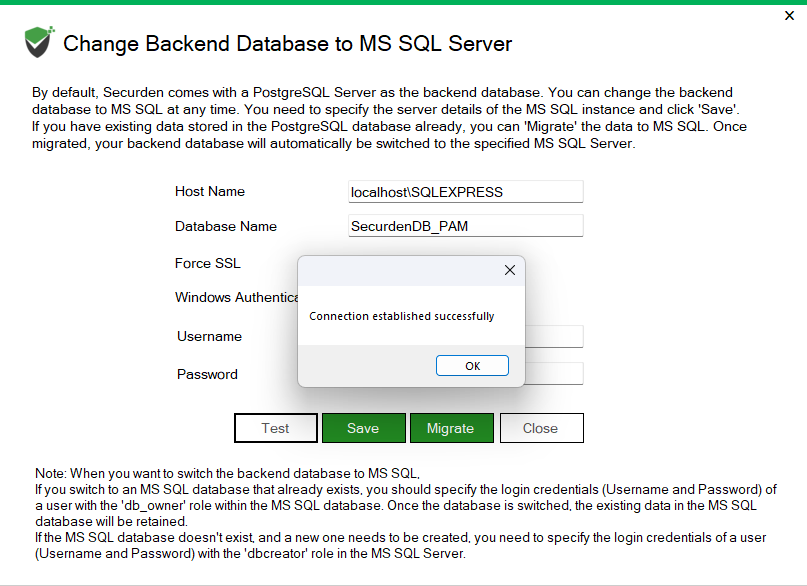
Check whether the credentials provided for the user account are correct. Ensure that appropriate username and password combination is provided. With successful authentication, you should get the following message.
Issue
When trying to migrate or switch the backend database server, an error message pops up saying ‘driver not present’
Solution
This error is thrown when the opendatabaseconnectivity (odbc) service is missing. This api is crucial for Securden to access and query multiple databases simultaneously.
Ensure ODBC is installed and try again.
Important Steps to be Followed After Migration:
-
Once the database is changed (without migrating the existing data), the key with which the database is encrypted will be renewed. The new encryption key will be found under the name securden.key and the old key will be renamed to securden.key-date. The old database will no longer be accessible with the new encryption key.
-
You should change the backup path to a secure location where MS SQL server backup can be saved. Navigate to Admin >> Database Backup to specify the updated backup location.
-
For quick disaster recovery, we recommend you take a fresh backup of the database and store it in a secure location. The old backups will no longer work due to encryption key mismatch. Verify whether the backup is working fine.
-
You need to reconfigure your distributed deployment and high availability setups by following the steps below.
-
Since MS-SQL doesn't support Standby server configuration, you need to remove the configured Standby server and add it again as an Application server.
-
Once added, you have to download the application server package, stop the Securden service on the secondary servers and deploy the package again.
-
Similarly, all your other secondary application servers have to be reconfigured.
-
You can refer to the steps here to configure high availability again.
-
If you are using a cache database (only for PAM/EPM), you need to reconfigure the cache database by following the steps below.
-
Open Command Prompt and navigate to the Securden installation location and go to the bin folder.
-
In the bin folder, execute the following command by specifying the IP address of the primary server.
SecurdenServiceInstaller.exe installCache <IP-Address>
You may refer to the steps here to configure the cache database again.


