Introduction to Audit Trails and Reports on Endpoint Privilege Manager
Securden Endpoint Privilege Manager tracks all events and activities performed by every user on the web interface. These include the discovery of new devices, accounts, users, applications, along with all configurational changes made by the administrator.
You can track the application control policies, privilege elevation policies, and technician access policies throughout their lifecycle using these audits.
You can derive insights from these audit trails and understand how your users are using the permissions granted to them.
You can use these reports to:
-
Monitor user activity: Track logins, requests, and modifications done by users within their scope of operations.
-
Audit admin rights usage: You can track when and who are availing administrator privileges on their endpoint and why they needed it.
-
Analyze application usage patterns: Understanding which applications are being accessed by specific users can help you design better control policies that reduce operational friction and improve employee productivity.
-
Support compliance requirements: The reports in Securden act as an immutable record of the organization granting and revoking administrator privilege when required. This record can be used as proof of least privilege enforcement during audits.
-
Export and share the reports: You can export reports instantly in the form of reports (.pdf, .csv, .xlsx). Securden also supports scheduled, periodic exports of reports to a specific location on your server or on cloud storage services like Google Drive, Amazon Cloud Storage, and OneDrive.
Reports to provide complete information and unique insights
In Securden Endpoint Privilege Manager, various reports are readily accessible to users. These include:
Standard Reports
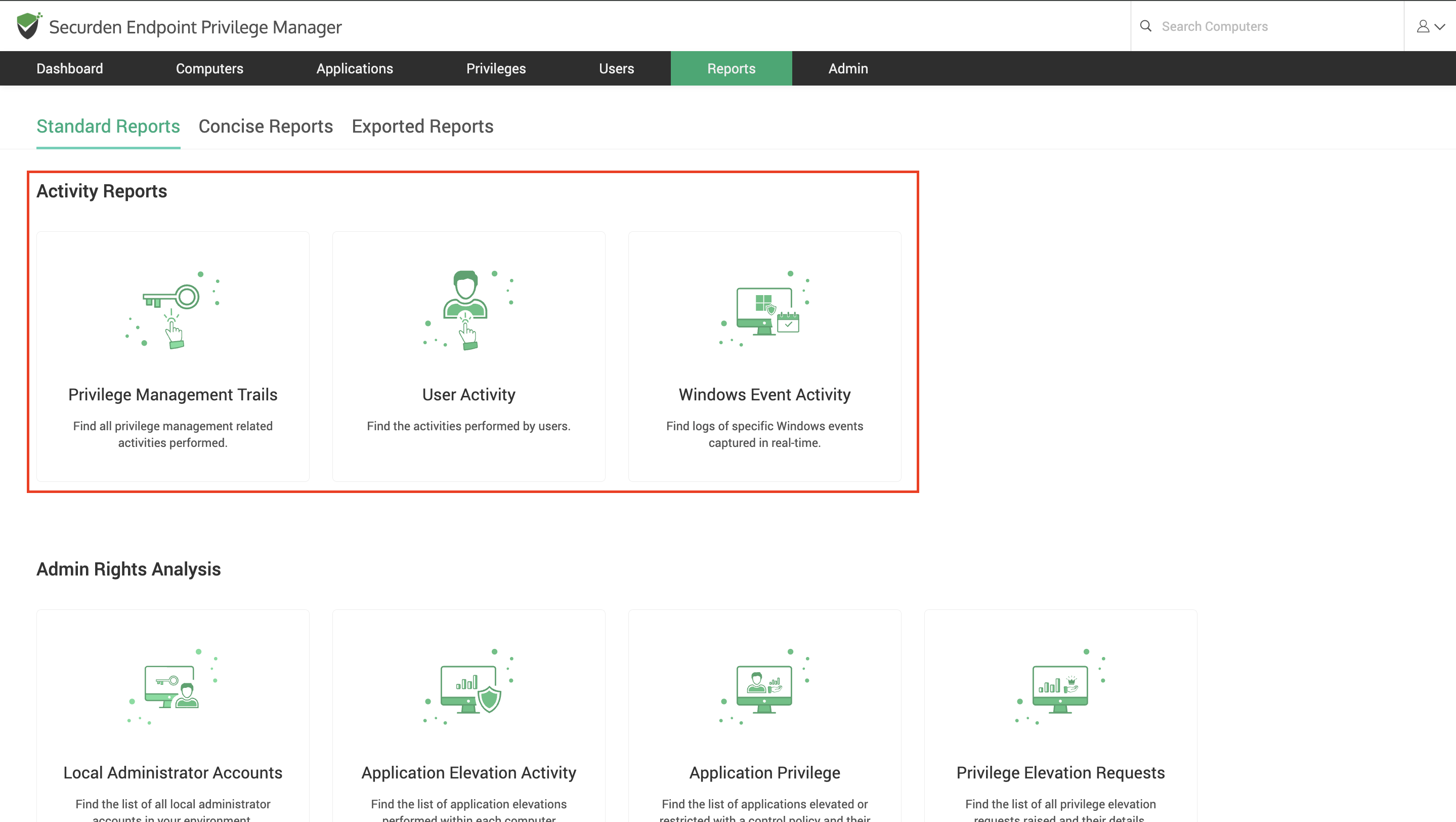
Standard reports are a set of pre-defined and ready-to-use reports that offer insights into activities performed by the user, administrator, and the privilege management agent. For example, if an application is added to Securden, you can find the activity in the “Privilege Management Trails” section along with details on ‘who’ added it, from ‘which’ computer the activity was performed, and corresponding time stamps. Standard reports are further classified into:
1) Activity Reports
-
Privilege Management Trails
-
User Activity
-
Windows Event Activity
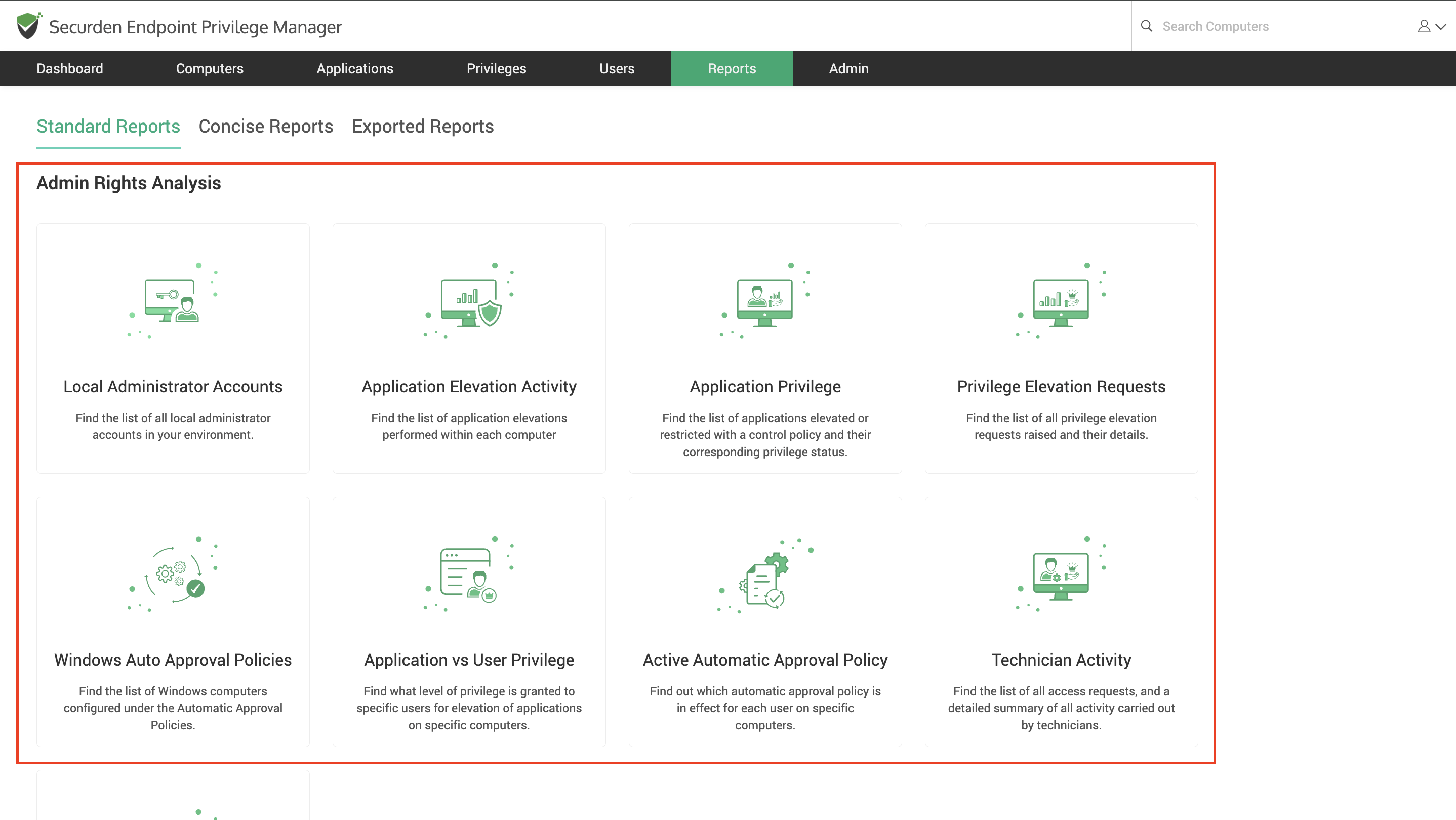
2) Admin Rights Analysis
-
Local Administrator Accounts
-
Application Elevation Activity
-
Application-Level Privileges
-
Privilege Elevation Request
-
Windows Auto-Approval Policies
-
Application vs User Privilege
-
Active Automatic Approval Policies
-
Technician Activity
-
Active Technician Access Policies
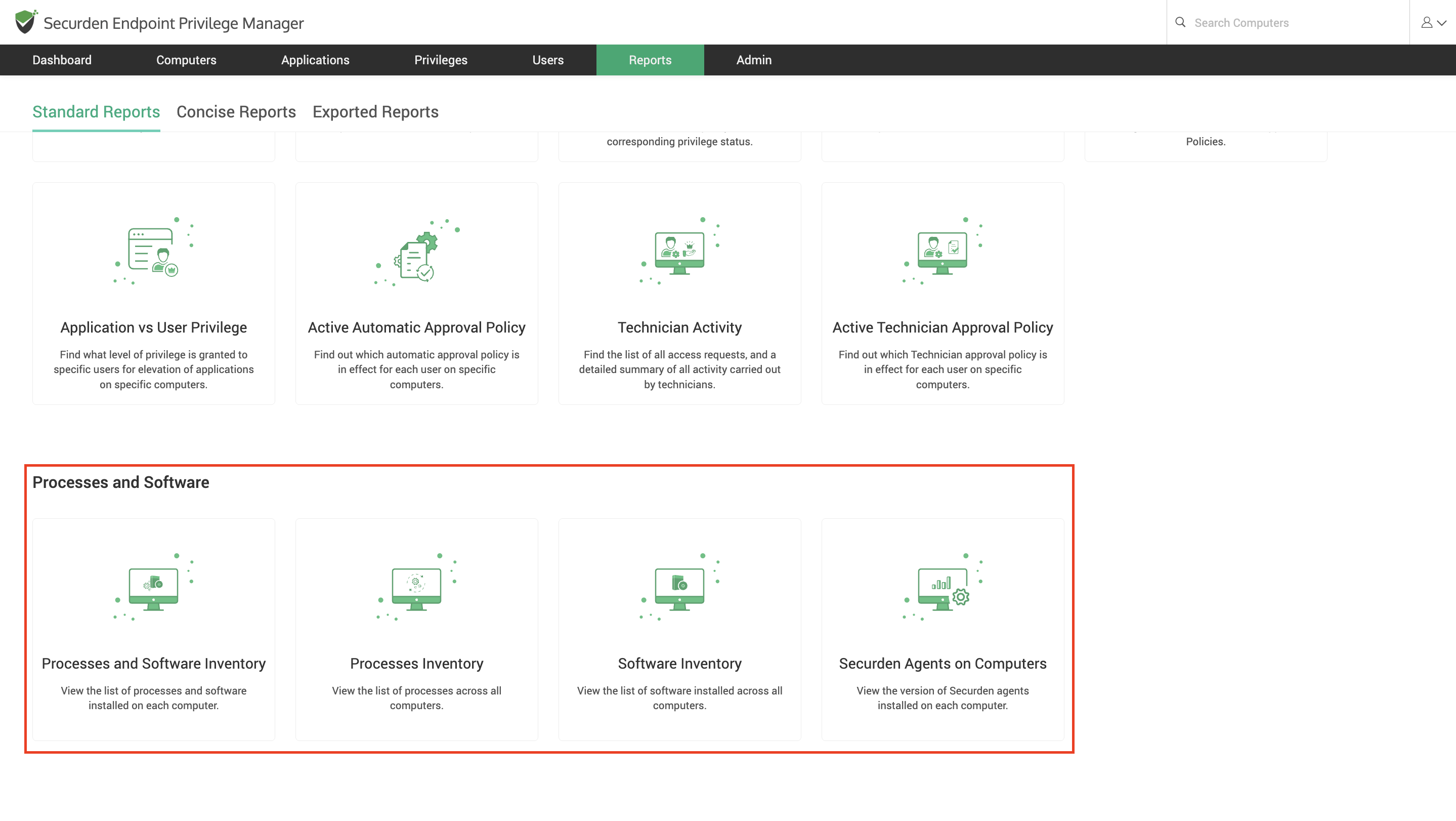
3) Processes and Software
-
Processes and Software Inventory
-
Processes Inventory
-
Software Inventory
-
Securden Agents on Computers
Concise Reports
You can make use of Concise Reports to get nuanced insights into application elevations, number of elevations done by a specific user in the last 30 days, etc.
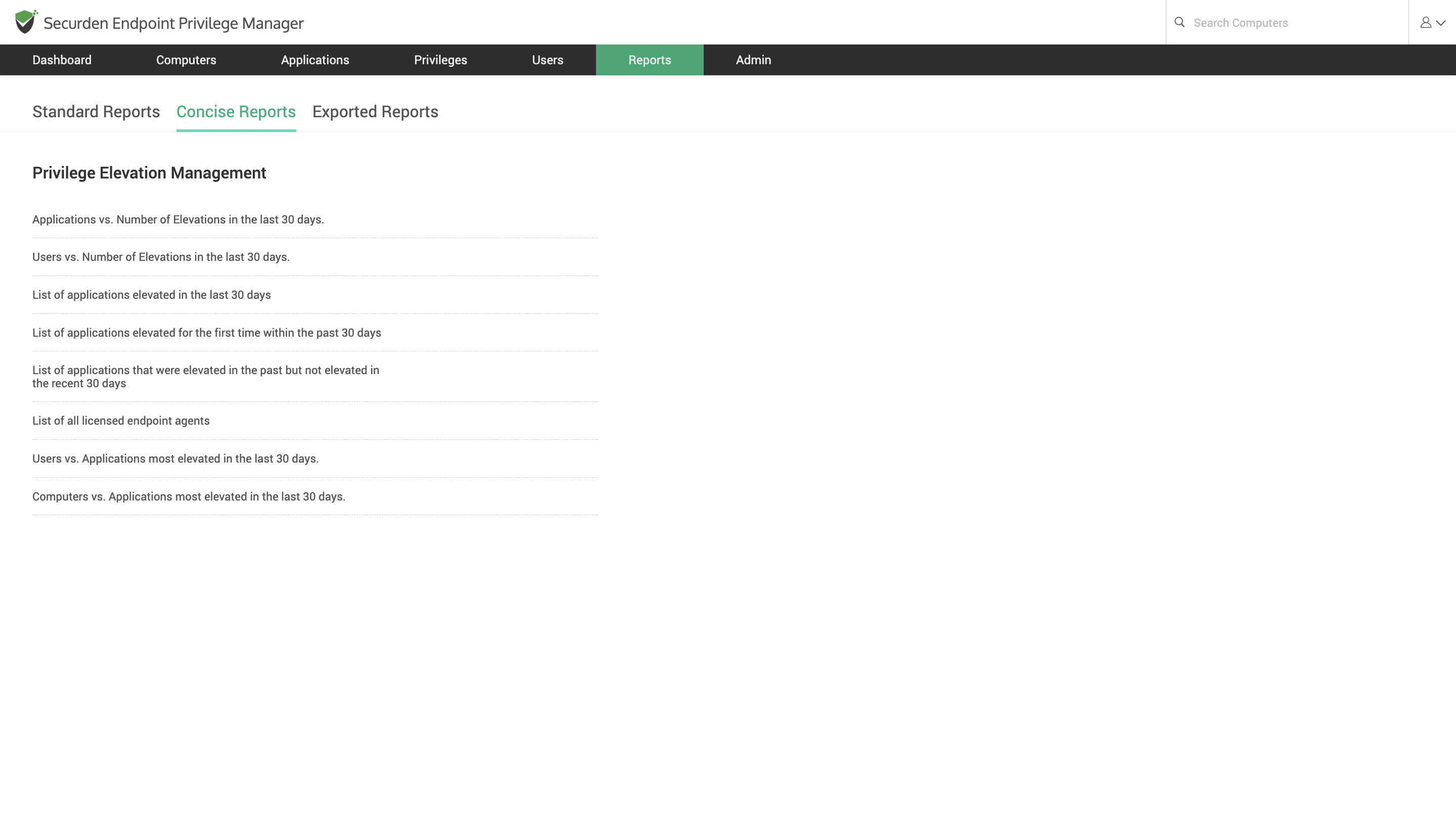
You can use these insights to draft accurate policies to tightly control privileges.
You can also export these reports in PDF, XLSX, and CSV formats for offline use.
How to Export Reports?
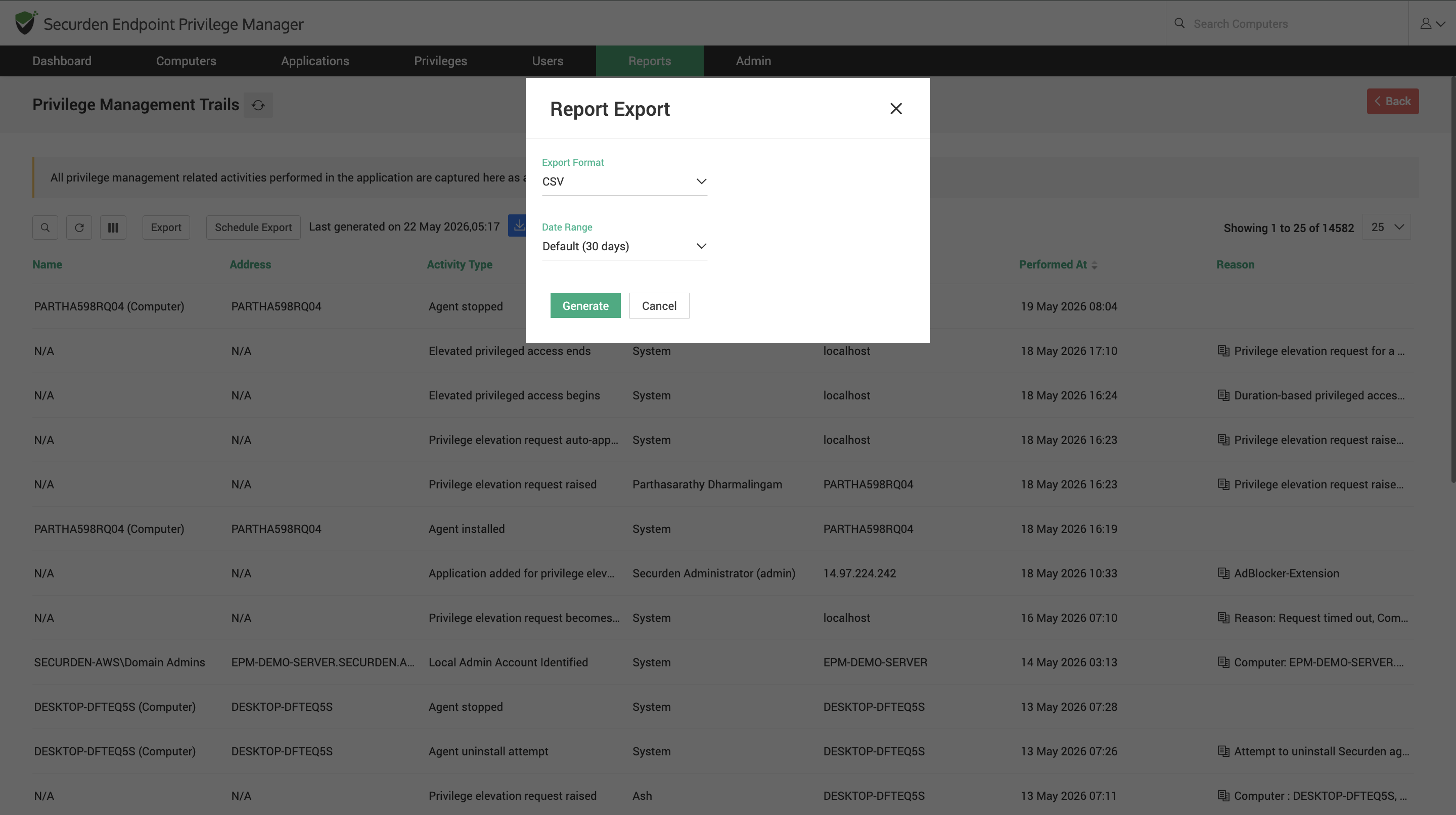
You can export all the reports available in Securden. You can open the report of choice and click ‘Export’ to get a copy of the report. You must specify the date range to fetch the required data and the file format in which you want the report. Securden currently supports PDF, CSV, and XLSX formats for exporting reports.
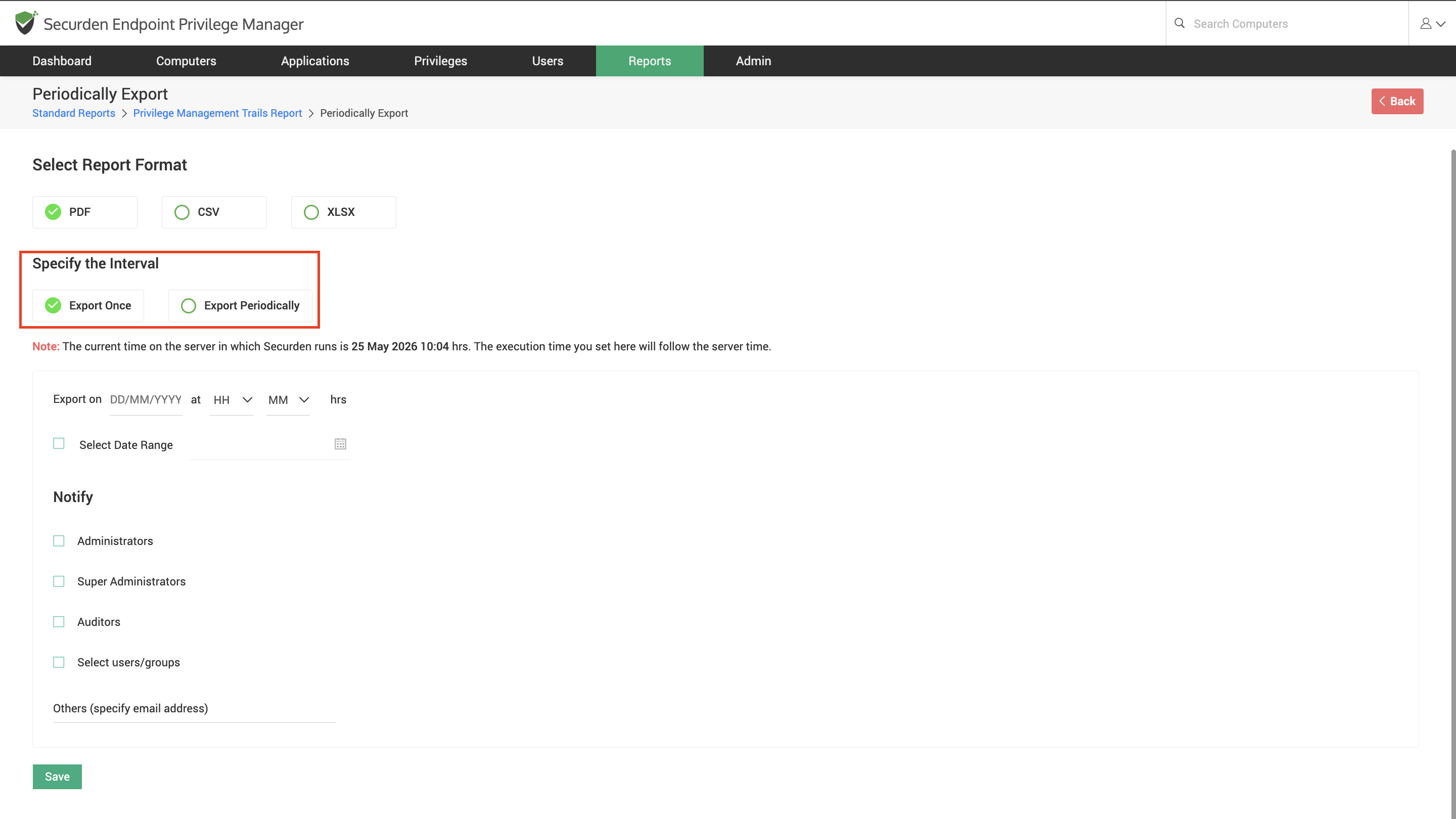
You can configure report exports for a later time by choosing the ‘Schedule Export’ option. Here, you can choose between a one-time export or set up periodic export to automatically receive the report in the required frequency.
How to access exported reports?
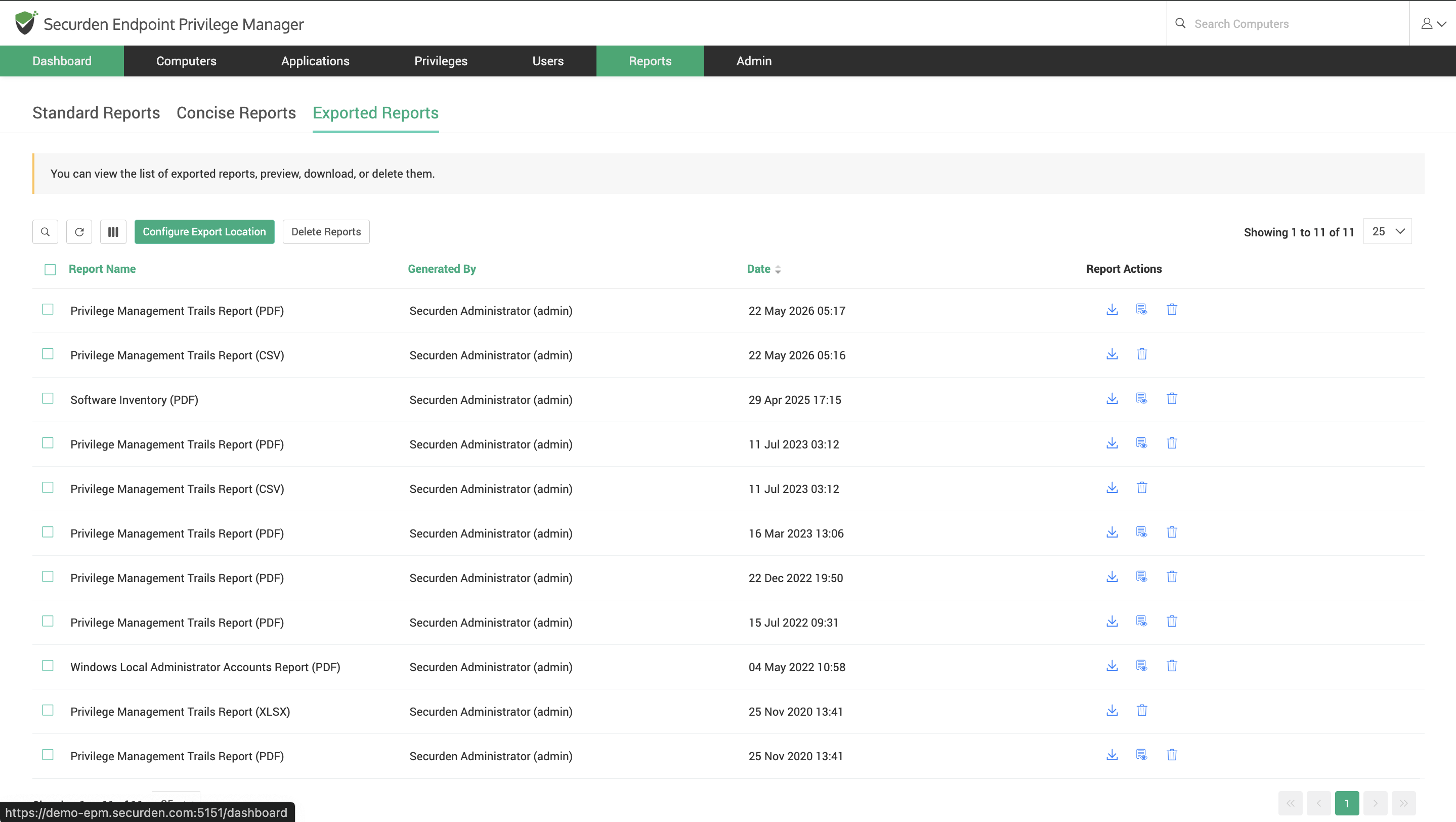
If you choose the ‘Export’ option under any report, the file will be exported to the configured export location. You can access the report directly from the Securden interface by navigating to ‘Exported Reports’ section.
The default export location is as follows:
On-Premises: The exported reports are stored within the installation folder under the path
Cloud Edition: The exported reports will be stored inside Securden’s cloud storage. Access is granted only through the Endpoint Privilege Manager.
However, you can change the export location by navigating to Reports >> Exported Reports and selecting 'Configure Export Location’.
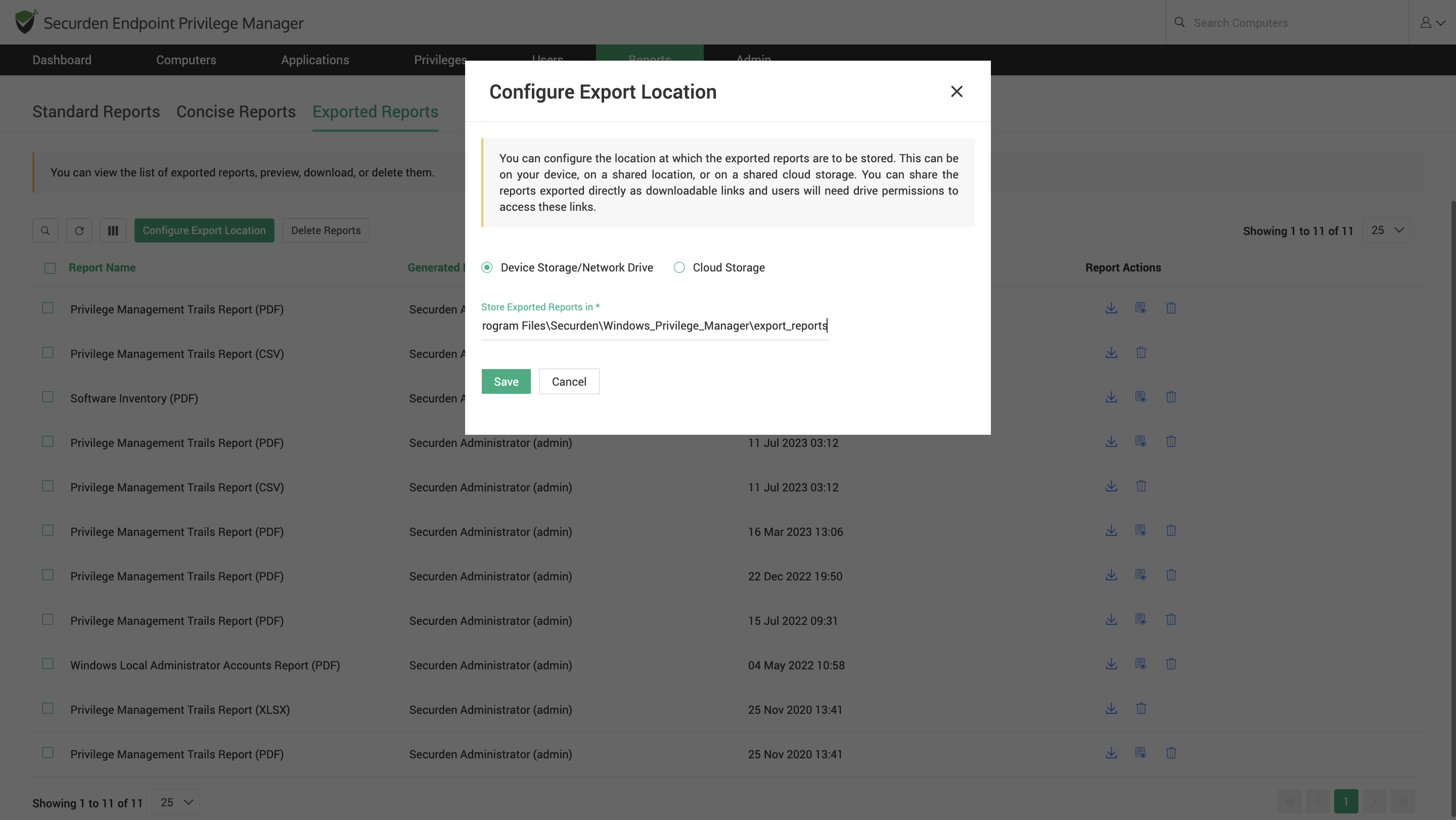
For Endpoint Privilege Manager On-Premises: You can store the exported reports on any network device or on your own cloud storage.
-
For storing the files on your device, you must specify the exact file path of the desired export location. If you must store the report on a different device, ensure connectivity and provide the correct network path.
-
For storing on your cloud storage service, you must configure cloud storage service in Securden EPM. Navigate to Admin >> Cloud Storage Services to complete this step. After configuring, you can select the configured service from the drop-down and provide the folder path of the desired location.
For EPM Cloud Edition, you can store the reports on your cloud storage. You can configure cloud storage service integration by navigating to Admin >> Cloud Storage Services. If you have added the service already, you can select the configured service from the drop-down and provide the exact folder path of the desired location within your cloud storage to configure the export location.