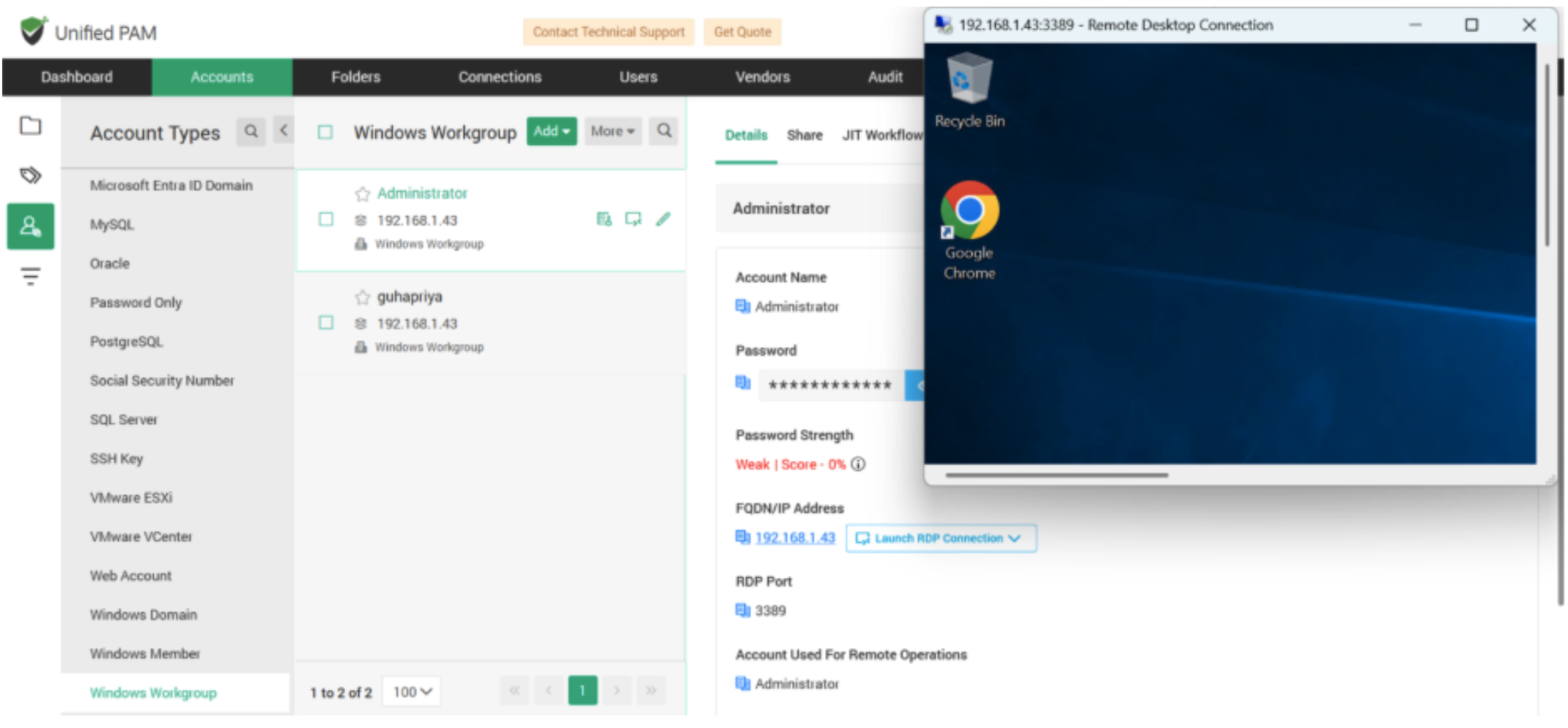
Discover All ESXi Hosts & Virtual Windows, Mac Machines
Securden Unified PAM helps discover & onboard ESXIs hosts and Virtual Machines from VMware. It helps periodically discover virtual assets, provision access to users and periodically rotate passwords of VM accounts.
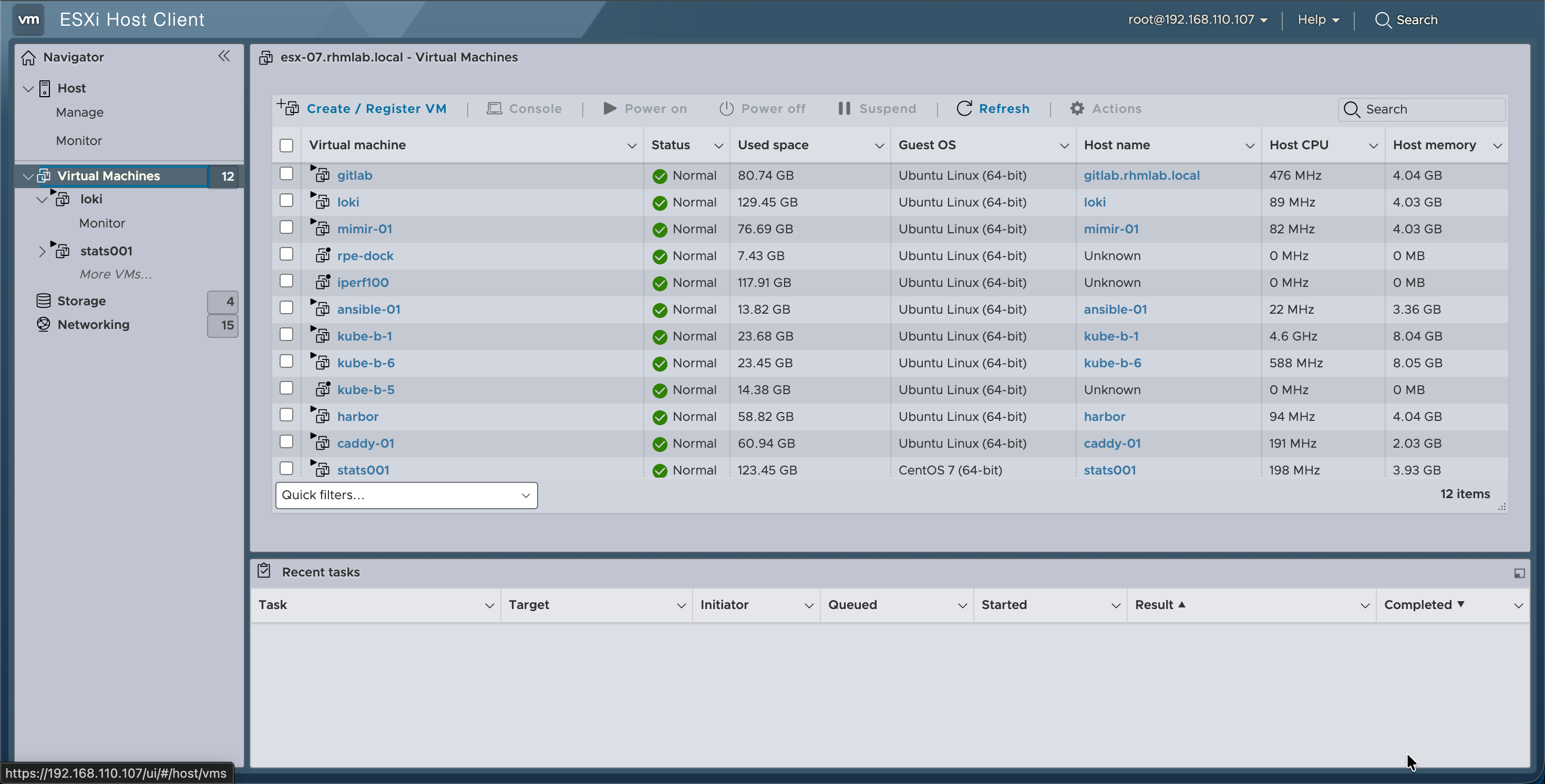
Unified PAM can discover and onboard VMs running on various types of Operating systems and special purpose VMs. These include:
-
Microsoft Windows
-
Ubuntu Linux and other popular Linux distributions like CentOS, RHEL
-
Apple macOS
-
FreeBSD
-
Custom build virtual network devices like virtual routers and virtual firewalls.
Unified PAM supports various kinds of account types such as Windows domain, Windows Member, Linux, and others. After onboarding VMs, the associated accounts (like Administrator, root account) will be automatically mapped to the corresponding account type.
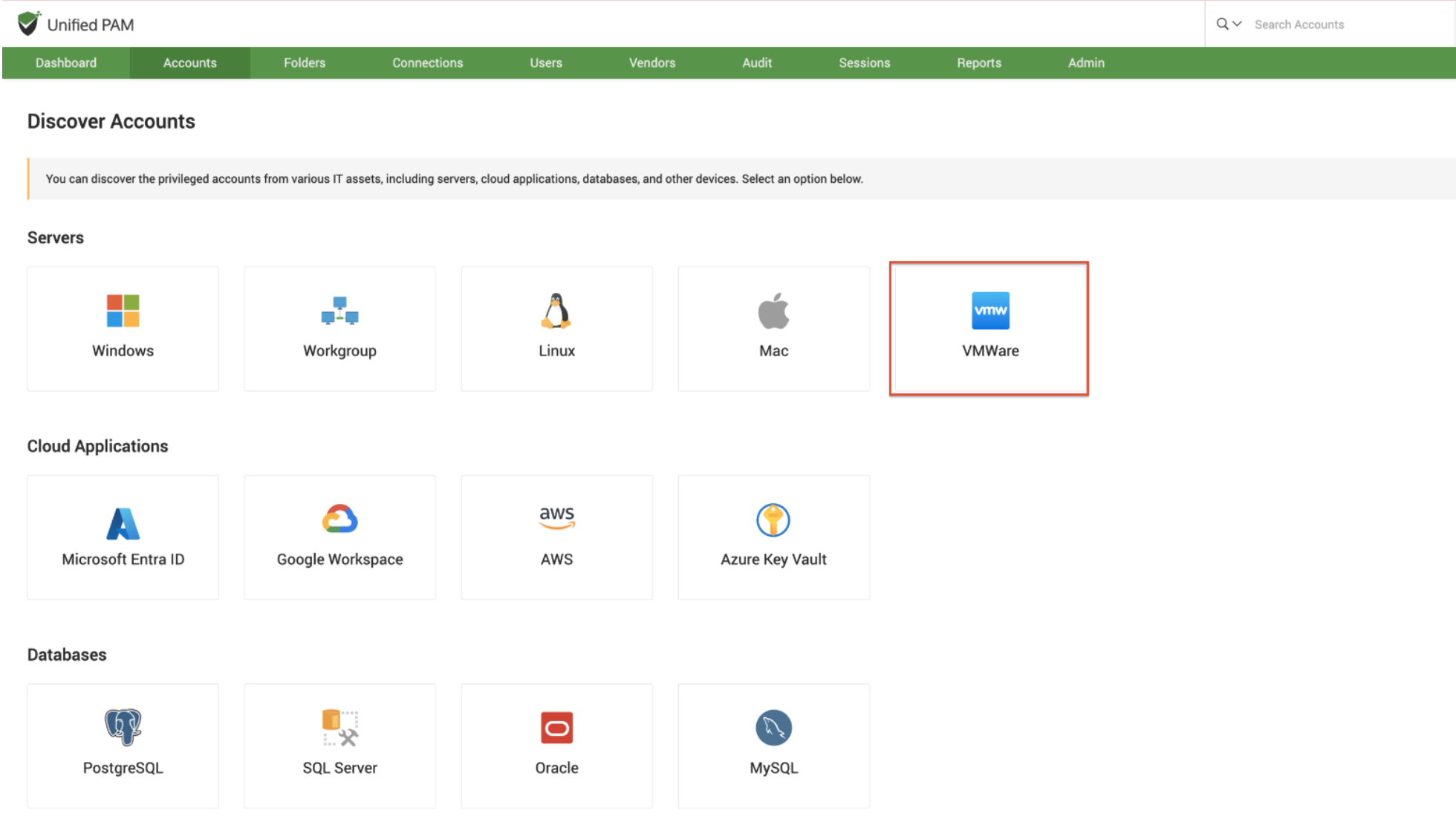
To begin onboarding your VMWare accounts, Navigate to Accounts >> Add Accounts >> Discover Accounts >> VMWare
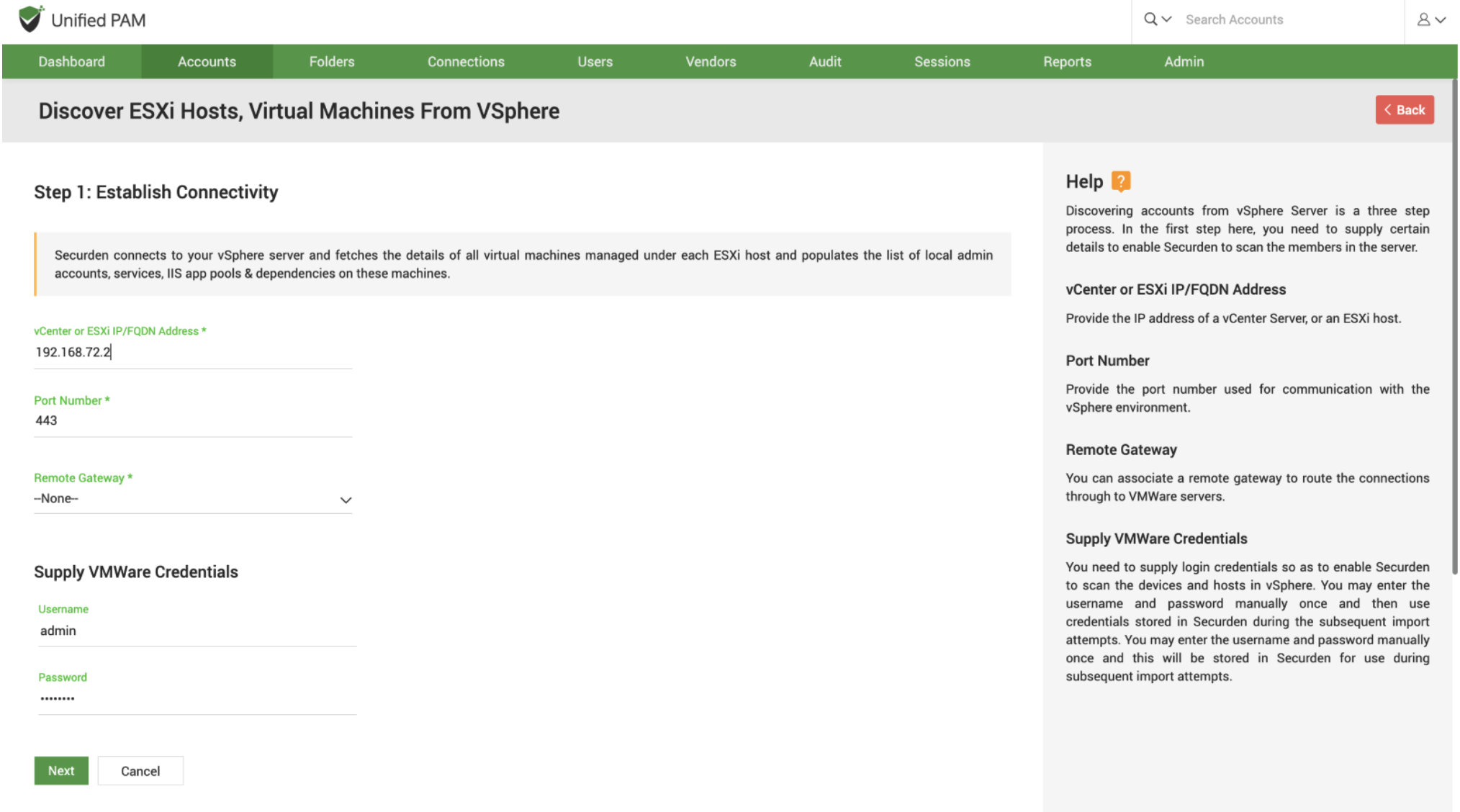
Discovering accounts from vSphere Server is a three-step process. In the first step, you need to supply certain details to enable Securden to scan the members in your vSphere server.
Step 1: Connecting to the vSphere Server
Securden connects to your vSphere server and fetches the details of all virtual machines managed under each ESXi host and populates the list of local admin accounts, services, IIS app pools & dependencies on these machines.
vSphere Server Name
vSphere server name typically refers to the hostname of a vCenter Server or an ESXi host within a VMware vSphere environment, which are the components that manage virtual machines and infrastructure. You can access the vCenter Server Appliance (vCSA) or vCenter web URL to find the server name.
vCenter or ESXi IP/FQDN Address
Provide the IP address of a vCenter Server, or an ESXi host.
Port Number
Provide the port number used for communication with the vSphere environment.
Remote Gateway
You can associate an existing remote gateway to route the connections through to VMWare servers.
Supply VMWare Credentials
You need to supply login credentials so as to enable Securden to scan the devices and hosts in vSphere. You may enter the username and password manually once and then use credentials stored in Securden during the subsequent import attempts. You may enter the username and password manually once, and this will be stored in Securden for use during subsequent import attempts.
Step 2: Discover vSphere Resources
This step is to fetch the ESXi hosts and VMs present on the vSphere server specified. The user interface offers the flexibility to fetch accounts from these ESXi hosts or VMs in bulk, or specific resources in a single step. Which means, you can enter the names of the resources and provide the credentials to import them in any combination as you wish.
Select the required ESXi hosts and/or VMs as ‘Objects for Discovery’. Securden will fetch all the accounts from the specified hosts and virtual machines.
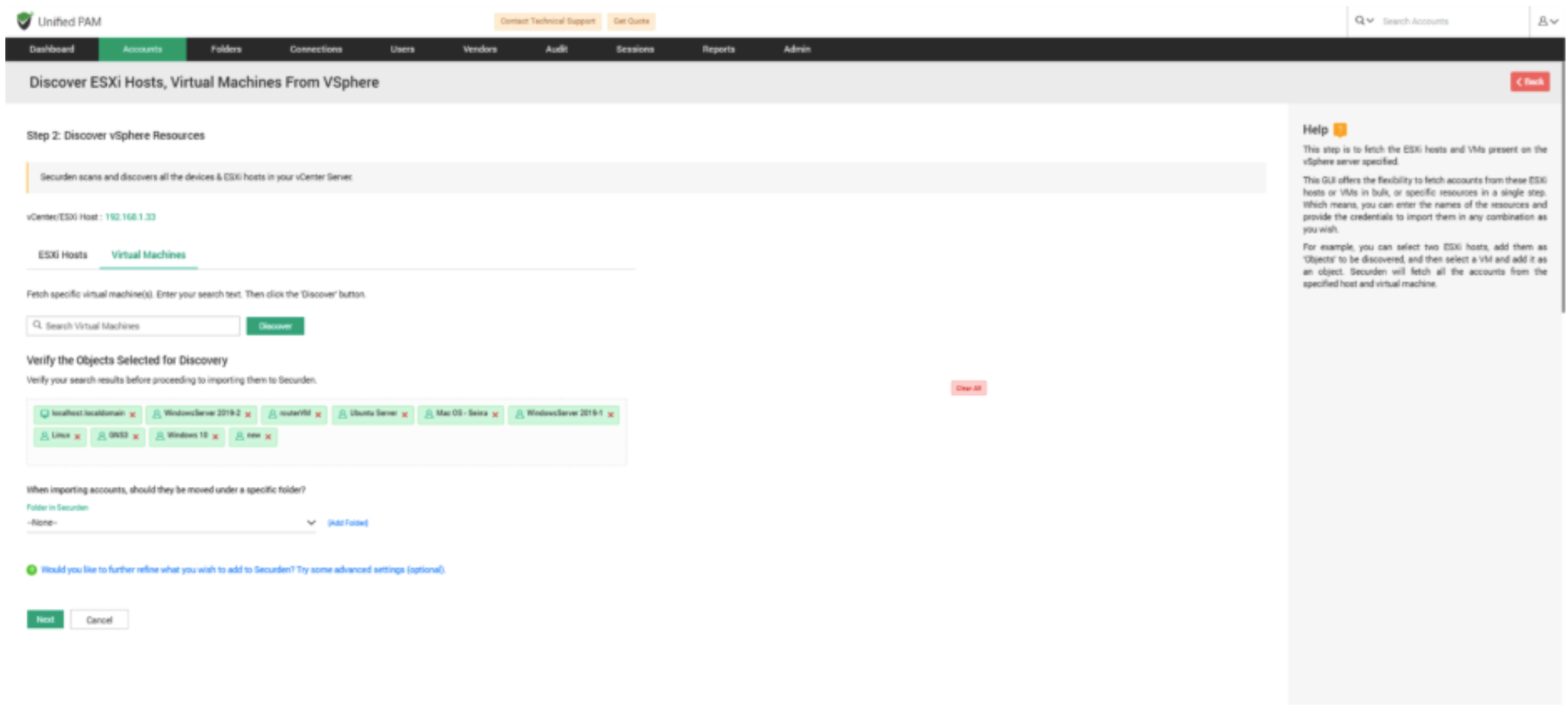
Once you have selected the VMs, click Next.
Step 3: Provide Virtual Machine Credentials
To discover accounts present on the VMs, you need to provide login credentials of Windows, Mac, & Linux machines. A single set of credentials is used to authenticate all machines of a single Operating System (OS). If each VM has a different username and password, you need to run discovery multiple times.
Credentials for Windows Machines
Provide the username & password manually or select an account stored in PAM.
Credentials for Unix-based Machines (Linux, Mac)
Provide the username & password manually or select an account stored in PAM.
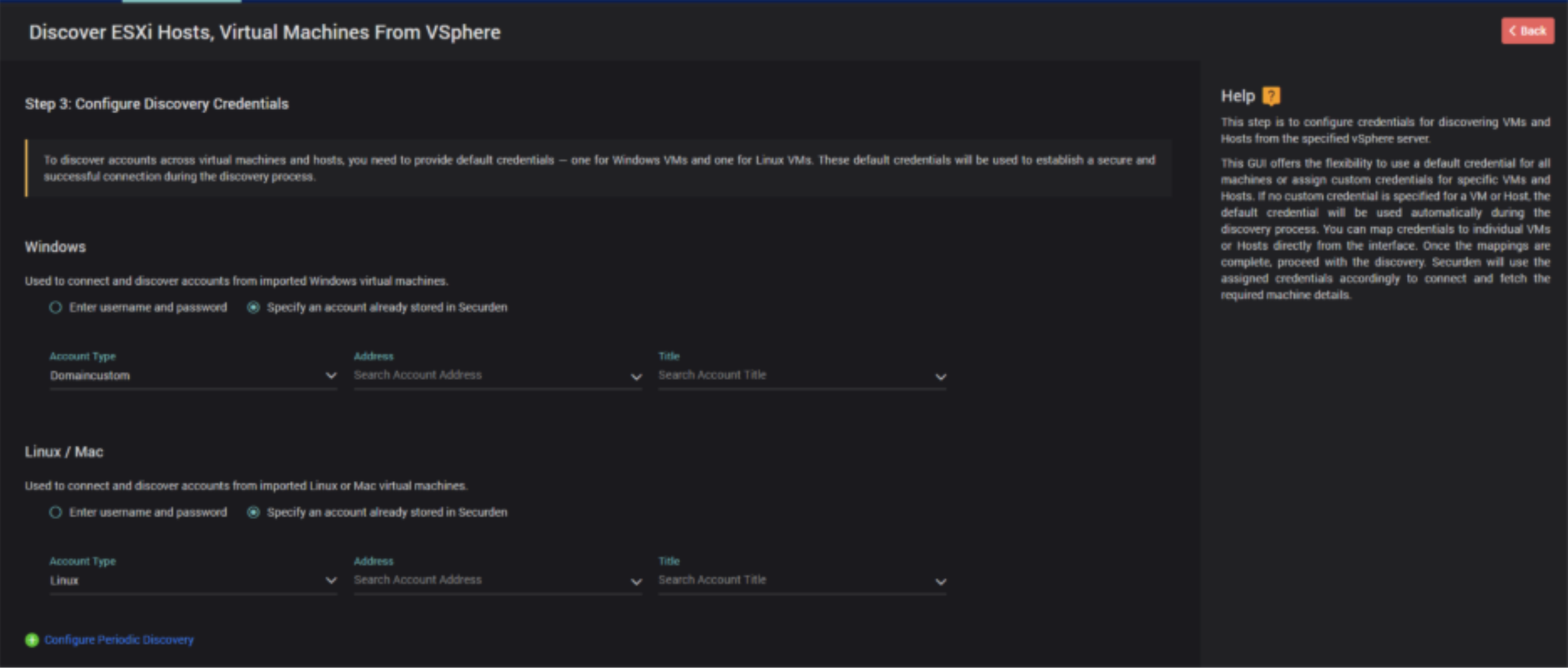
Once you have provided the details, click Discover. Securden will discover and add the VMs to the Accounts tab.
Use Case 1: Configure periodic password rotation for discovered VMWare accounts
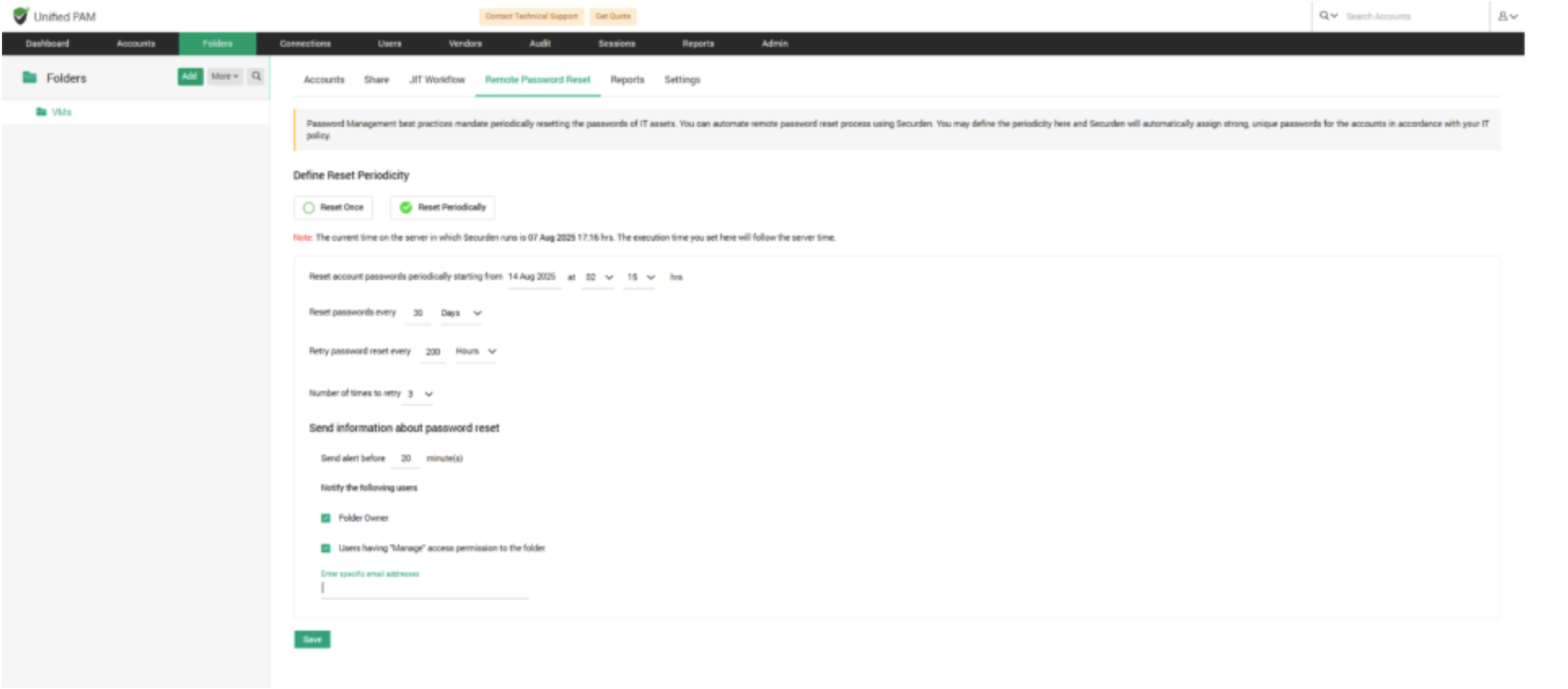
Once the privileged accounts present on the virtual machines are discovered are onboarded, Unified PAM can rotate their passwords periodically.
This reduces the risk of credential misuse, ensures password freshness, and enforces password security policies without manual effort.
Use Case 2: Launch connections to Virtual Machines without exposing credentials
Users can securely launch connections to the discovered assets through Unified PAM, enabling controlled access without exposing credentials.
Suppose a user from your organization wants to access a Virtual Machine then instead of sharing login credentials you can share the account with an “open connection” privilege which allows the user to launch a connection to the VM without disclosing the password.