Enterprise password managers have made browser-based access considerably easier — credentials are stored securely, retrieved on demand, and autofilled into web applications without friction. But a significant portion of enterprise access still happens outside the browser.
Many organizations depend on thick-client applications, locally installed tools, legacy ERP systems, database clients, and internally developed applications with custom authentication sequences. Even when credentials for these systems are stored securely in a vault, users still need to open the application separately, navigate to the right environment, manually complete each field in the correct order, and handle the rest of the login sequence on their own.
Securden Password Vault for Enterprises closes this gap with Custom Application Launcher — centrally configured, reusable workflows that define how an application should be opened, how authentication details should be supplied, and how access should be governed.
What Is a Launcher Profile?
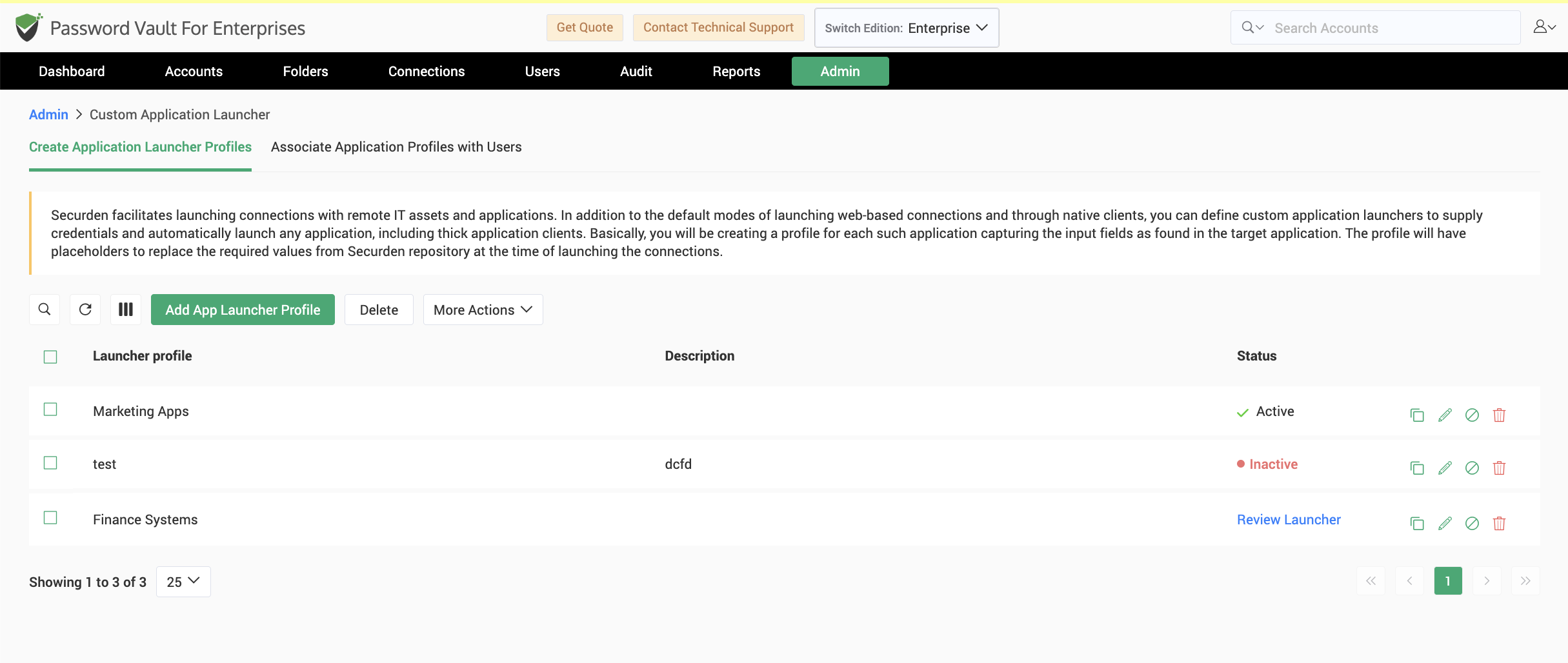
A Launcher Profile is a reusable administrative blueprint that tells Securden how a specific application should be launched and how its authentication workflow should be completed. Administrators define it once: specifying the application or executable, the login window Securden should identify, the sequence in which fields should be populated, the values supplied to each field, any load-time delays, and whether the profile requires approval before it goes live.
The profile is then associated with an account type or a user rather than individual accounts. Every account created under that type automatically inherits the launch workflow. From the user's perspective, the experience is straightforward: select the account in Securden, click Launch, and the configured sequence runs.
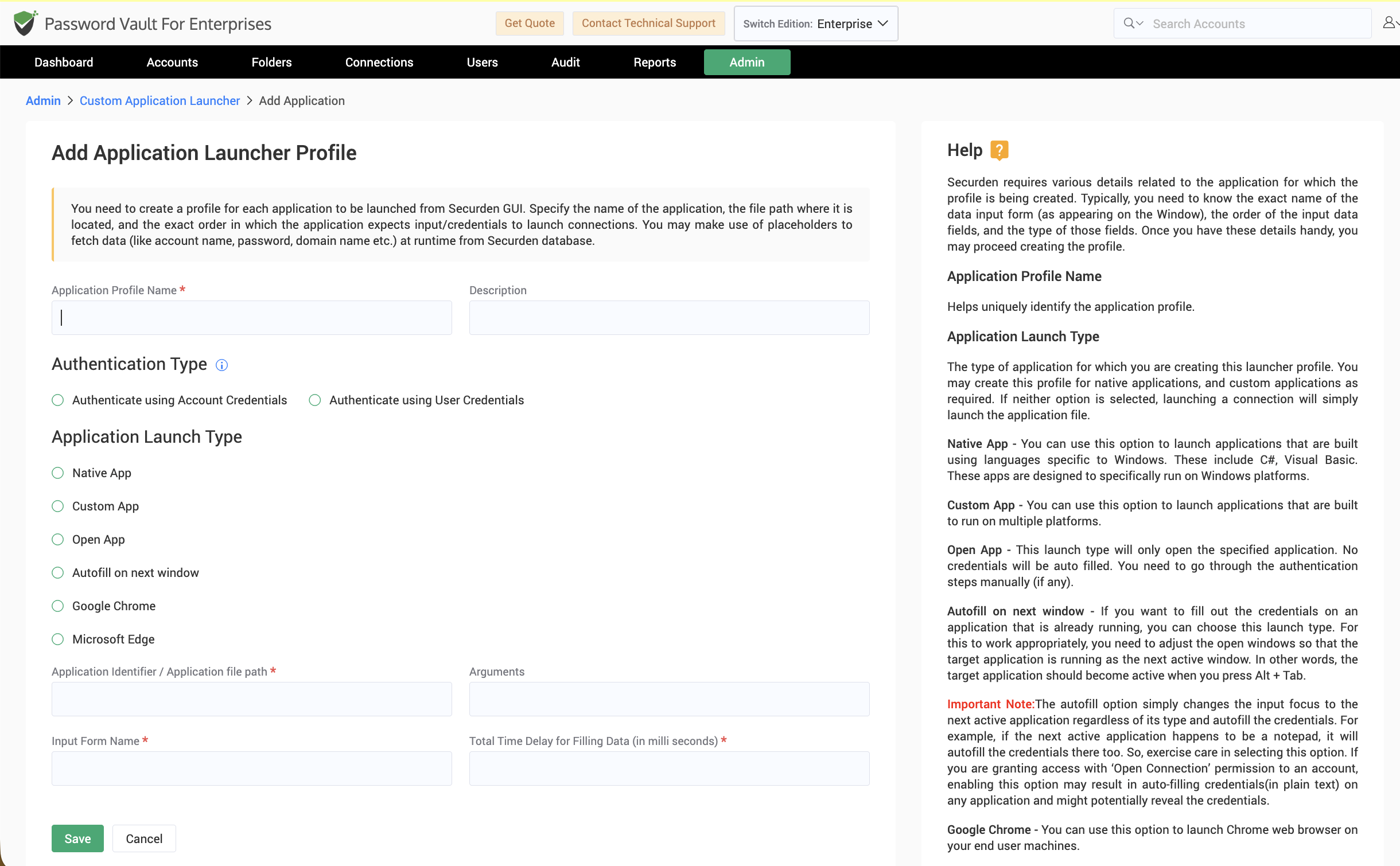
Six Launch Types to Match Any Application
Because enterprise desktop environments vary widely, Securden Password Vault for Enterprises supports six launch types — so administrators aren't forced to fit every application into the same mechanism:
- Native App: For applications built on Windows-specific frameworks such as C# or Visual Basic
- Custom App: For applications built to run across multiple platforms
- Open App: Opens the application without supplying credentials; authentication is completed manually
- Autofill on Next Window: Fills credentials into whatever application window is currently in focus, opening the target application in the next window
- Google Chrome: Launches the Chrome browser directly
- Microsoft Edge: Launches the Edge browser directly
Together, these cover native Windows utilities, cross-platform desktop clients, browser-dependent workflows, and applications that are already running — giving the Custom Application Launcher the flexibility to extend to virtually any application in an enterprise environment.
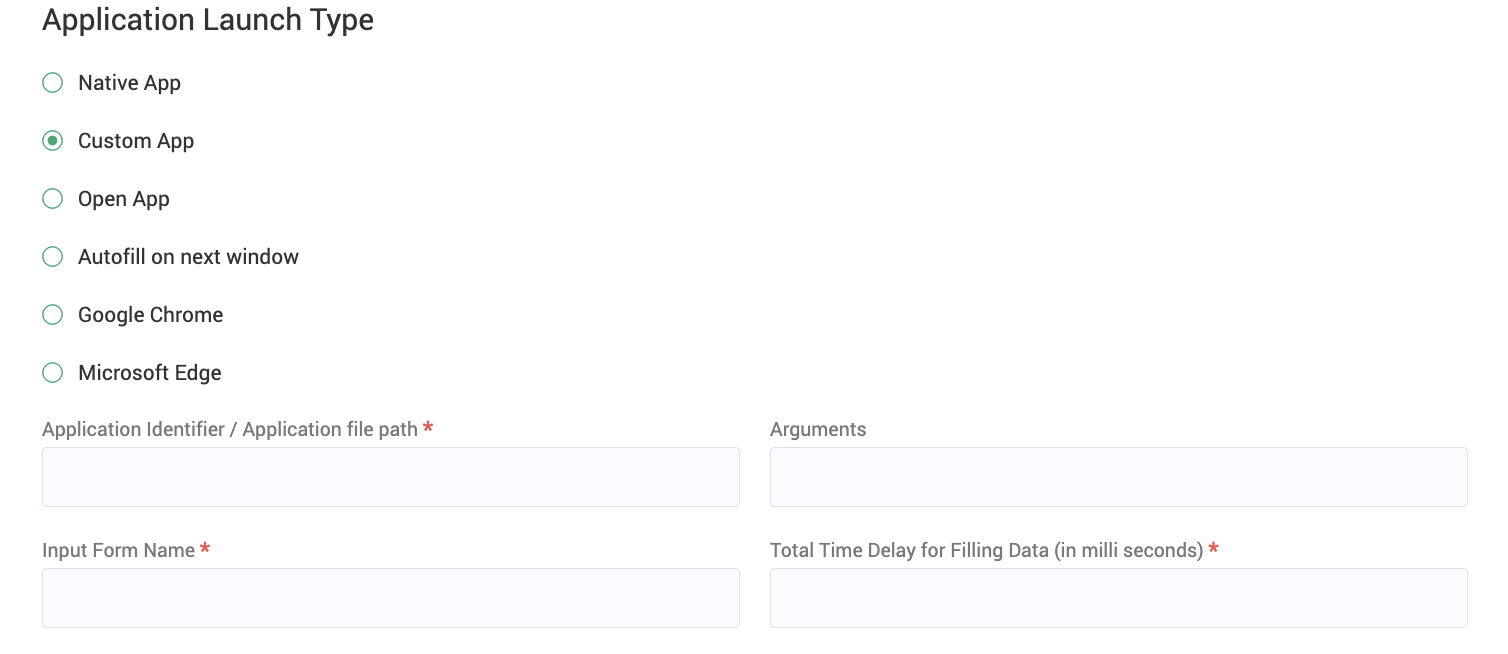
Dynamic Placeholders Make One Profile Work Across Multiple Accounts
A Launcher Profile can't contain fixed credentials if it's meant to work across multiple accounts, users, servers, or environments. Securden handles this through dynamic placeholders — variables defined in the profile that resolve against the specific account selected at launch time. Standard placeholders cover account name, password, address, domain, TOTP, folder, and user email, among others.
For applications that require more than a standard username and password — client codes, environment identifiers, department codes, instance names — administrators can add custom fields directly to an account type and use those fields as additional placeholders in the profile. An ERP profile might map a client ID, company code, and environment alongside the standard account name and password, all resolved dynamically at launch from whichever account the user selects. The profile stays generic. The account provides the data.
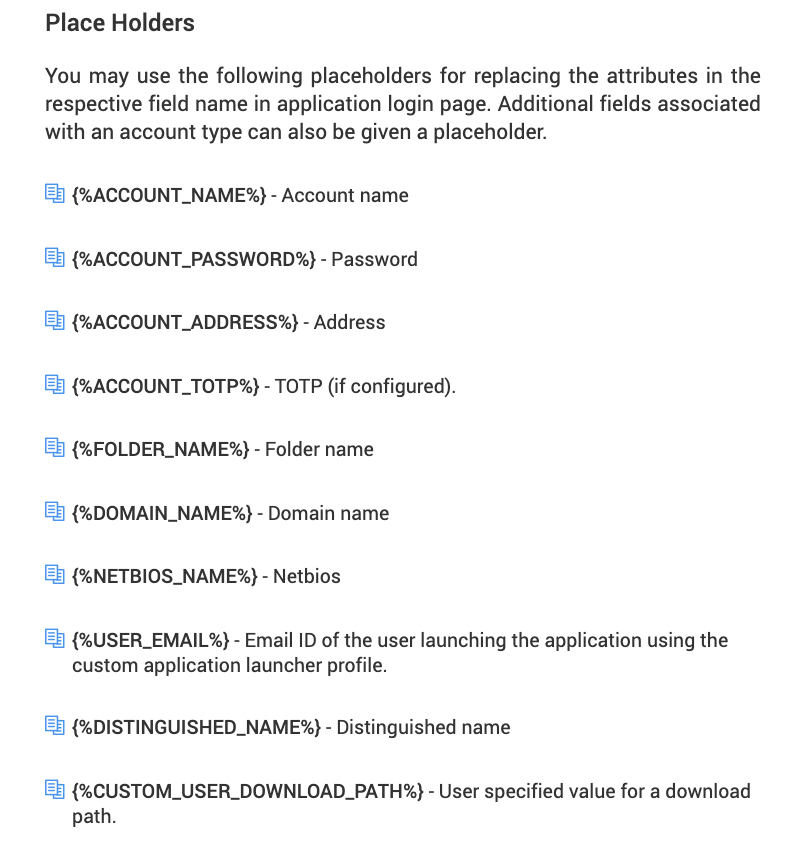
Centrally Defined, Not Individually Configured
Desktop automation isn't new. Auto-type functions and user-configurable input sequences exist in other tools. The more important question is who administers the workflow and how consistently it can be applied across an organization.
In a user-managed model, each employee configures the target application, field sequence, credentials, and any custom values themselves. That may work for a single technical user — it doesn't scale, and it doesn't standardize. Securden brings the entire process under administrative control. Administrators define the profile, map the fields, associate the profile with users or groups, and update it centrally whenever the application changes. End users never need to understand executable paths, placeholder syntax, or field mappings — they see only the approved launch option made available to them.
The result is a single approved workflow per application rather than a patchwork of individually maintained scripts and shortcuts: consistent launch behavior, less end-user configuration, faster updates when an application changes, and reduced credential exposure since users never need to reveal, copy, or manually type passwords to get in.
Require Approval Before a Launcher Profile Goes Live
Not every application should be freely automatable simply because a launch workflow can be built for it. Some profiles govern access to production systems, financial applications, infrastructure controls, or privileged administrator tools and configurations an organization wants reviewed before they're made available to users.
Launcher Profiles created by administrators are available immediately. When users in other roles such as account managers create or modify a profile, it enters a waiting-for-approval state. A designated administrator reviews the configuration — the application, the account type, the field mappings, the launch sequence — before the profile becomes active. Once approved, the profile is available to its associated users for repeated use without a separate approval step at each launch. The control sits where it's most effective: at the point where the workflow is defined, not at every moment of use.
Benefits at a Glance
|
Go Beyond Browser Autofill Extend secure, vault-driven access to thick-client, legacy, desktop, and proprietary applications — not just browser-based ones. |
One Profile, Every Account Define a launch workflow once and reuse it automatically across every account created under the associated account type. |
|
No Manual Credential Handling Users launch applications directly from Securden without ever copying, revealing, or manually typing a password. |
Built for Any Application Six launch types and custom account fields mean virtually any application's login structure can be modeled and automated. |
|
Centralized Administrative Control Administrators own the workflow. End users get a one-click launch experience with no configuration required on their end. |
Approval Before Activation Require a designated approver to review and sign off on any Launcher Profile before it goes live — keeping sensitive application access under governance. |
|
Consistent Access Across the Organization Replace individually maintained scripts and shortcuts with a single approved workflow that behaves the same way for every user, every time. |
Bring Secure, Centralized Access to Every Enterprise Application
Stop leaving desktop and legacy application access outside your security perimeter.

