


In any typical organization, managing business credentials involves a steady stream of small tasks: finding the right account, signing in to an application, saving a new password, or updating an existing one. Bringing these tasks closer to where employees work makes secure access easier to use every day.
With Securden Password Vault for Enterprises, users can handle these everyday tasks directly through the browser extension, without opening the product’s web interface. Once authenticated through the extension, they can work with the accounts and actions permitted for them, while IT retains central control over access.
Available for Chrome, Firefox, Edge, and Safari, the browser extension makes the organization’s Vault accessible within familiar workflows.
Access the right account without switching tabs
Users can search their Vault, open account details, and retrieve permitted credentials from the browser toolbar. Favorites keep frequently used accounts close at hand, while search by account title, username, URL, account type, or notes helps locate the right entry.
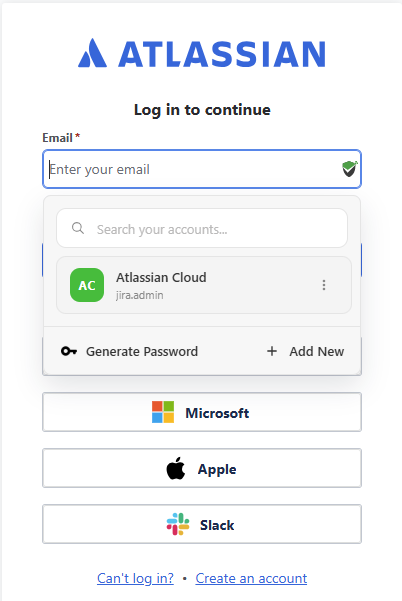
On a website’s login page, users can select from accounts associated with that URL and autofill the username and password. They can also fill either field separately. Where an account has an associated time-based one-time password (TOTP), authorized users can copy the current code to complete verification.
Create, save, and update credentials as you work
Users can generate random passwords or passphrases while setting up an account, choosing the length, complexity, or word count required. They can then save the credentials to the Vault through the extension, keeping account creation and password storage within the same workflow.
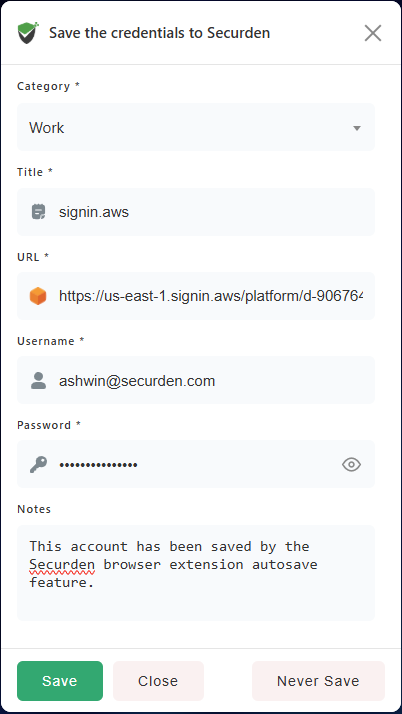
When users enter new credentials on a website, they can review the save prompt and add them to the Vault. If a stored account’s password changes, an update prompt helps keep the Vault current when the URL and username match.
Account owners and users with the necessary permissions can also add accounts or edit details directly, including URLs, folders, tags, and notes.
Use shared accounts with the access you need
Teams can access shared applications without routinely passing passwords between colleagues. With Open Connection permission, users can launch an application using its stored credentials while reveal and copy actions remain unavailable for the password.
The permissions configured in Password Vault continue to govern which accounts and actions users can access through the browser. Supported sign-in options include the organization’s configured SSO methods, with MFA where enabled.
For accounts protected by just-in-time access, users can initiate a request from the extension. The link opens the Vault’s request page, and approved access remains available only for the granted period.
Launch business applications and remote connections
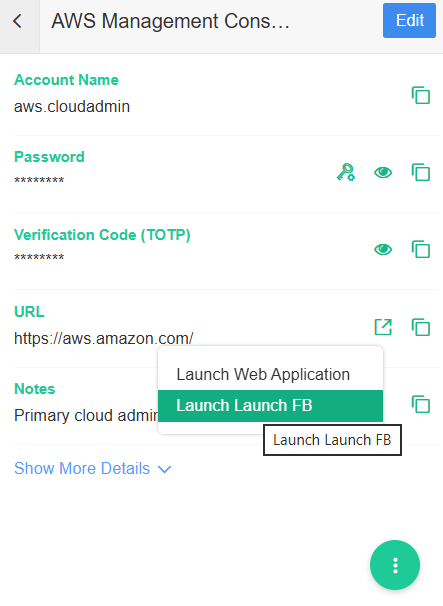
Users can open configured web applications and autofill their credentials directly from the account list. When an account is linked to multiple applications or systems, they can select the intended target before connecting.
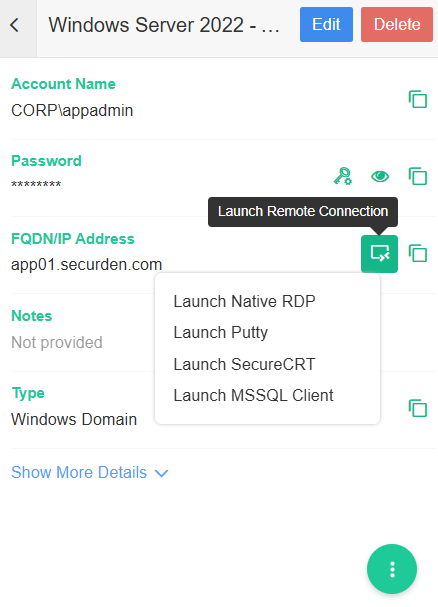
IT users can also initiate configured RDP, SSH, database-client, and custom-application launches through the browser extension. Native connections require the Securden Remote Launcher and the appropriate client where applicable. Available launch options follow the account’s configuration, associated assets, and permissions.
Support the way your applications work
Business applications sometimes use login fields that automatic detection cannot recognize. With input field mapping and Capture Page Fields, users can map supported fields to the corresponding Vault attributes and reuse those mappings for subsequent logins. Administrators can configure mappings for everyone, simplifying access to commonly used applications.
IT can also centrally restrict specified URLs from having credentials saved through the extension and hide selected webpage elements, such as password-reveal controls, during autofill. Users can choose Never Save for websites where they do not want save prompts.
These controls help organizations tailor the experience to their applications while preserving central oversight.
Keep essential credentials available during interruptions
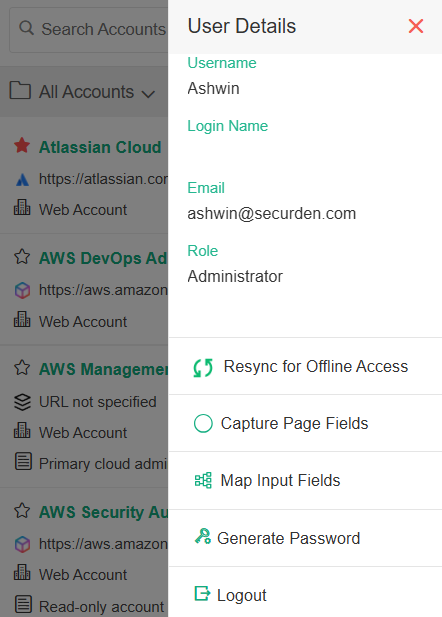
When connectivity to the Vault server is unavailable, users can unlock previously synchronized credentials through the extension and autofill supported websites.
Offline access must be configured while the server is reachable. Accounts permitted for offline use are cached locally in encrypted form and unlocked with the user’s offline-access passphrase. The cache is specific to the browser profile where it was configured and reflects the latest successful synchronization, so users should resynchronize when their accounts or passwords change.
Bring password management into the working day
Securden Password Vault for Enterprises gives employees a practical way to manage daily credential tasks from the browser, with organizational permissions carried into each supported workflow. Users spend less time returning to the web interface, while IT maintains control over how accounts are accessed and used.
FAQs:
1. Which browsers does the Securden Password Vault extension support?
The Securden Password Vault for Enterprises extension is available for Chrome, Firefox, Edge, and Safari. After signing in through the extension, users can search their Vault, autofill credentials, save new passwords, and update existing ones without opening the web interface. IT keeps central control over access.
2. Can employees use a shared account without seeing its password?
Yes. With the Open Connection permission in Securden Password Vault, users can launch an application using its stored credentials. They cannot reveal or copy the password. Teams can use shared business accounts without passing passwords to each other, and access is still governed by the permissions set in the Vault.
3. Does the Securden browser extension work when the Vault server is unreachable?
Yes, if offline access was set up while the server was reachable. Accounts allowed for offline use are cached locally in encrypted form and unlocked with the user's offline-access passphrase. The cache applies only to the browser profile where it was set up and reflects the last successful sync.