



Enterprise password managers have made browser-based access considerably easier. Users can store credentials securely, retrieve them when needed, and autofill login forms across websites and SaaS applications.
But enterprise access does not begin and end in the browser.
Many organizations still depend on thick-client applications, locally installed tools, legacy software, database clients, proprietary utilities, and internally developed applications. These systems often require a user to launch an executable, select an environment, enter several application-specific values, move through multiple fields, and complete a custom authentication sequence.
Conventional desktop autofill may help populate a username and password. It does not typically address the complete application launch process.
Securden Password Vault for Enterprises closes this gap with Custom Application Launcher Profiles — centrally configured, reusable workflows that define how an application should be opened, how authentication details should be supplied, and how access should be governed.
Why Desktop Application Access Remains Difficult to Standardize
A typical enterprise environment includes a mix of browser-based business applications, Windows thick clients, database administration tools, legacy ERP systems, vendor-provided desktop utilities, proprietary internal software, and applications with custom login interfaces.
The login experience across these systems is rarely consistent. One application may require only a username and password. Another may ask for a server address, domain, client ID, company code, or environment. A third may require the user to move through several windows before a connection can be established.
Even when credentials are stored securely in a password vault, users may still need to locate the correct account, reveal or copy the password, open the application separately, select the right server or environment, and manually complete the remaining login steps.
This creates friction for users and undermines the security benefit of centralizing credentials in the first place. The password may be protected at rest, but the final access workflow still depends heavily on manual handling.
More Than Autofill: What Is a Launcher Profile?
To address this exact challenge, Securden Password Vault for Enterprises offers the Custom Application Launcher — a capability that lets administrators build app launcher profiles, define the fields each application requires, and extend access to users in a fully automated way. At the center of this capability is the Launcher Profile which is a reusable administrative blueprint that tells Securden how a specific application should be launched and how its authentication workflow should be completed.
Rather than configuring the process separately for every account or user, an administrator creates a profile for an application and defines its expected launch behavior. Depending on the application, a profile can specify:
- The application or executable to be opened
- The login window Securden should identify, and the launch mode used to reach it
- The sequence in which fields should be populated, and the values supplied to each
- The delay Securden should allow before an application finishes loading, and between individual field operations
- Whether vaulted account credentials or the user's own credentials should be used
- Whether the profile requires administrative approval before it becomes available for use
The result is not simply a password filled into a desktop application. It is a centrally defined workflow for opening the application and completing its authentication sequence.
From the user's perspective, the experience stays simple: select the account in Securden, click Launch, and let the configured sequence run.
Six Launch Types to Match Different Applications
Because thick-client environments vary widely, Securden supports several launch types for a particular profile.
- Native App: for applications built on Windows-specific frameworks such as C# or Visual Basic
- Custom App: for applications built to run across multiple platforms
- Open App: opens the application without supplying any credentials; authentication is completed manually
- Autofill on next window: fills credentials into whatever application window is currently in focus, to open the target application in the next window.
- Google Chrome and Microsoft Edge: launches the respective browser directly
Having six launch types available means an administrator isn't forced to fit every application into the same launch mechanism. A native Windows utility, a cross-platform desktop client, a browser-dependent workflow, or an application that's already running can each be matched to the launch type that actually fits how it opens and authenticates. This flexibility is what allows the Custom Application Launcher to extend to virtually any application in an enterprise's environment, rather than being limited to a narrow set of supported formats.
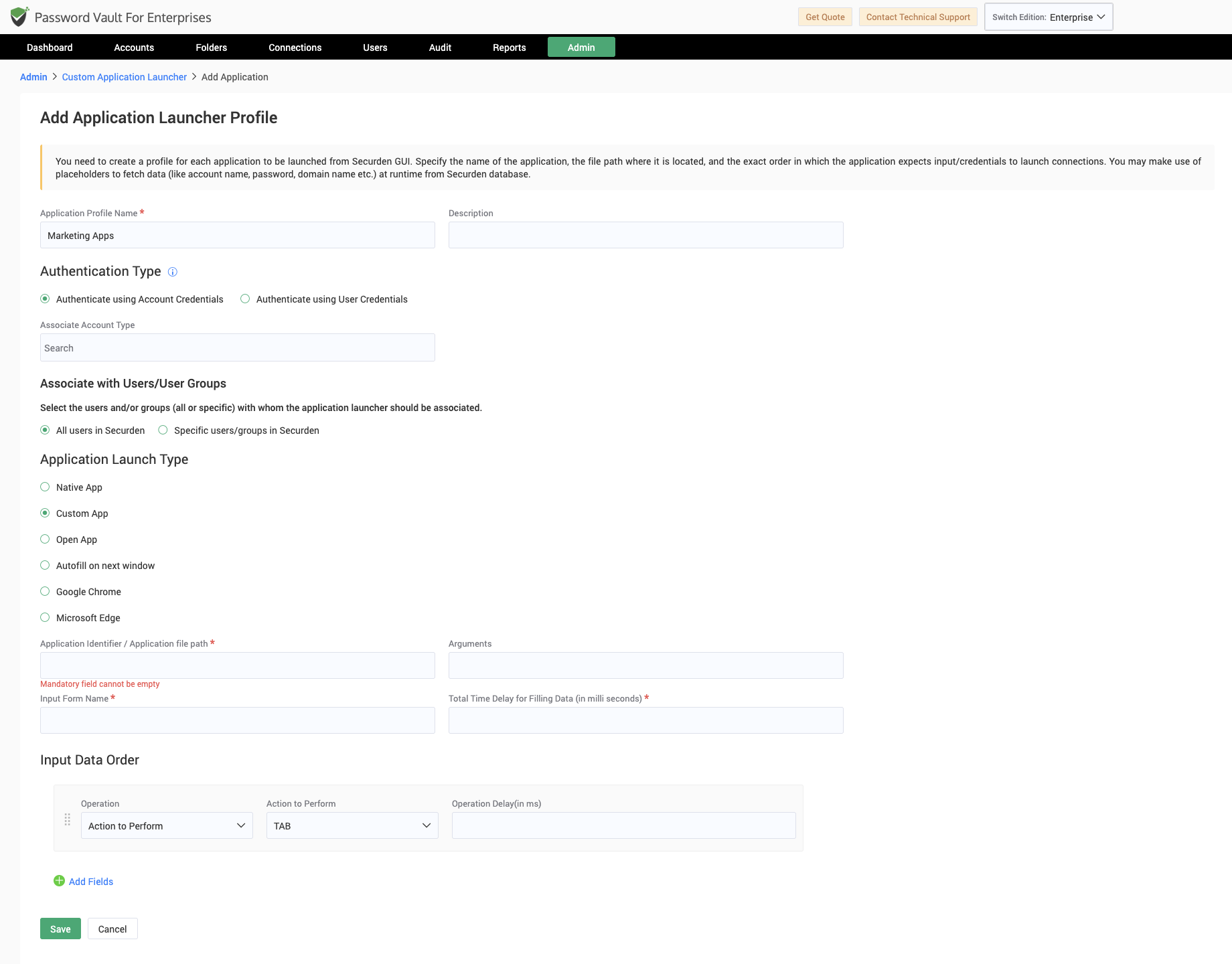
The Blue-Print for Launcher Profiles: Account Types and User Credentials
Launcher Profiles define how an application should be launched. Where that launch data comes from depends on the authentication type chosen when the launcher profile is built.
Securden supports two authentication types. Authenticate using Account Credentials ties the profile to a vaulted account. Every account stored in Securden Password Vault for Enterprises belongs to an account type, and the account type determines the fields available to that account: account name, password, address, domain, TOTP, or other application-specific information. When this authentication type is selected, the administrator picks the relevant account type, and the profile is bound to the type rather than to individual accounts — any account created under that type automatically inherits the launch workflow, without additional per-account setup.
When the Authenticate using User Credentials is chosen, instead of pulling values from a vaulted account, the profile draws on the credentials and identity of the Securden user launching the connection — their username, password, email, and the address of the asset associated with them. This path suits applications where users authenticate with their own AD/Azure AD identity rather than a shared or service account stored in the vault.
For a standard application authenticated through account credentials, an existing account type may already contain everything required — a database account type, for instance, may already include username, password, server address, and domain. Legacy and proprietary applications often require more, in which case administrators can create a dedicated account type first, adding whichever fields the application's login process demands.
The complete administrative flow for an account-credential-based profile is:
- Create or select an account type
- Add any required application-specific fields
- Add the relevant application accounts under that type
- Create the Launcher Profile, selecting Authenticate using Account Credentials
- Map account fields using placeholders
- Associate the profile with the account type
- Make the profile available to the appropriate users or groups
For a user-credential-based profile, steps 1–3 and 6 fall away — there's no account type to build or associate. The administrator creates the profile, selects Authenticate using User Credentials, maps the available user-identity placeholders, and makes the profile available to the relevant users or groups directly.
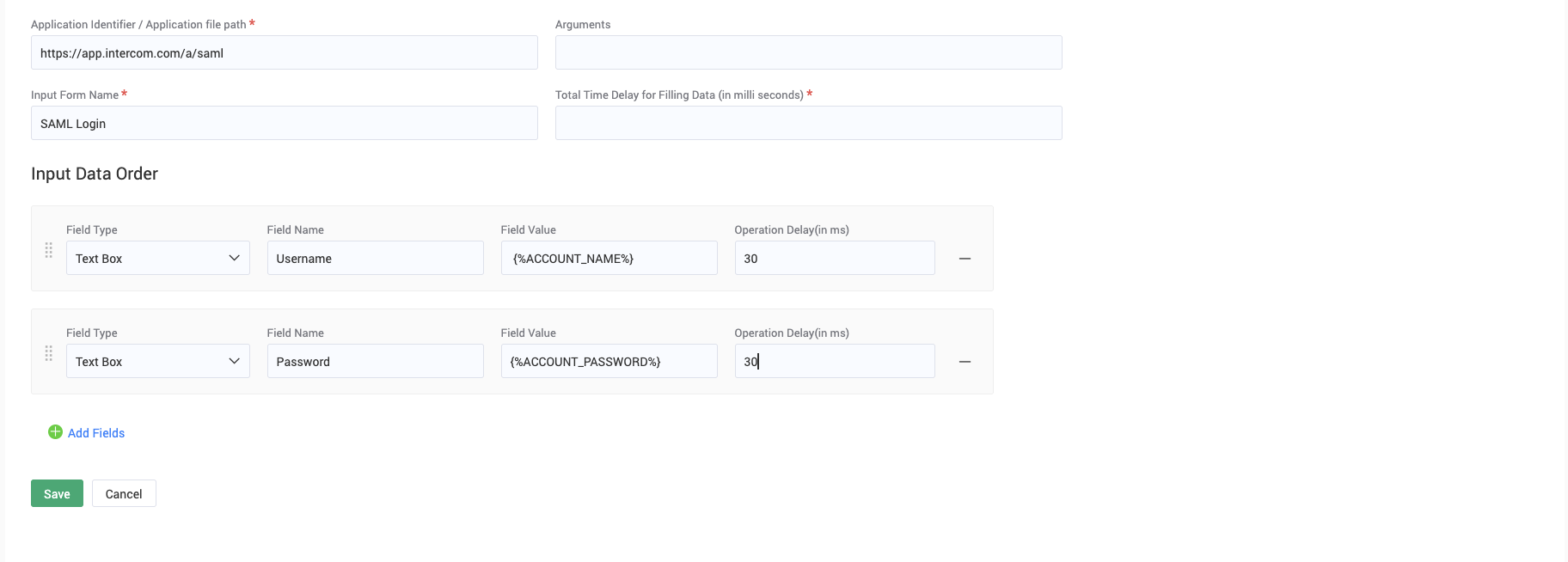
Map Multiple Accounts or Users to One Launcher Profile
The value of a Launcher Profile grows as it is reused at scale. Instead of creating a separate launcher configuration for every account or user, administrators can configure the launch logic once and associate it with the relevant accounts, users, or groups.
The same profile can then support multiple launches automatically, using the appropriate credentials for each request. Depending on the configuration, the launch may use a shared vaulted account or resolve to the individual user’s own credentials. In either case, the launch workflow remains consistent while the credentials are selected dynamically.
Dynamic Placeholders Make Launcher Profiles Reusable
A Launcher Profile must remain flexible enough to work across multiple accounts, users, and target systems. Instead of storing fixed values such as a username, password, or server address, the profile uses placeholders that act as dynamic variables.
At launch time, Securden automatically resolves these placeholders using the relevant account details, the identity of the user initiating the connection, or other associated information. This allows the same Launcher Profile to be reused without creating separate configurations for every account or user.
Standard placeholders include:
| Placeholder | Resolves to |
|---|---|
| {%ACCOUNT_NAME%} | Account name |
| {%ACCOUNT_PASSWORD%} | Password |
| {%ACCOUNT_ADDRESS%} | Address |
| {%ACCOUNT_TOTP%} | TOTP (if configured) |
| {%DOMAIN_NAME%} | Domain name |
| {%NETBIOS_NAME%} | NetBIOS name |
| {%FOLDER_NAME%} | Folder name |
| {%USER_NAME%} | Username of the associated user |
| {%USER_PASSWORD%} | Password of the associated user |
| {%USER_EMAIL%} | Email of the user launching the application |
| {%ASSOCIATED_ASSET_ADDRESS%} | IP address of the asset associated with the user |
| {%DISTINGUISHED_NAME%} | Distinguished name |
| {%CUSTOM_USER_DOWNLOAD_PATH%} | User-specified download path |
Suppose the selected account contains account name sap-admin-01, address sap-prod.example.com, and domain CORP, with its password stored securely in the vault. At launch time, Securden resolves each placeholder against that account and supplies the values to the appropriate fields. The profile itself remains generic — the selected account provides the actual data.
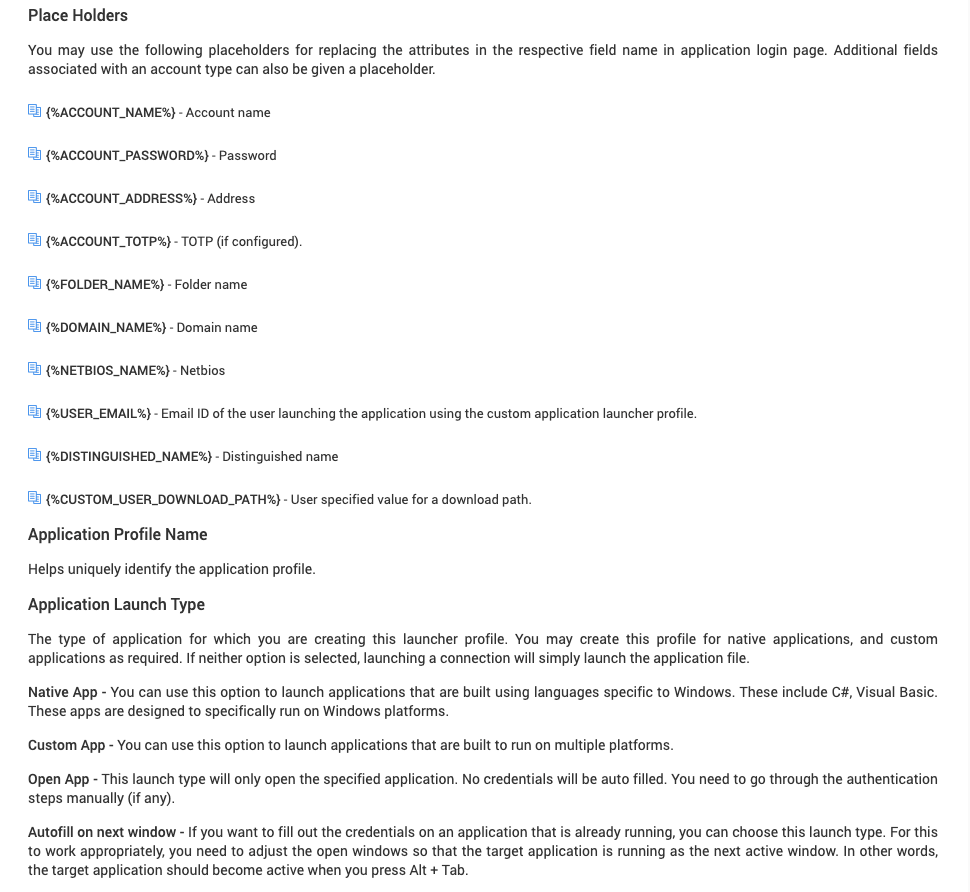
Extending Placeholders to Application-Specific Fields
Many enterprise applications ask for more than a username and password — a client number, a department code, an instance name, a plant or region identifier. To support this, administrators can add custom fields directly to an account type, and those fields become available as placeholders in the Launcher Profile alongside the standard ones.
A profile for an ERP application, for example, might map {%ENVIRONMENT%}, {%CLIENT_ID%}, and {%COMPANY_CODE%} — fields defined on a custom account type — together with {%ACCOUNT_NAME%} and {%ACCOUNT_PASSWORD%}.
This is where the feature becomes particularly valuable for proprietary and legacy systems: organizations don't have to wait for a vendor to build native support for a specific application's field structure. Administrators can model the requirements themselves, using their own account types, fields, placeholders, and launch sequence.
Centralized Administration Instead of Individual User Configuration
Desktop automation isn't new — Auto-Type functions, command-based launches, and user-configurable input sequences exist elsewhere in the market. The more important question is how those workflows are administered.
In a user-managed model, individual employees configure the target application, the matching window, the input sequence, the delays, the credentials, and any custom fields themselves. That may work for one technical user; it doesn't scale, and it doesn't standardize.
Securden brings the entire process under administrative control instead. Administrators define the profile, select the account type, map standard and custom fields, associate the profile with users or groups, and update the workflow centrally whenever the application changes. End users never need to understand executable paths, process names, placeholder syntax, or field mappings — they see only the approved launch option made available to them.
The practical outcome is a single approved workflow per application rather than a patchwork of individually built scripts and shortcuts: consistent launch behavior, less end-user configuration, faster updates when an application changes, and reduced credential exposure, since users no longer need to reveal, copy, or manually type passwords to get in.
Approval as a Governance Control on the Launcher Profile Itself
Not every application should be freely automatable simply because a launch workflow can be built for it. Some Launcher Profiles govern access to production systems, financial data, infrastructure controls, or administrative consoles — access an organization wants to review before it's made available at all.
Securden supports this through profile-level approval. When an administrator creates or modifies a Launcher Profile, it enters a "Waiting for Approval" state. An Administrator reviews the configuration — the application, the account type, the field mappings, the launch sequence — before the profile becomes active. Once approved, the profile is available to its associated users for repeated use, without a separate approval step at each individual launch.
This places the control where it's most effective: at the point where the workflow itself is defined, rather than at each moment of use. An organization can require sign-off before a new or modified production-access profile goes live, while leaving already-approved profiles to function as a smooth, repeatable part of daily work.
Approval-gated profiles are particularly useful for launch workflows tied to production database access, financial applications, privileged administrator tools, infrastructure management consoles, vendor-maintained applications, and other high-risk or shared-account scenarios.
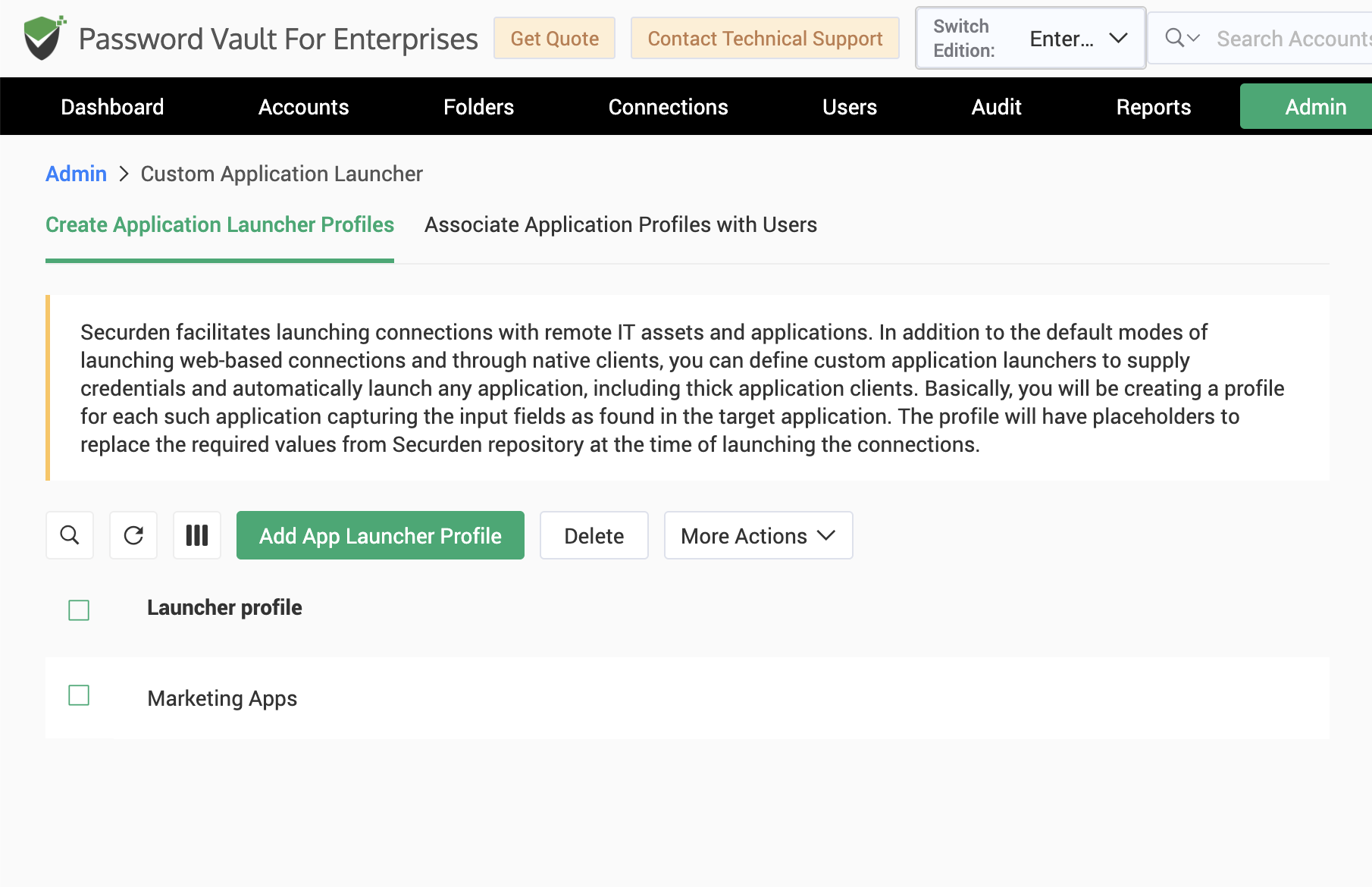
A Practical Use Case: Standardizing Access to a Complex ERP Application
Consider an organization running a desktop-based ERP system across finance, procurement, and operations. Like many ERP deployments, this one has been configured and extended over years to fit the organization's specific processes — its login sequence, in particular, is not a standard username-and-password form, but a structure unique to how this instance has been set up.
To reach the application, users must open the ERP client, select the production or test environment, enter a client identifier and company code, then supply a username and password before the form can be submitted.
The credentials may already be stored securely in a password vault, but much of the access process remains manual. Users select the wrong environment. Client identifiers and company codes end up in local notes. New employees need step-by-step instructions for the exact field order. When the application changes, IT has to communicate the revised procedure to everyone who uses it.
With Securden Password Vault for Enterprises, the entire password access workflow is made simpler and more secure.
Step 1: Create a dedicated account type
Because the application requires fields a standard account type doesn't contain, the administrator creates an ERP Account type with environment, client ID, company code, server address, account name, and password. ERP accounts are added under this type, giving Securden a structured place to hold every value the application needs.
Step 2: Build the Launcher Profile
The administrator creates a Launcher Profile for the ERP client, defining the executable, the target login window, the field order, any load-time delay, and the final submit action. Fields are mapped using placeholders:
- Environment → {%ENVIRONMENT%}
- Client ID → {%CLIENT_ID%}
- Company Code → {%COMPANY_CODE%}
- Server → {%ACCOUNT_ADDRESS%}
- Username → {%ACCOUNT_NAME%}
- Password → {%ACCOUNT_PASSWORD%}
Step 3: Associate the profile with the account type, and route it for approval
The administrator associates the profile with the ERP Account type, so every account created under it inherits the workflow automatically. Because this profile governs access to a production environment, it's routed for approval before going live — a designated approver reviews the configuration once, and the profile then remains available to its associated users going forward.
Step 4: What the user experiences.
The user selects their ERP account in Securden and clicks Launch. Securden opens the ERP client, waits for the login window, and supplies the environment, client ID, company code, server address, username, and password in sequence. The user reaches the application without ever copying or viewing the password.
The result, a consistent login process across every user, fewer field-entry errors, no locally stored client codes or company identifiers, one profile to update when the application changes instead of many individual workstations to reconfigure, and a reviewed, approved configuration standing behind production access — all without adding friction to the day-to-day act of logging in.
Why This Matters for Enterprise Password Management
Custom Application Launcher is not simply a convenience feature. Its larger value is extending enterprise password management into applications that don't fit standard browser-based workflows, through five capabilities working together:
- Reusable application workflows: defined once, not per user or account
- Two authentication paths: profiles can be created using vaulted accounts, with account-type-driven customization for legacy or proprietary field requirements, or from the launching user's own credentials, for applications where users authenticate with their individual identity rather than a shared account. dedicated account types model the data a legacy or proprietary application actually requires
- Dynamic, placeholder-based input: standard and custom placeholders let one profile work across accounts, users, servers, and environments
- Centralized administration: profiles are created, associated, and maintained by administrators, not individual users
- Approval-driven governance: sensitive profiles can be reviewed before they go live
In conclusion, desktop autofill helps a user enter credentials into an application. A centrally managed Launcher Profile defines how the application should be launched, what information should be supplied, which accounts can use the workflow, who can access it, and whether that configuration required approval before going live.
Several enterprise password managers offer browser autofill, desktop autofill, auto-type, or configurable application launches, and these can be effective for standard login forms or individually managed workflows.
Most enterprise password managers can fill credentials into a desktop application in some form. What sets Securden Password Vault for Enterprises apart is what happens around that moment of access — administrators can model exactly what an application needs, build a launch workflow once and reuse it across various account types and user groups, populate it dynamically with standard and custom placeholders, and require approval before a sensitive workflow ever goes live. That turns application access into something IT can define, govern, and audit and not a fragmented patchwork of scripts and shortcuts each user maintains on their own.
Bring Secure, Centralized Access to Every Enterprise Application
Bring Secure, Centralized Access to Every Enterprise Application
FAQs
1. What is a Custom Application Launcher in an enterprise password manager?
A Custom Application Launcher allows administrators to create reusable launch workflows for desktop, legacy, and proprietary applications. Instead of manually opening an application and entering credentials, users can launch the application directly from the password vault. The launcher opens the application, populates the required fields using account information stored in the vault, and completes the configured login sequence.
2. How is a Launcher Profile different from desktop autofill?
Desktop autofill typically focuses on entering usernames and passwords into supported applications. A Launcher Profile goes further by allowing administrators to define the complete application launch workflow, including opening the executable, identifying the login window, populating standard and application-specific fields, executing input sequences, and applying approval controls where required.
3. Can Custom Application Launcher support proprietary or internally developed applications?
Yes. Administrators can create dedicated account types with application-specific fields and use those fields as dynamic placeholders while configuring a Launcher Profile. This allows organizations to automate authentication workflows for proprietary, legacy, or industry-specific applications without waiting for native integrations.
4. Why use Launcher Profiles instead of manually configuring desktop application logins?
Launcher Profiles centralize application login workflows under administrative control. Administrators define the workflow once, associate it with relevant accounts, assign it to users or groups, and update it centrally when applications change. This provides a consistent user experience, reduces manual credential handling, minimizes configuration effort for end users, and helps organizations enforce approval-based access to sensitive applications.