
Securden Unified PAM
Instructions for upgrading from versions 12.2.5 and above
Pre-requisites
- Download the Upgrade Pack (.sum file) and store it on the server where Securden Unified PAM is installed.
- Ensure that your System is Ready for Upgrade by navigating to Admin\Product Upgrades on your Primary server.
- If you are able to see the green tick, proceed with the upgrade steps.
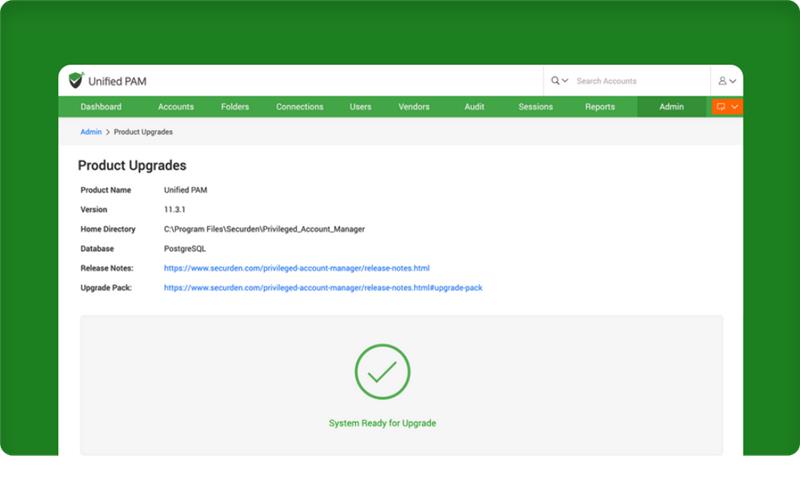
If you do not see the green tick
You will not be able to upgrade the system. This happens if High Availability has been configured, and the Secondary has been set as the ‘Master’. In this scenario, change the Primary Server to Master and proceed with the upgrade.
Note (If you utilize MS SQL as the backend database)
You need to ensure that the user account you use to run the upgrade manager has sufficient permissions to create backups on the SQL server.
Please ensure that all of the following steps are followed precisely.
Step 1
Step 2
Follow the steps below to upgrade your Securden instance.
- Stop "Securden PAM Service" from services.msc in the Primary Server.
- If you have all servers on the same subnet - All Secondary/Standby servers can be left running.
- If you have Secondary/Standby servers on different subnets, stop the "Securden PAM Service" from services.msc on Secondary/Standby servers across all the different subnets.
Step 3
Pre-requisite
For auto-upgrade to work properly on all secondary servers, the required port must be opened — inbound on the Primary server and outbound on the Secondary servers.
The port number can be found on the Primary server at:
<PAM_Installation_Location>\conf\server.properties >> API_SERVER_WEB_SOCKET_SERVER_PROXY_PORT
- Navigate to <PAM_installation_location>\bin folder and execute "SecurdenUpgradeManager.exe" and in the upgrade manager GUI, select the downloaded upgrade pack file (Step 1).
- Click the Apply Upgrade Pack button. Securden will back up the necessary files, and the upgrade process will be completed in some time.
- However, if you wish to do so you can have a second back up - copy the entire Securden installation folder and store the backup copy in a secure location.
- For MSSQL databases – you need to connect to the SQL Management Studio and take a backup of the Securden database.
- Once the upgrade is complete, start the "Securden PAM Service" from services.msc. You may ignore Web Service - Securden PAM, which is automatically taken care of.
- Clear browser cache and connect to the web interface https://localhost:5959 (or) https://URL to access the upgraded interface.
- If you have Standby server(s) on the same subnet as Primary, Securden will take care of upgrading all secondary servers and the standby server after the Primary server has been upgraded. You can monitor the status in the High Availability and Application Server pages.
- If you have Standby server(s) on different subnets from Primary (This configuration is not recommended), you will need to manually repeat the same upgrade steps on the Standby server. Securden will take care of upgrading all secondary servers.
- At any point during the upgrade, if the status displays ‘Upgrade Failed’ and there has not been a change for some time, please contact Securden Support and share logs with the support team.
Note
It is not necessary to back up the installation folder manually as this is taken care of by the upgrade manager.