
Endpoint Privilege Manager
Instructions for upgrading from versions 11.0.6 and above
Pre-requisites
- Download the Upgrade Pack (.sum file) and store it on the server where Securden Endpoint Privilege Manager is installed.
- Ensure that your System is Ready for Upgrade by navigating to Admin\Product Upgrades. If you are able to see the green tick, proceed with the upgrade steps.
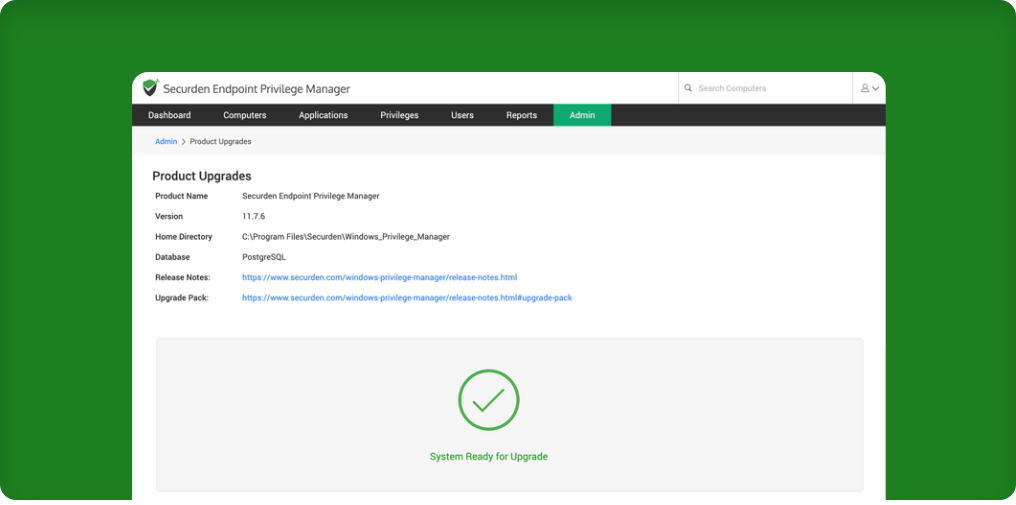
If you do not see the green tick
The reason why the system is not ready for upgrade is your ‘Secondary Server’ in your high availability setup has taken over as the Master server. The Securden server cannot be upgraded in such scenarios.
What are your next steps?
Simply navigate to Admin >> High Availability and set the Primary Server as the Master. Now, check if the system is ready for upgrade as explained in the previous step.
Steps to upgrade the Securden server
Please ensure that all of the following steps are followed precisely.
Step 1: Stopping the Securden WPM Service and taking a backup
- Stop “Securden WPM Service” from services.msc in all the Secondary Servers.
- Stop “Securden WPM Service” from services.msc in the Primary Server.
Important
Follow the steps in the next section to take a backup of your Securden instance. If something goes wrong, you will be able to restore using the backup copy.
How to take a backup?
If you are utilizing the PostgreSQL Server that comes bundled with Securden,
- Take a backup copy of the entire Securden installation folder and store the backup copy in a secure location.
The default installation path would be: <Installation-directory>\Windows_Privilege_Manager\bin
If you are utilizing MSSQL Server as the backend database,
- If you are using MSSQL as the backend database, connect to SQL Management Studio and take a backup of the Securden database.
Step 2: Installing the upgrade pack
- Execute the SecurdenUpgradeManager (.exe file) from the /bin folder located inside the Securden installation directory.
- In the upgrade manager GUI, browse & select the downloaded upgrade pack file and click the Apply Upgrade Pack button. The upgrade process will be completed in a few minutes.
- Now, start the “Securden WPM Service” from services.msc.
- You may ignore Web Service - Securden WPM, which is automatically taken care of.
- Connect to the web interface https://localhost:5151 (or) use the computer name of the primary server.
Example: https://EC2AMAZ-KROJ51Q:5151 - Clear the browser cache.
- Once the primary server is upgraded, you must upgrade all the secondary servers following the same steps.
Important
Ensure that the MD5 of the downloaded upgrade pack matches this value:
If you need any assistance, write to support@securden.com